Billing
On the «Abo & Abrechnung» (Subscription & Billing) page you see your subscription, your invoices and your payment details in one place. Here you add displays and premium instances to your subscription or remove them, and you redeem vouchers.
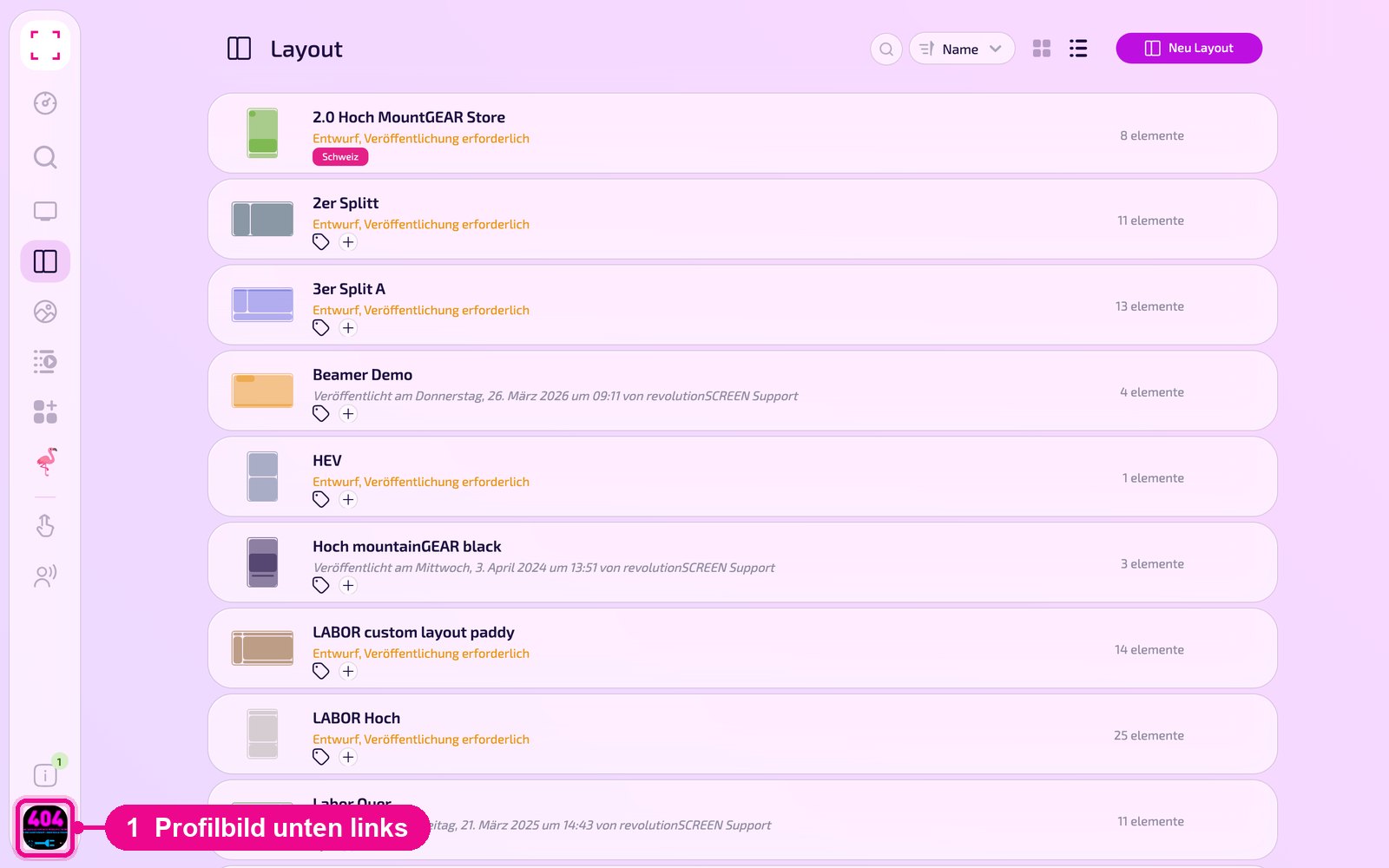
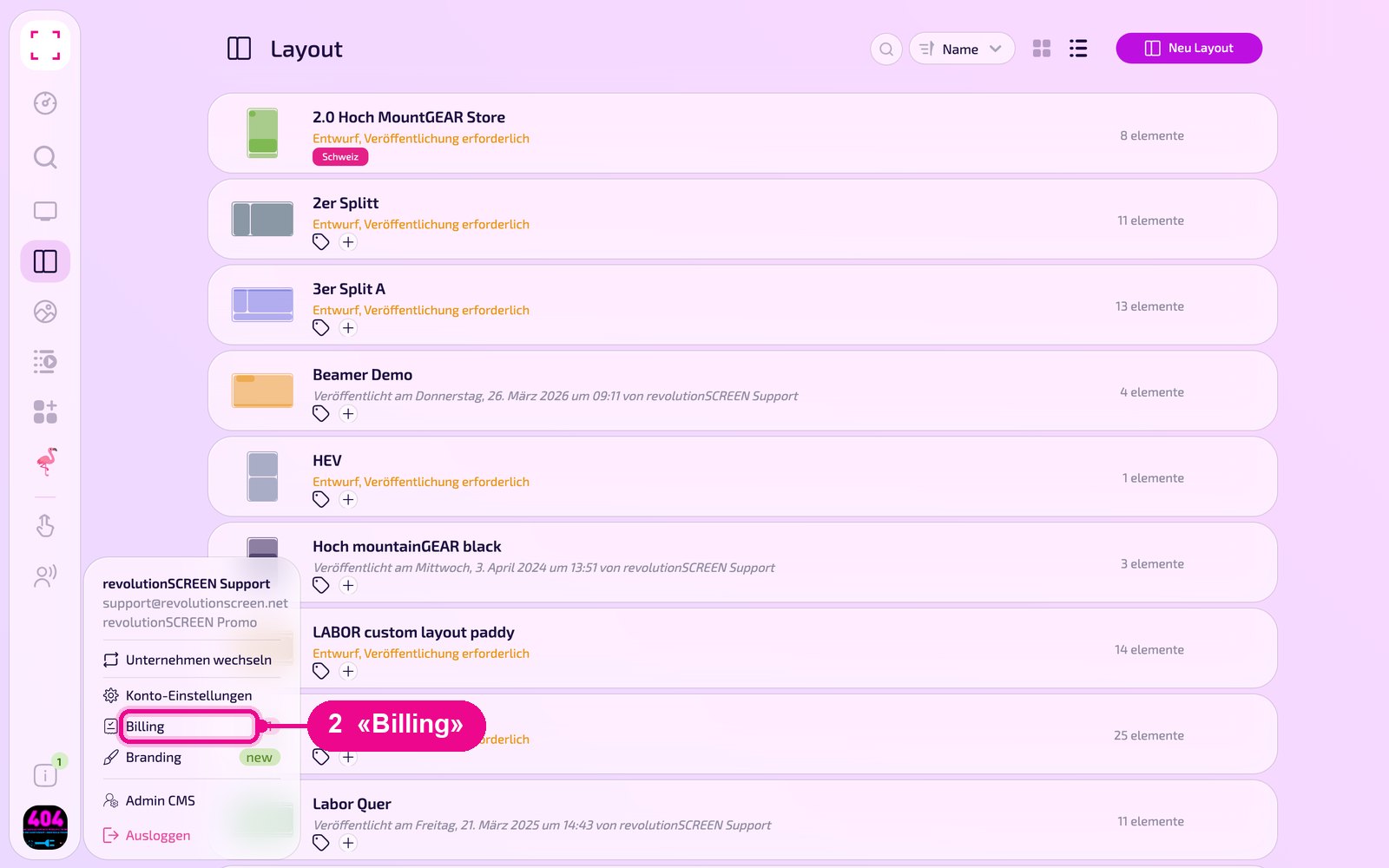
Profile picture at the bottom left → «Billing». You land on the «Abo & Abrechnung» (Subscription & Billing) page. Alternatively: profile picture → «Konto-Einstellungen» (account settings) → «Abrechnung» (Billing) on the left.
Overview: subscription at a glance
The page has five tabs: «Übersicht» (Overview), «Rechnungsverlauf» (Invoice history), «Screens», «Apps» and «Einstellungen» (Settings). In the overview, the «Abo» (Subscription) card shows your current subscription plan, the next billing, used and paid screens, premium instances and storage. With «Upgrade-Plan» you switch your subscription.
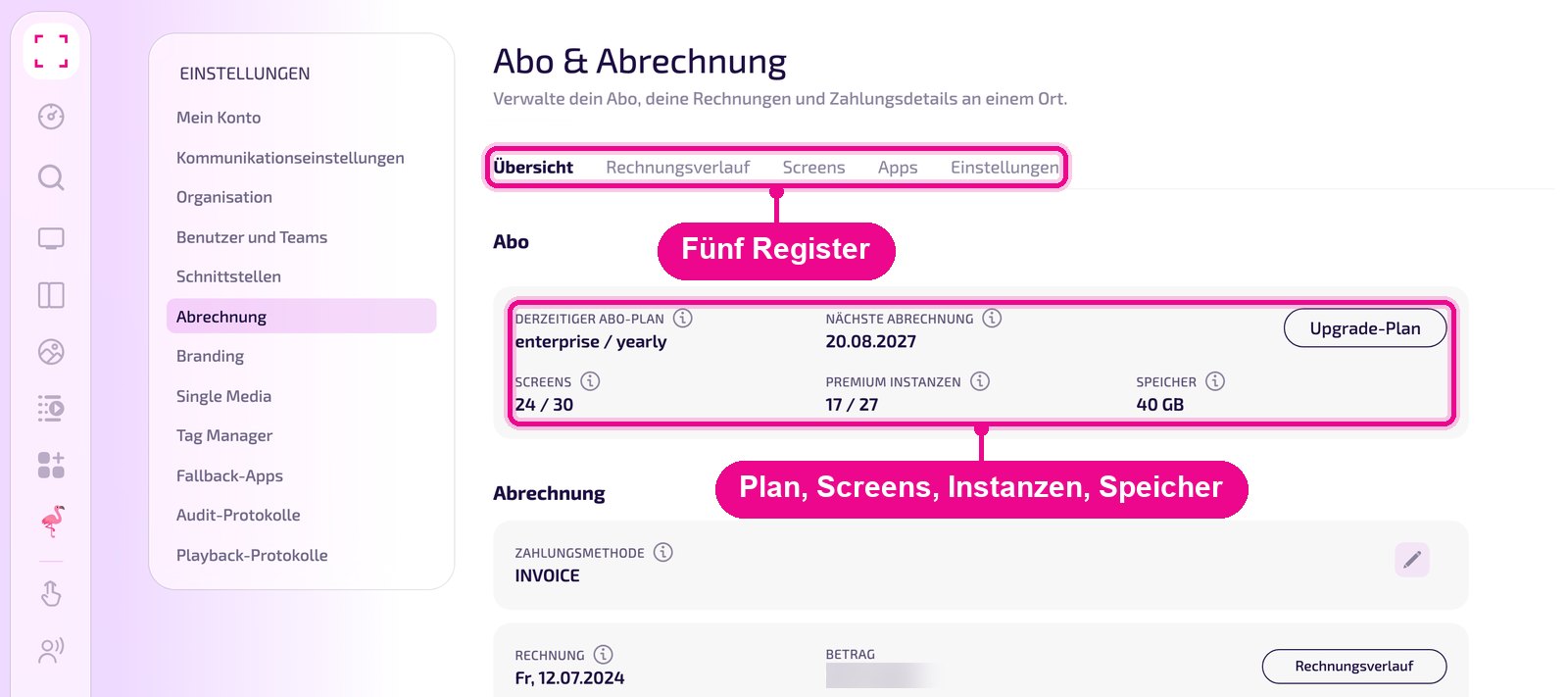
Below follow the «Abrechnung» (Billing) card with payment method and last invoice, the «Gutscheine» (Vouchers) card and the «Zahlungsadresse» (Payment address) with your tax location.
The guide «Abo wechseln» shows how to choose a different subscription model.
Change payment method
You cannot change the payment method yourself. If you click the pencil next to «Zahlungsmethode» (Payment method), a note appears saying the change is handled by the support team.
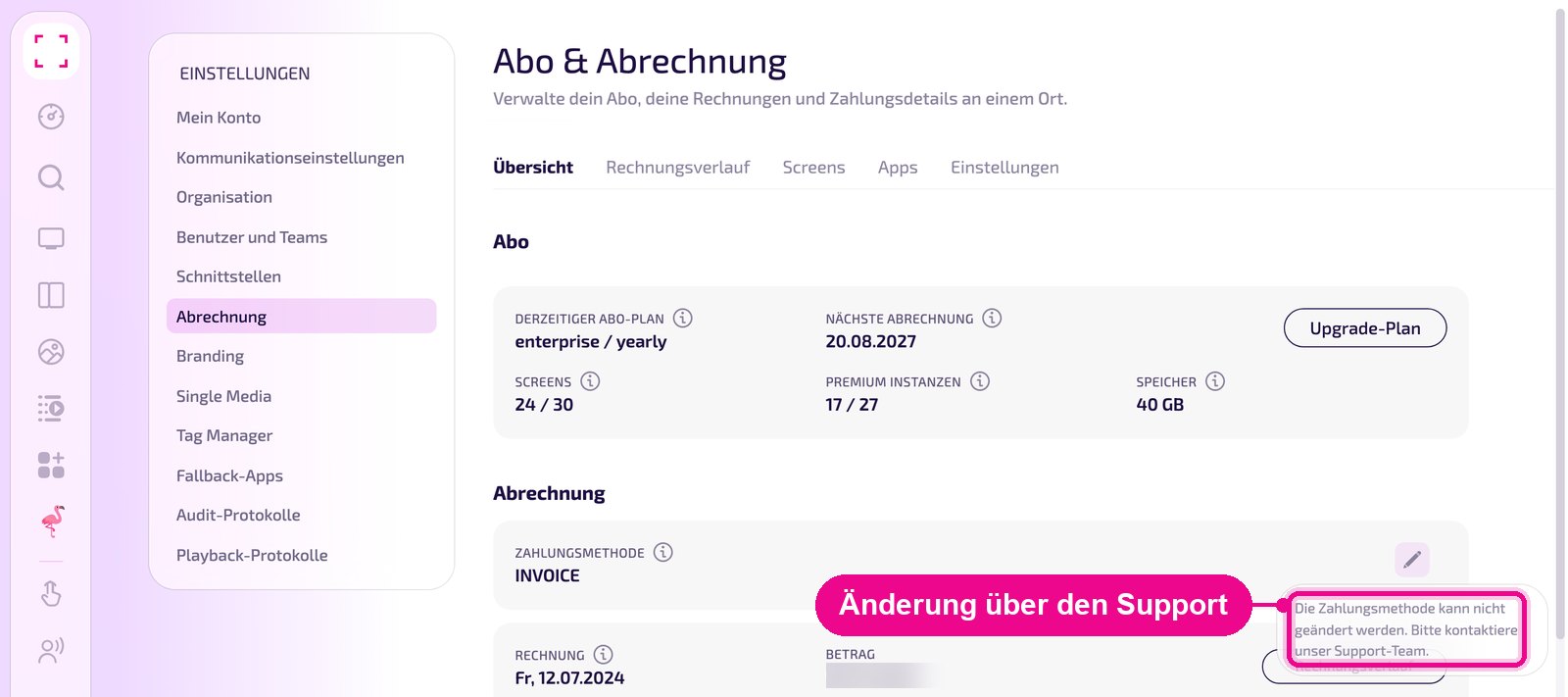
If you want a different payment method, contact revolutionSCREEN support.
Redeem voucher
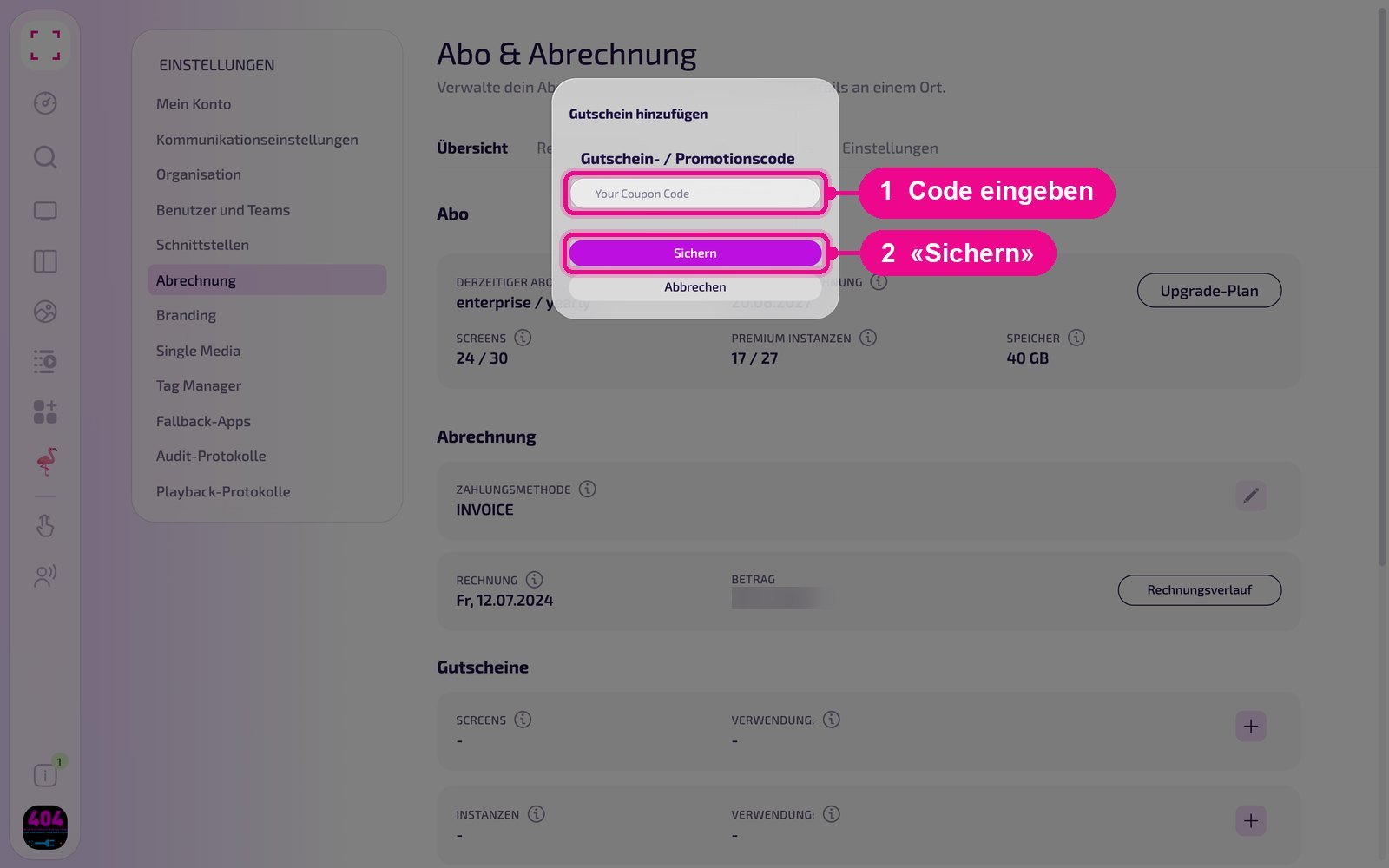
If you have a voucher or promotion code, click the plus in the «Gutscheine» (Vouchers) card. There is one line each for screens and for instances. Make sure the code applies to the chosen line. Enter the code and click «Sichern» (Save). The credit is applied at the next billing.
View invoice history
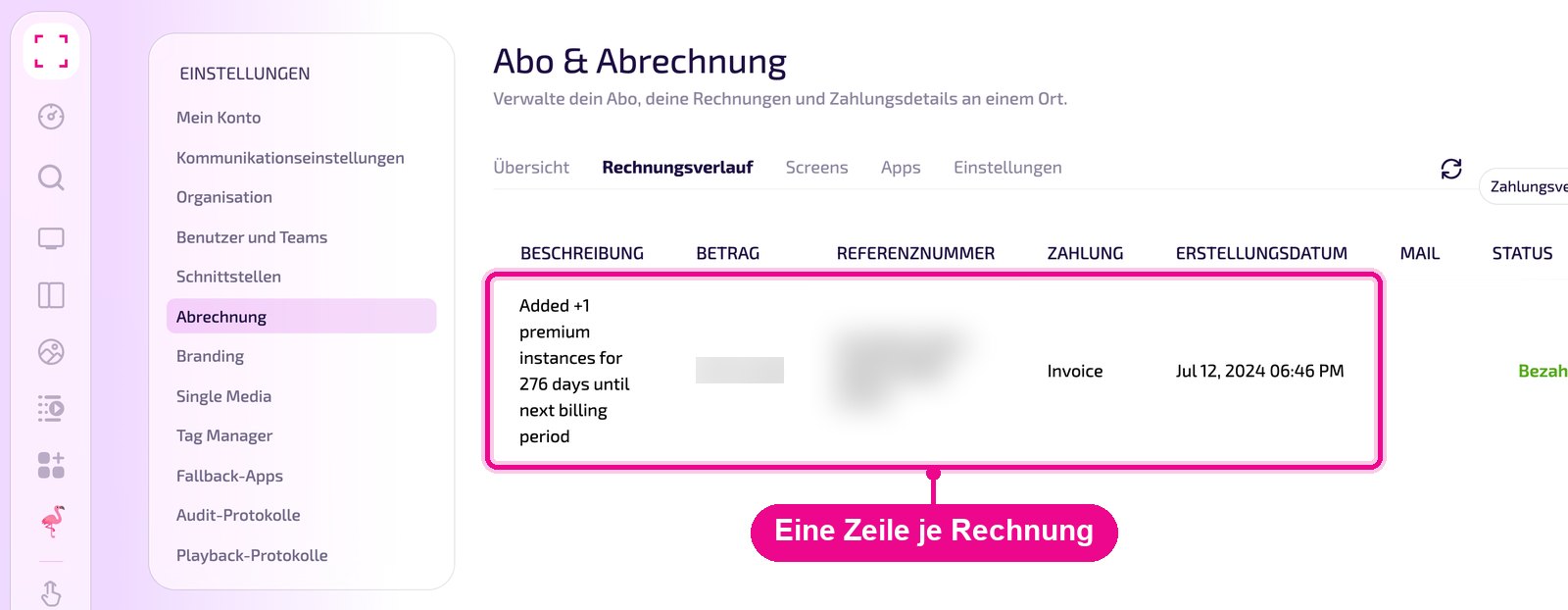
In the «Rechnungsverlauf» (Invoice history) tab all invoices are listed: description, amount, reference number, payment type, creation date and status (e.g. «Bezahlt» / Paid). With the arrow icon at the top right you reload the list, and with the selection field next to it you filter it.
Manage screens in the subscription
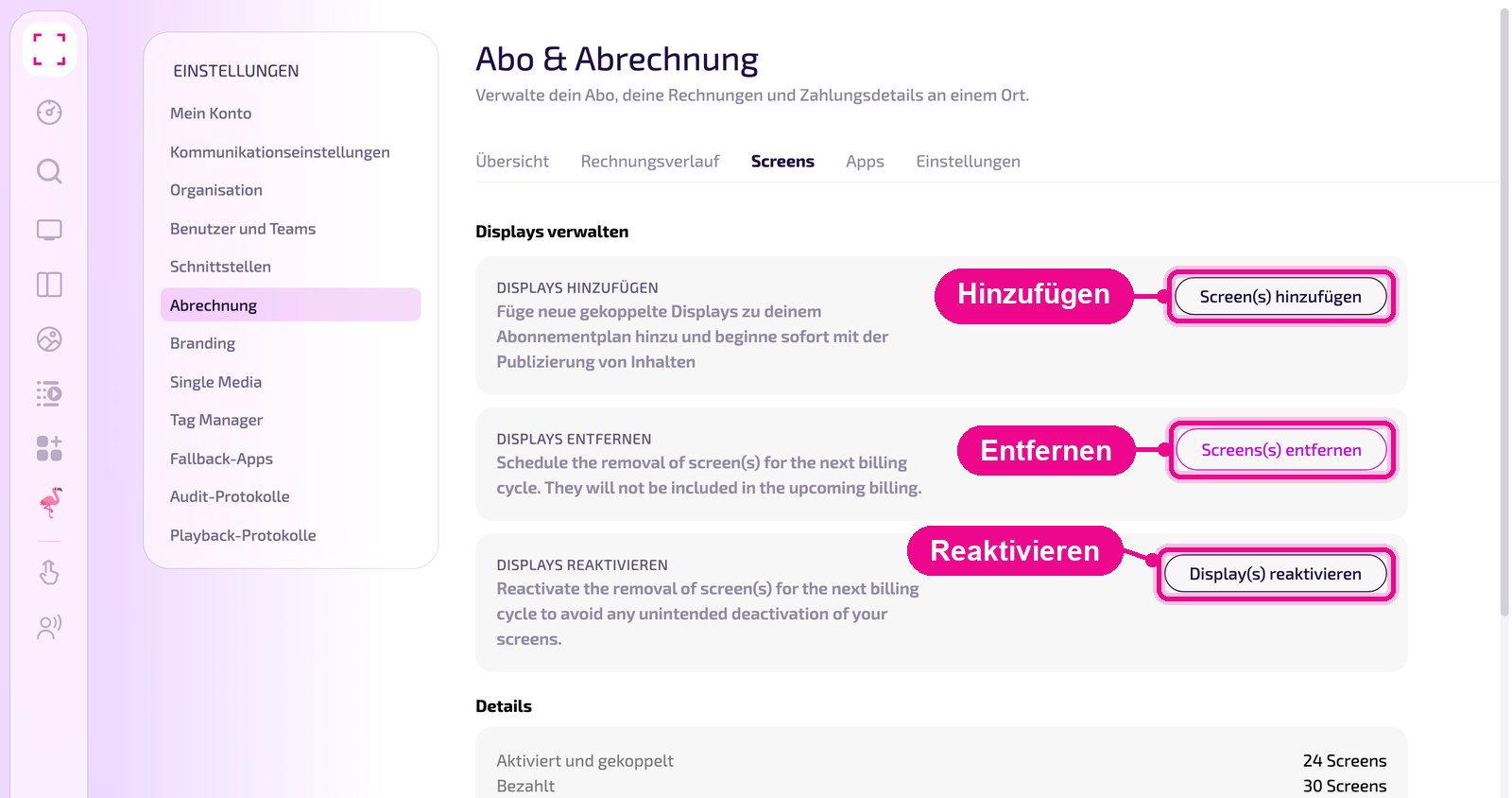
In the «Screens» tab you control how many displays are billed in your subscription. Under «Displays verwalten» (Manage displays) there are three cards: add displays, remove displays and reactivate displays. Below, «Details» shows how many screens are activated and paired and how many you have paid for.
Add a screen to the subscription
In the «Displays hinzufügen» (Add displays) card, click «Screen(s) hinzufügen» (Add screen(s)). The list shows the paired displays that are not yet in your subscription. Select the desired displays and click «Bestätigen» (Confirm). If the list is empty («keine Ergebnisse gefunden!» / no results found!), all paired displays are already in the subscription.
Remove a screen from the subscription
In the «Displays entfernen» (Remove displays) card, click the button. The list of your displays opens. Click the display that should no longer be billed. The row is marked and the «Auswählen» (Select) counter at the top counts along. With «Alles auswählen» (Select all) you mark all displays. Then click «Bestätigen» (Confirm).
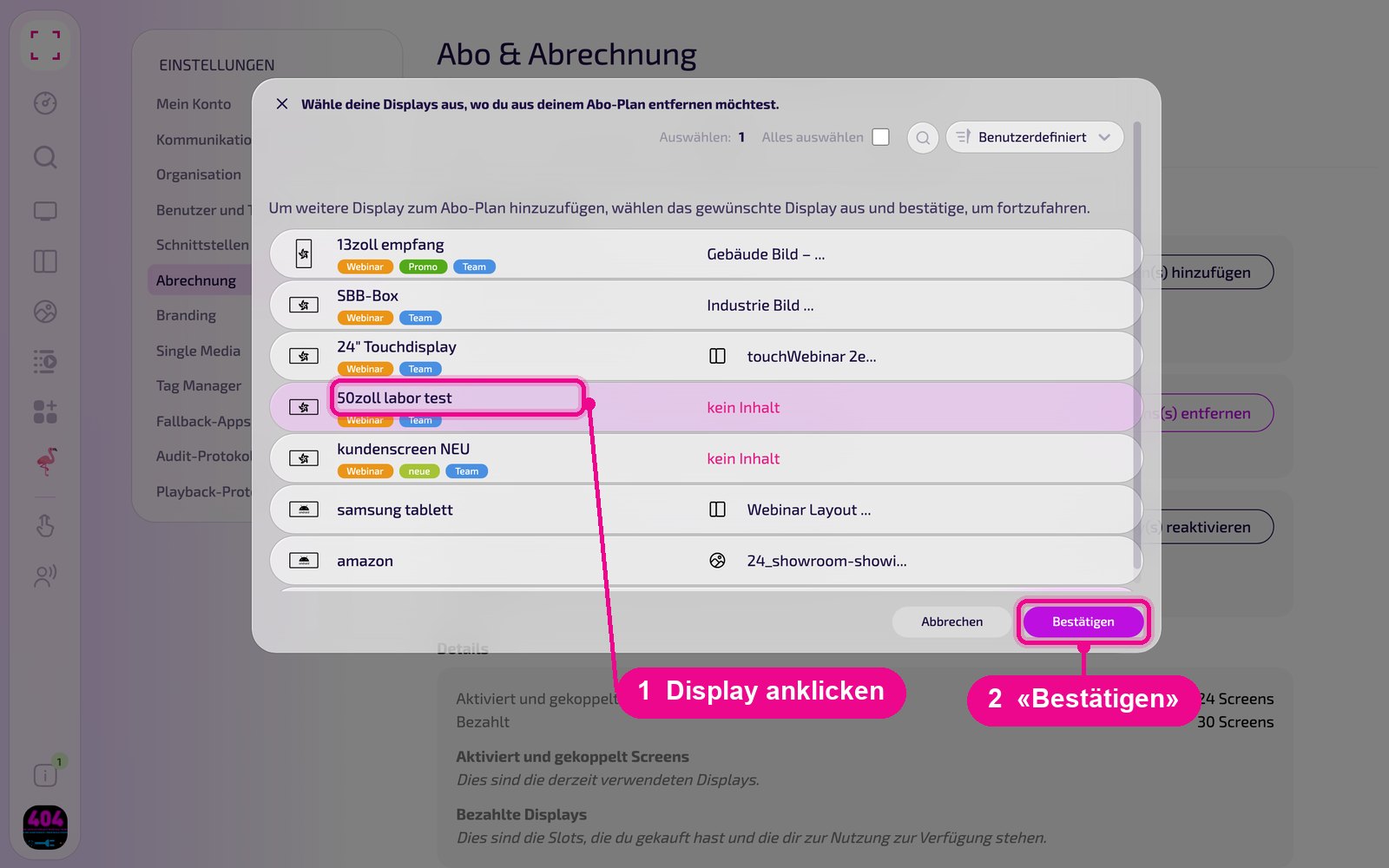
The display is removed from your subscription as of the next billing cycle and is no longer taken into account at the upcoming billing.
Here you only remove a display from the billing. You delete the screen itself under «Screens» on the display's detail page. That is a different process.
Undo removal
If you want to keep a display that is flagged for removal after all, click «Display(s) reaktivieren» (Reactivate display(s)) in the «Displays reaktivieren» (Reactivate displays) card. Select the display in the list and click «Bestätigen» (Confirm). This prevents the screen from being deactivated unintentionally.
Manage premium instances in the subscription
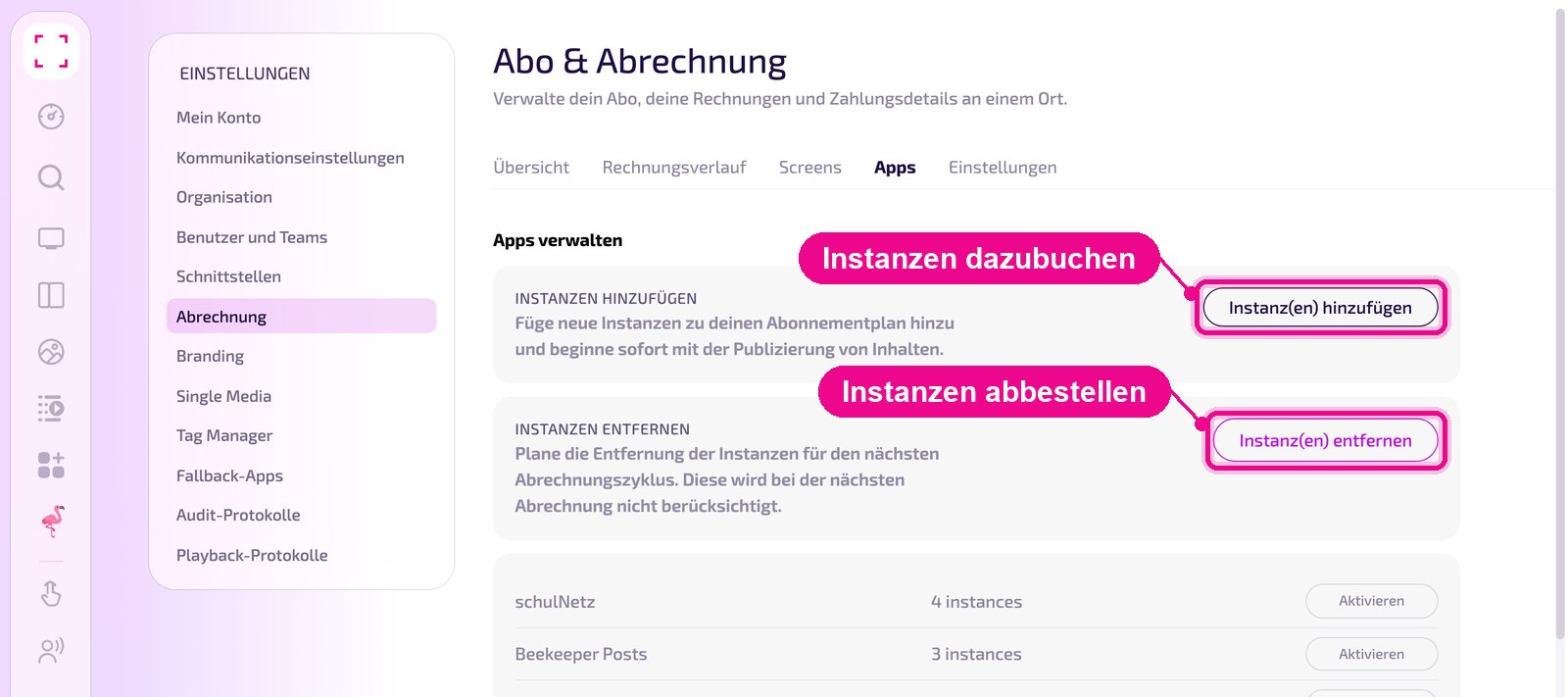
In the «Apps» tab you manage your subscription's premium instances. With «Instanz(en) hinzufügen» (Add instance(s)) you book additional instances, with «Instanz(en) entfernen» (Remove instance(s)) you cancel them. Below are the apps of your subscription with the number of instances and the «Aktivieren» (Activate) button. Under «Details» you see how many instances are activated and how many are paid for.
Add premium instances
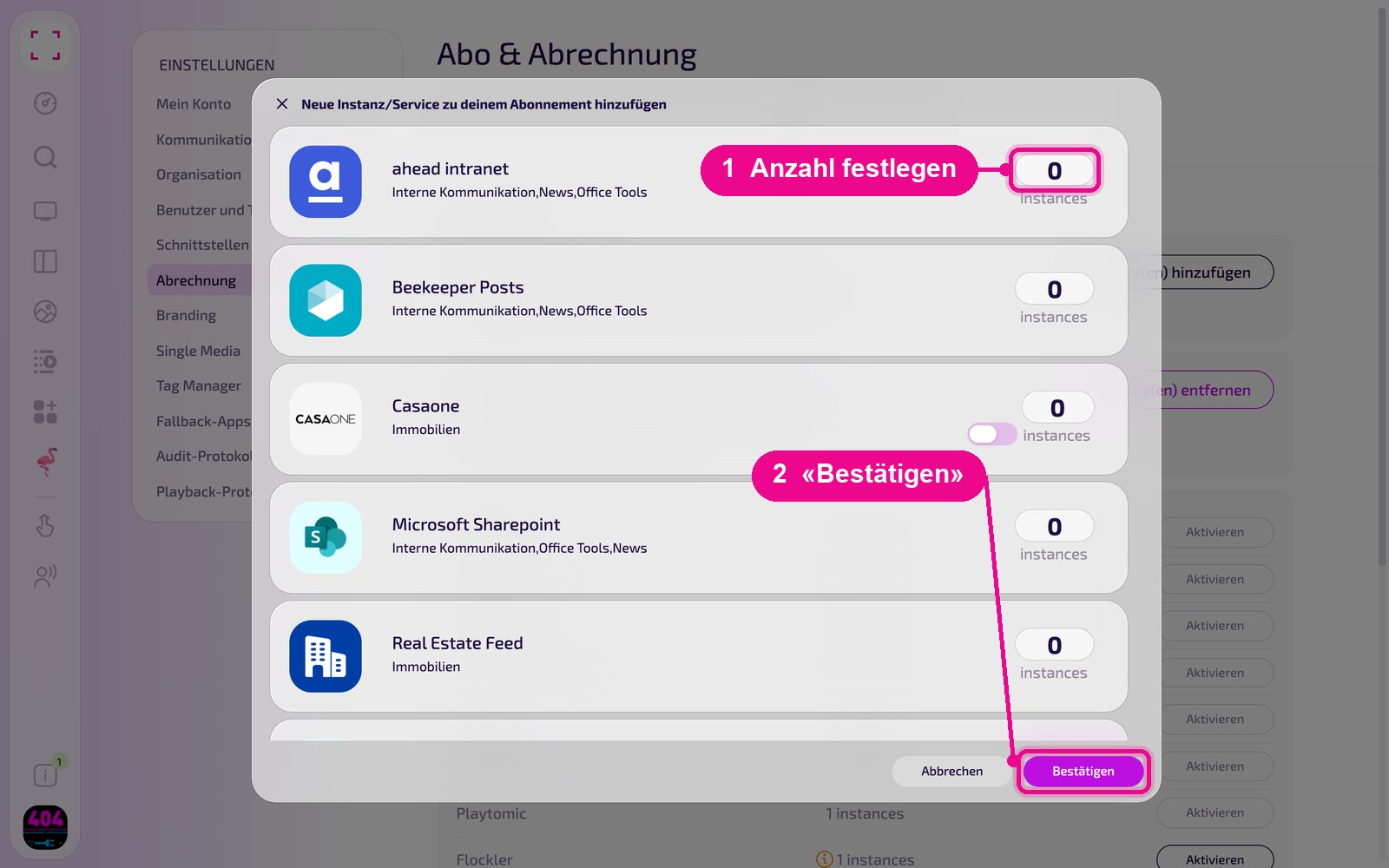
Click «Instanz(en) hinzufügen» (Add instance(s)). In the «Neue Instanz/Service zu deinem Abonnement hinzufügen» (Add new instance/service to your subscription) window you see all premium apps. Set the number of instances for the desired app and click «Bestätigen» (Confirm).
Remove premium instances
Click «Instanz(en) entfernen» (Remove instance(s)). In the «App Instanzen entfernen» (Remove app instances) window the instances are grouped by app, each with creation date and creator. Check the instances that should no longer be billed and click «Bestätigen» (Confirm).
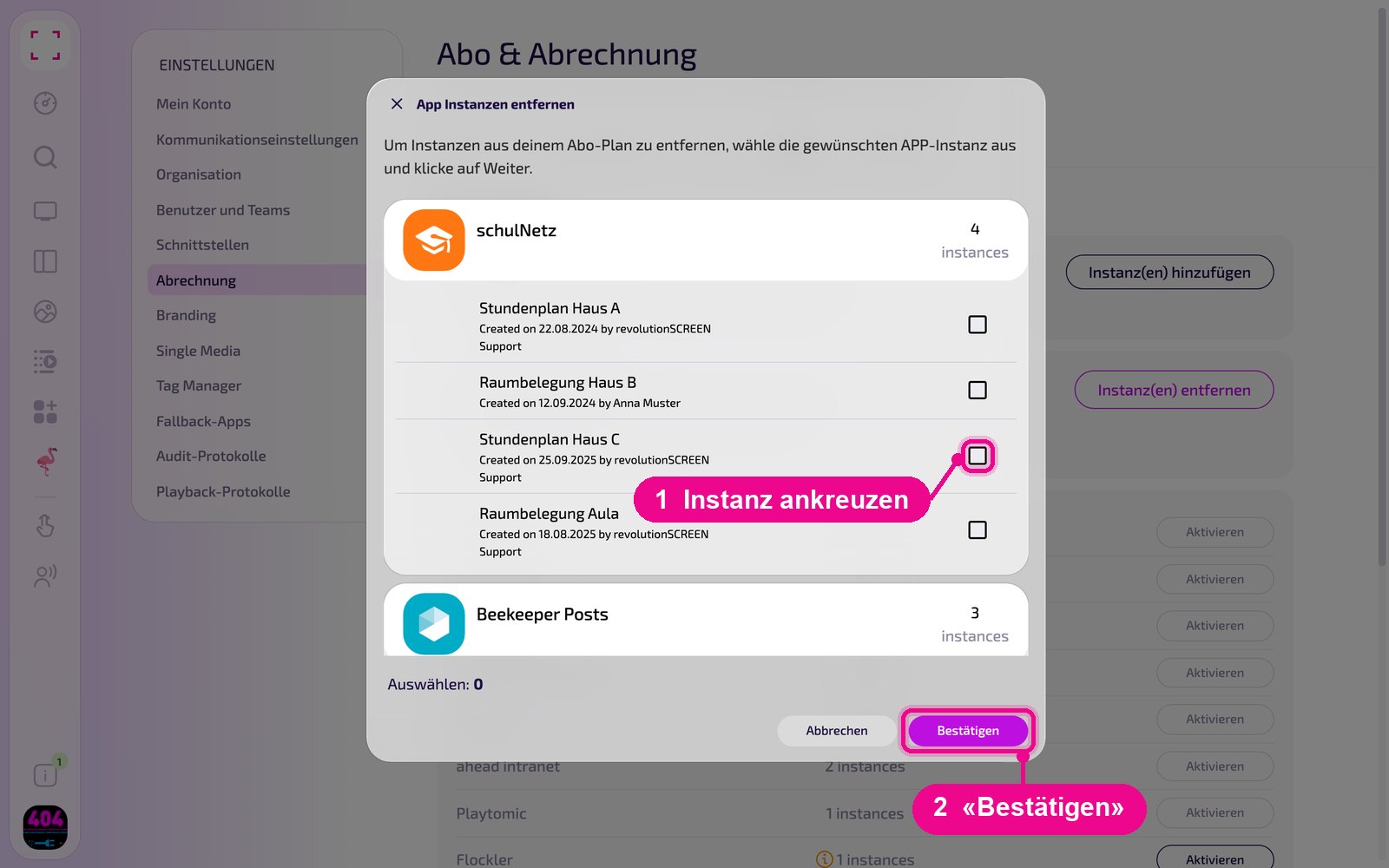
The instances are removed as of the next billing cycle and are no longer billed afterwards.
If you have removed an app, you can reactivate it later in the app list in the «Apps» tab with «Aktivieren» (Activate).
Settings: addresses and cancellation
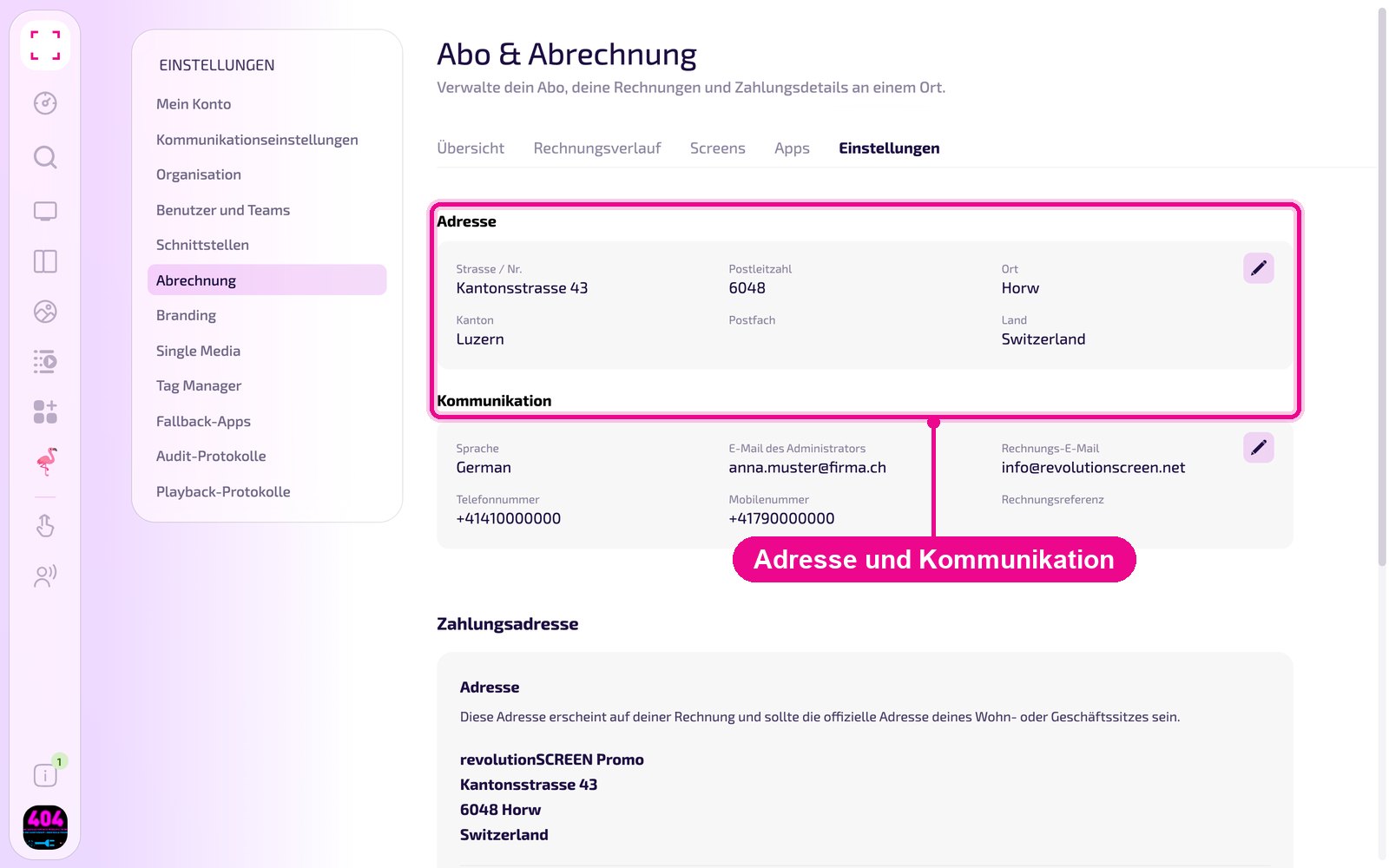
The «Einstellungen» (Settings) tab holds your organisation's details: «Adresse» (Address) and «Kommunikation» (Communication) with billing e-mail and billing reference, and below the «Zahlungsadresse» (Payment address). You change the details with the pencil, as described under «Organisation». At the very bottom you can cancel the subscription.
The guide «Abo kündigen» shows how the cancellation works and what happens afterwards.