Cancel subscription
You cancel your subscription yourself in my.rstv.app. There's no need to email support and no advance notice period. The cancellation takes effect at the end of the current billing period: until then everything continues unchanged, after which your displays no longer show any content.
Profile picture at the bottom left → «Billing» → «Einstellungen» (settings) tab → at the very bottom «Abonnement kündigen» (cancel subscription)
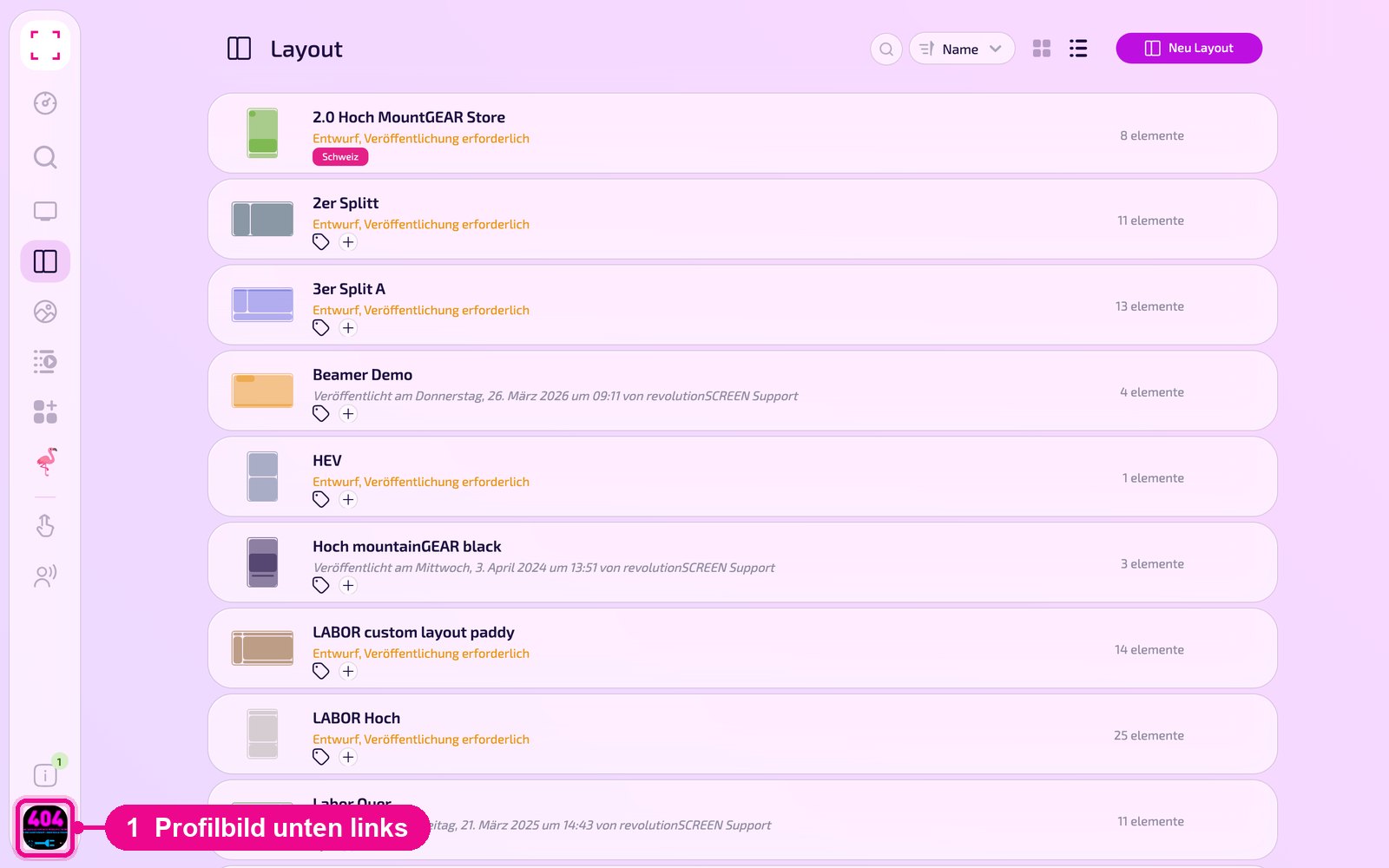
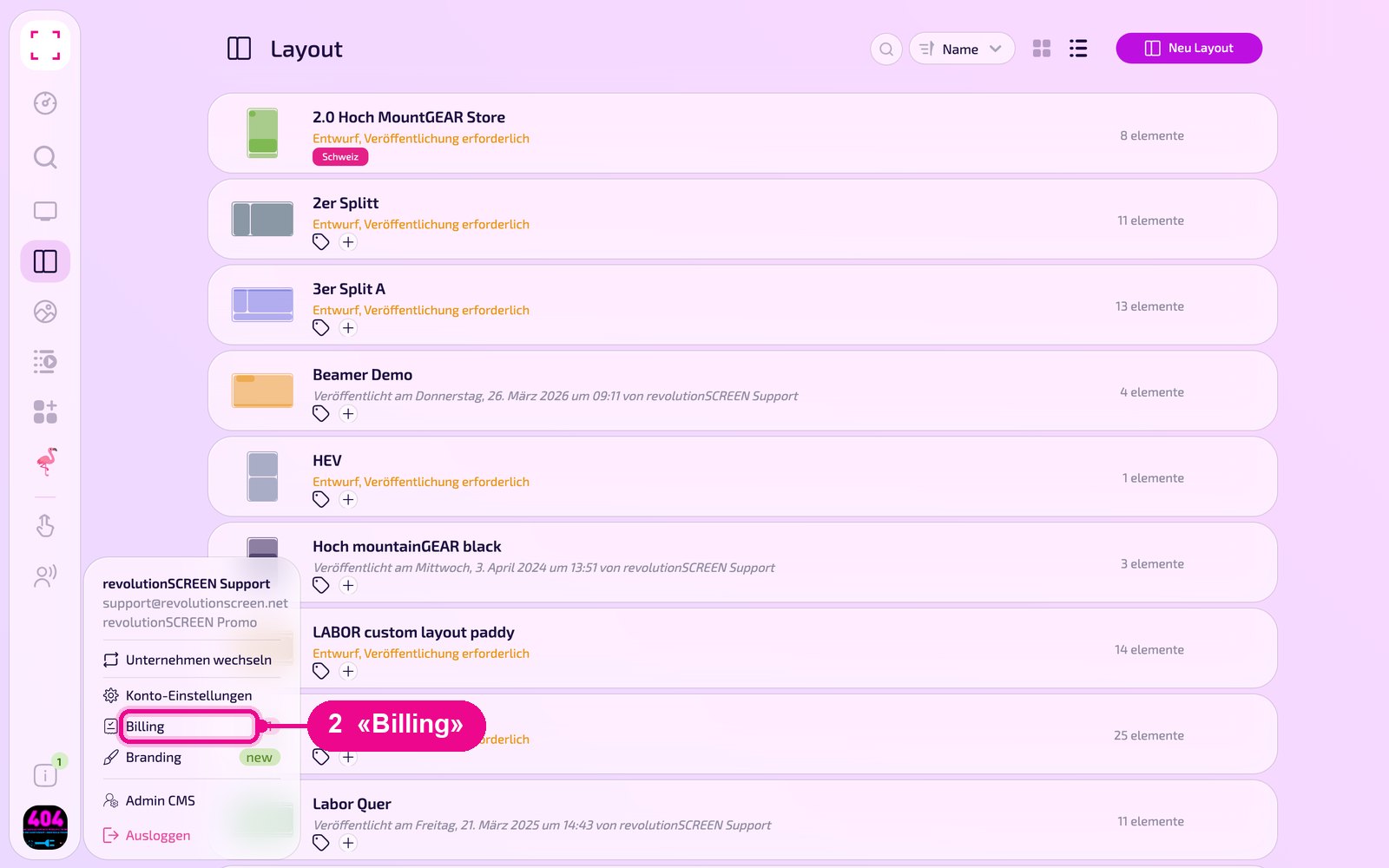
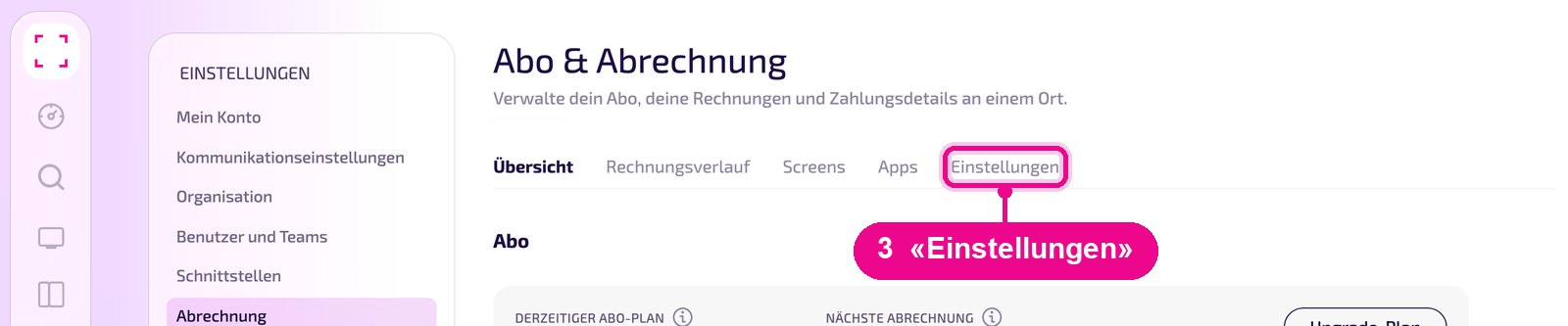
Do you just want to go smaller instead of stopping entirely? Then cancellation is not the right way, but rather «Abo wechseln» (downgrade to a smaller model) or removing individual screens and instances under «Abrechnung» (billing).
Trigger cancellation
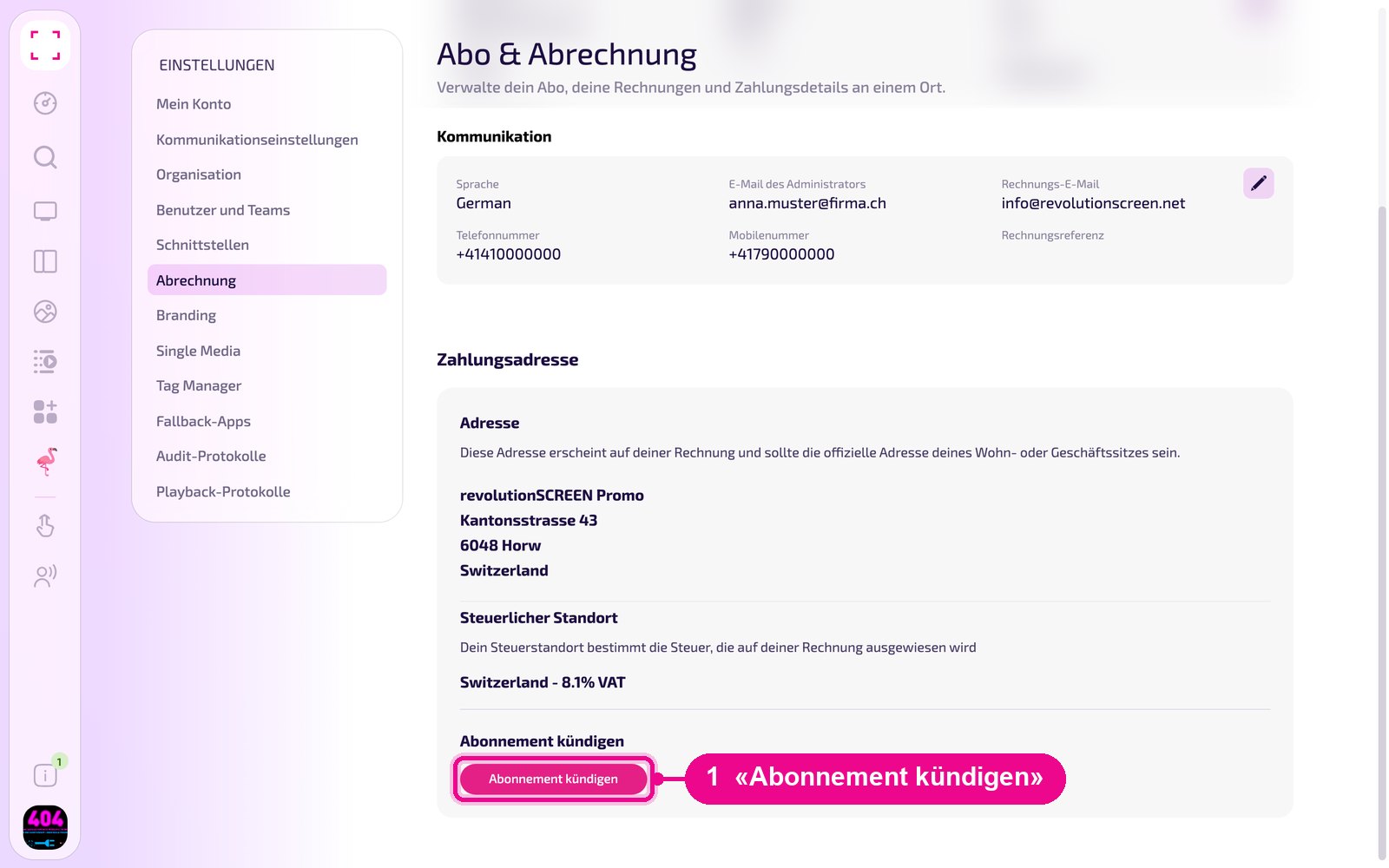
In the «Einstellungen» (settings) tab, «Adresse», «Kommunikation» and «Zahlungsadresse» are listed one below the other. Scroll all the way down to the «Abonnement kündigen» (cancel subscription) section and click the «Abonnement kündigen» button.
Confirm cancellation
A confirmation window opens. It shows the exact date and time until which your displays keep running. It is the end of the period you have already paid for. Read this date before you confirm.
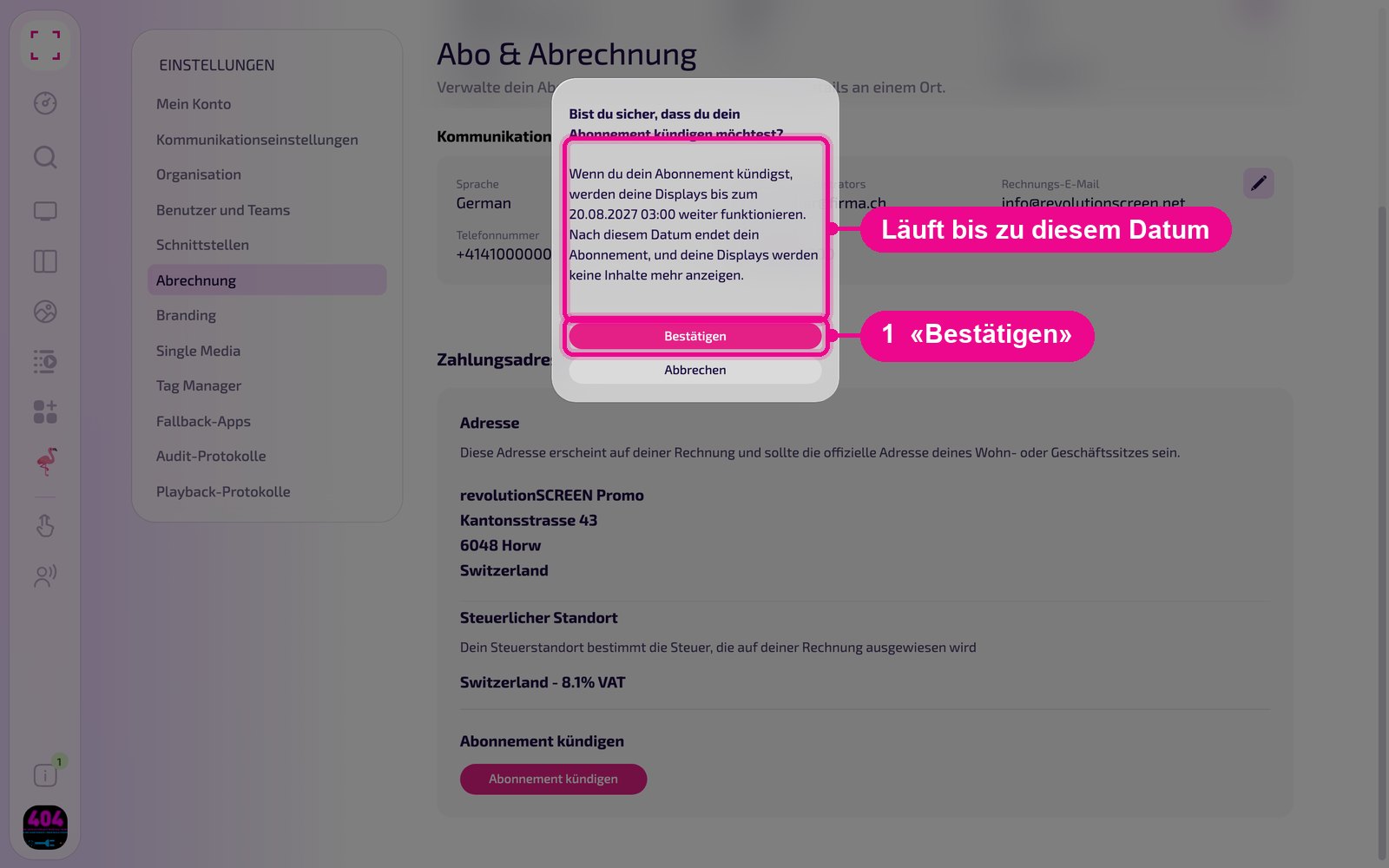
- «Bestätigen» (confirm): The cancellation is triggered.
- «Abbrechen» (cancel): Nothing happens, the subscription continues unchanged.
The cancellation affects the entire account, not a single display. After the end date, all displays in your account no longer show any content.
What happens afterwards
- Until the stated date nothing changes: displays, Playlists, Layouts and apps continue running normally.
- No further invoice is issued for the next period.
- After the date the subscription ends and the displays no longer show any content.
Starting again after cancellation
A cancellation is not a one-way street: you can take out a subscription again at any time, both before and after the end date. The path is via the profile picture at the bottom left → «Billing» → «Upgrade-Plan». For how selecting the model works, see the guide «Abo wechseln» (change subscription).