Guide
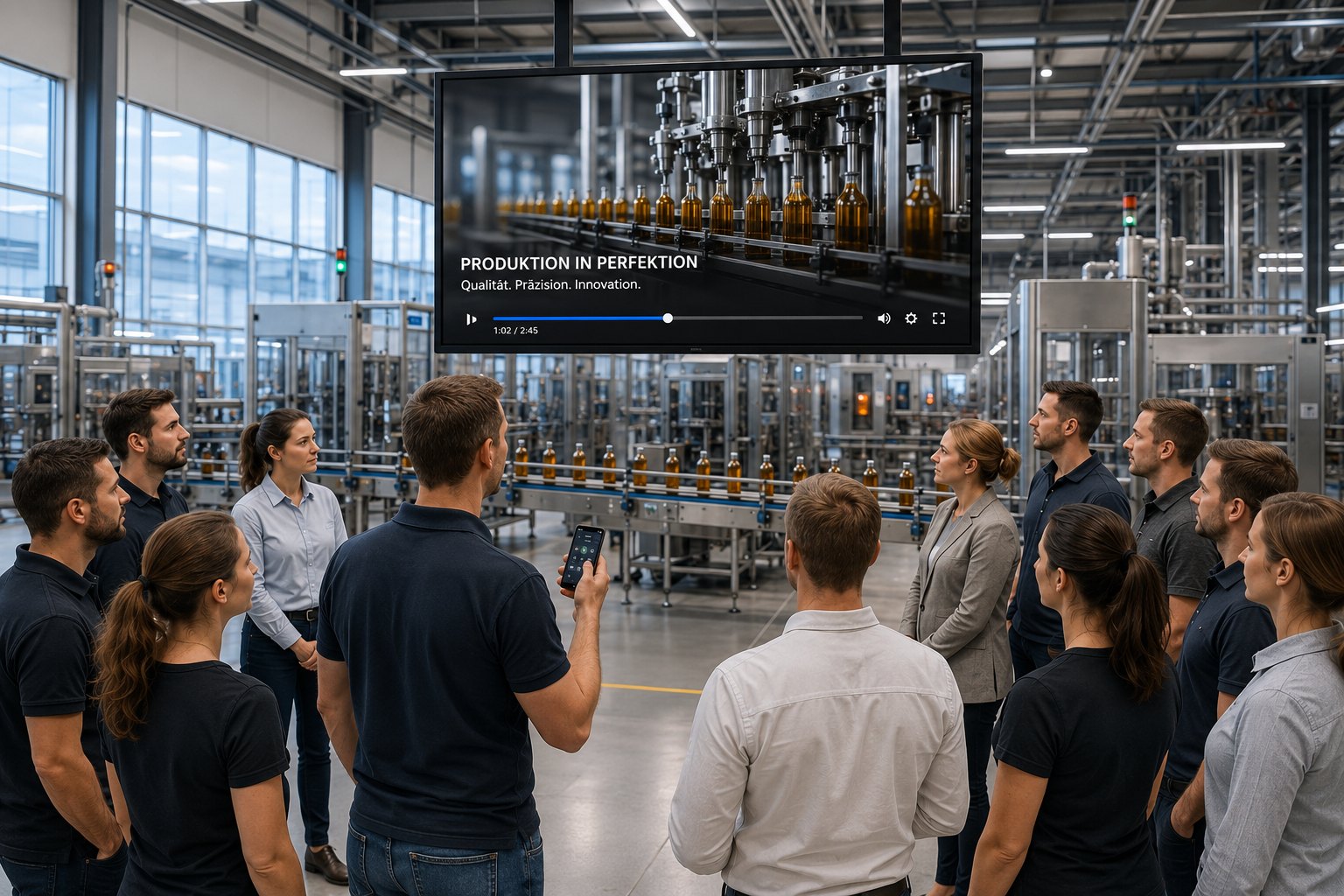
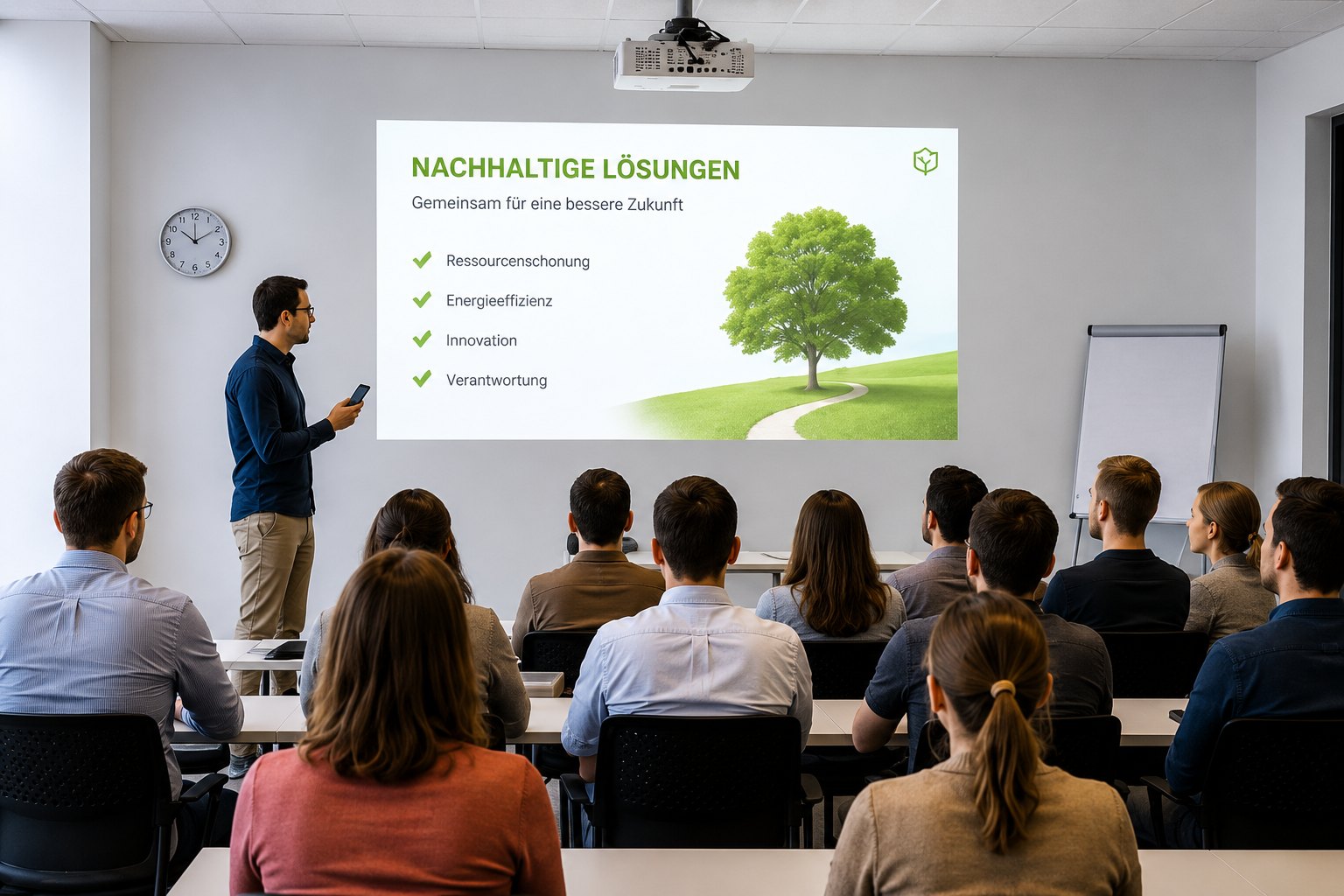
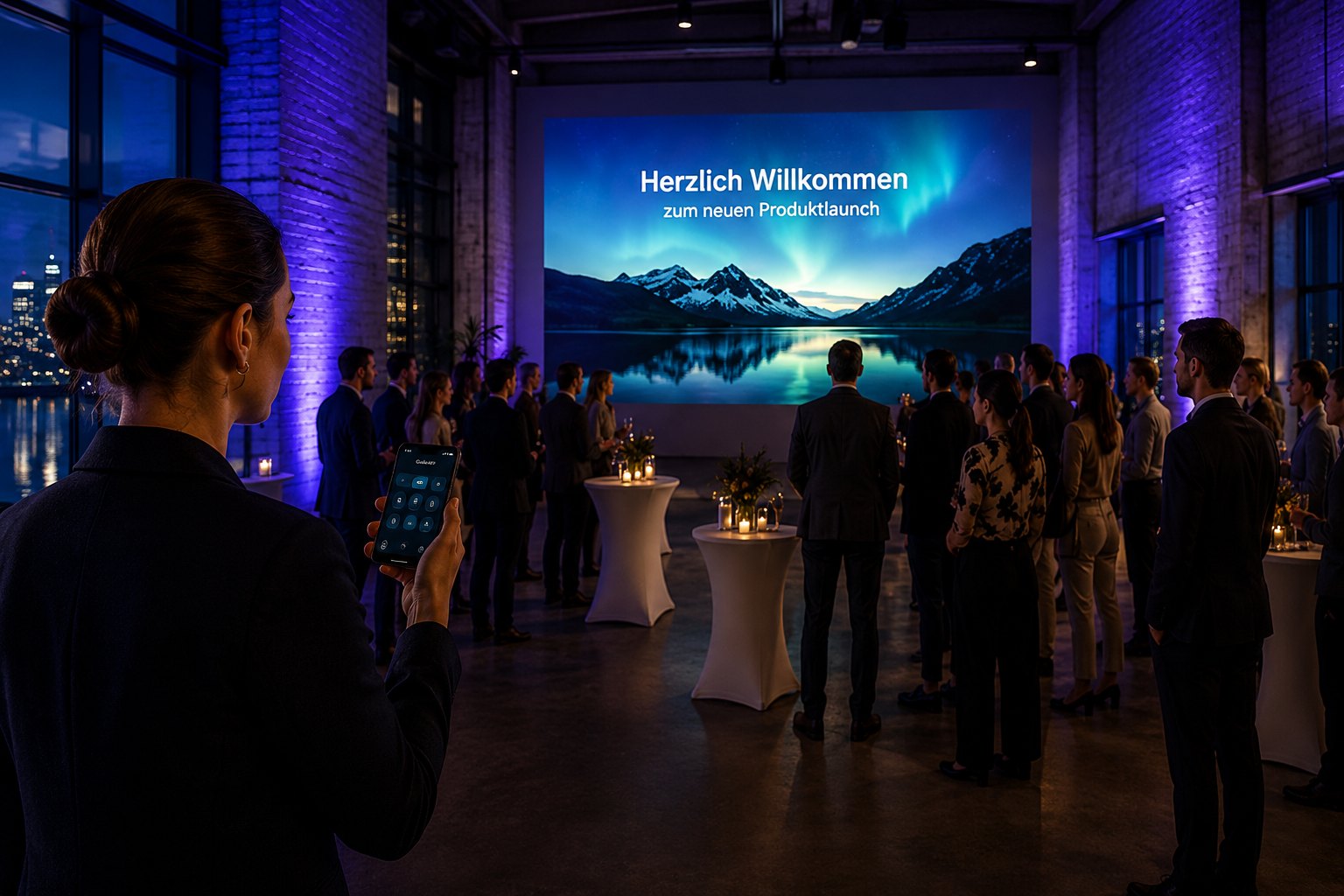
With the GuideAPP, a display becomes part of a tour: whoever guides a visitor group through the premises switches the matching content onto the display at each station — with a single tap on their phone, without searching in the admin area. Everything is controlled from the revolutionSCREEN app; the GuideAPP is the part that runs on the display.
Purpose
A tour is a prepared sequence of stations. Each station links a display with its content — slides from the media library, a ready-made Playlist, a Layout or an app. The preparation is done once at your desk; on the move, one tap per station remains. Between stations, the displays return to their normal content.
Typical uses: factory tours, open days, customer visits, apprentice walkthroughs, investor appointments — each with its own content and, if needed, in several languages.
Requirements
- An active revolutionSCREEN subscription with at least one display
- The revolutionSCREEN app on the guide's phone (iOS or Android), signed in with the tenant's account
- For each display where slides are to be paged through: an instance of the GuideAPP (see next section)
- Network connection on the phone and on the display — the control commands are tiny, but without a network nothing can be switched
Setting up the GuideAPP
The app is installed like any other application from the Appstore and assigned to a display.
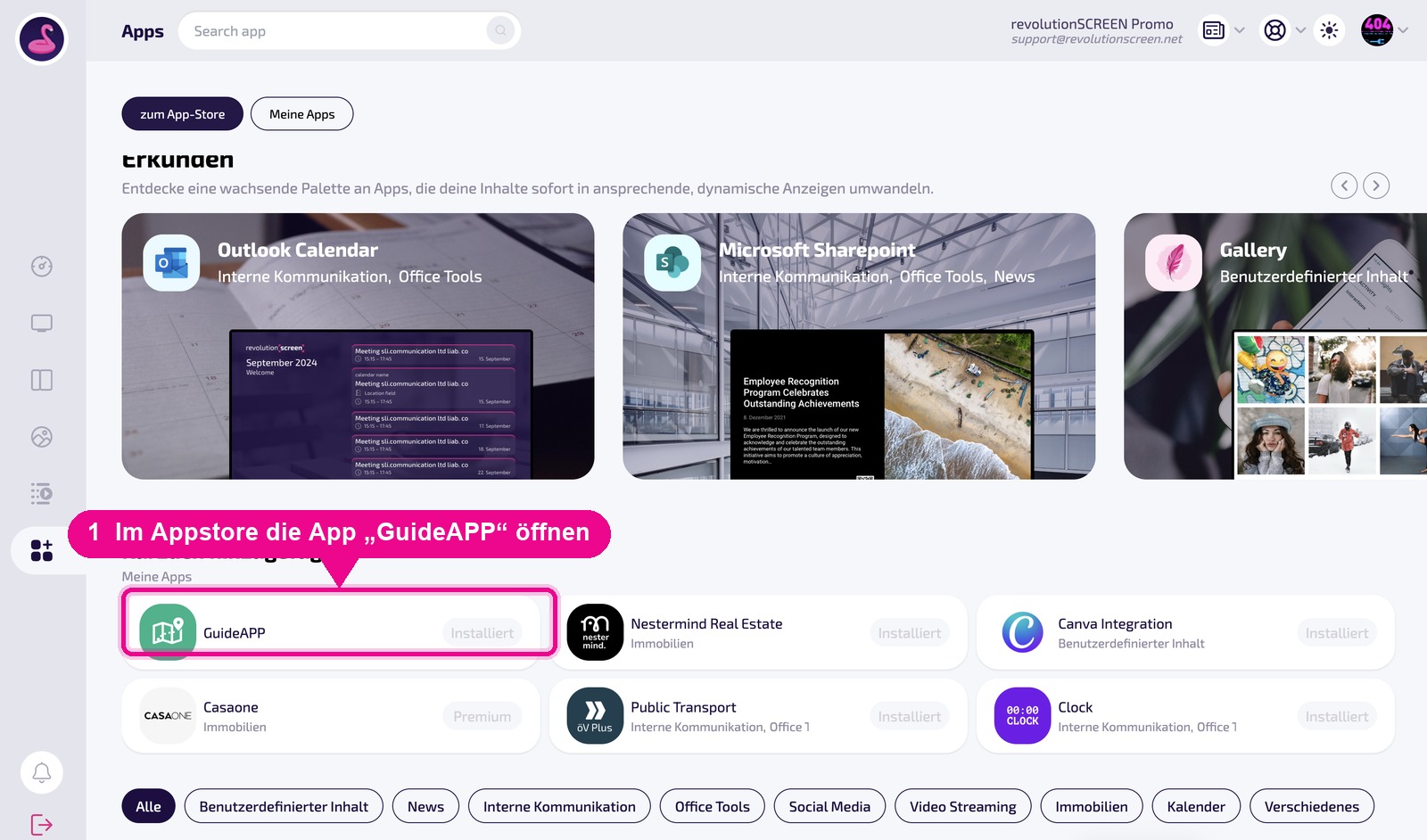
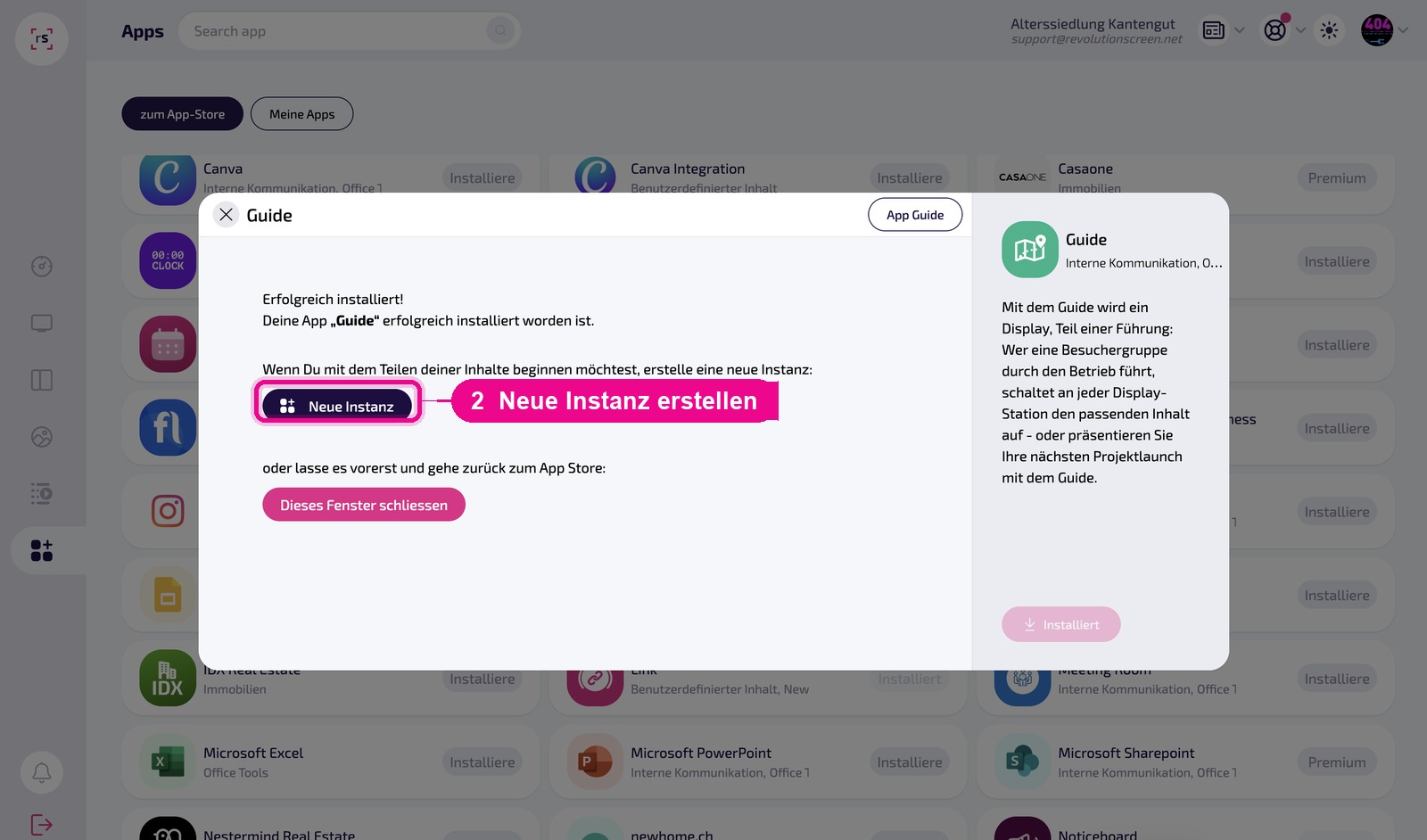
After installation, the app directly offers to create an instance. An instance corresponds to one tour route.
In the instance, the display on which the tour is to run is assigned. The preview then shows „Bereit für die Präsentation" (Ready for the presentation) — the display is waiting for the guide.
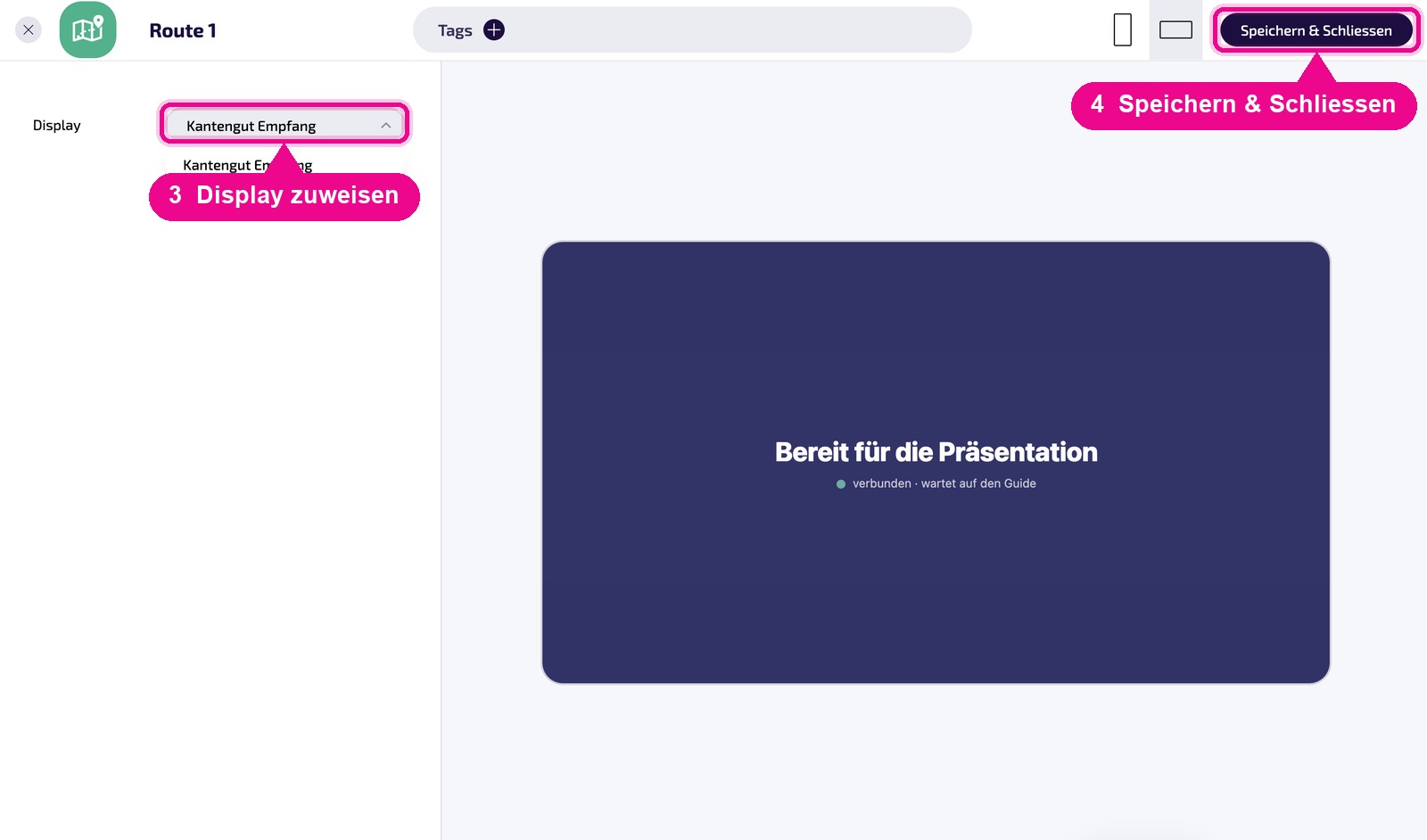
The name of the instance is freely selectable — the revolutionSCREEN app recognizes it by the display you assigned above. A code in the name is not necessary. Descriptive names still help with finding them again, for example Route 1 · Reception.
Create a separate instance for each display: Each instance shows exactly the display selected in it.
A display without a GuideAPP instance can still be included in a tour: via direct assignment (see below). The Player then shows the Playlist, Layout or app itself — only paging through is not possible at this station.
Creating a tour
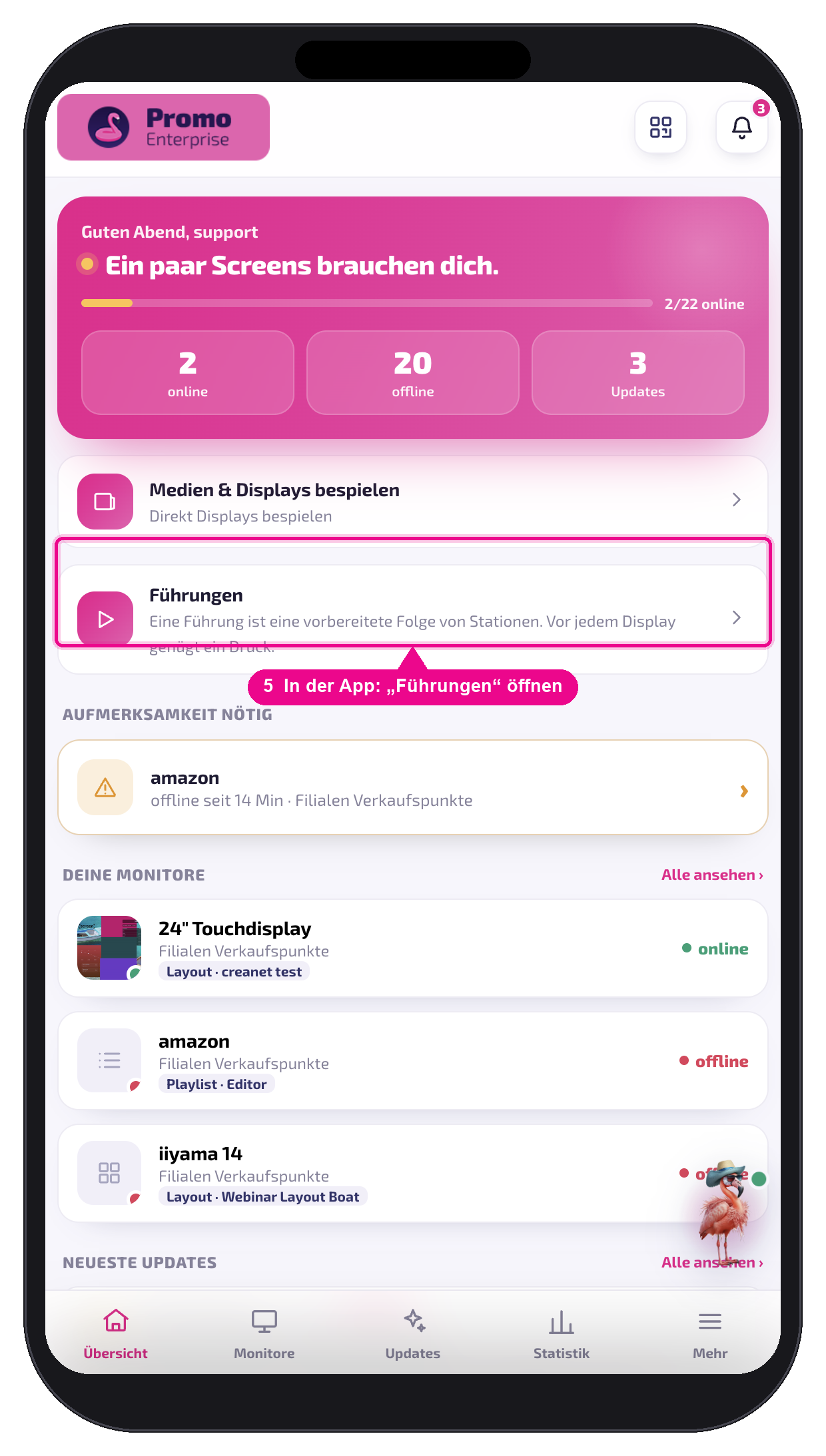
In the revolutionSCREEN app, open the tours section on the overview.
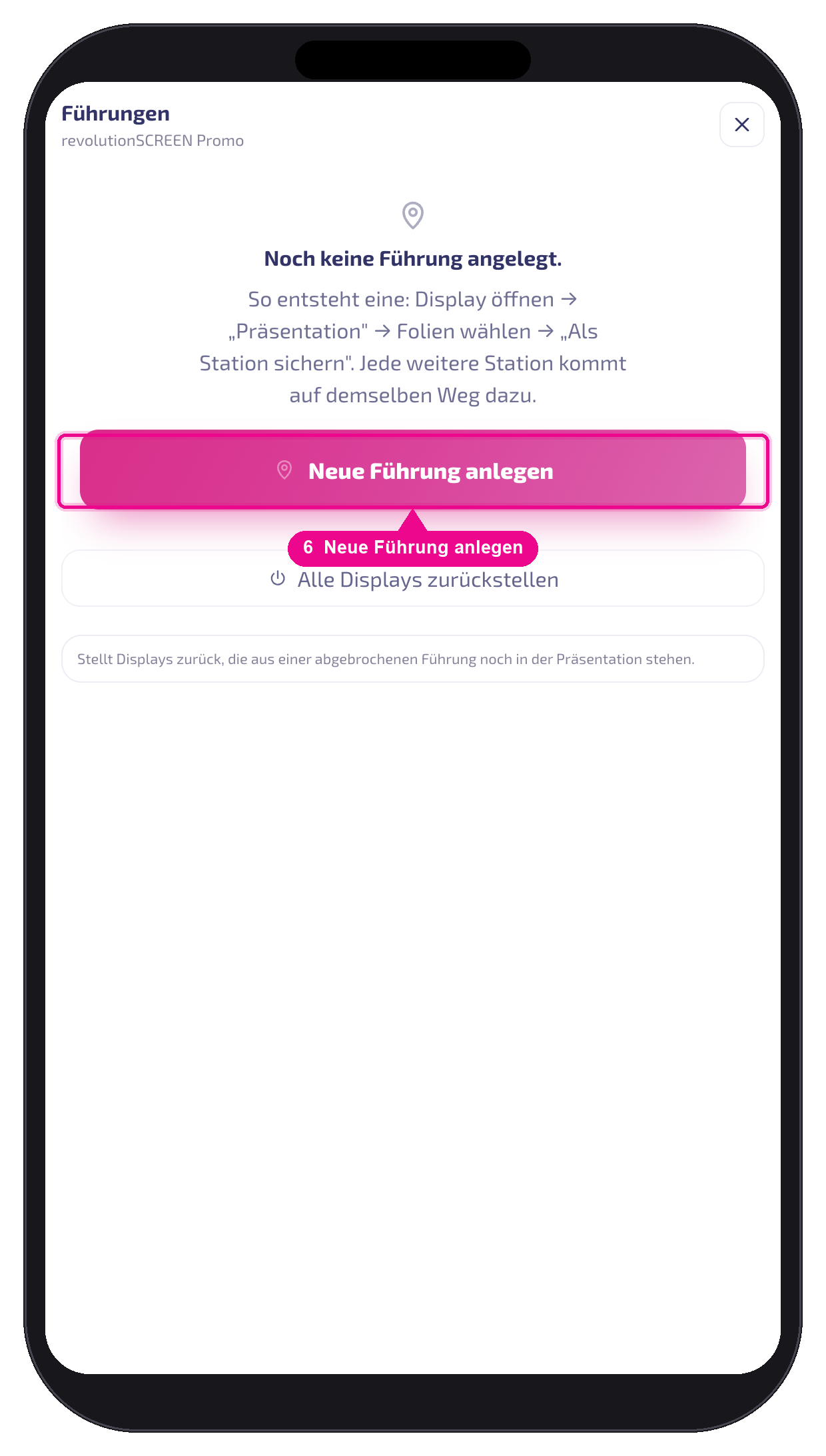
The first time, the list is empty — create new tour starts the setup. Then assign a name and language.
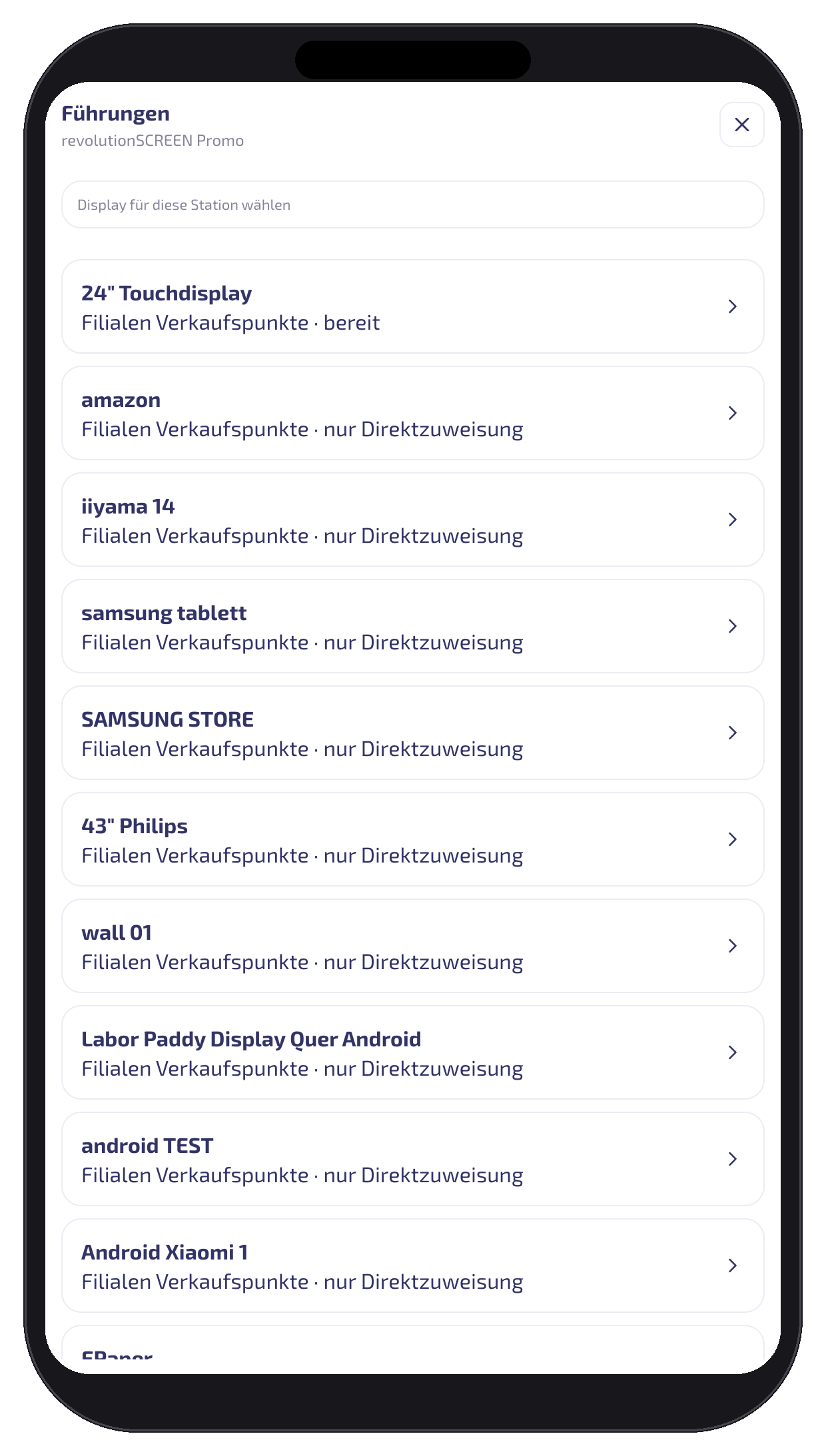
Next, you select the display for the first station. The list shows for each display whether it is ready (GuideAPP present, slides pageable) or only allows direct assignment.
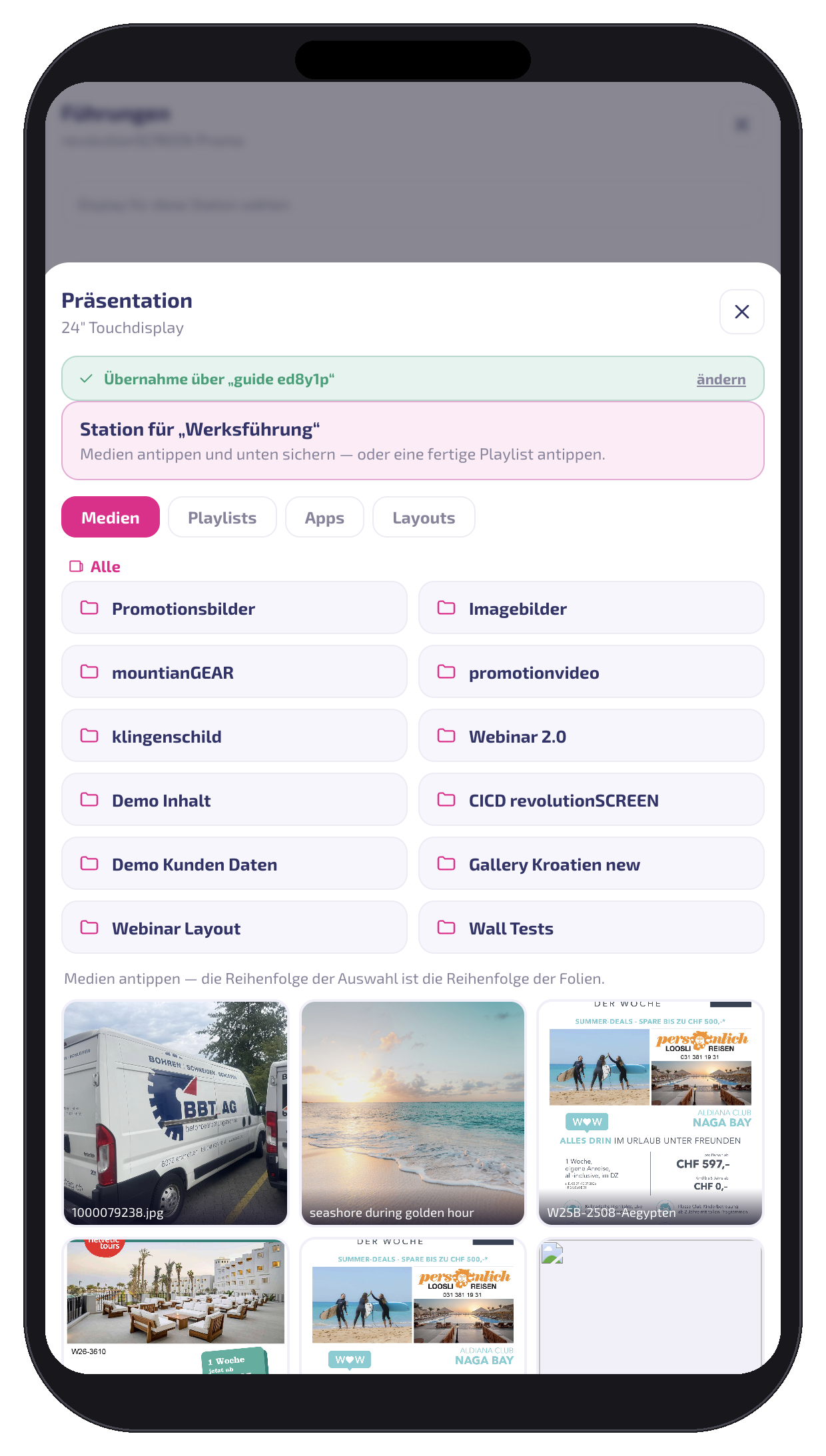
Then you determine the content: tap individual media (the order of the taps is the slide order), a ready-made Playlist, a Layout or an app.
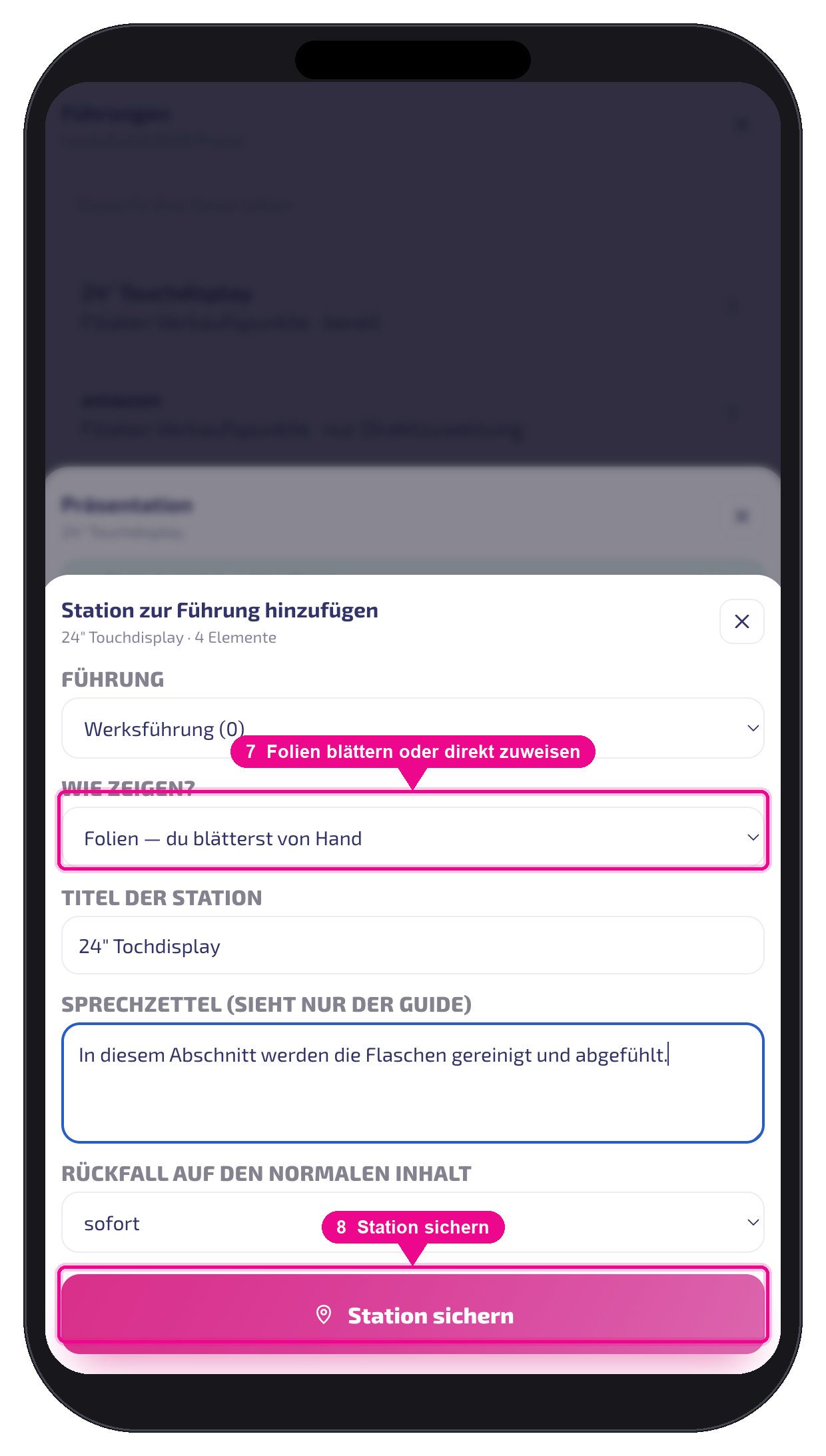
Before saving, you set how the station runs, and optionally add a title, speaker notes and fallback time.
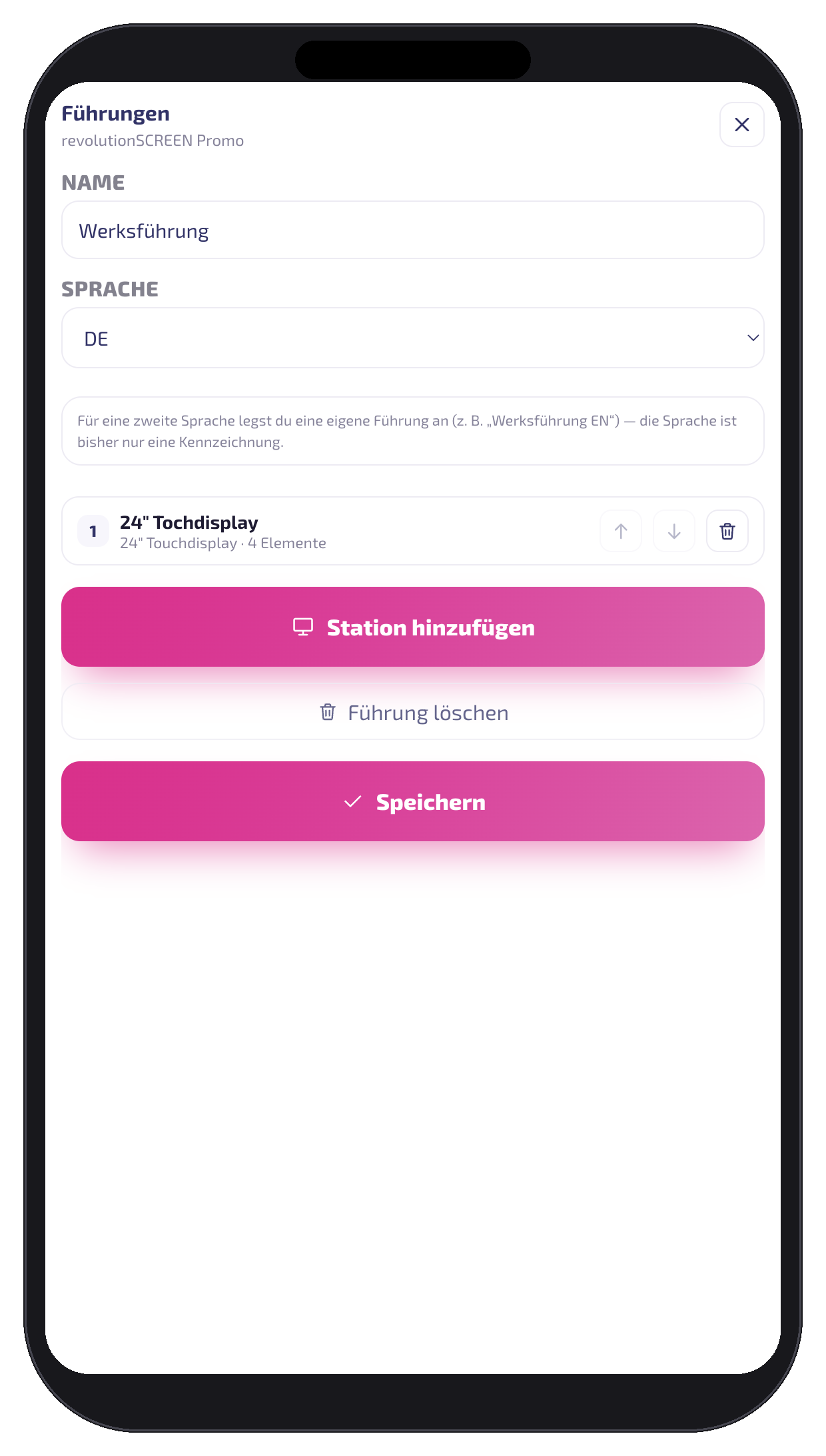
All stations are then listed in the editor. Here you can change the order, remove stations and add more.
The speaker notes appear only on the guide's phone, never on the display. The fallback time determines how long the last slide remains after moving on, before the display returns to its normal content — „sofort" (immediately) or after 2, 5 or 10 minutes.
Editing a station afterwards
A saved station stays editable. Tap it in the station list (click it on a computer) — the station view opens with Titel, Sprechzettel and Rückfallzeit. Changes are saved when you leave the field.
The Folien ändern button takes you back to the content selection of this screen. Whatever you assemble there replaces the station's previous content — the station keeps its position in the guide.
Title, briefing note, fallback time and idle image are retained. So you only need to pick the slides again, not rebuild the whole station.
Ordering and deleting work as before: the arrows move a station, the trash icon removes it. On a computer you can additionally drag stations with the mouse.
A station can only be saved if it contains at least one slide or directly assigns a content item. An empty station would show nothing on the screen — the guide would stand in front of it and nothing would happen.
Idle image: what the screen shows before the start
As soon as a station is prepared, the app already takes over the screen — but the first slide only appears when you press. In the meantime the screen shows an idle image. This is the moment when the group arrives: instead of a technical message, an image of your choice is shown.
It can be set in two places: per guide (applies to all stations) and per station (overrides the guide's). If neither is set, the screen shows the account's brand logo. Select an existing image via Aus Mediathek or upload one via Hochladen — it lands in the account's media library and is then available everywhere.
The idle image is fitted, never cropped — so nothing is lost, but an image that is too small sits small in the middle. It works best as a full-screen image at the screen's resolution: landscape 1920 × 1080, portrait 1080 × 1920. This is exactly why a dedicated idle image is worthwhile: the brand logo from the Kontoeinstellungen is in logo format and does not fill the screen.
If a guide includes both landscape and portrait screens, set the matching image at the respective station — the guide keeps its general idle image for all the others.
Running a guide
Open the guide in front of the first screen and press Station starten.
On a wide screen the planning view shows a ▶ for each guide — this lets you start it directly, without shrinking the window. You then guide from the control panel, just as on a phone.
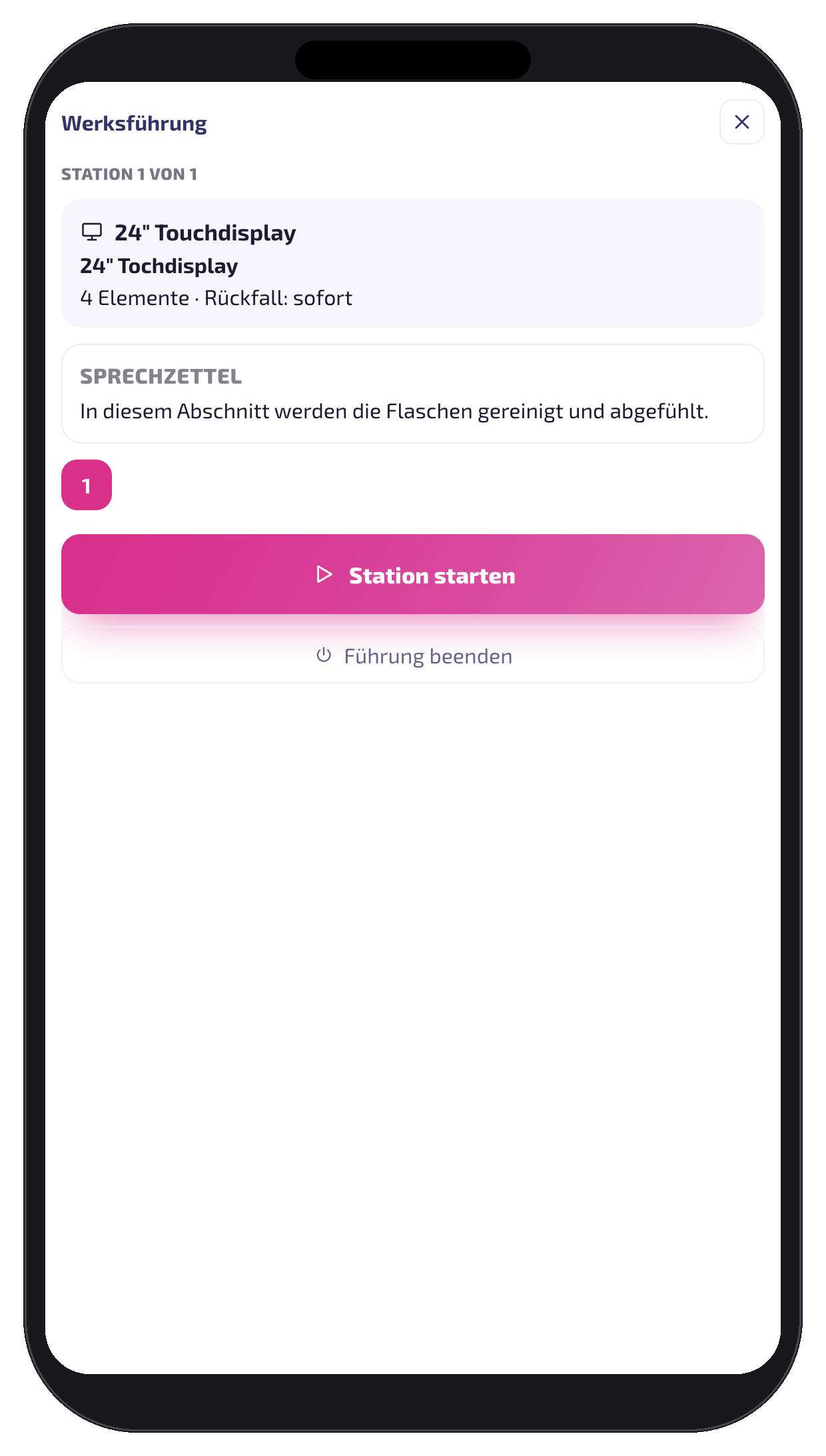
After that you control the slides from your phone: Weiter pages forward, the thumbnail bar allows jumps. Weiter zur nächsten Station releases the screen and opens the next station — its screen was already pre-warmed in the background and shows an idle image until then.
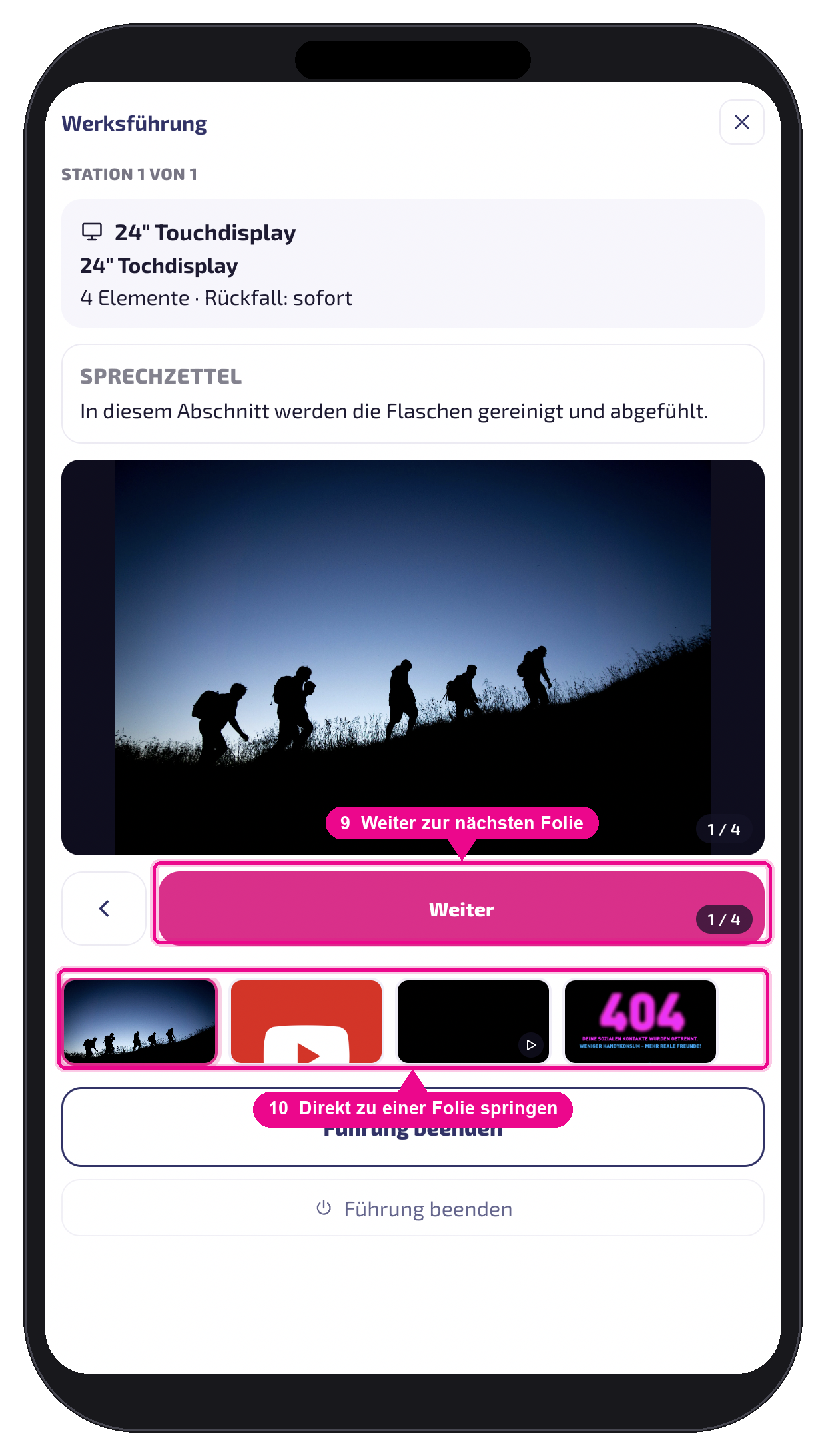
- Führung beenden resets all involved screens to their normal content.
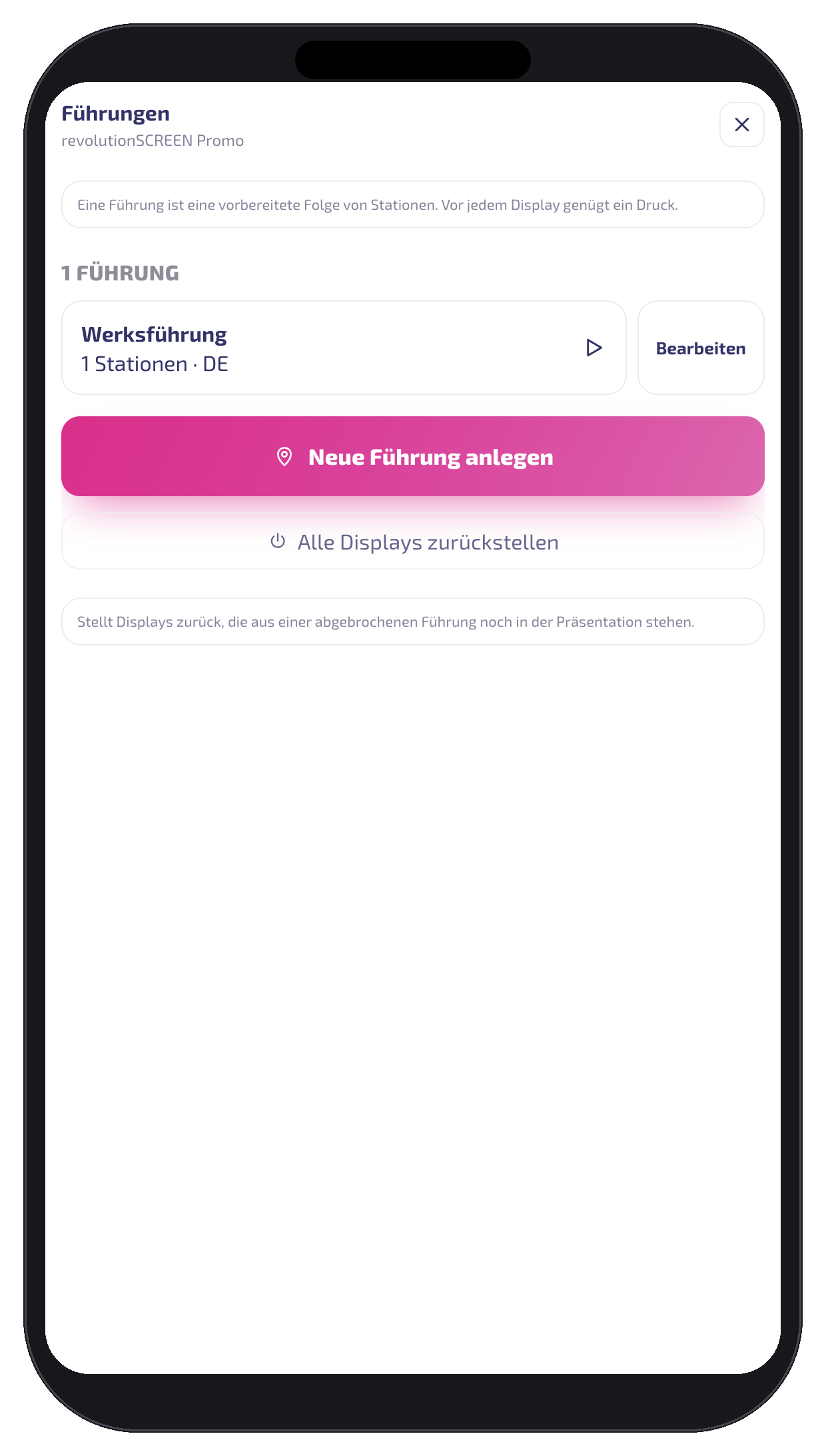
- The overview shows all guides of the tenant with station count and language.
The same guide can be run by two guides offset in time. If a screen is currently in use with another group, the app reports this and lets you choose between warten (wait) and übernehmen (take over). The screen's original content is kept as a fallback value.
Direct assignment: apps and layouts
Besides paging, a station can also directly assign the content. The screen then shows the Playlist, Layout or app just as the Player would anyway. For apps and layouts this is the only way — they cannot be paged through as individual slides.
When saving a station the app therefore asks: Folien (you page manually) or Direkt zuweisen (the Player plays by itself). For apps and layouts, direct assignment is preselected.
When something gets stuck
If a guide breaks off — empty battery, closed app, loss of network — a screen may remain stuck in the presentation. The Alle Displays zurückstellen button in the „Führungen" area brings such screens back to their normal content. Guides currently running with another group remain unaffected.
Multilingual guides
For a second language you create a separate guide (e.g. „Werksführung DE" and „Werksführung EN") and choose the respective content there. The station sequence can stay identical; today the language serves as a label in the overview.
Good to know
- Guides are stored per tenant — after switching accounts you see the guides of the new tenant.
- The phone's screen stays awake while a guide is running.
- A screen's normal Playlist is not changed; it continues running after the station.
- In halls with weak reception it is worth favouring screens with good WLAN coverage during planning.