Guide app: everything on your phone
With the Guide app you control your displays from your phone during a company tour: before each station just one tap, and the display shows exactly the slides you're talking about. After the tour, all displays return to their normal content by themselves. This guide takes you step by step from downloading the app to a finished tour.
This guide shows the path entirely on your phone — for everyone who wants to work without a computer. It is recommended to prepare the tours conveniently in a web browser and only run the tour on your phone: Guide: plan in the browser, run on your phone.
Download the «revolutionSCREEN» app from the App Store or Google Play, sign in, create a Guide instance once per display in my.rstv.app — then assemble stations in the app under «Führungen» (Tours) and start the tour.
The pink marker shows where to tap or click. Pills with a number are steps in that order, pills without a number explain what you see.
Who does what?
- The planner sets up the displays once in my.rstv.app and assembles the tours — on the phone or more conveniently on the computer at
guide.revolutionscreen.net. - The guides only need the app on their phone: open the tour, start a station, flip through, finish.
Both sign in with a perfectly normal revolutionSCREEN account. Tours belong to the company's account — everyone signed in there sees the same tours.
What you need
- An active revolutionSCREEN subscription with at least one display
- A smartphone or tablet: iPhone/iPad from iOS 15 or Android from version 5.1
- Login credentials for a revolutionSCREEN account (email and password)
- Internet on the phone and on the displays — the commands are tiny, but without a connection nothing can be switched
Step 1 · Download the app to your phone
The app is free and is called revolutionSCREEN in the App Store and revolutionSCREEN Signage on Google Play. The fastest way is with your phone camera using these QR codes:
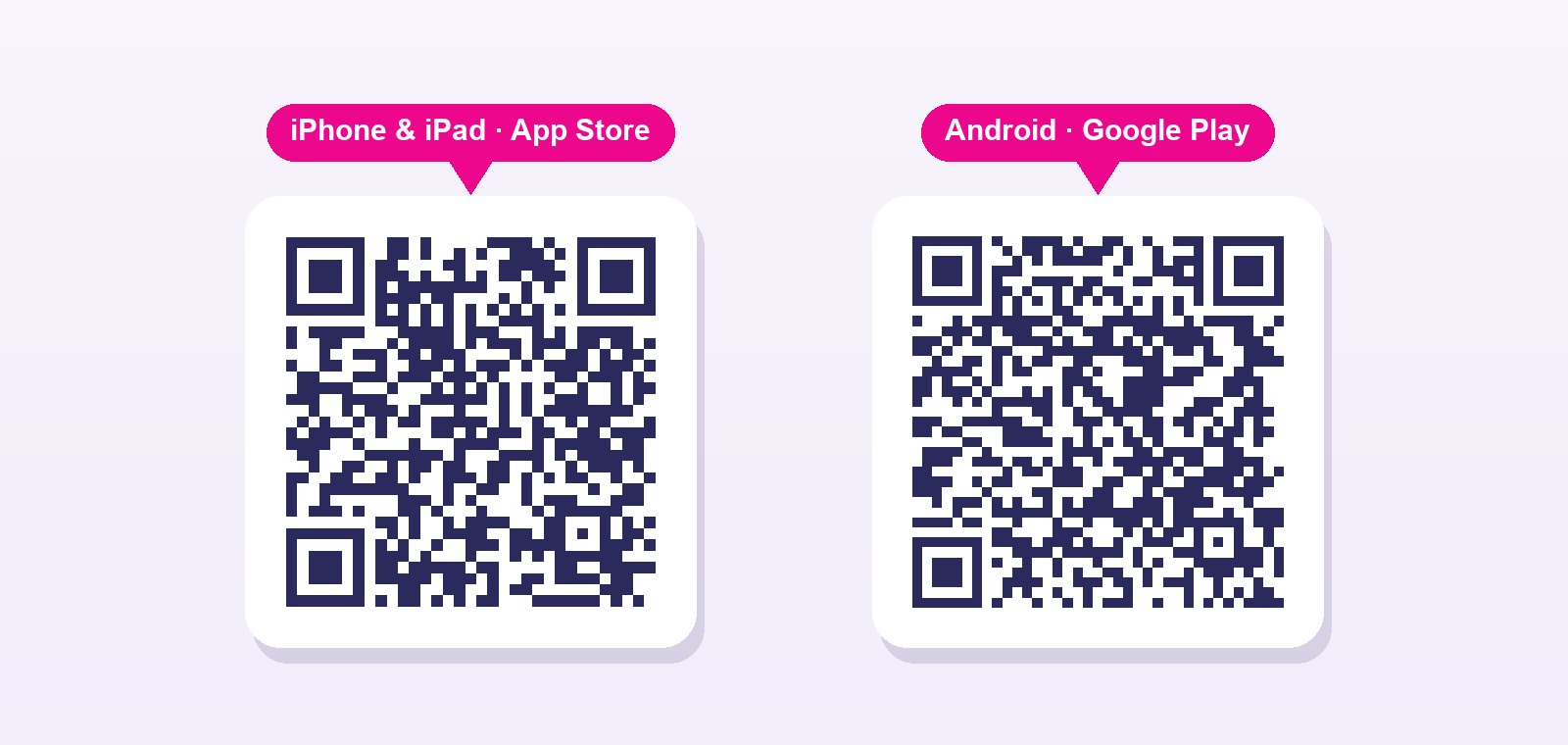
If you're already reading this guide on your phone, tap directly on the matching link: revolutionSCREEN in the App Store · revolutionSCREEN Signage on Google Play.
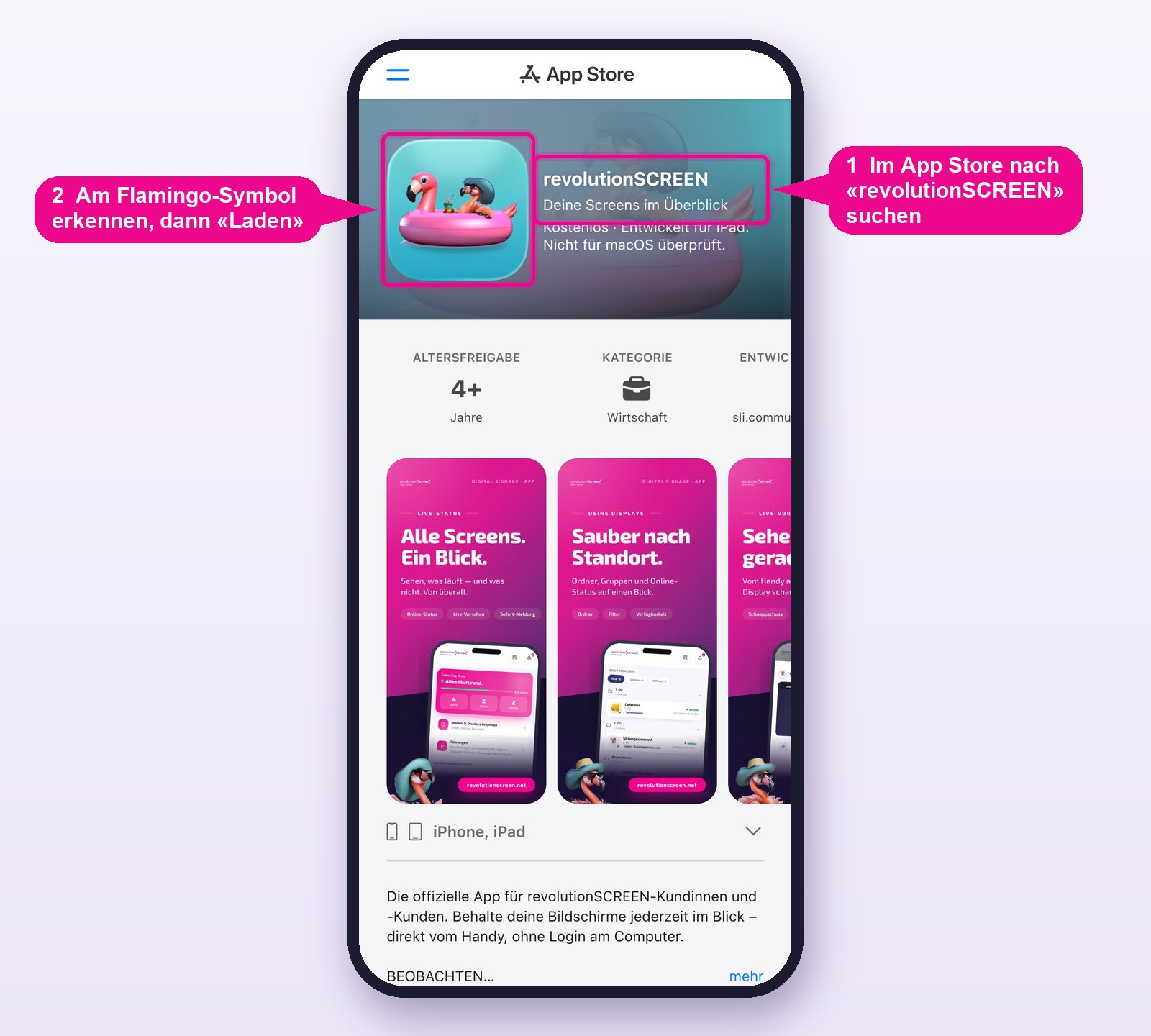
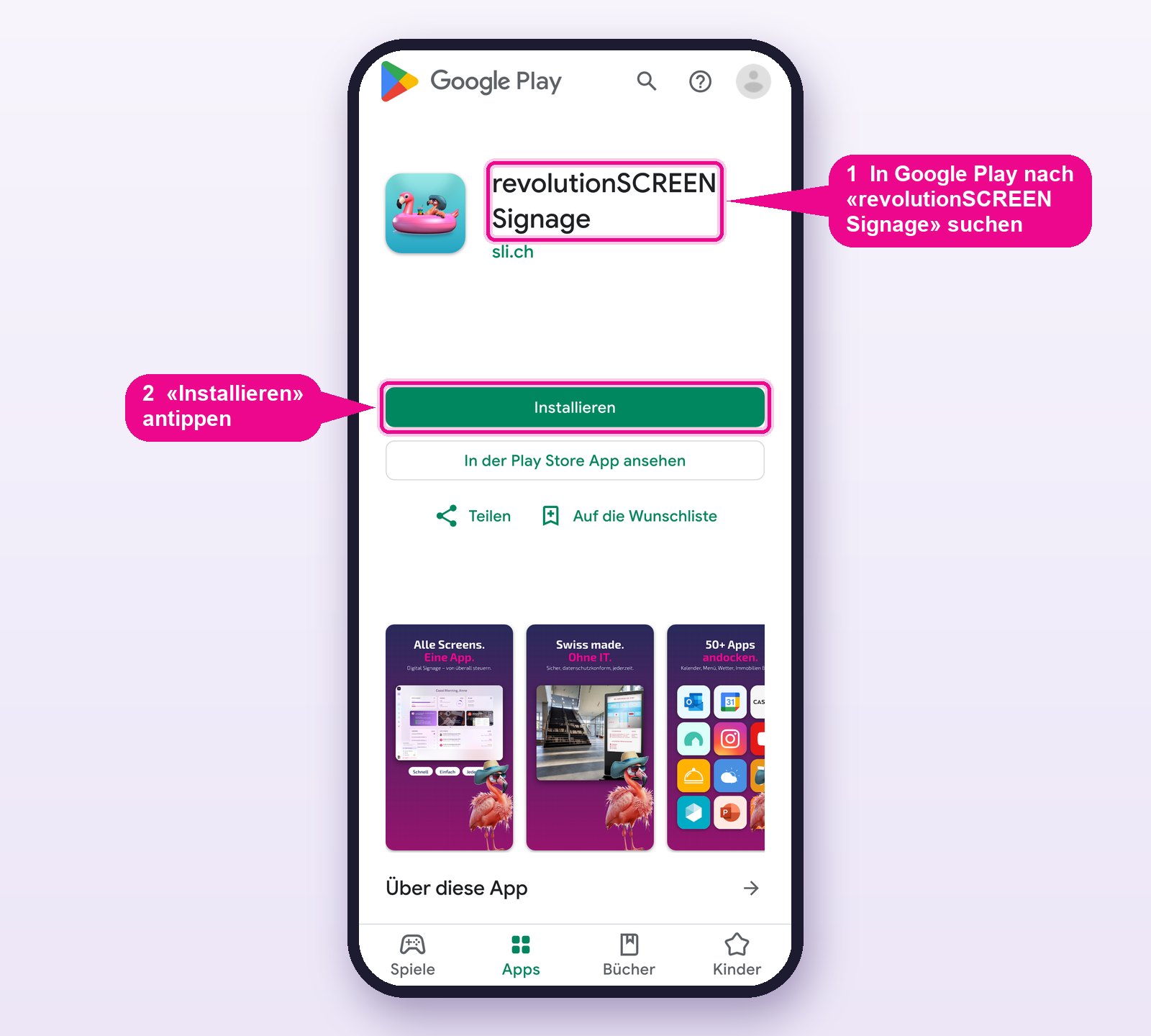
Keep automatic app updates turned on. When a new version is available, the app also notifies you with a message and the «Aktualisieren» (Update) button when you open it.
Step 2 · Sign in
Open the app. In the top right you choose the language (DE, EN, FR, IT). Enter the email address and the password of your revolutionSCREEN account and tap Anmelden (Sign in). It's the same account as on my.rstv.app — no separate registration is needed.
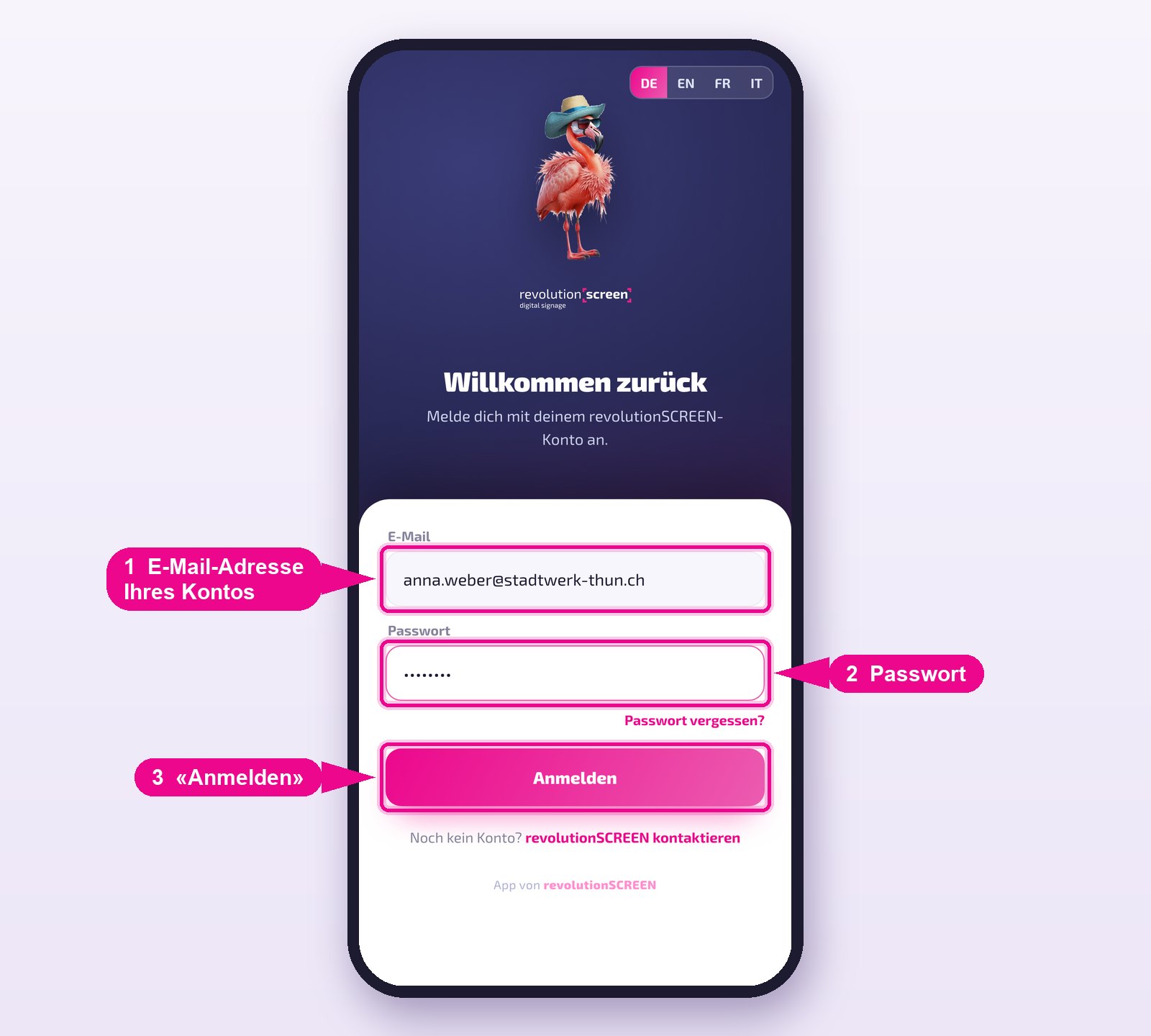
Guides are invited by the planner at guide.revolutionscreen.net in the Guides section. You then receive an email with the links to the stores and — if you didn't have an account yet — a separate email to set your password. Forgot your password? Tap Passwort vergessen? (Forgot password?) on the sign-in screen.
Step 3 · Prepare the displays (one-time, in my.rstv.app)
So that you can flip through slides on a display, that display needs its own instance of the Guide app. The planner does this once on the computer — then never again.
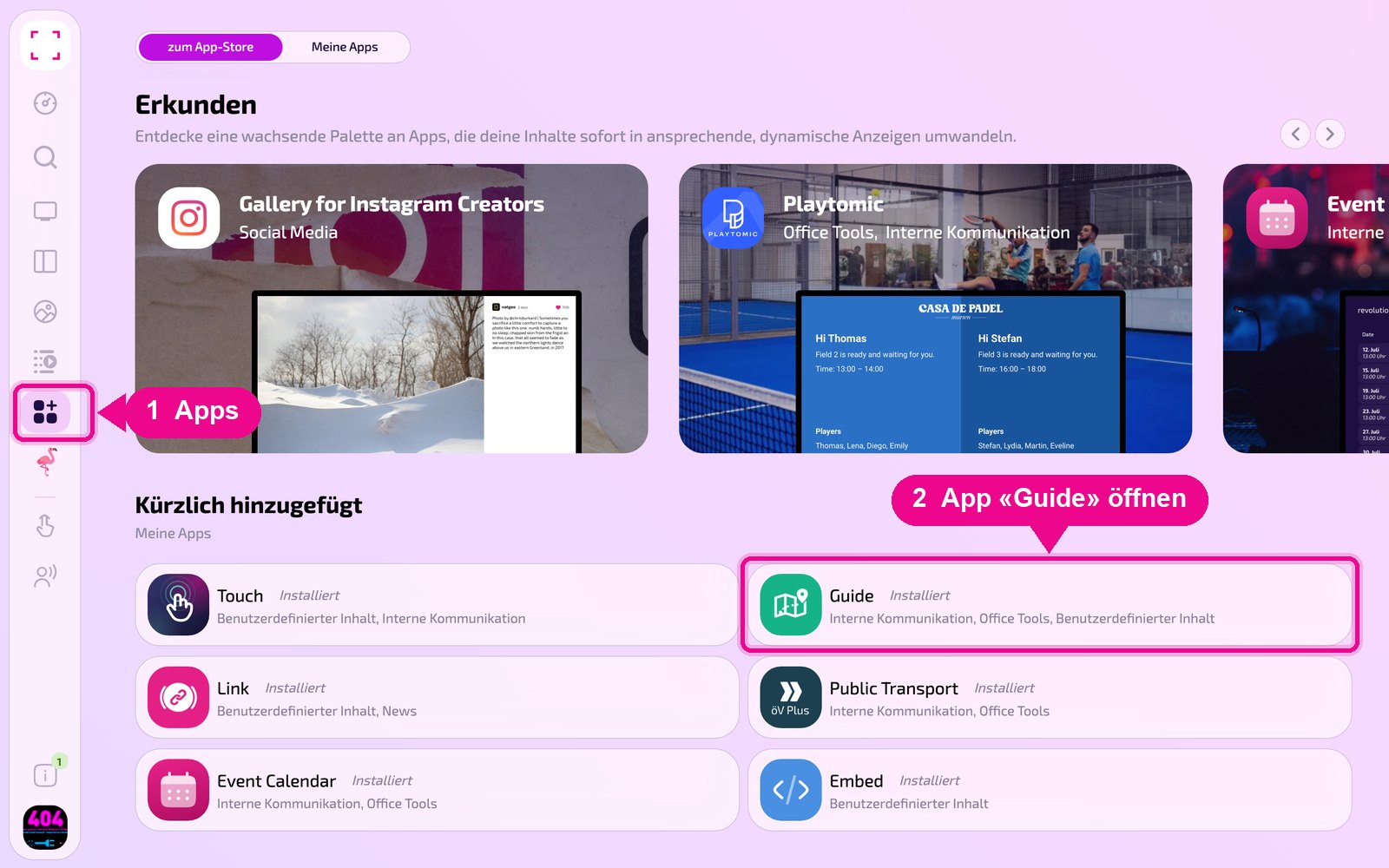
Sign in at my.rstv.app, click Apps on the left and open the Guide app. If it's not installed yet, you'll find it in the app store via search and click Installieren (Install).
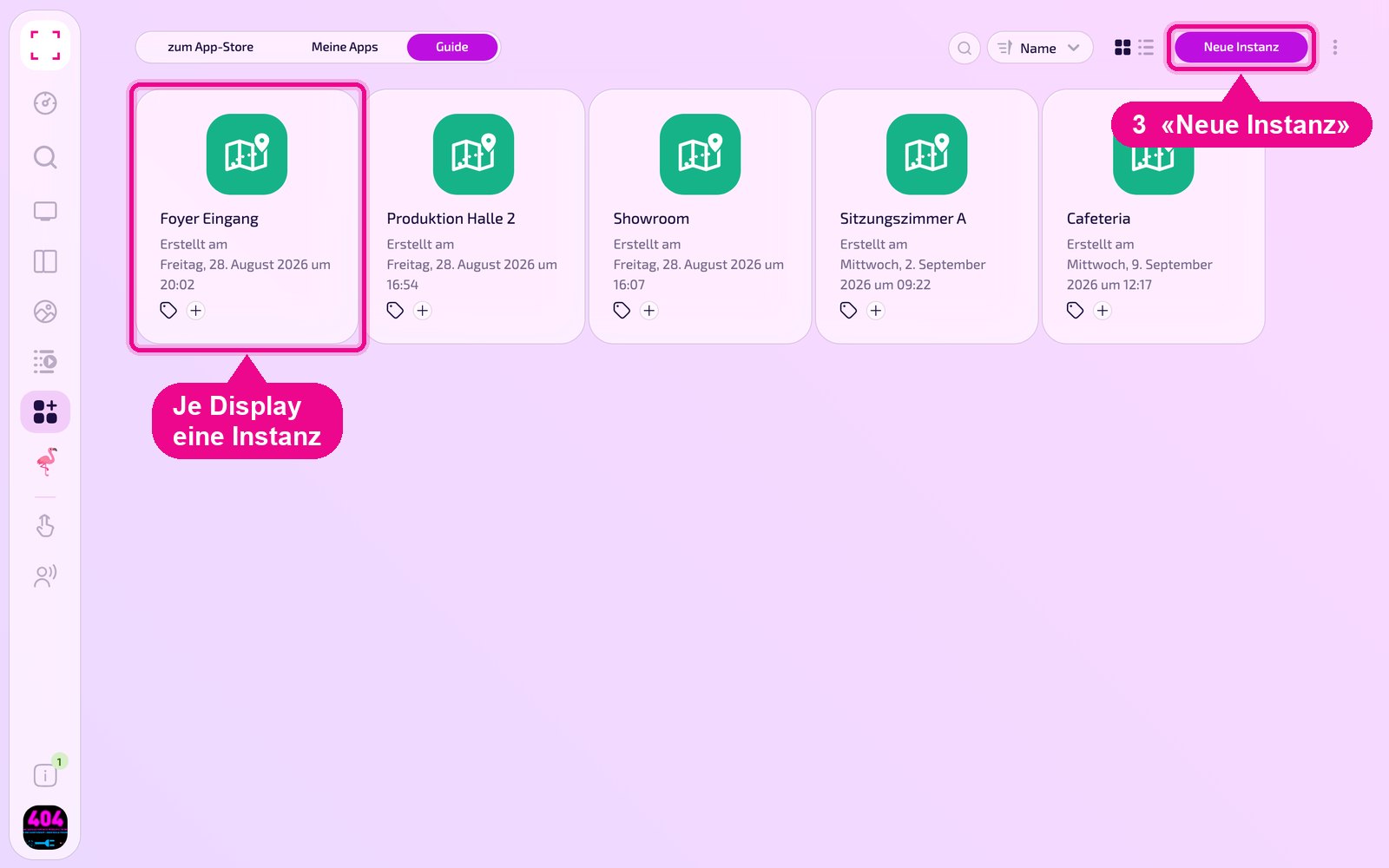
Click Neue Instanz (New instance) in the top right. Create a separate instance per display and give it a descriptive name, ideally the location.
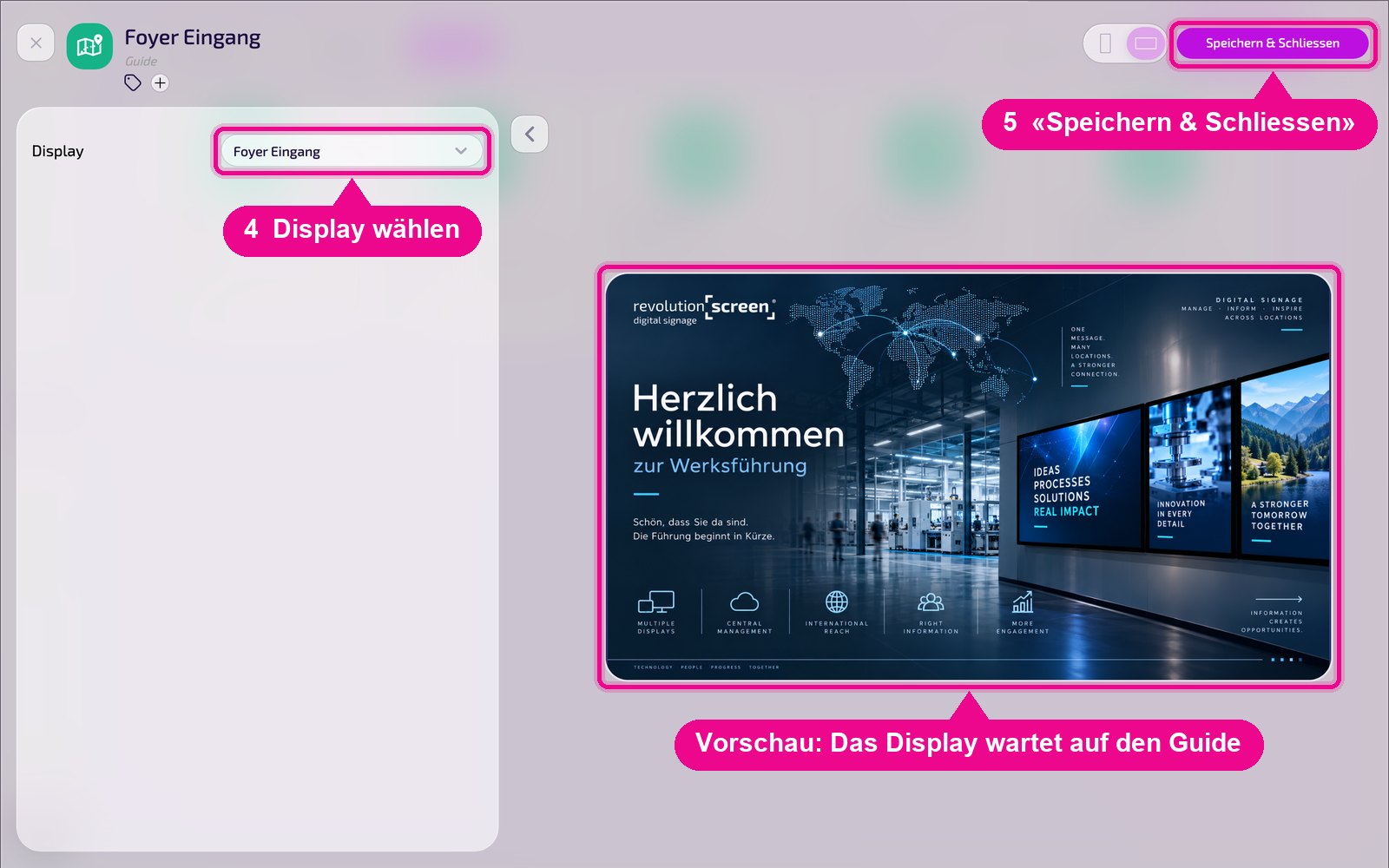
In the Display field, select the device the tour should run on and click Speichern & Schliessen (Save & close). The preview on the right shows the idle image displayed while it waits for the Guide.
The app recognizes the instance by its assigned display — you don't need a code in the name. All that matters is: one separate instance per display.
A display without a Guide instance can still be included in a tour. It then shows a Playlist, a Layout or an app the way the Player plays it — but you cannot flip through there.
Step 4 · Creating a new guided tour
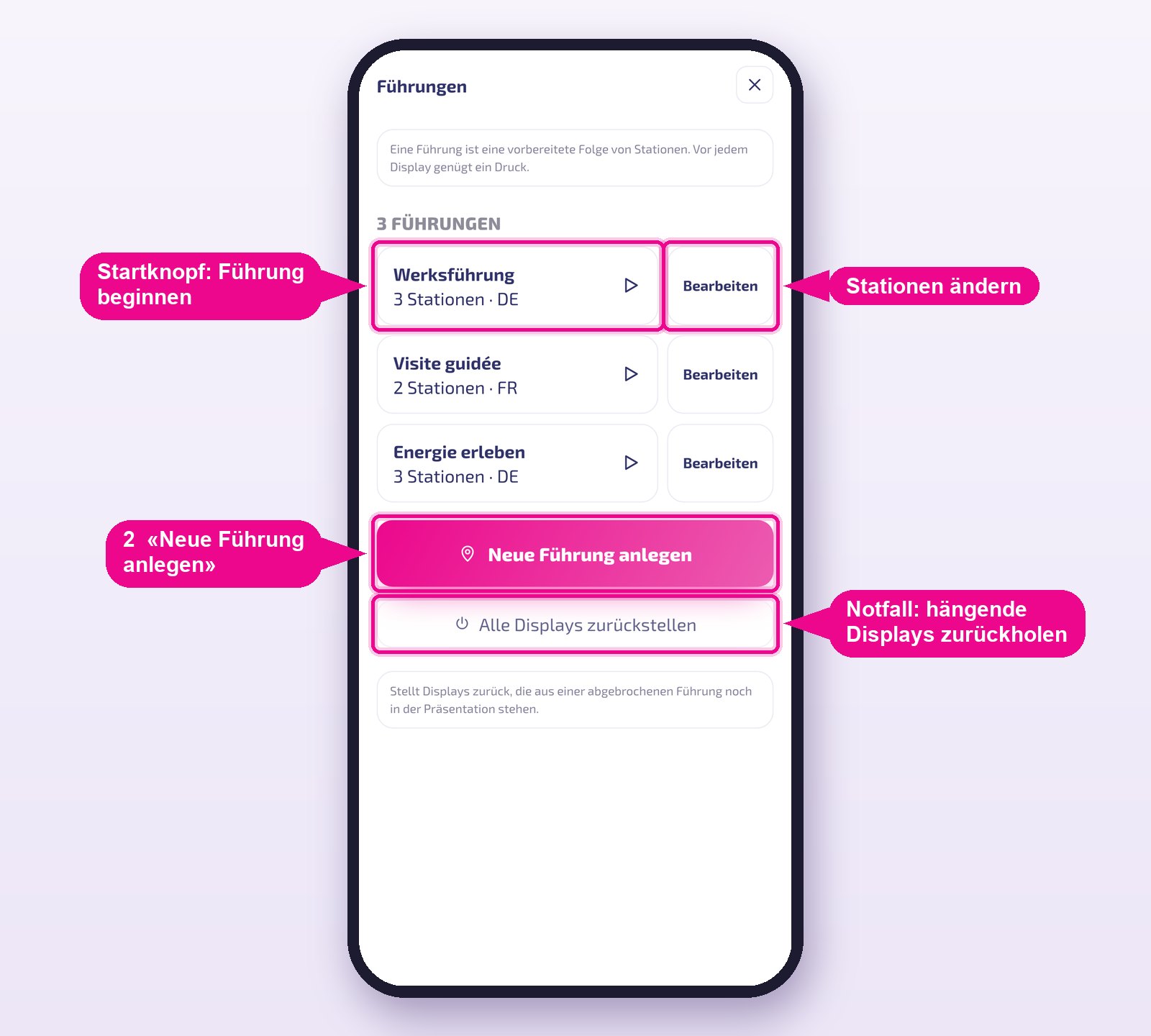
In the app, tap Führungen on the overview.
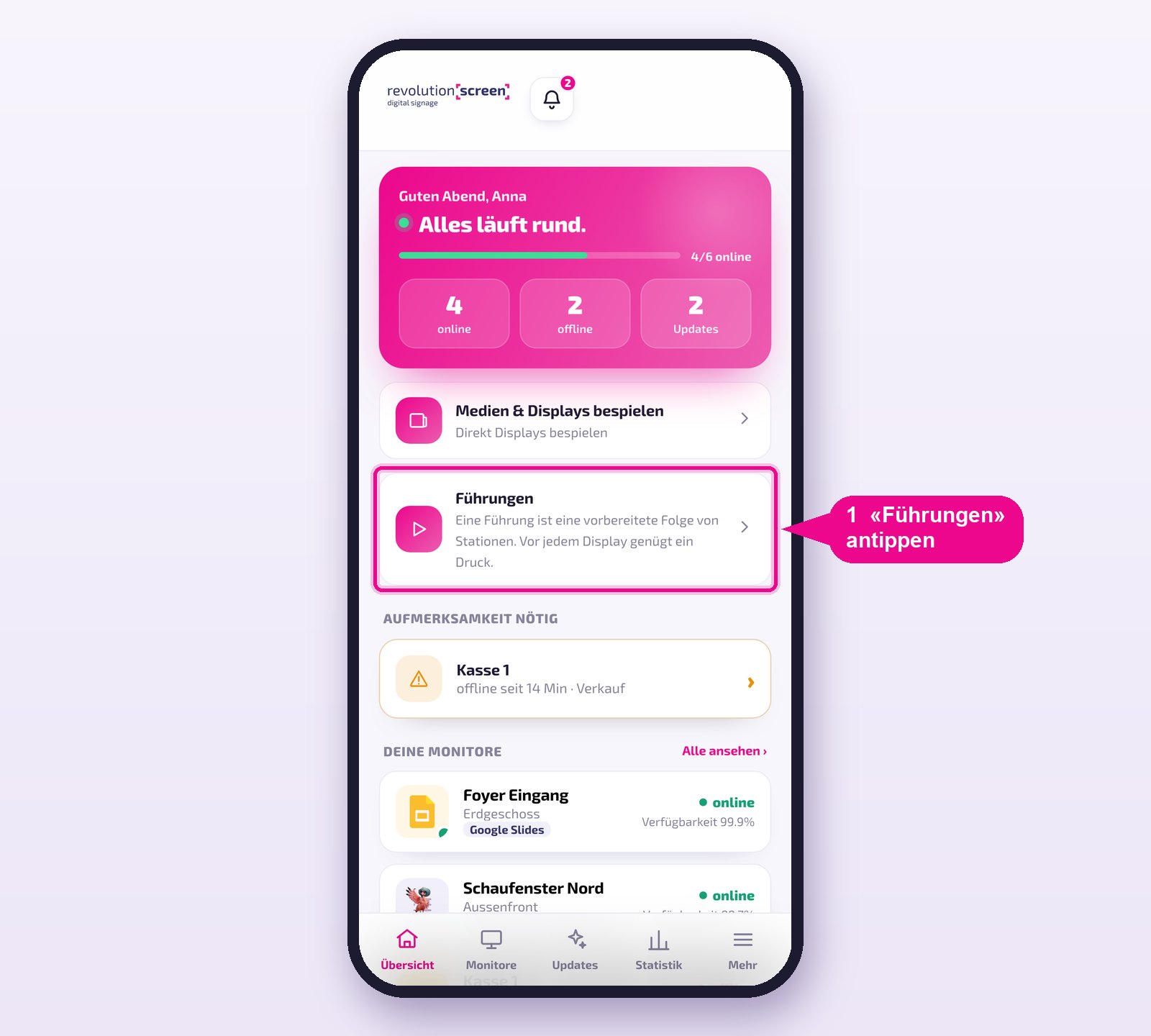
You see all your company's guided tours with the number of stations and the language. Tap Neue Führung anlegen.
Give the tour a Name, choose the Sprache (language) and tap Anlegen. The numbers in the images run through to step 6 — so you can see how the steps follow one another.
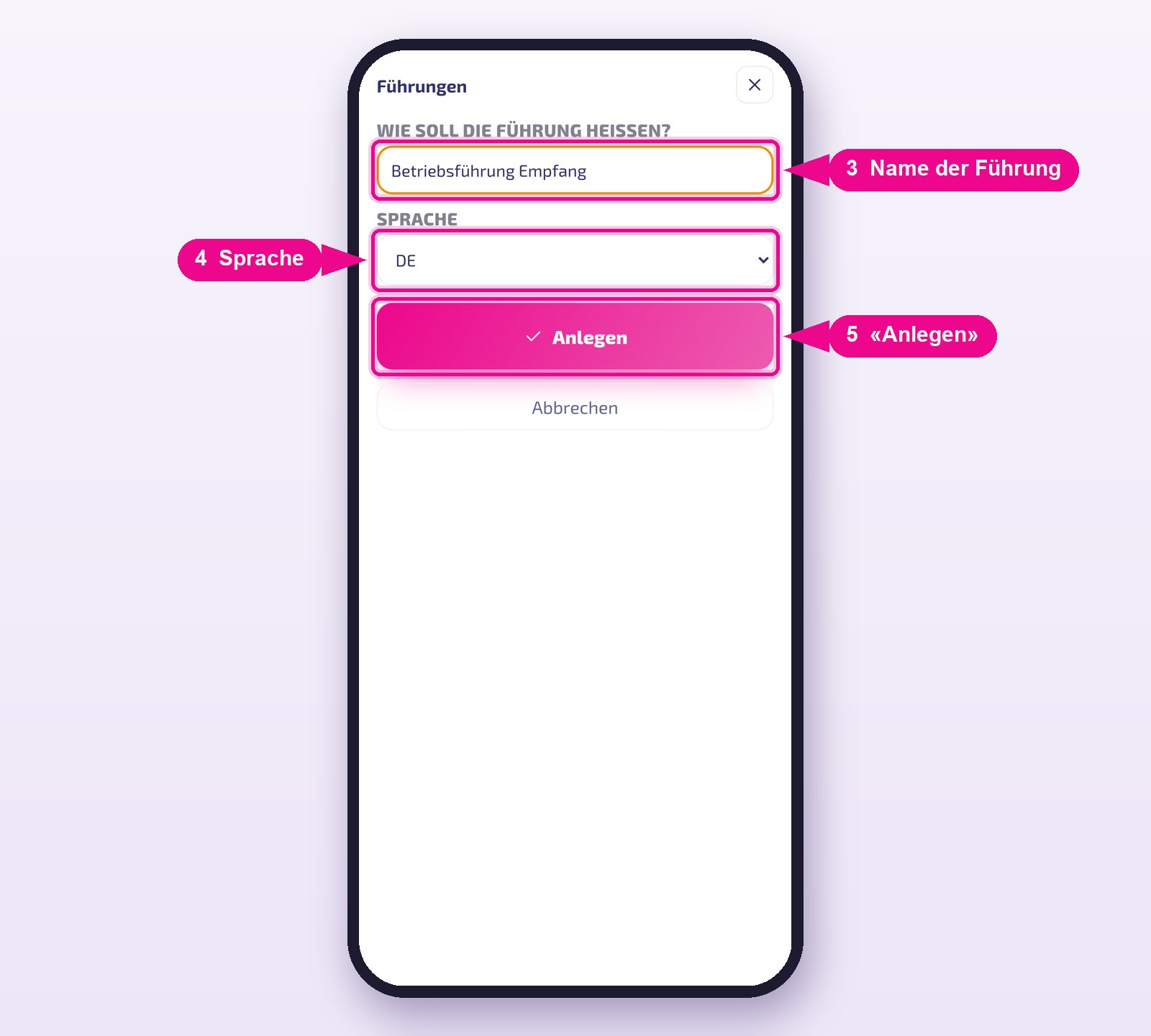
For a second language, you create a separate tour, for example «Werksführung DE» and «Werksführung EN». The language is a label in the list.
Step 5 · Setting up the first station
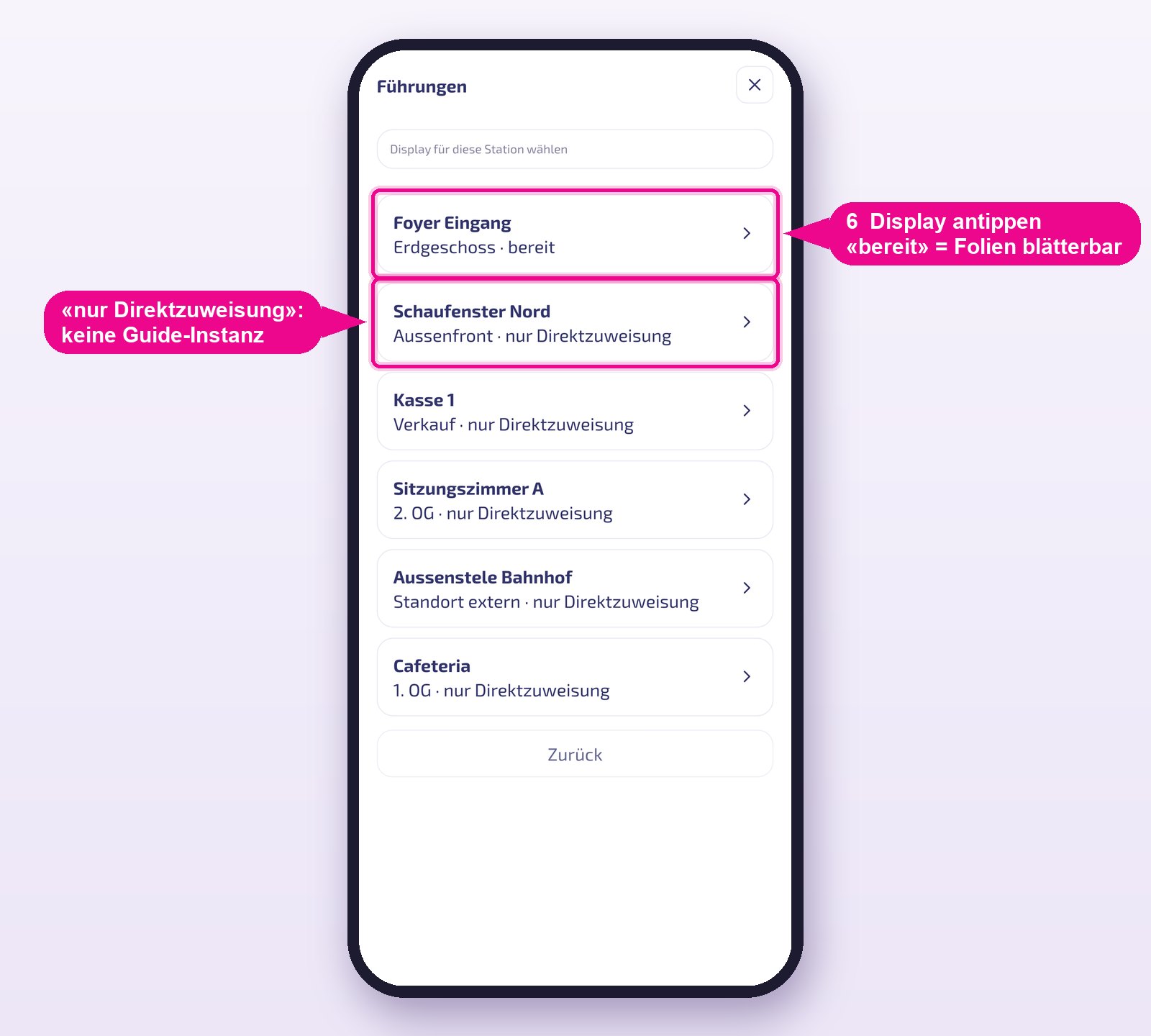
A Station is a display with its content. First choose the display. The note bereit (ready) means: the guide instance exists, slides can be paged through. nur Direktzuweisung (direct assignment only) means: the instance from step 3 is missing.
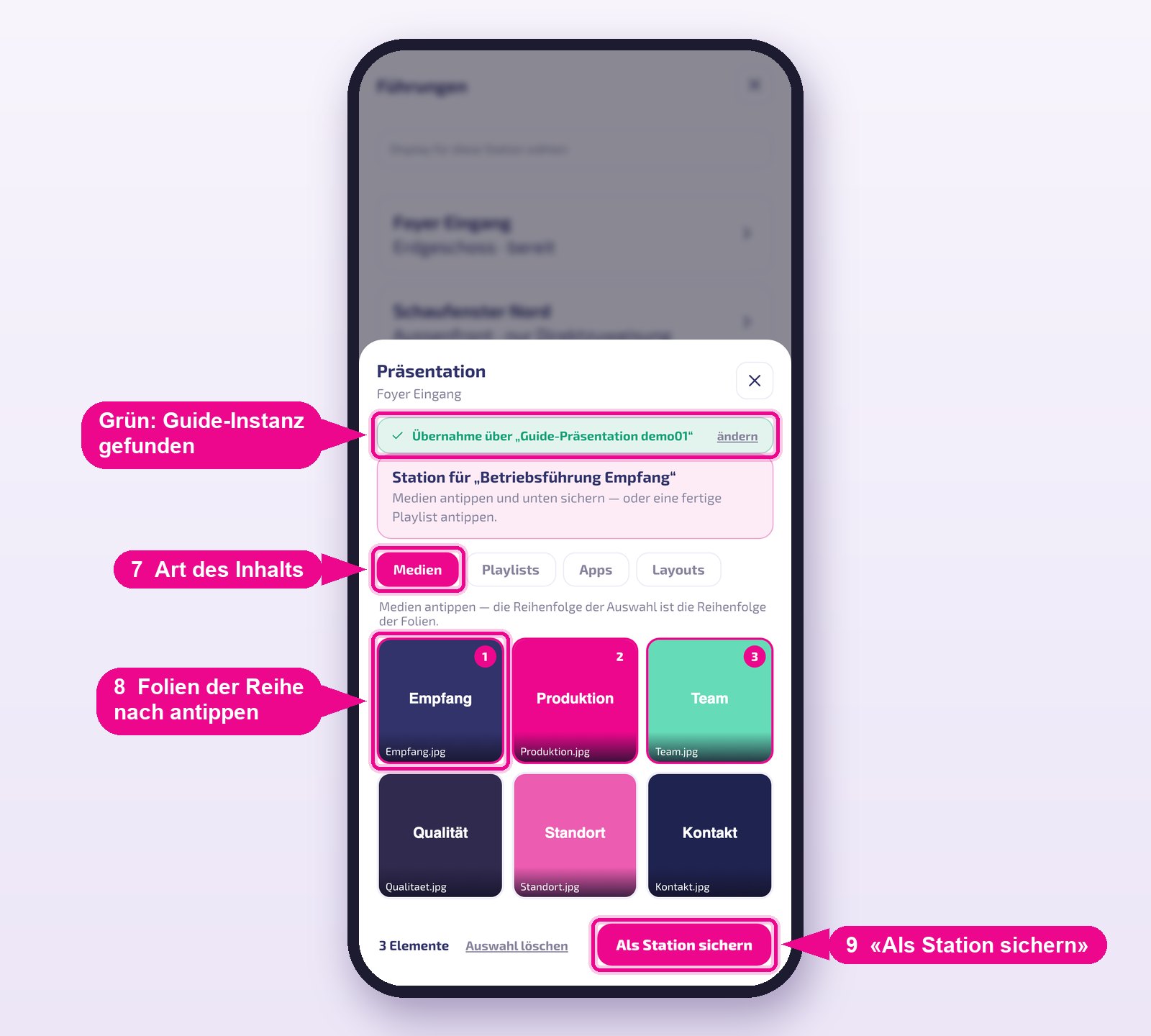
Now you define the content. The green bar confirms that the app has found the display's guide instance. At the top, choose the type — Medien, Playlists, Apps or Layouts — and tap the media in the order in which they should appear. The number in the top right of each tile shows the position. Then tap Als Station sichern.
Apps and layouts cannot be broken down into individual slides. They always run as a Direktzuweisung (direct assignment): the display plays them as usual, with no paging.
Complete the station:
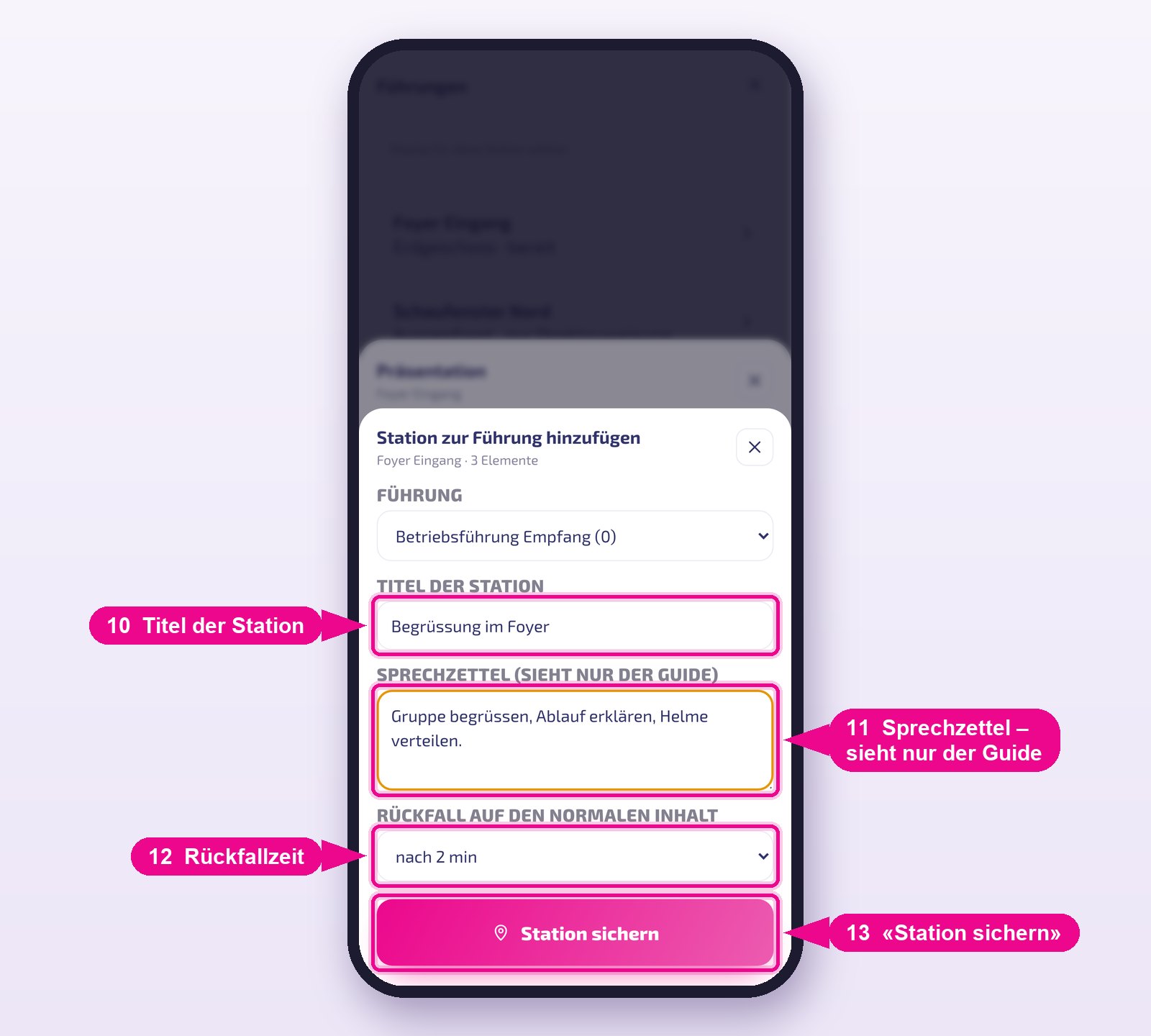
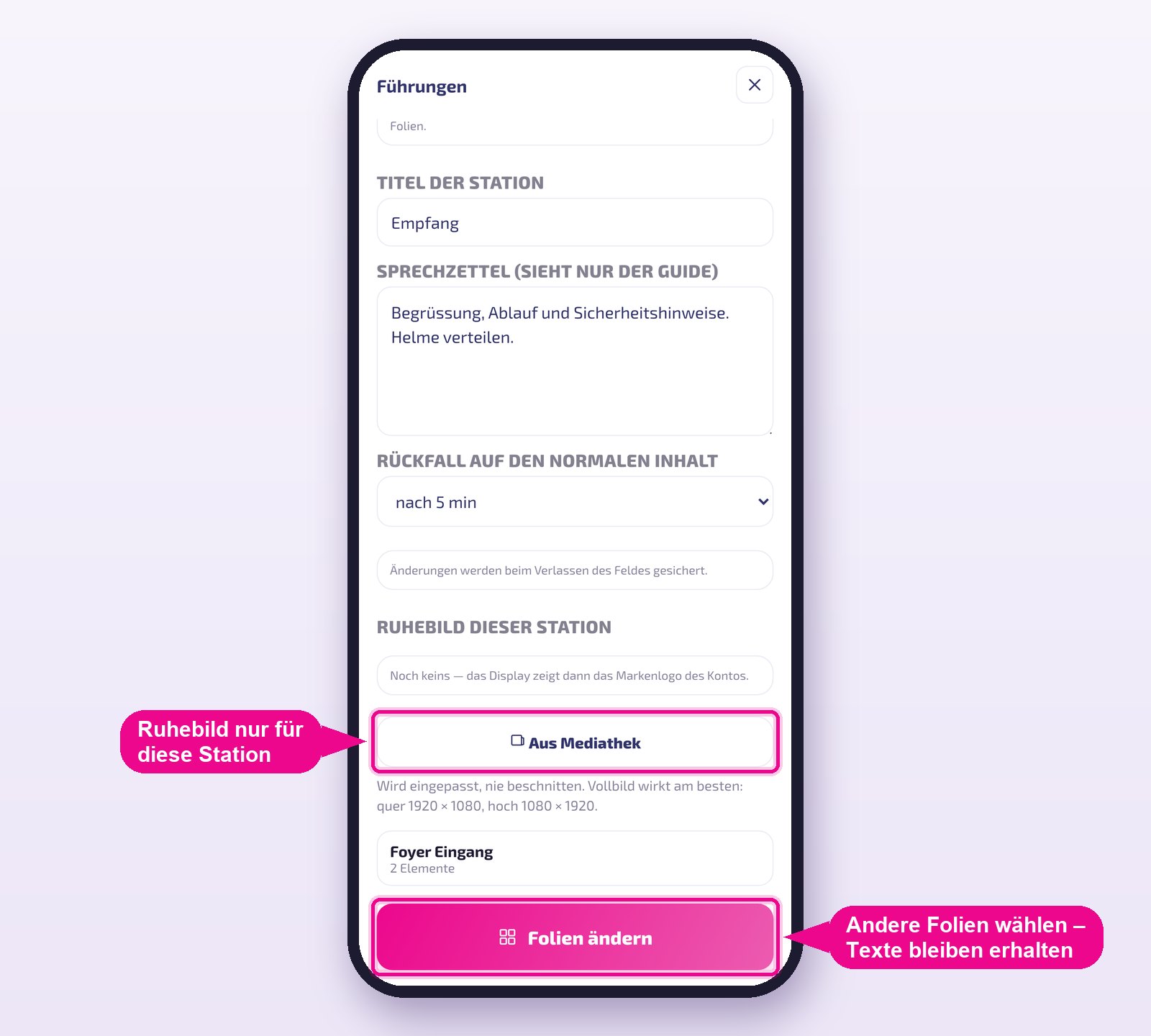
- Titel der Station (station title) — appears in your station list, for example «Begrüssung im Foyer».
- Sprechzettel (talking points) — your notes. They only appear on your phone, never on the display.
- Rückfall auf den normalen Inhalt (fallback to normal content) — how long the last slide stays on screen when you move on: immediately, after 2, 5 or 10 minutes. Handy when the group is still standing in front of it.
Tap Station sichern.
Step 6 · More stations and saving
You are back in the tour. With Station hinzufügen you set up the next display — just as in step 5. The arrows next to a station change the order, the bin removes it. Once everything is in place, tap Speichern.
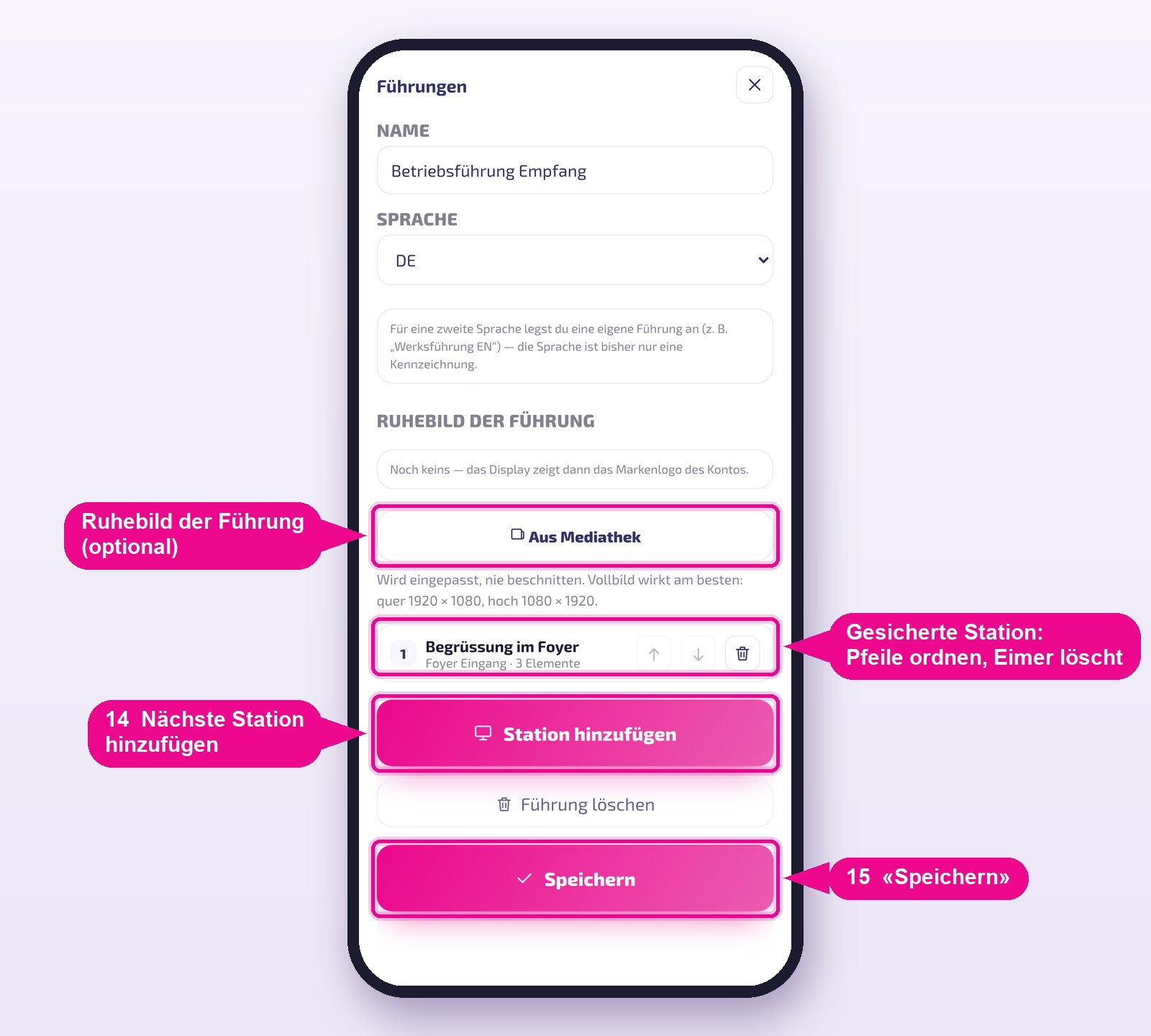
Under Ruhebild der Führung (idle image of the tour), use Aus Mediathek to choose an image that the displays show before you start a station — for example a greeting. Without your own idle image, your account's brand logo appears. A full-screen image at the display's resolution works best: landscape 1920 × 1080, portrait 1080 × 1920.
Step 7 · Running the guided tour
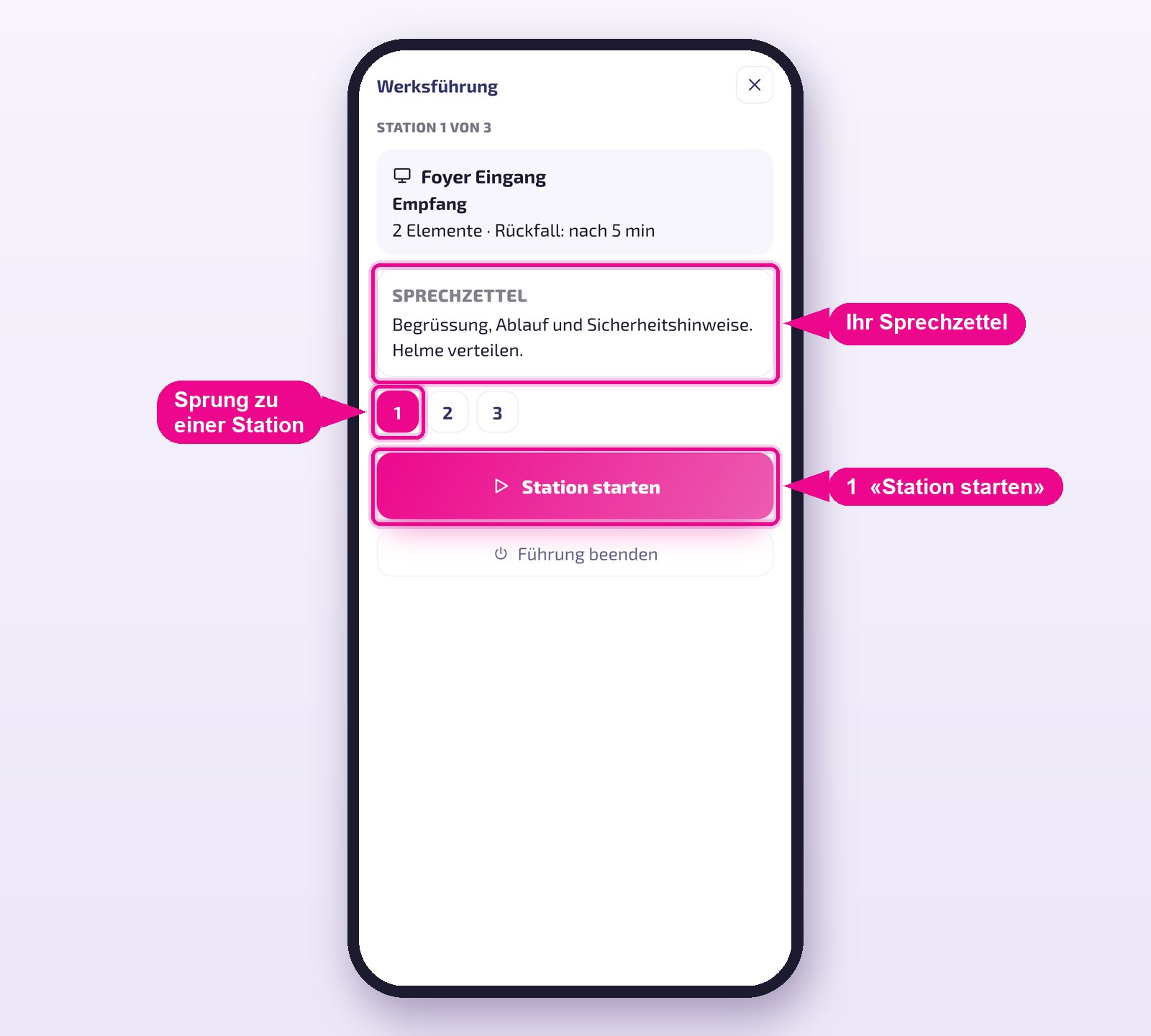
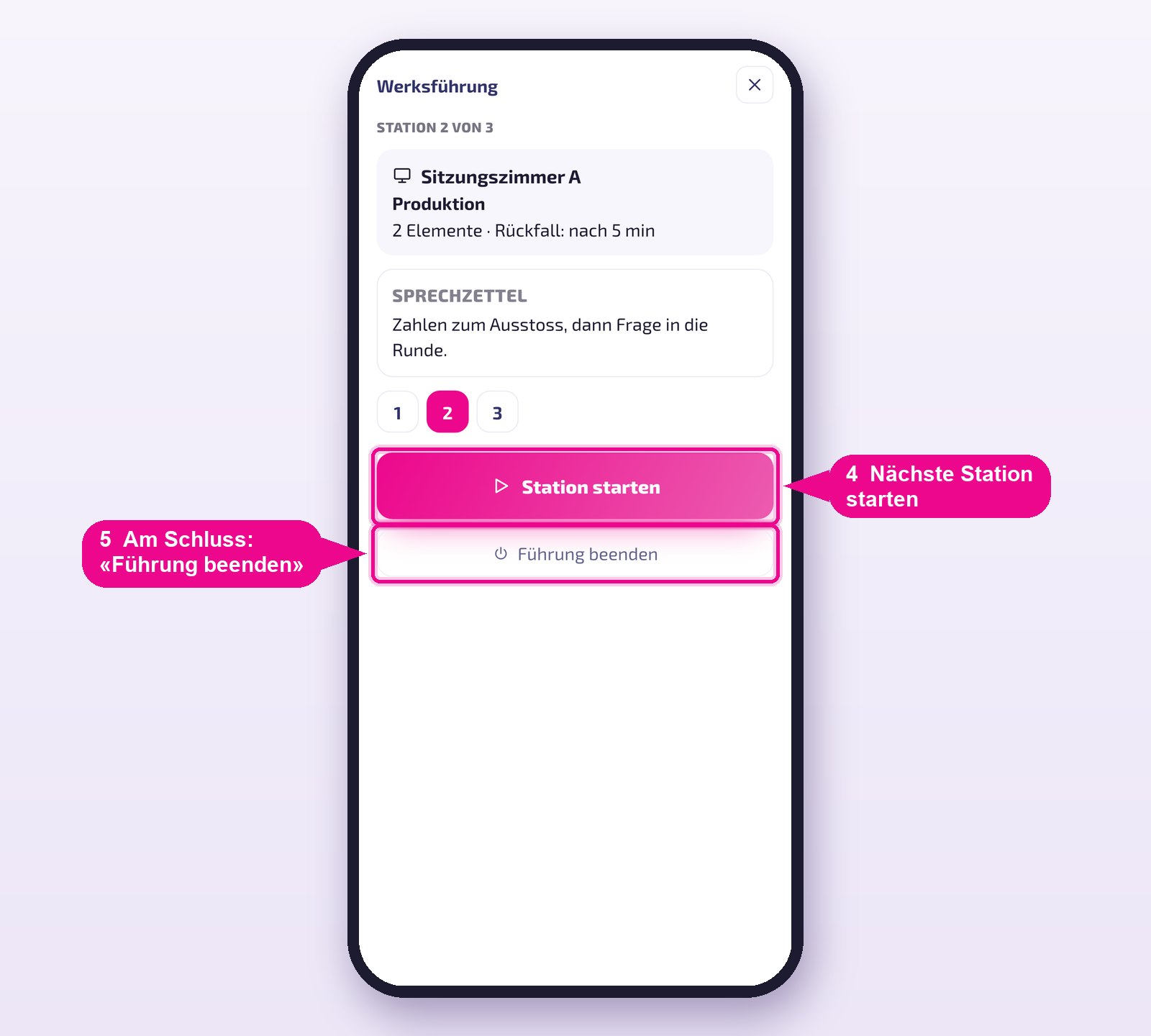
Open Führungen and tap the name of the tour (with the start button). You see the first station with its display, title and your talking points. When you are standing in front of the display with the group, tap Station starten. Use the numbers to jump to another station if needed.
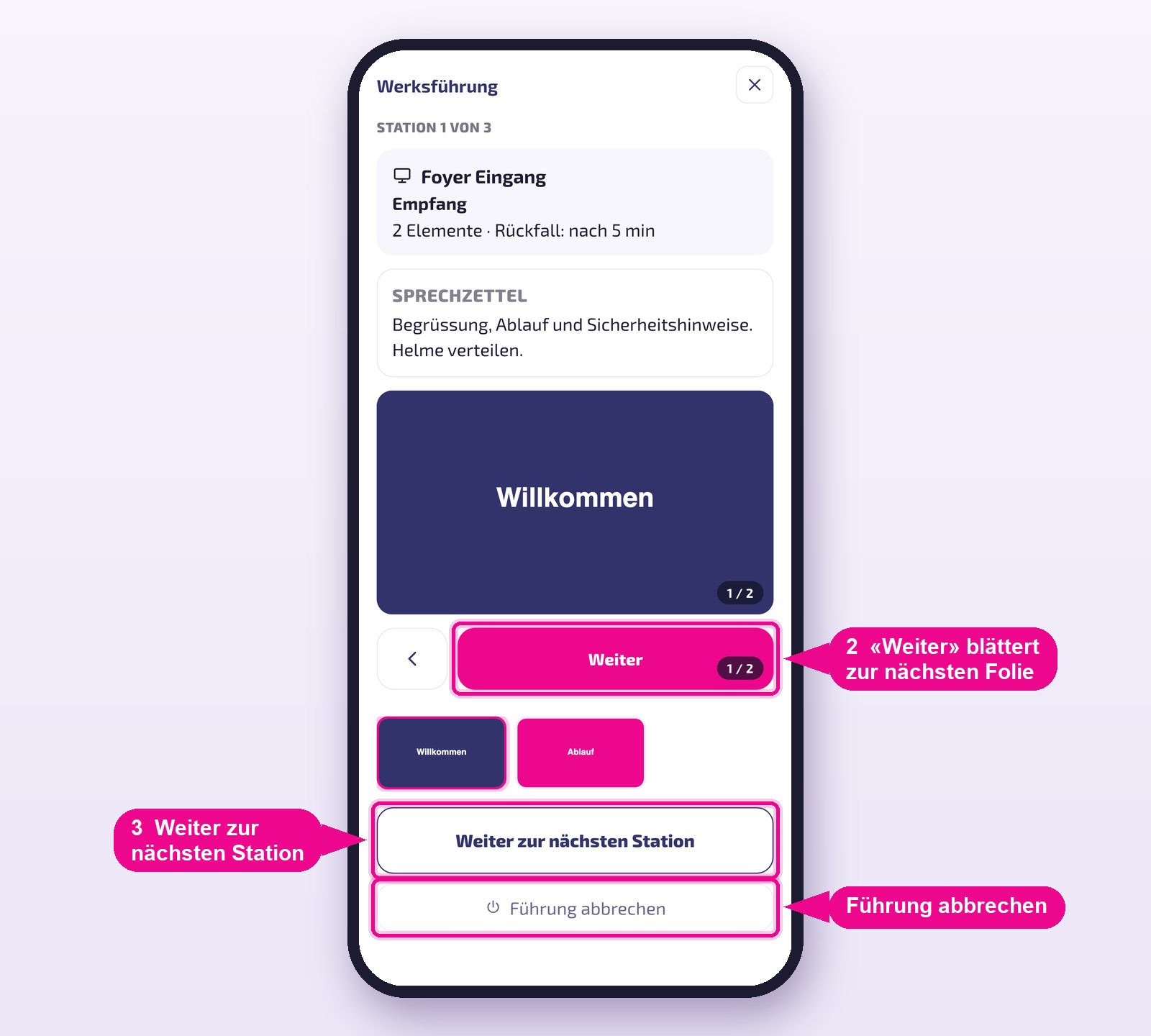
The display now shows the first slide. Weiter pages to the next one, the arrow on the left goes back, the thumbnails below jump directly to a slide. When you are done, tap Weiter zur nächsten Station and move on with the group to the next display.
While you are speaking at one station, the app is already preparing the next display. It shows its idle image in the meantime — and when you tap «Station starten» there, the first slide appears without any wait.
At each further station, tap Station starten again. After the last station, tap Führung beenden: all displays involved return to their normal content.
Your phone's screen stays awake as long as the tour is running. The displays' normal playlist is not changed — it simply continues after the station.
Changing a station afterwards
Open Führungen, tap Bearbeiten on the tour and then on the station. You change the title, talking points and fallback time directly — they are saved when you leave the field. You can also choose a separate idle image just for this station here, for example when landscape and portrait displays are mixed.
When a display gets stuck
If a guided tour stops unexpectedly — empty battery, closed app, no network — revolutionSCREEN resets the displays on its own after a while. It's faster to do it by hand: open Führungen (Guided tours) and tap Alle Displays zurückstellen (Reset all displays). Guided tours currently running for another group are not affected.
The same guided tour can be run by two guides at staggered times. If a display is currently in use by another group, the app asks whether you want to warten (wait) or übernehmen (take over). The display's original content is not lost in the process.
Plan on your computer
Guided tours can also be put together in the browser: at guide.revolutionscreen.net you log in with the same account and find the same guided tours — with more space, stations to drag, a calendar for appointments, and the Guides area for invitations. Whatever you save there is instantly available in the app on your phone.
Tips & troubleshooting
I can't find the app in the store
In the App Store it's called revolutionSCREEN, on Google Play revolutionSCREEN Signage. The QR-Codes or the links above are the safest option. iPhones need at least iOS 15.
A display is set to «direct assignment only»
This display is missing the guide instance. Create it as described in step 3, then reopen the display selection in the app.
I don't see any guided tours
Guided tours belong to the company account. Check whether you are logged in with the correct account — after switching accounts you'll see the guided tours of the other company.
The display doesn't show the slide
Check whether the display is online and has internet. If that doesn't help, end the station, tap «Alle Displays zurückstellen» (Reset all displays) under «Führungen» (Guided tours), and restart the station.