Guide: plan in the browser, lead from your phone
With Guide, your displays become part of a guided tour: before each station, a single tap on your phone is enough, and the display shows exactly the slides you are talking about. After the tour, all displays return to their normal content on their own.
The work splits into two parts: preparing in the web browser on your computer — where you have room for stations, slides, appointments and guides — and leading with your phone, out and about with the group. This guide explains both step by step.
guide.revolutionscreen.net, schedule an appointment and invite the guide. On your phone: download the «revolutionSCREEN» app, sign in, open «Führungen» (tours), and start station by station.The pink marker shows where you click or tap. Pills with a number are steps in that order; pills without a number explain what you see.
Tours can also be created entirely without a computer. The alternative Guide app: everything on your phone shows how.
What you need
- An active revolutionSCREEN subscription with at least one display
- For preparation: a computer with a current web browser (Chrome, Edge, Safari or Firefox) — the window should be at least 900 pixels wide, otherwise the phone view appears
- For the tour: an iPhone or iPad with iOS 15 or later, or an Android device version 5.1 or later
- A revolutionSCREEN account (email and password) — it's the same in the browser and in the app
- Internet on your phone and on the displays
Part A · Preparing in the web browser
These steps are handled by whoever plans the tours — usually once at the desk. The guides don't need to know anything about it.
Step 1 · Prepare displays (once, in my.rstv.app)
For slides to be flipped through on a display, it needs its own instance of the Guide app. This is needed once per display — never again after that.
Sign in at my.rstv.app, click Apps on the left and open the Guide app. If it's not yet installed, find it in the app store via the search and click Installieren (install).
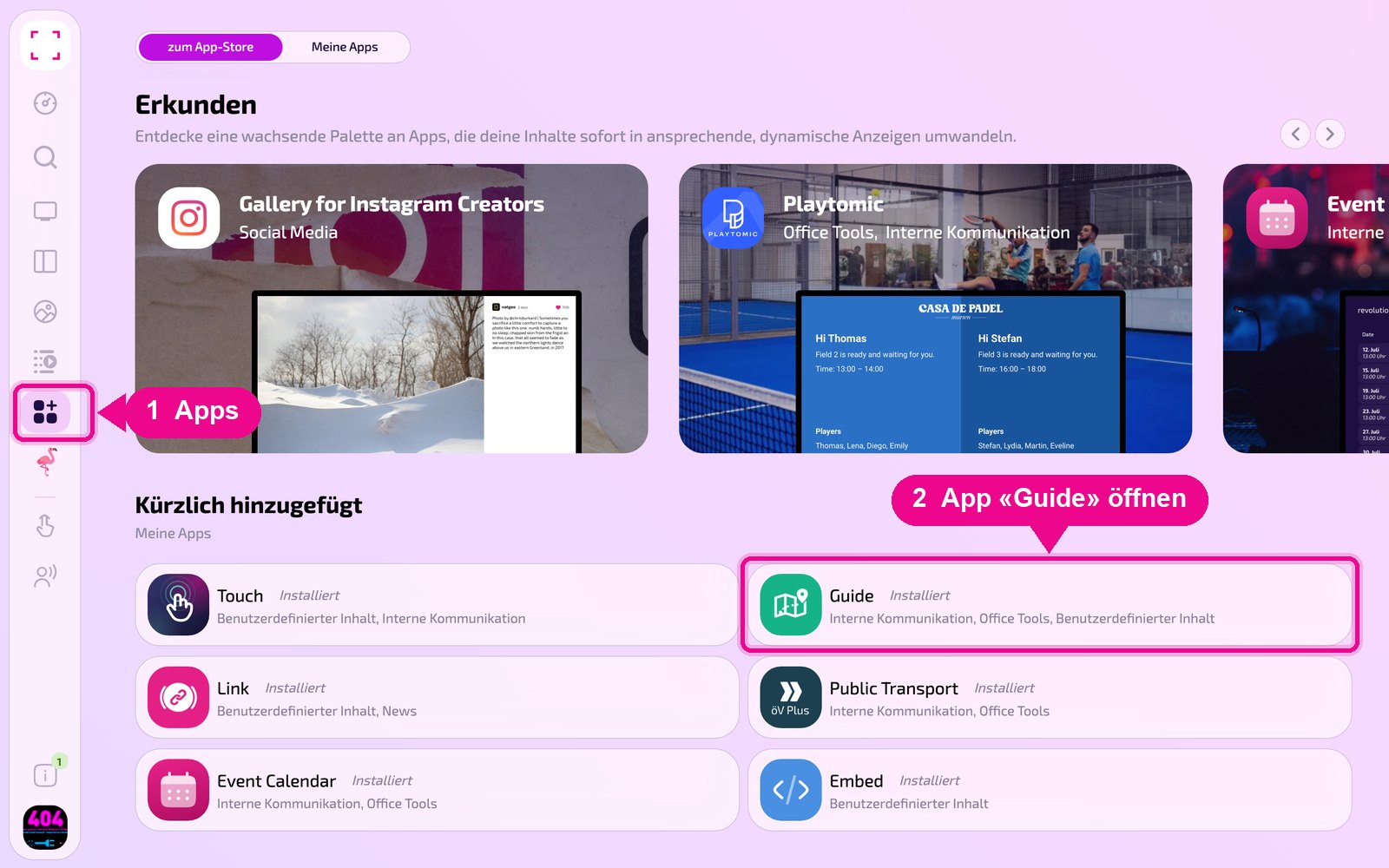
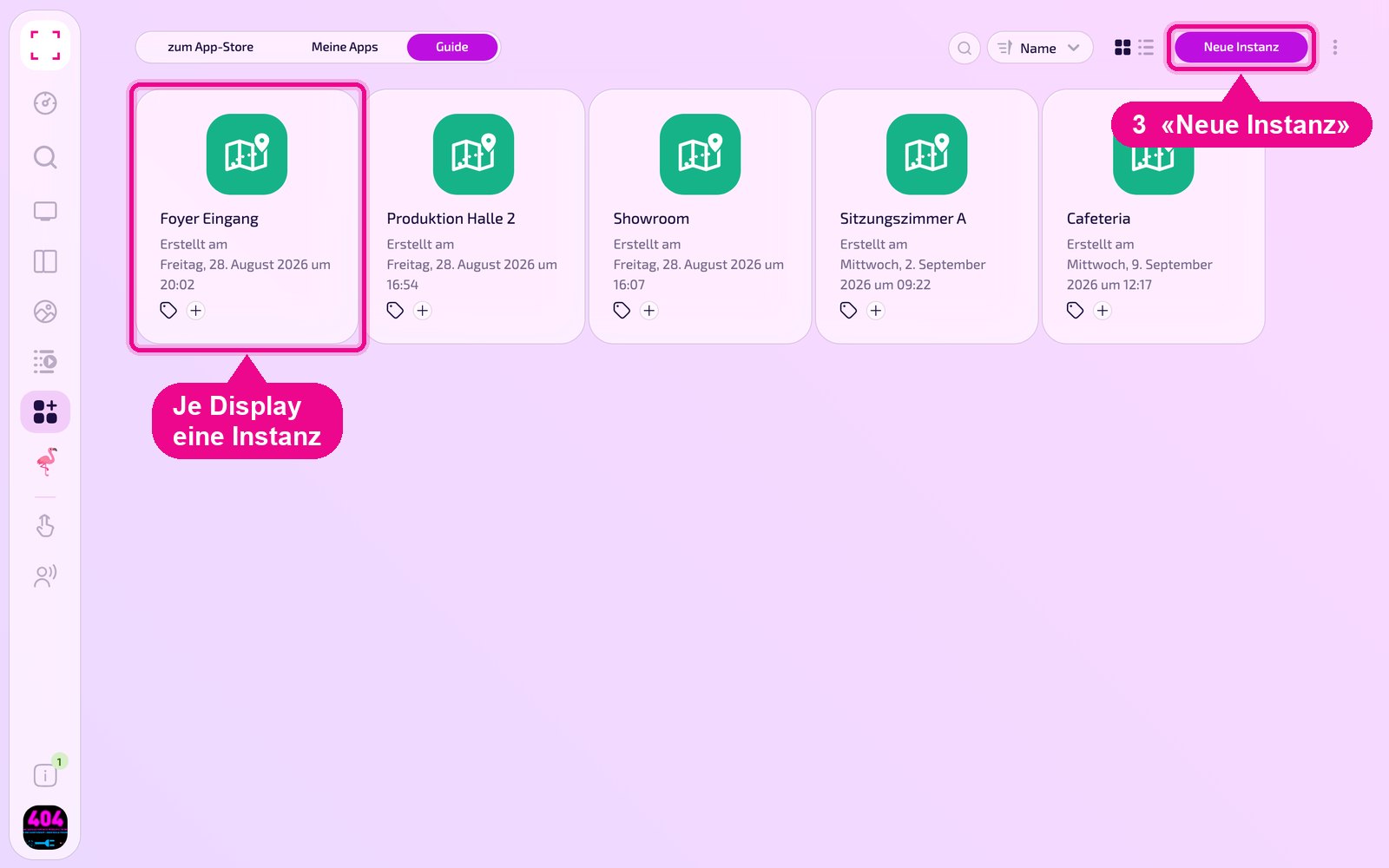
Click Neue Instanz (new instance) at the top right. Create a separate instance for each display and give it a descriptive name, ideally the location.
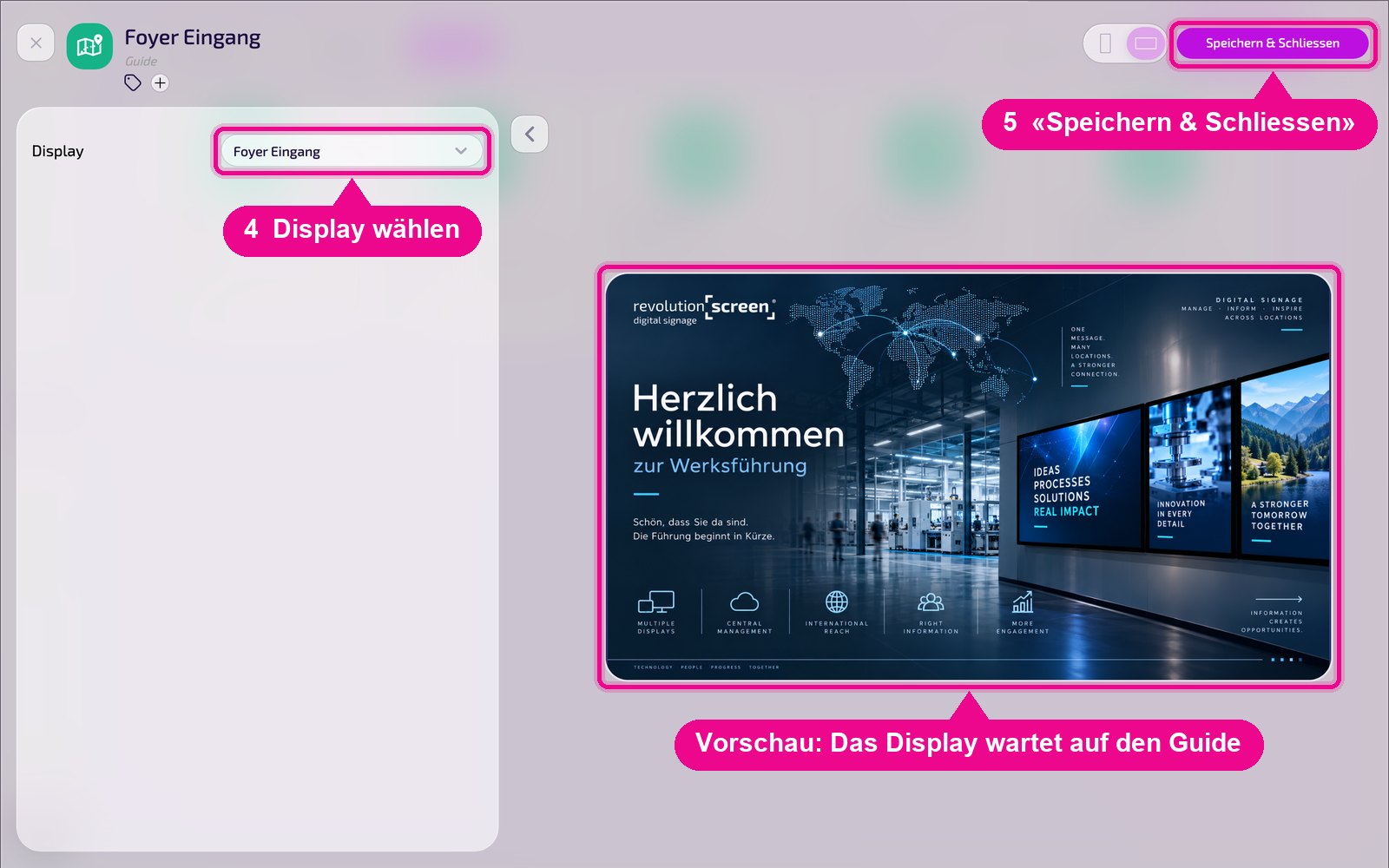
In the Display field, select the device and click Speichern & Schliessen (save & close). The preview on the right shows the idle image displayed while it waits for the guide.
Guide identifies the instance by the assigned display — you don't need a code in the name. The only thing that matters is: one separate instance per display. A display without an instance can still be added to a tour, but then only shows a Playlist, a Layout or an app — you can't flip through slides there.
Step 2 · Open Guide in the browser
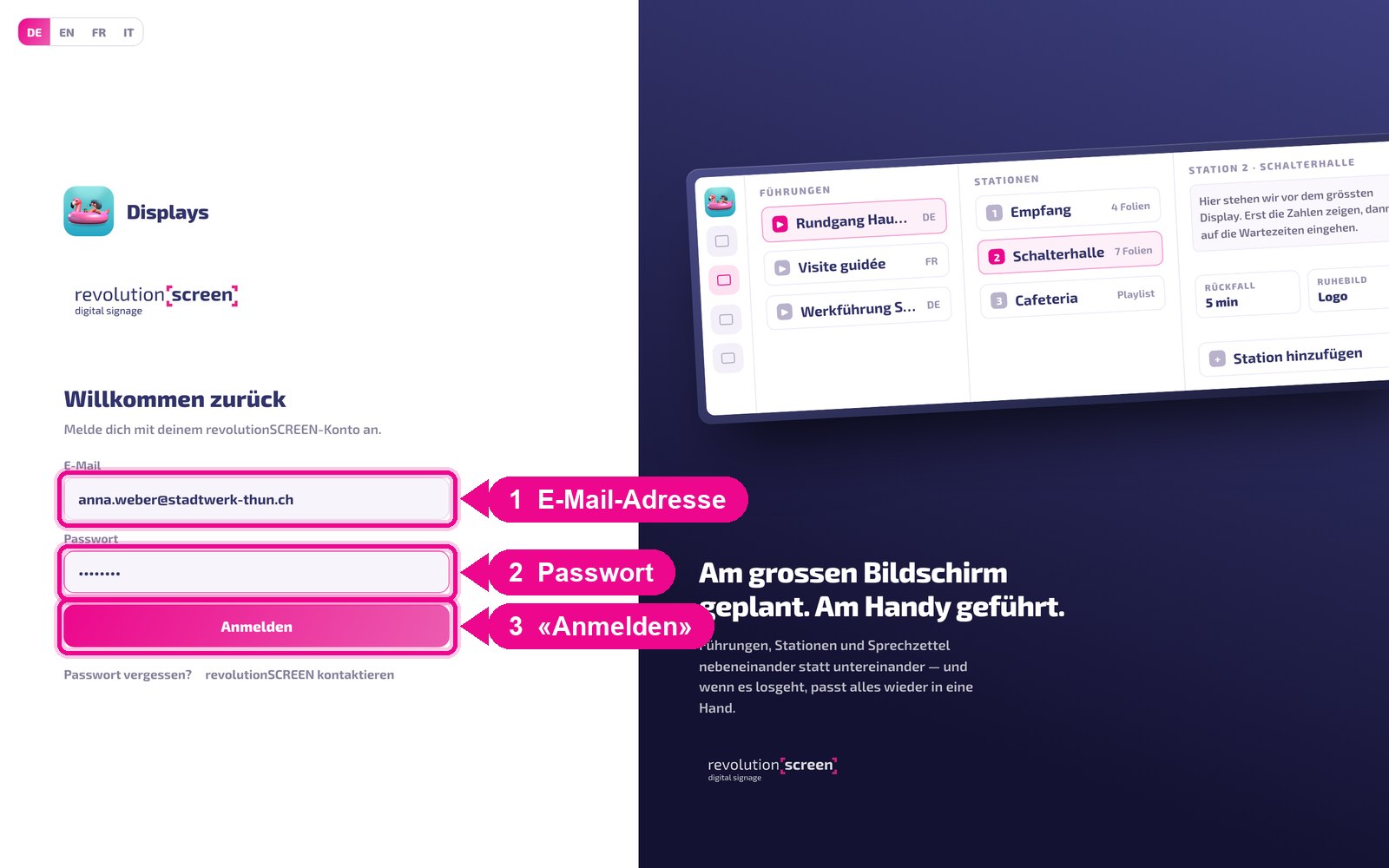
Open guide.revolutionscreen.net and sign in with the email and password of your revolutionSCREEN account. You stay signed in for 31 days — also for the TOUCH Studio.
On the left you'll find the sections: Übersicht (overview), Führungen (tours), Live-Regie (live control), Kalender (calendar), Standortplan (site plan) and Guides. For this guide you mainly need Führungen, Kalender and Guides.
Step 3 · Create a new tour
Click Neue Führung (new tour) at the top right (or the + in the «Führungen» section). A small form opens on the left: give the tour a name, choose the language and click Anlegen (create).
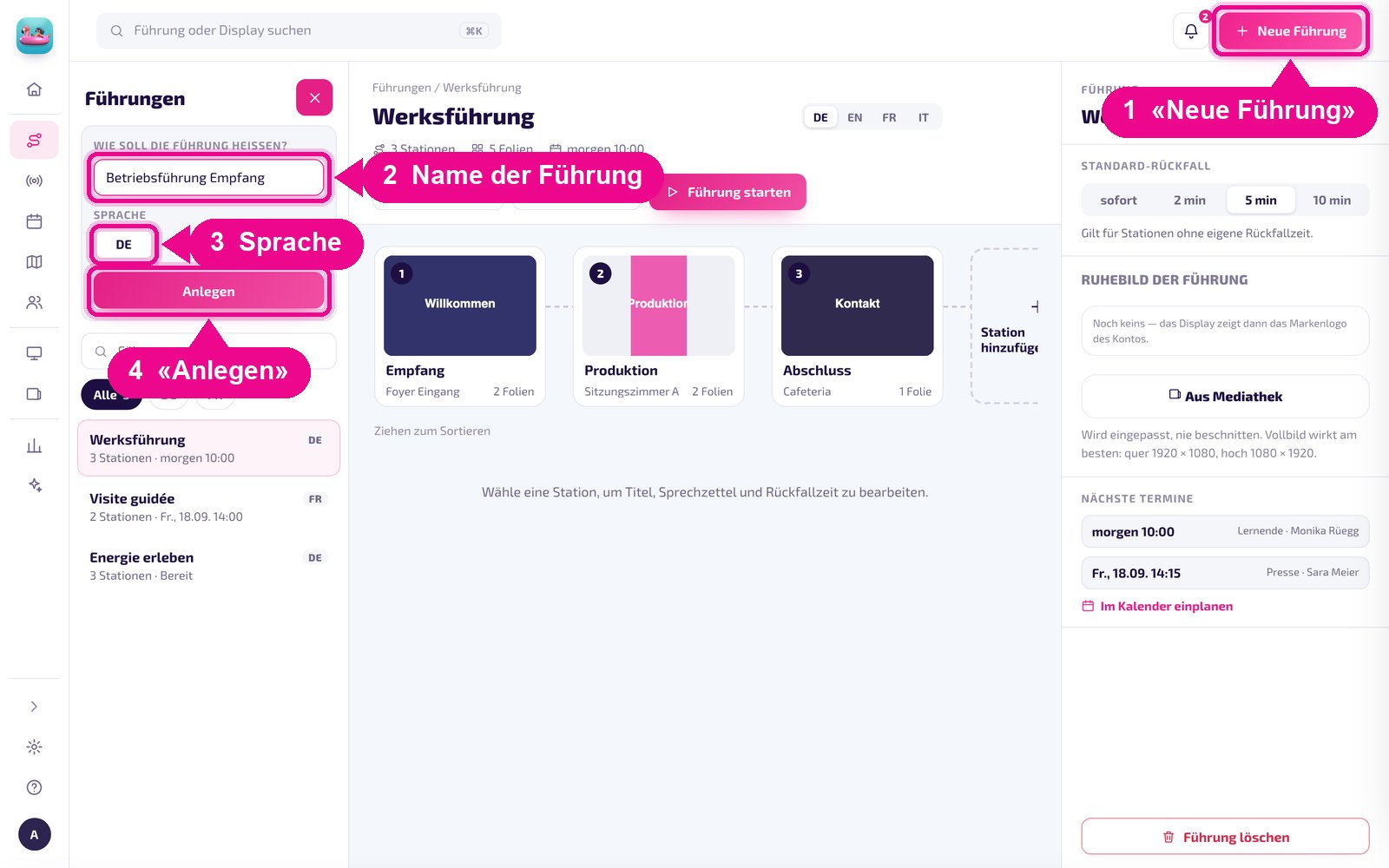
For a second language, create a separate tour, for example «Werksführung DE» and «Werksführung EN». The language serves as a label and as a filter in the list.
Step 4 · The first station: display and slides
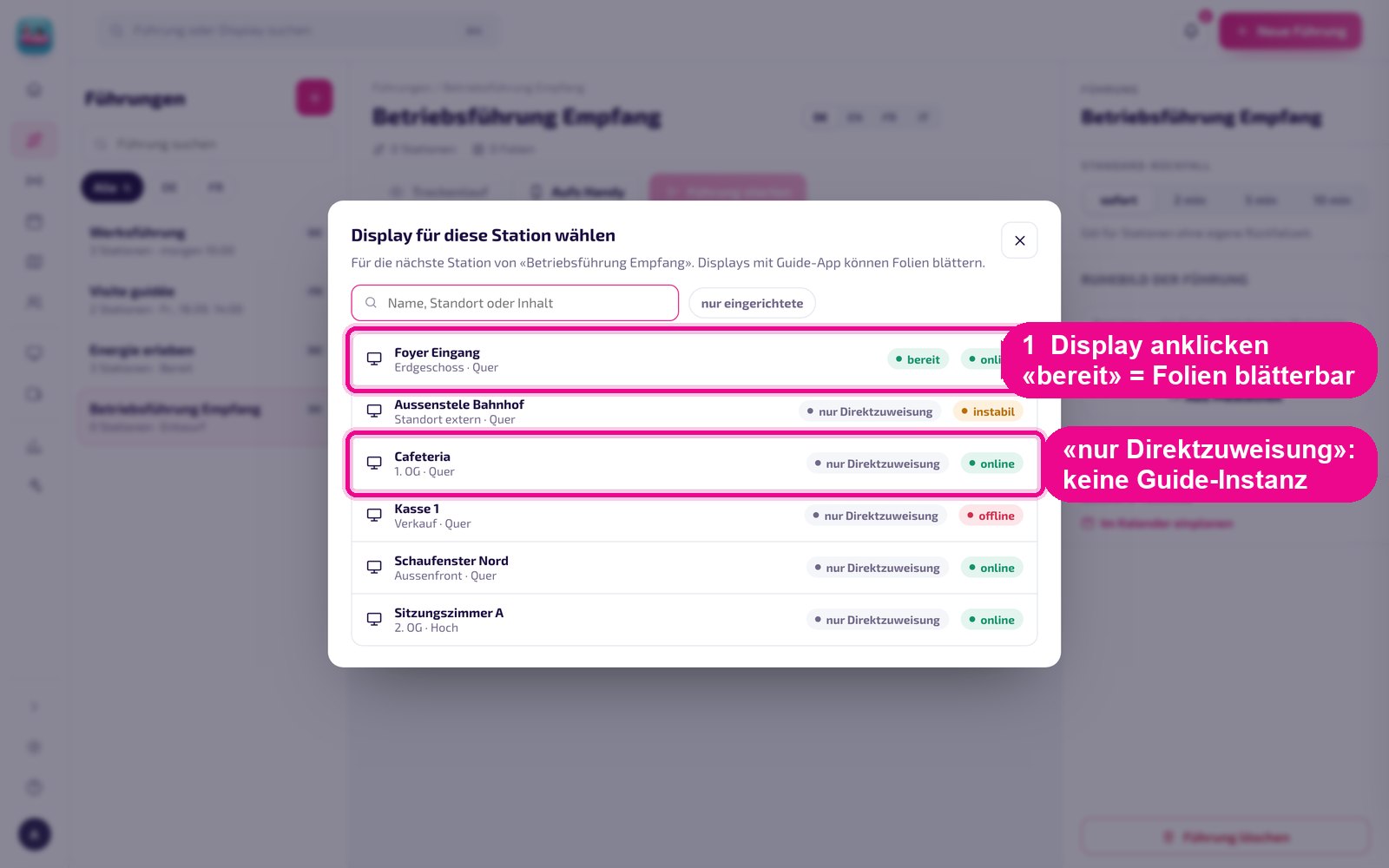
After creating it, Guide asks directly for the display for the first station. bereit (ready) means: Guide instance present, slides can be flipped. nur Direktzuweisung (direct assignment only) means: the instance from Step 1 is missing. Use the search field to find displays by name, location or content; nur eingerichtete (configured only) hides all those without an instance.
Now select the content. The green bar confirms that the display's Guide instance was found. Choose the type at the top — Medien (media), Playlists, Apps or Layouts — and click the media in the order in which they should appear. The number at the top right shows the position. Then Als Station sichern (save as station).
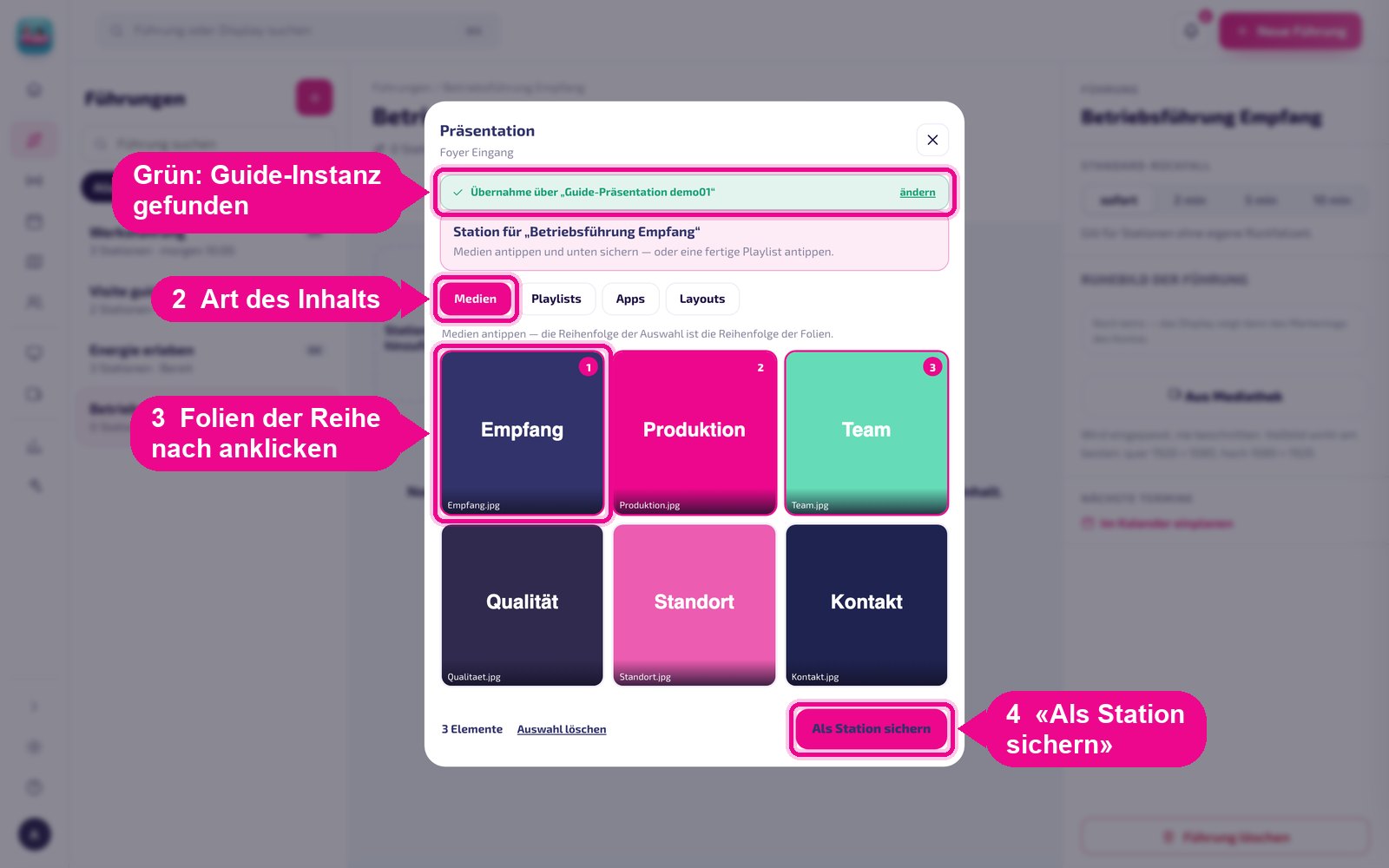
Apps and Layouts cannot be broken down into individual slides. They run as a direct assignment: the display plays them as usual, no flipping through slides.
Step 5 · Save the station
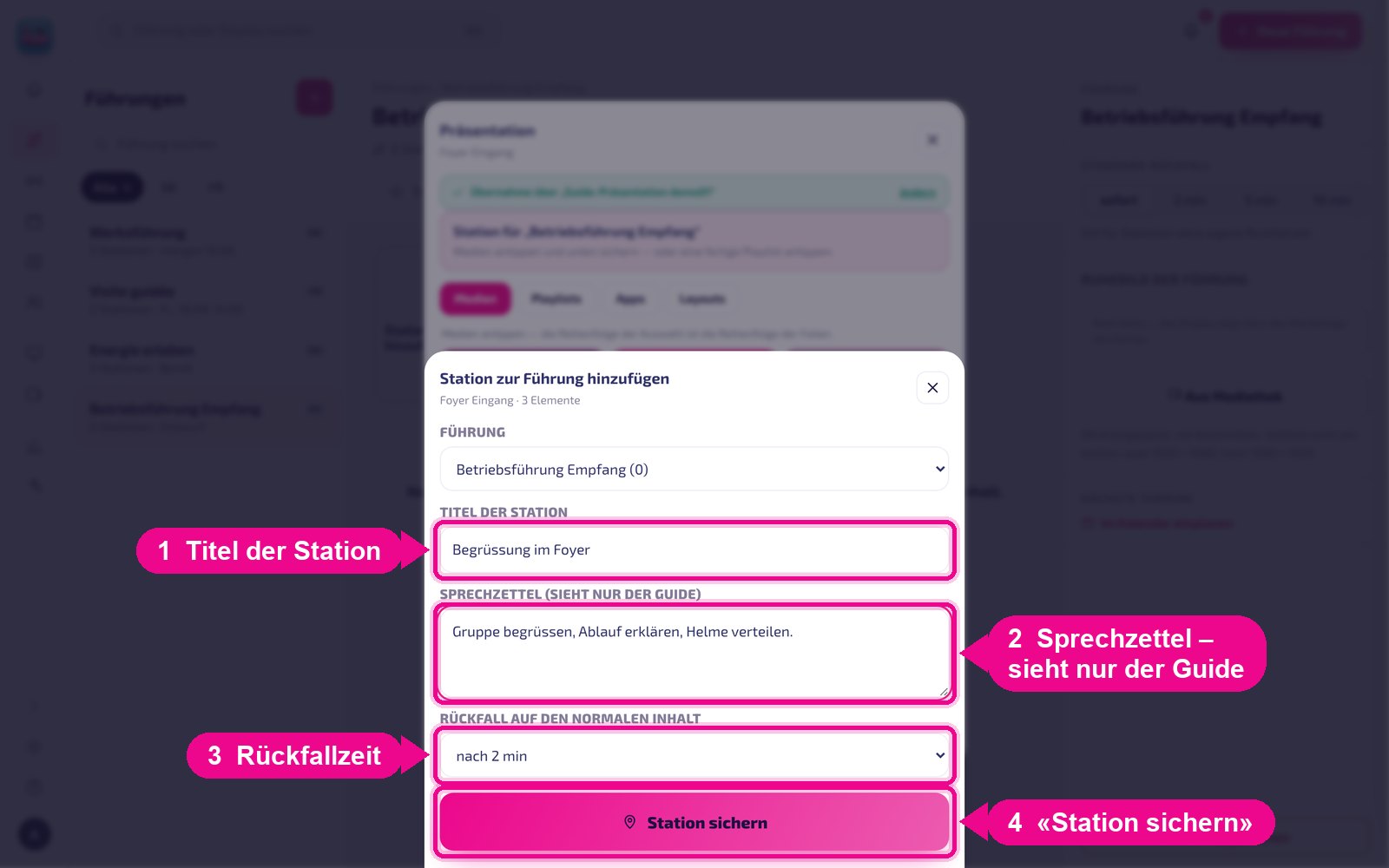
- Station title — appears in the station list and on the phone, for example «Begrüssung im Foyer».
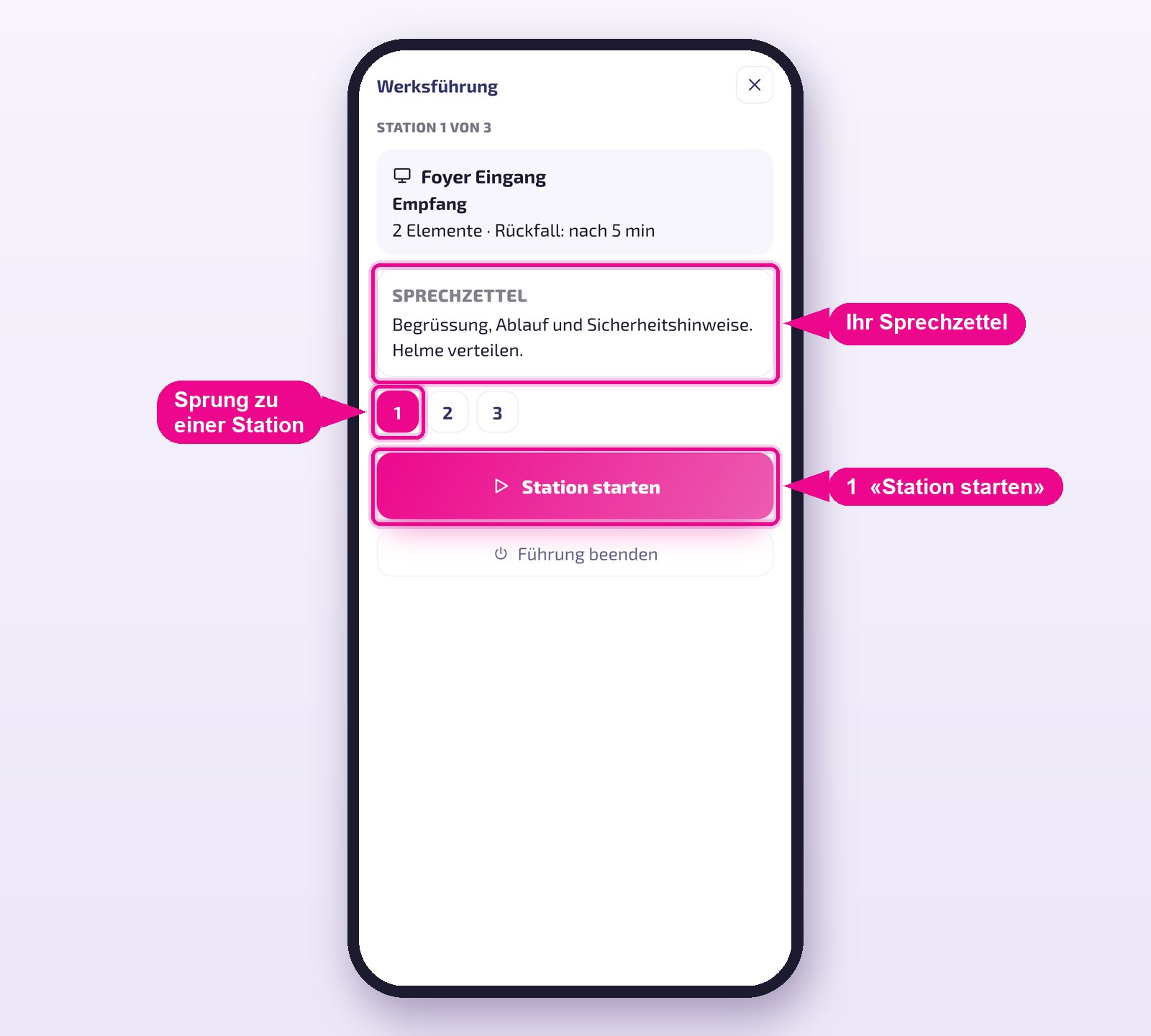
- Talking points — notes for the guide. They are shown only on the phone, never on the display.
- Fallback to the normal content — how long the last slide stays once the guide moves on: immediately, or after 2, 5 or 10 minutes.
Click Station sichern (save station).
Step 6 · Check the station and add more
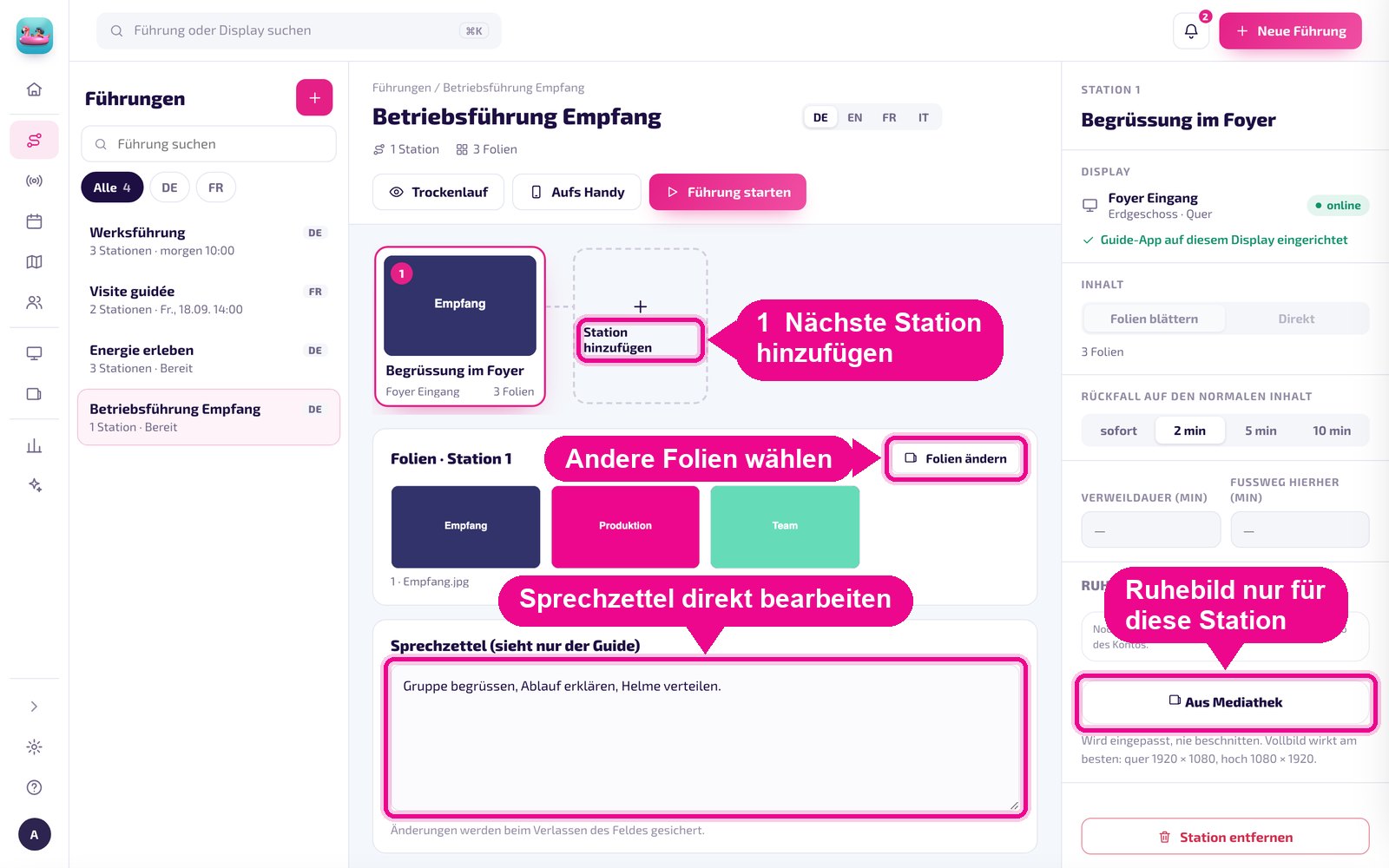
The station appears as a card, with all settings to its right. You can adjust them here at any time — changes are saved when you leave the field:
- Folien ändern (change slides) reopens the content selection; title, talking points and fallback time are kept.
- You edit the talking points directly in the large field.
- On the right you choose between Folien blättern (page through slides) and Direkt (direct), set the fallback time and, if needed, add a standby image just for this station.
- Dwell time and Walking time to here (in minutes) are optional — the calendar uses the dwell time to work out when which display is occupied, while the walking time appears in the location map.
With Station hinzufügen (add station) you set up the next display — exactly as in steps 4 and 5.
Step 7 · Finalise the tour
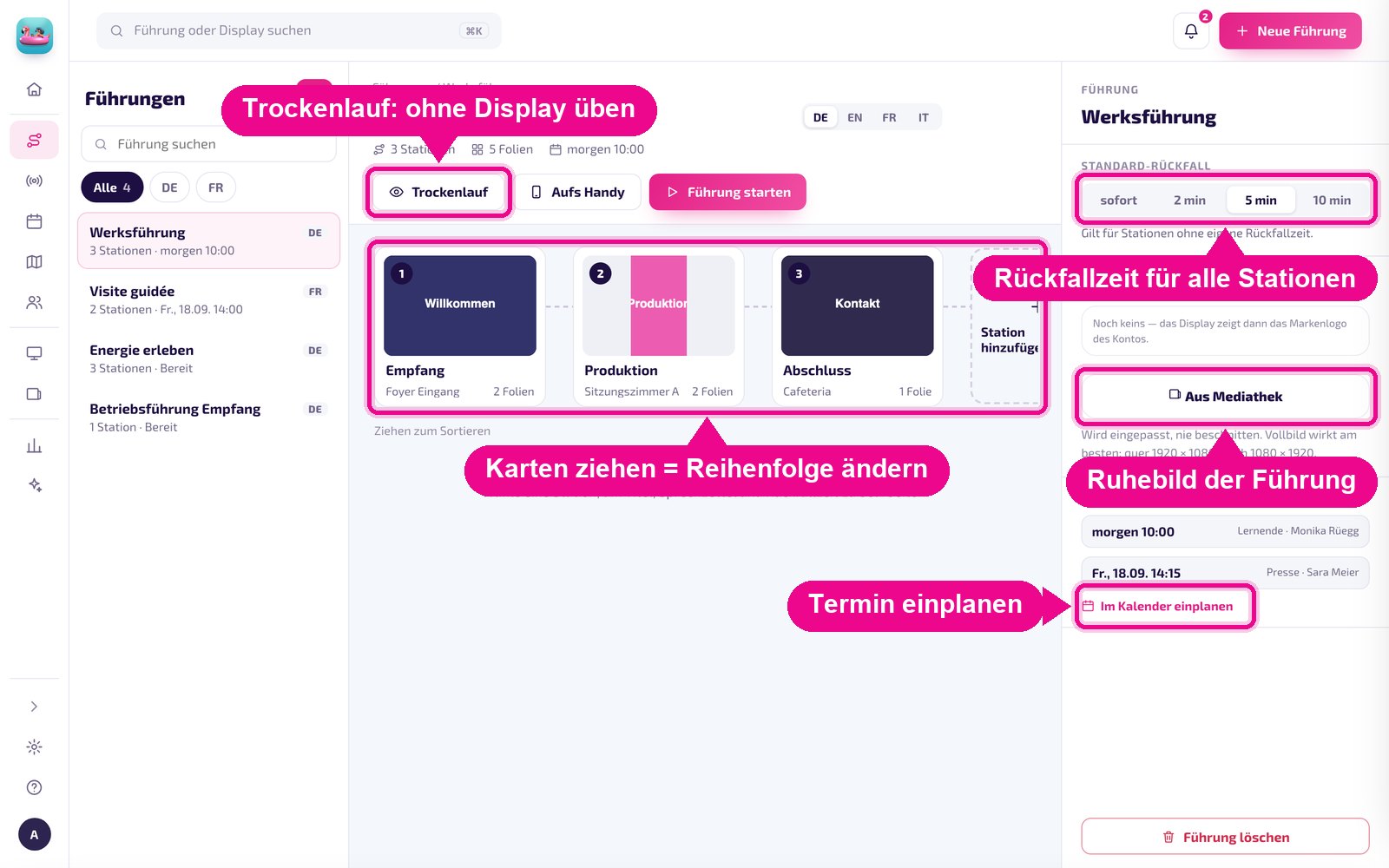
Once all stations are created, click the name of the tour at the top. This shows you the whole tour:
- Dragging cards changes the order of the stations.
- The default fallback applies to all stations without their own fallback time.
- Standby image of the tour — what the displays show before the guide starts a station, such as a welcome message. Without its own standby image, your account's brand logo appears. A full-screen image works best: landscape 1920 × 1080, portrait 1080 × 1920.
- Dry run plays the tour through in the browser without occupying a display — use the arrow keys to page through just like the guide.
Step 8 · Schedule an appointment (optional)
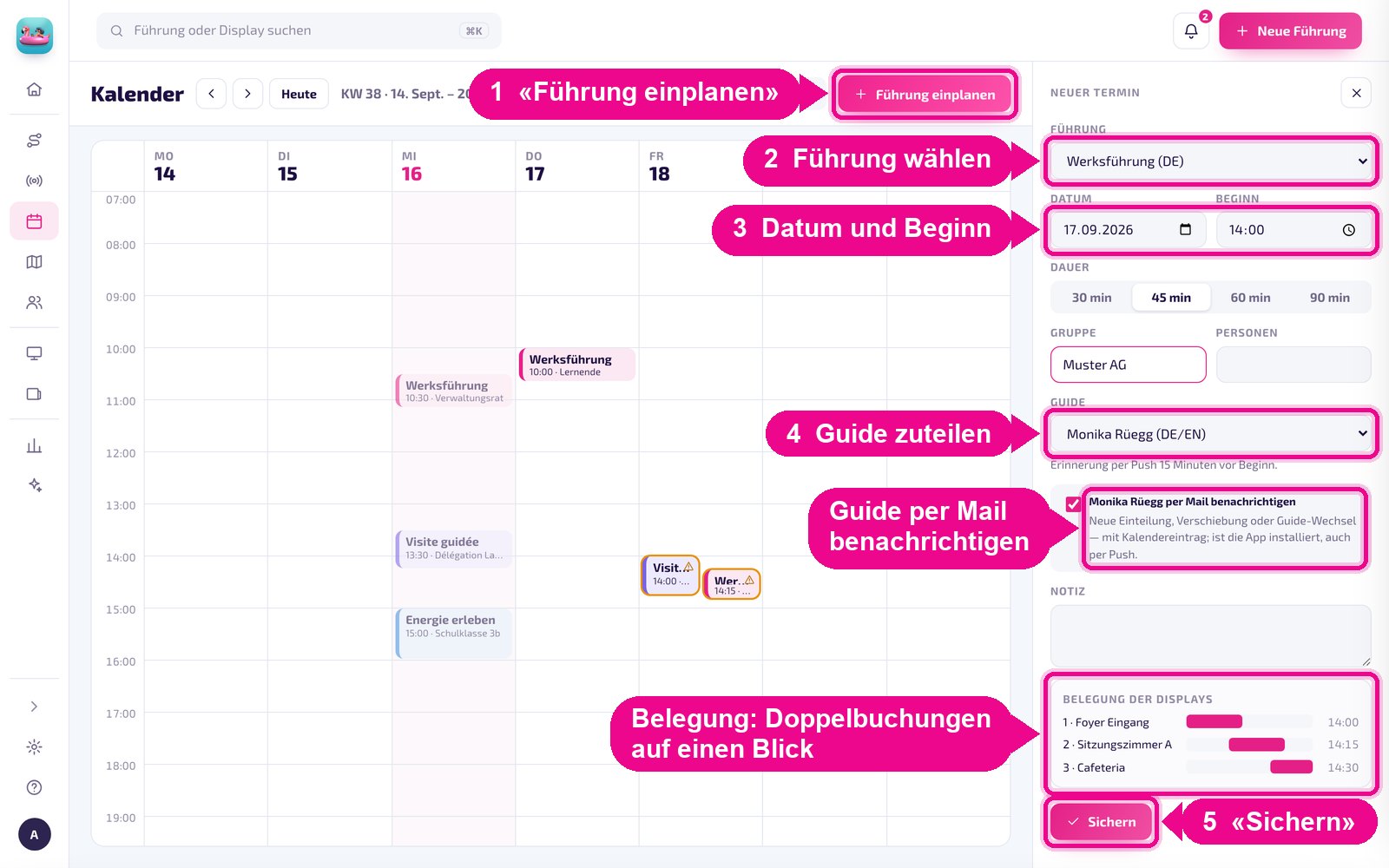
Under Kalender (calendar) you click Führung einplanen (schedule tour). Choose the tour, the date and start time, the duration, optionally the group and number of people, and assign a guide. With the checkbox below, the guide receives an email with a calendar entry — and a reminder on the phone 15 minutes before the start, provided the app is installed.
Step 9 · Invite guides
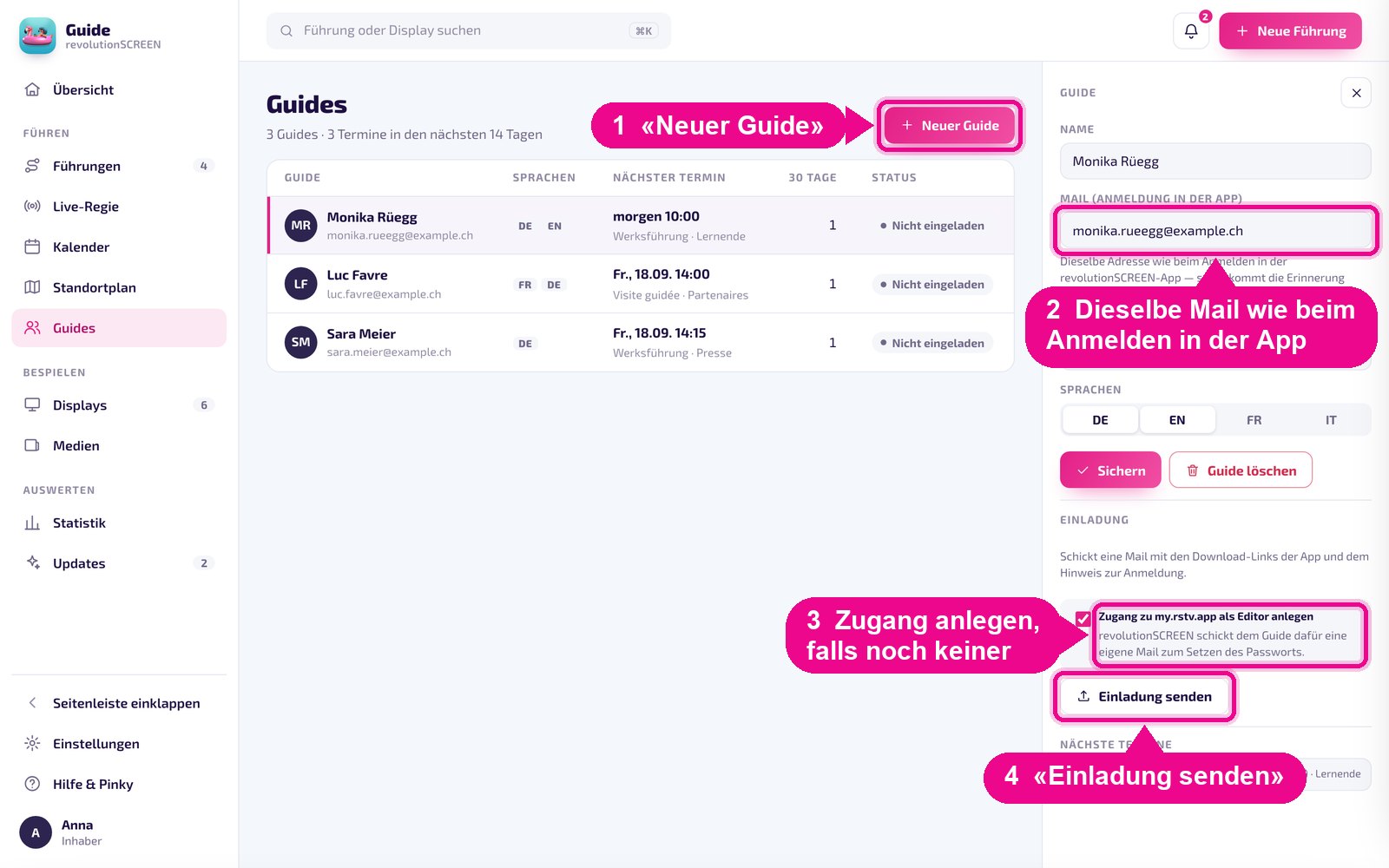
Under Guides you click Neuer Guide (new guide), enter name, phone and languages and, most importantly, the email address — the same one the guide uses to sign in to the app. Otherwise reminders won't arrive.
If the guide does not yet have a revolutionSCREEN account, tick Zugang zu my.rstv.app als Editor anlegen (create access to my.rstv.app as editor). Then click Einladung senden (send invitation): the guide receives an email with the app's download links and — for a new access — a second email to set their password.
Only the owner and administrators of the account can create a new access. If you use a different account, ask one of these people for the invitation.
Part B · Guiding with the phone
These steps are for the guides. The tour is already prepared — on the phone it's only about running it.
Step 10 · Download the app to your phone
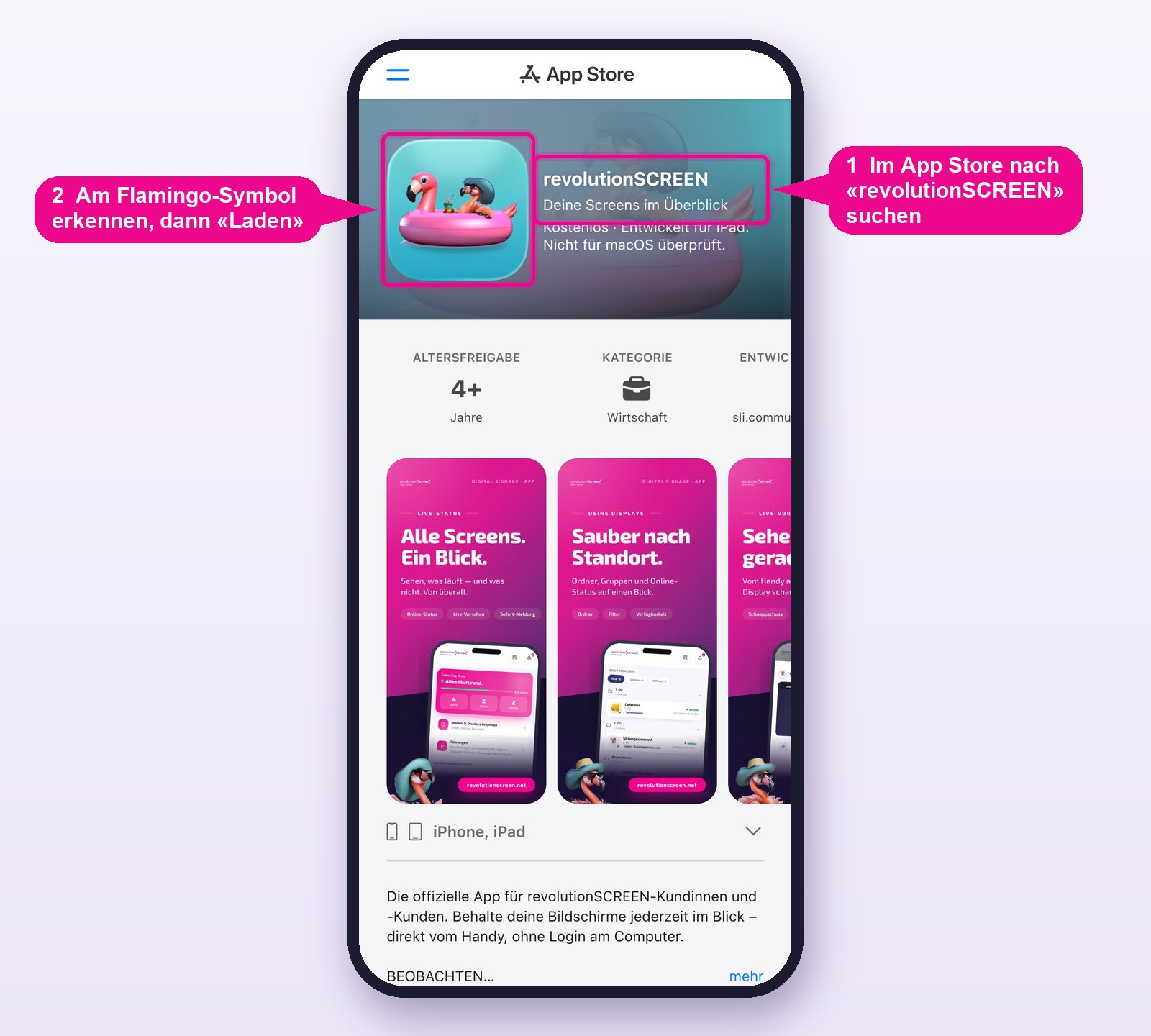
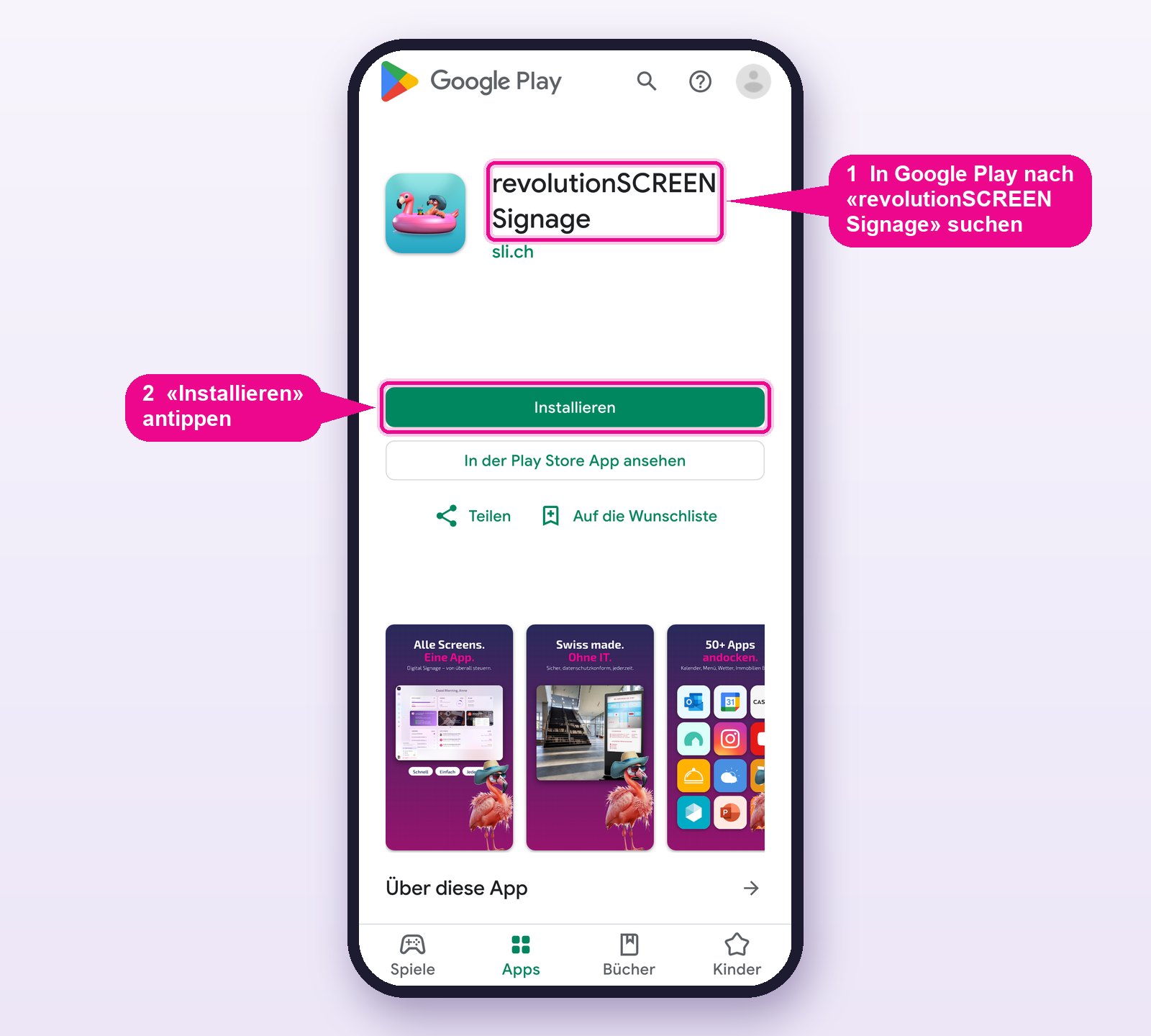
The app is free and is called revolutionSCREEN in the App Store and revolutionSCREEN Signage on Google Play. The quickest way is with your phone's camera via these QR codes — or directly via the links in your invitation email:
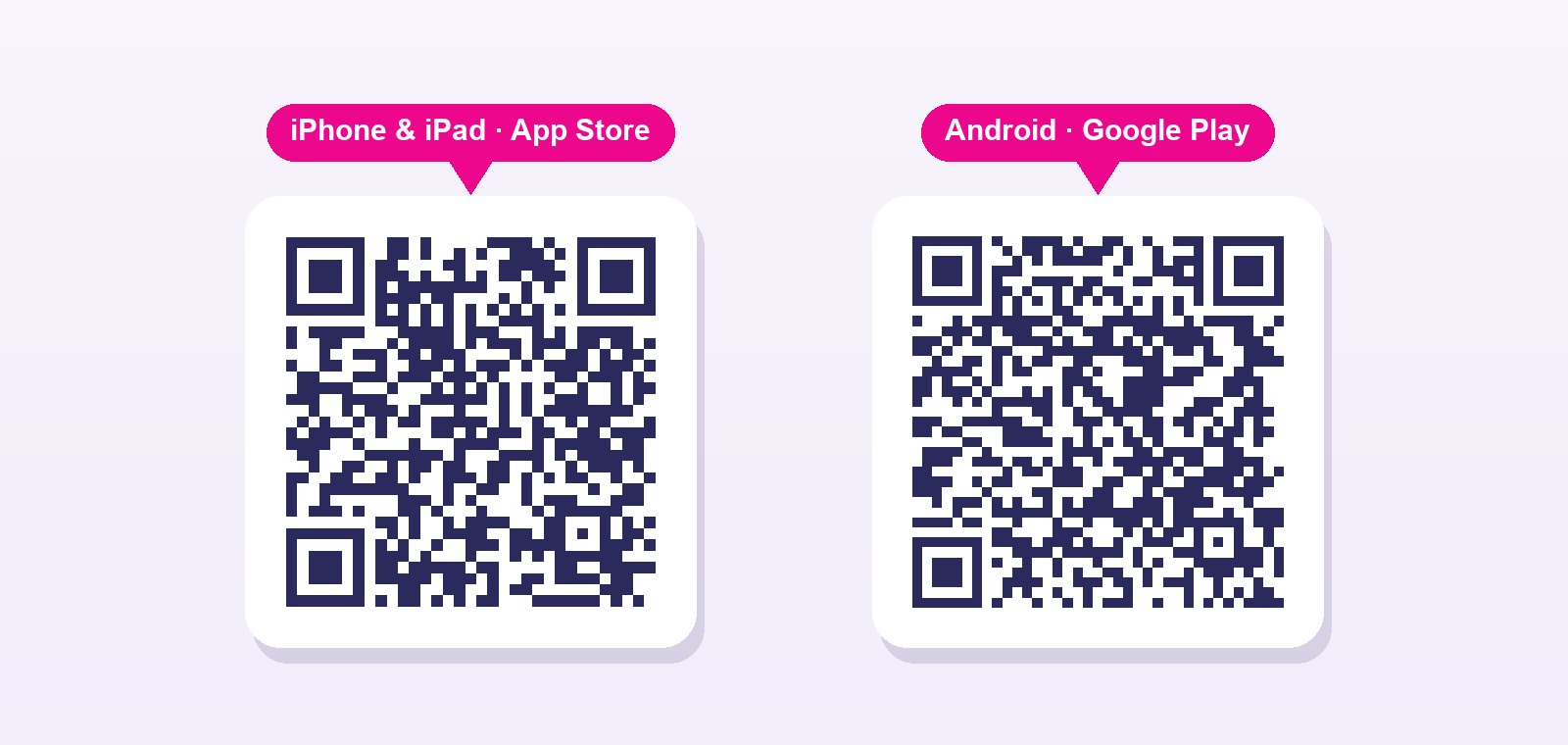
If you are already reading this guide on your phone, tap the matching link directly: revolutionSCREEN in the App Store · revolutionSCREEN Signage on Google Play.
Step 11 · Sign in to the app
Open the app, choose the language at the top right and sign in with email and password — the same access as in the browser. Tap Anmelden (sign in).
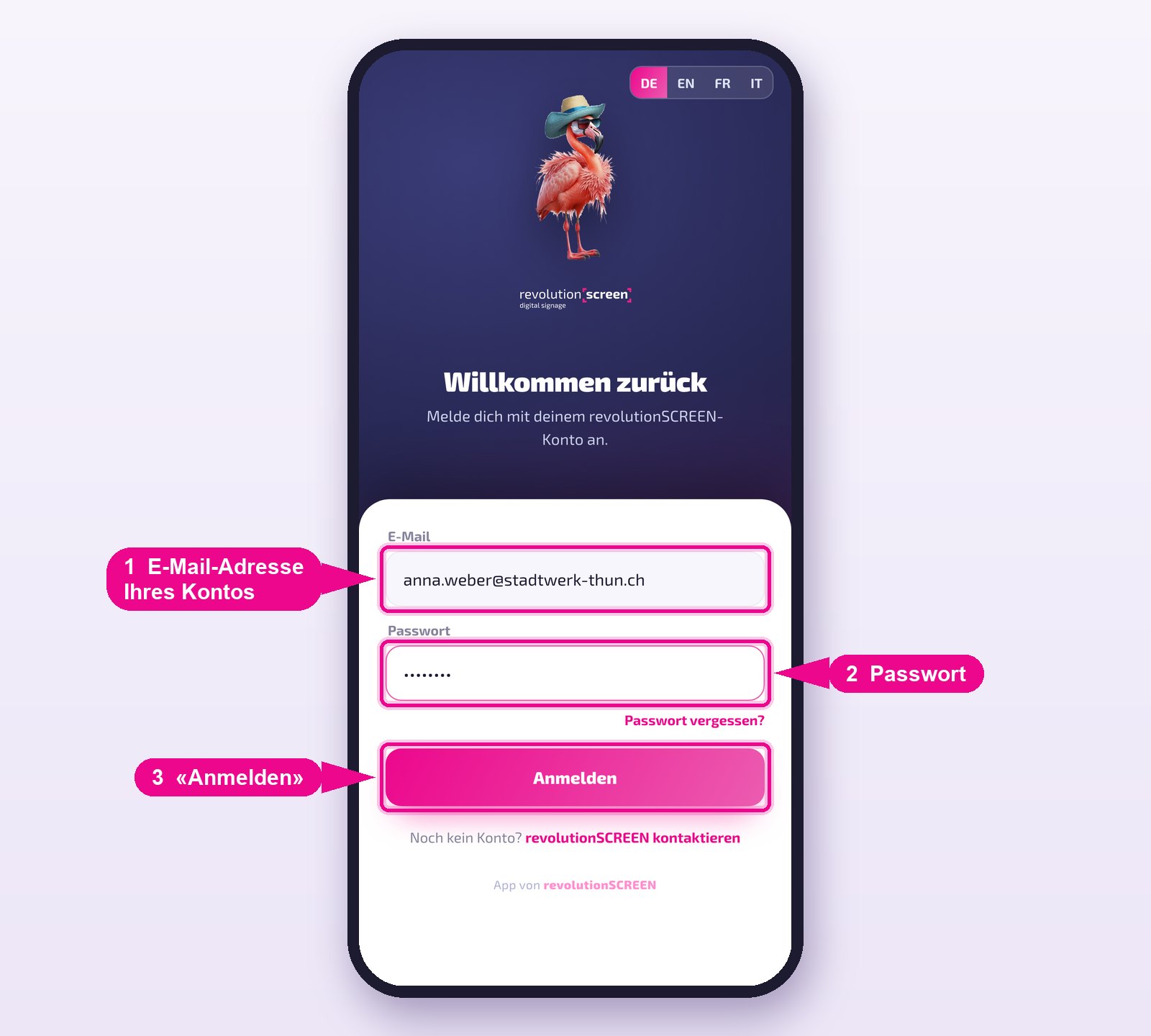
If the app asks whether it may send notifications, tap «Erlauben» (allow). Only then will the reminders before your appointments arrive.
Step 12 · Open the tour
On the overview, tap Führungen (Tours).
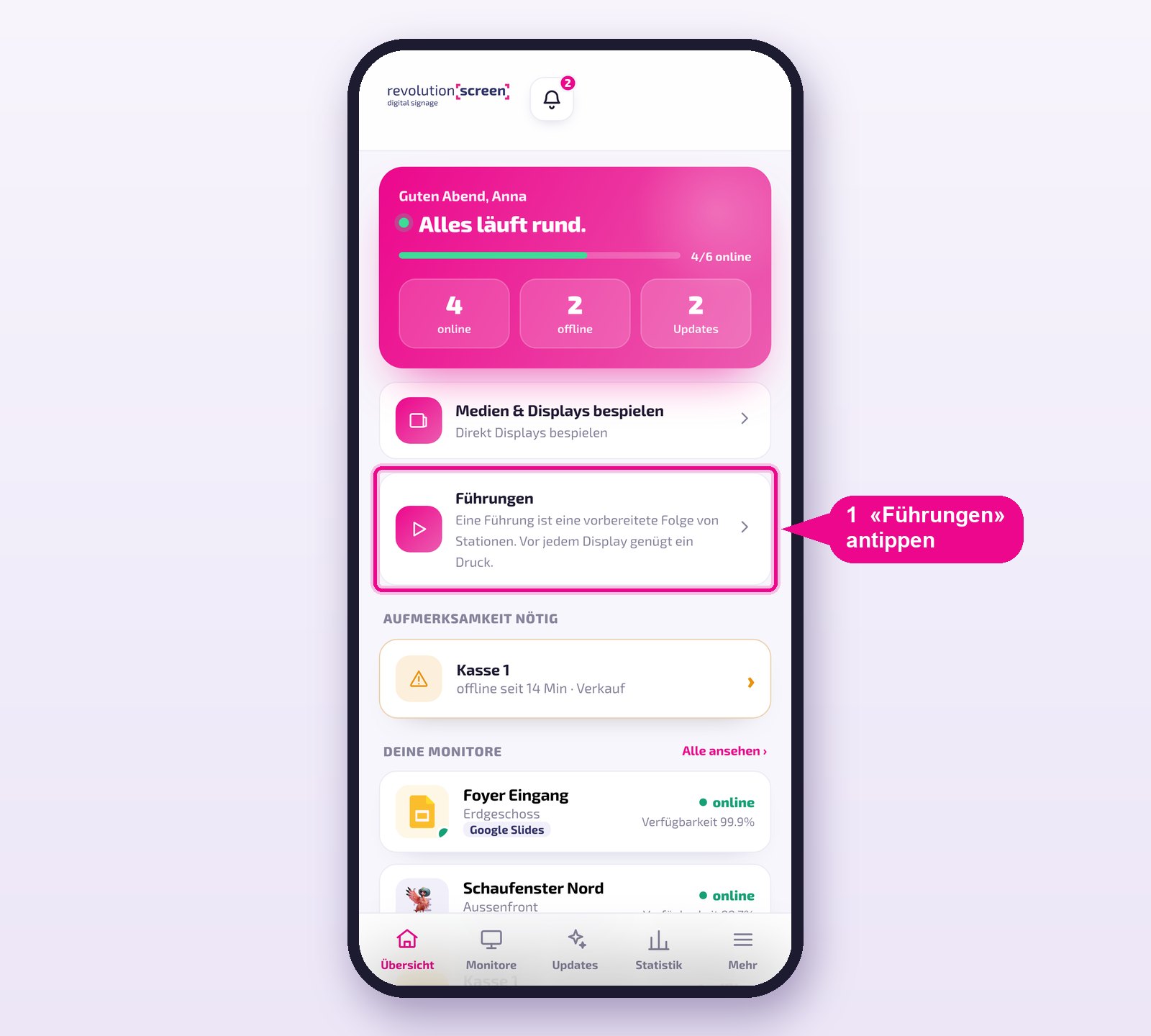
You see all tours that were prepared in the browser. Tap the tour you are running now.
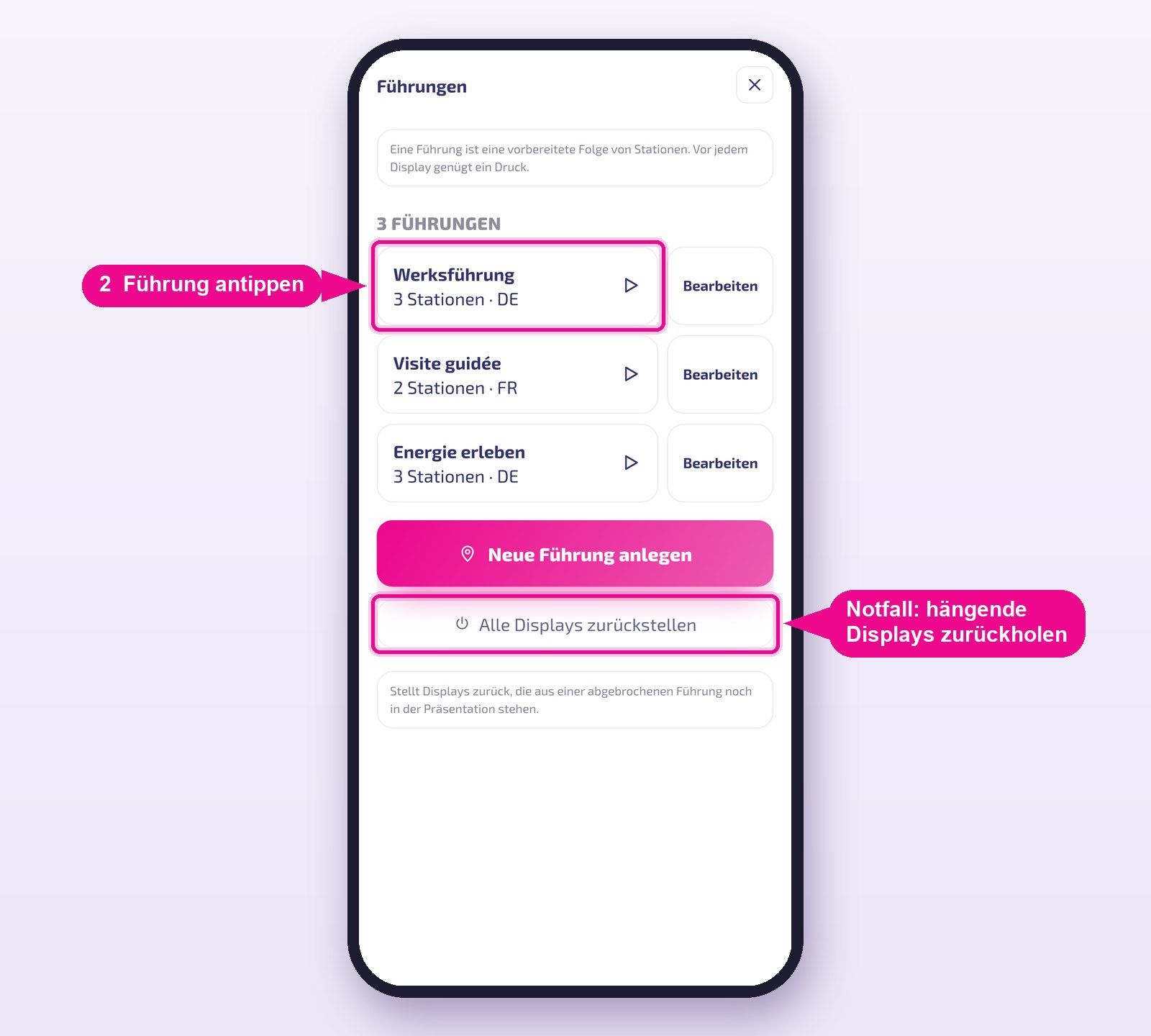
Step 13 · Start a station, browse slides, move on
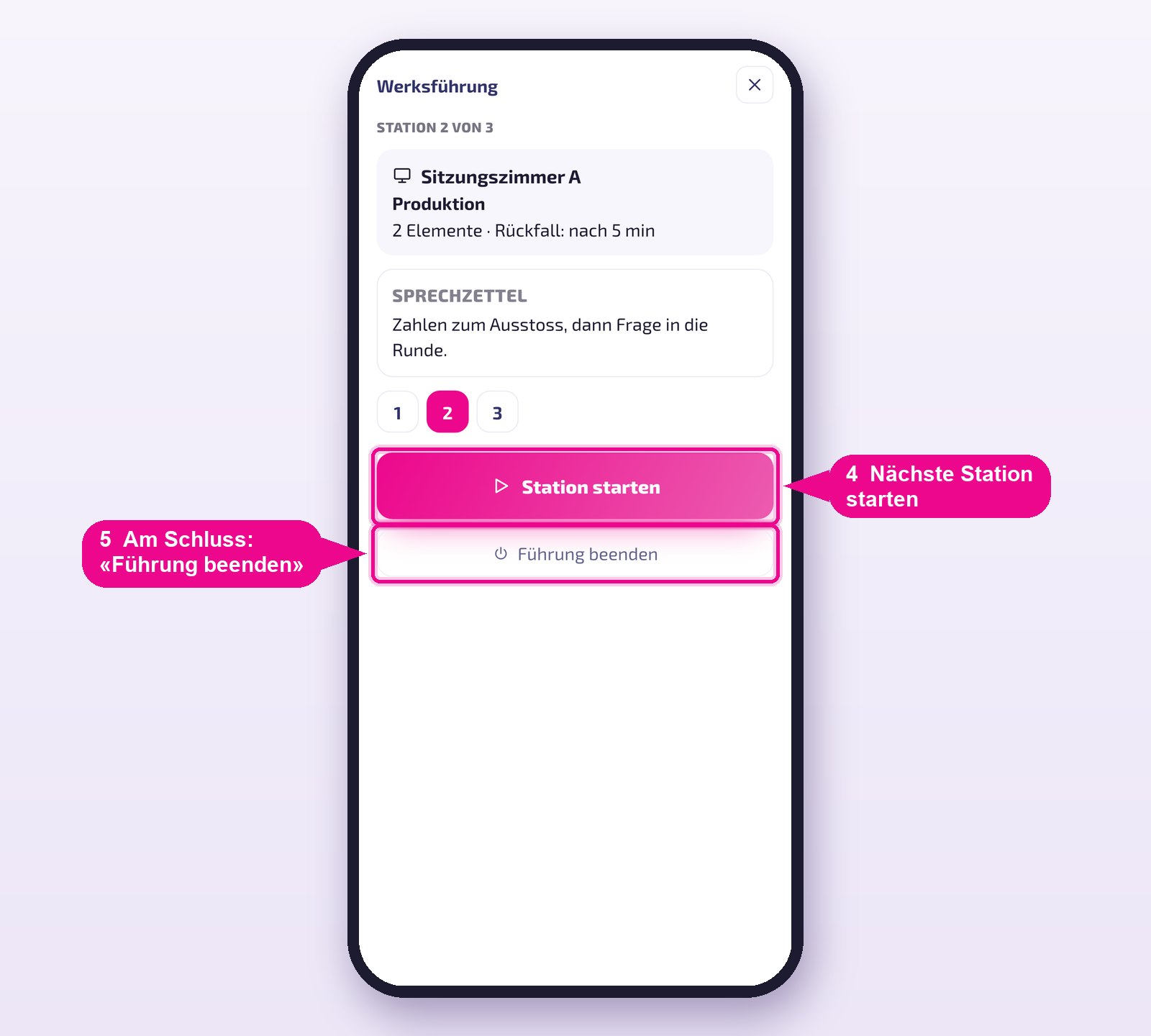
You see the first station with its display, title and your talking points. Once you are standing in front of the display with your group, tap Station starten (Start station). Use the numbers to jump to another station if needed.
The display now shows the first slide. Weiter (Next) moves to the next one, the arrow on the left goes back, and the thumbnails below jump directly to a slide. When you are done, tap Weiter zur nächsten Station (Go to next station) and move to the next display with your group.
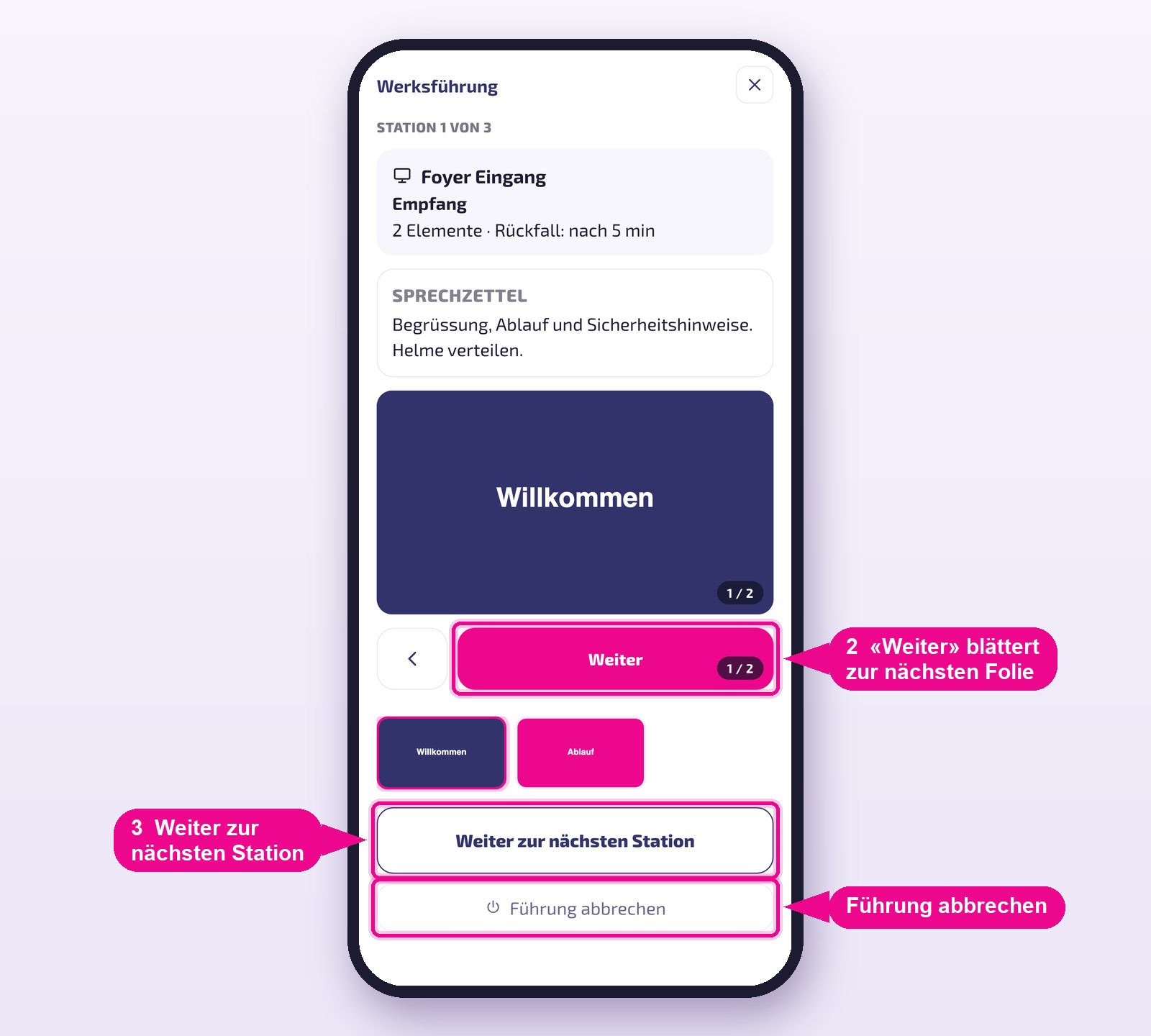
While you are speaking at one station, Guide prepares the next display. It shows the idle image until then — and when you tap «Station starten» (Start station) there, the first slide appears with no waiting time.
Step 14 · Ending the tour
At every further station, tap Station starten (Start station) again. After the last station, tap Führung beenden (End tour): all involved displays return to their normal content.
Your phone's screen stays awake as long as the tour is running. The normal Playlist on the displays is not changed — it simply continues after the station.
If a display gets stuck
If a tour breaks off unexpectedly — empty battery, closed app, no connection — revolutionSCREEN resets the displays itself after some time. It's faster to do it manually: in the app under Führungen (Tours), tap Alle Displays zurückstellen (Reset all displays). Tours currently running for another group are not affected.
In the browser, under Live-Regie (Live control), you can see which tours are currently running — including those a guide started on a phone — and the overview reports any open resets.
Two guides can run the same tour with a time offset. If a display is currently in use by another group, the app asks whether you want to warten (wait) or übernehmen (take over). The display's original content is not lost in the process.
Tips & troubleshooting
The browser shows the phone view
The planning view needs a window at least 900 pixels wide. Enlarge the browser window or reduce the zoom level (Ctrl/Cmd and minus).
A display is set to «direct assignment only»
This display is missing the Guide instance. Create it as described in step 1, then open the display selection again.
The guide can't see the tour
Tours belong to the company account. The guide must be signed in to the app with an access account of the same company — after switching accounts, they see the other company's tours.
The reminder doesn't arrive
Under «Guides», check whether the email address is exactly the one the guide uses to sign in to the app, and whether the app is allowed to send notifications.
I can't find the app in the store
In the App Store it is called revolutionSCREEN, on Google Play revolutionSCREEN Signage. The QR-Codes or links above are the safest option. iPhones need at least iOS 15.
The display doesn't show the slide
Check whether the display is online. If that doesn't help, end the station, tap «Alle Displays zurückstellen» (Reset all displays) under «Führungen», and start the station again.