Pairing a new Screen
To make a display show content from your account, you pair it once with my.rstv.app. To do this, you need the 6-digit pairing code that the display shows after you install the revolutionSCREEN app.
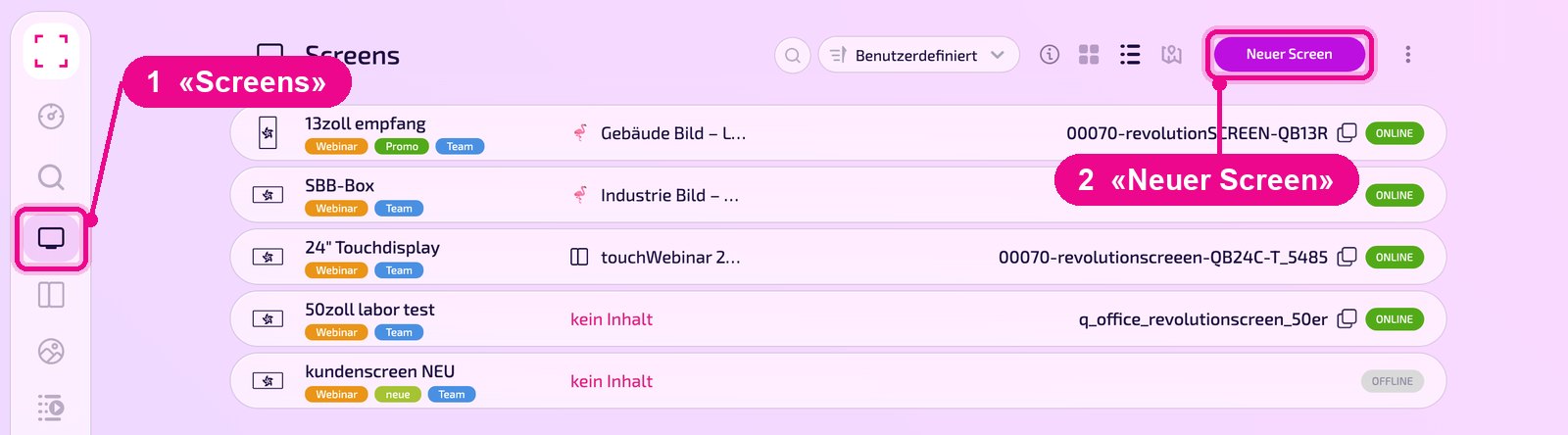
Sidebar on the left → «Screens» → top right «Neuer Screen»
Finding the pairing code on the display
First install the revolutionSCREEN app on the display and start it. As long as the display is not yet connected to any account, it shows a one-time 6-digit code and a QR-Code. If you scan the QR-Code with your smartphone, the display is paired directly. Alternatively, you enter the code in my.rstv.app as described below.
Pairing a Screen in my.rstv.app
Open «Screens» on the left and click «Neuer Screen» at the top right.
In the «Neuer Screen» window, type the 6-digit code from the display into the field and click «Bestätigen». Shortly after, the display appears in the Screen list.
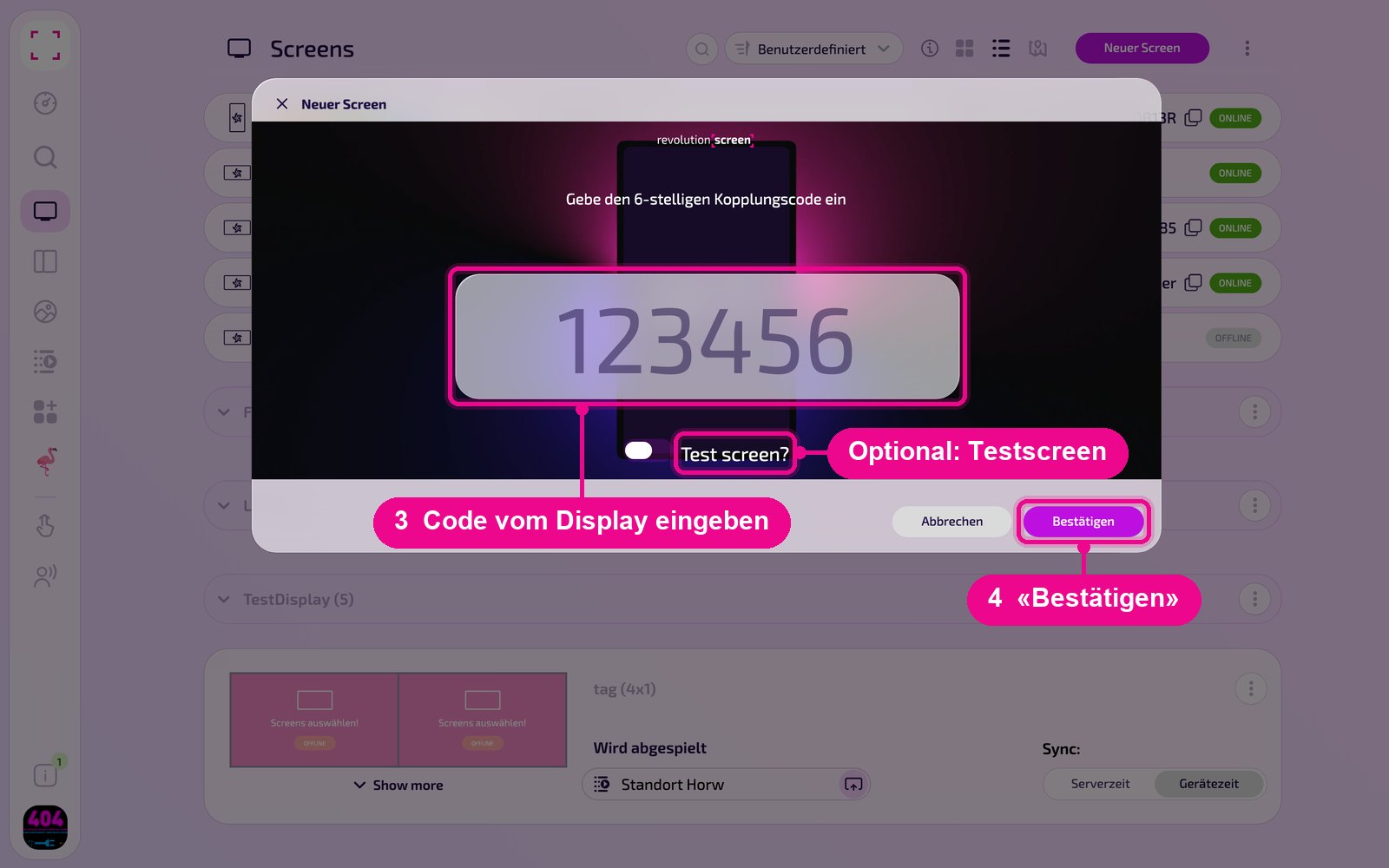
Use the «Test screen?» toggle to mark the display as a test screen. On the Screen's detail page, the note «TEST ON» then appears in the «GERÄT» (device) box.
Check that you typed all six digits correctly and that the display is still showing the code. The display needs an internet connection for this.
Good to know
- With «Abbrechen» you close the window without pairing anything.
- After pairing, on the Screen's detail page you assign it content, a location and, if needed, a group.