Fallback apps
With fallback apps you specify that an app appears on the screen even when it currently has no content, for example an event calendar with no entries. Without a fallback, the screen skips the empty app. You set this per app and per screen.
For a screen: «Screens» → open screen → row «Fallback-Apps». For an app on multiple screens: profile picture bottom left → «Konto-Einstellungen» (account settings) → «Fallback-Apps» on the left.
What fallback apps do
Apps such as Event Calendar, Google Calendar, Outlook Calendar, RSS Feed or schulNetz pull their content from a data source. If that source is currently empty, the fallback setting decides what happens:
- Without fallback (default): The empty app is skipped and the screen shows the next content directly. If the empty app is the only content, the screen stays black until data is available again, for example the next event.
- With fallback: The app is shown anyway, just without entries, for example as an empty calendar.
In the school building, a screen shows the calendar with the upcoming events. With the fallback switched on, the students see the calendar even when no events are entered. This way they know for sure that nothing is coming up, and the screen doesn't stay black.
Set for one screen
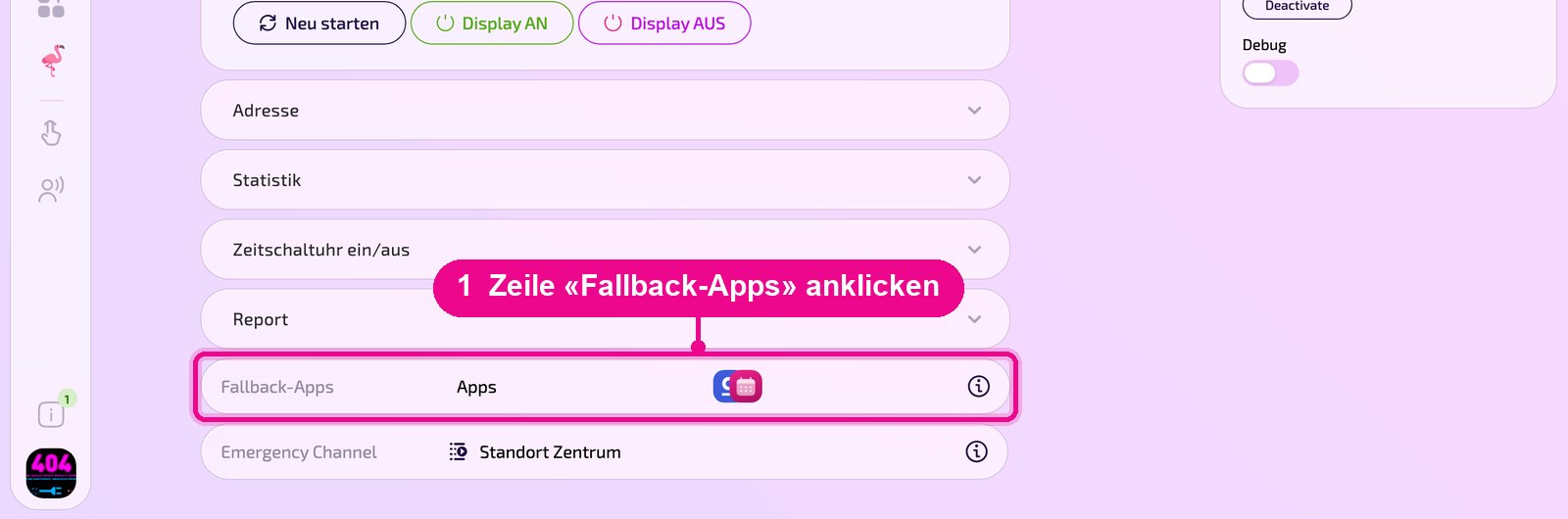
Open the desired screen under «Screens» and scroll down. The row «Fallback-Apps» shows the icons of the apps for which the fallback is switched on. Click the row.
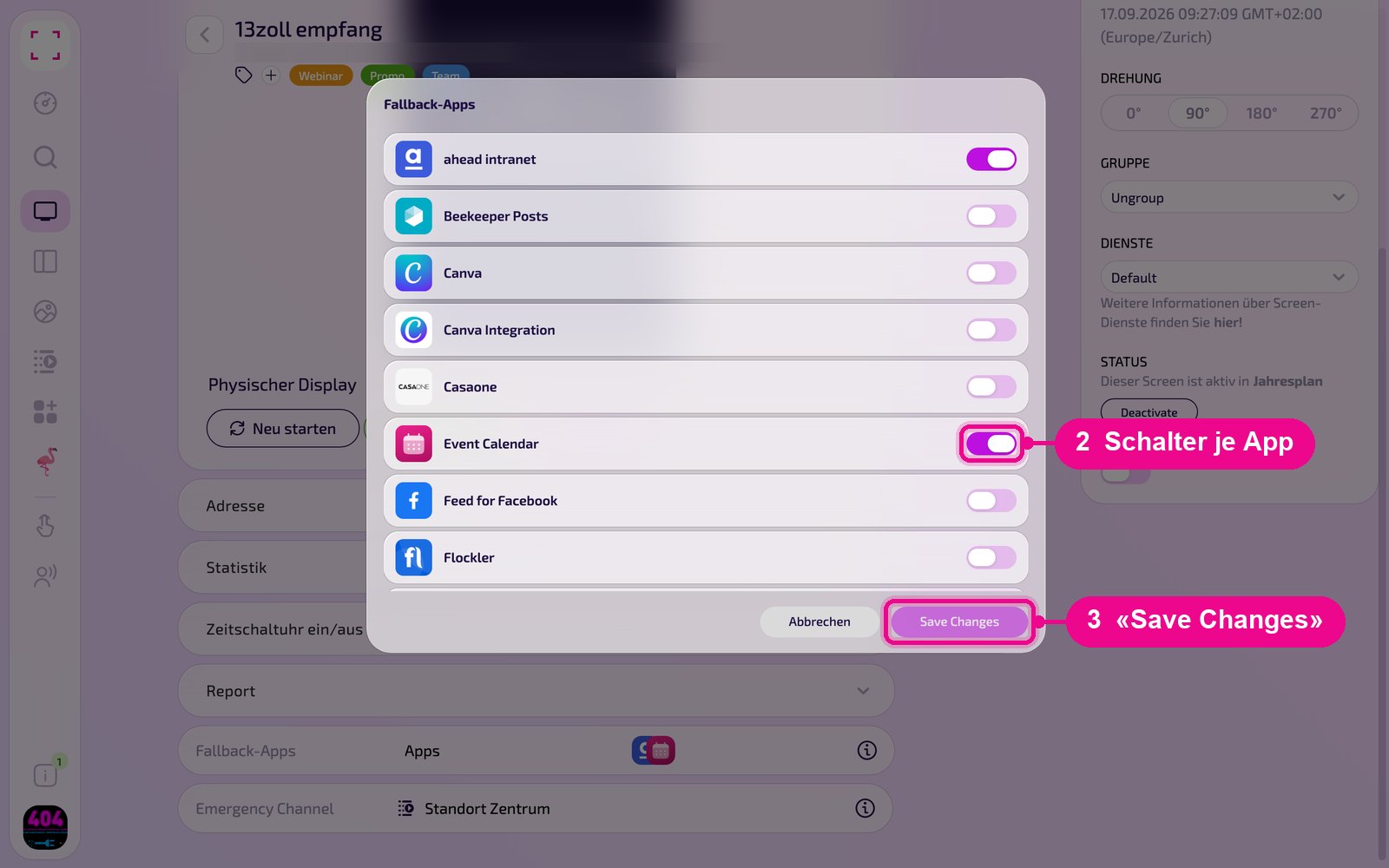
In the «Fallback-Apps» window you switch the fallback on or off for each app individually. Use «Save Changes» to save, and «Abbrechen» (cancel) to close the window without changes.
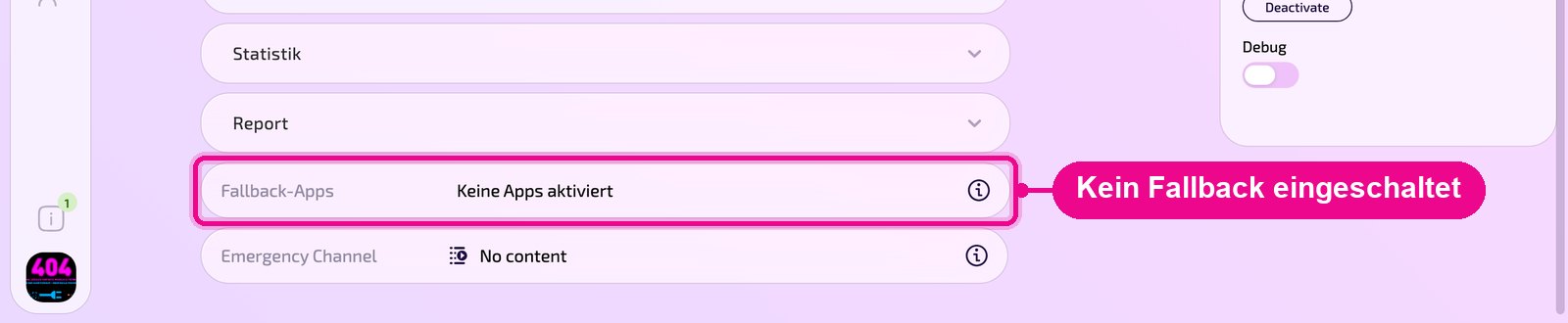
«Keine Apps aktiviert» (no apps activated)
If the «Fallback-Apps» row shows the text «Keine Apps aktiviert» (no apps activated), no fallback is switched on for any app on this screen. Empty apps are therefore skipped on this screen. This is not an error but the default setting.
Set for an app on multiple screens
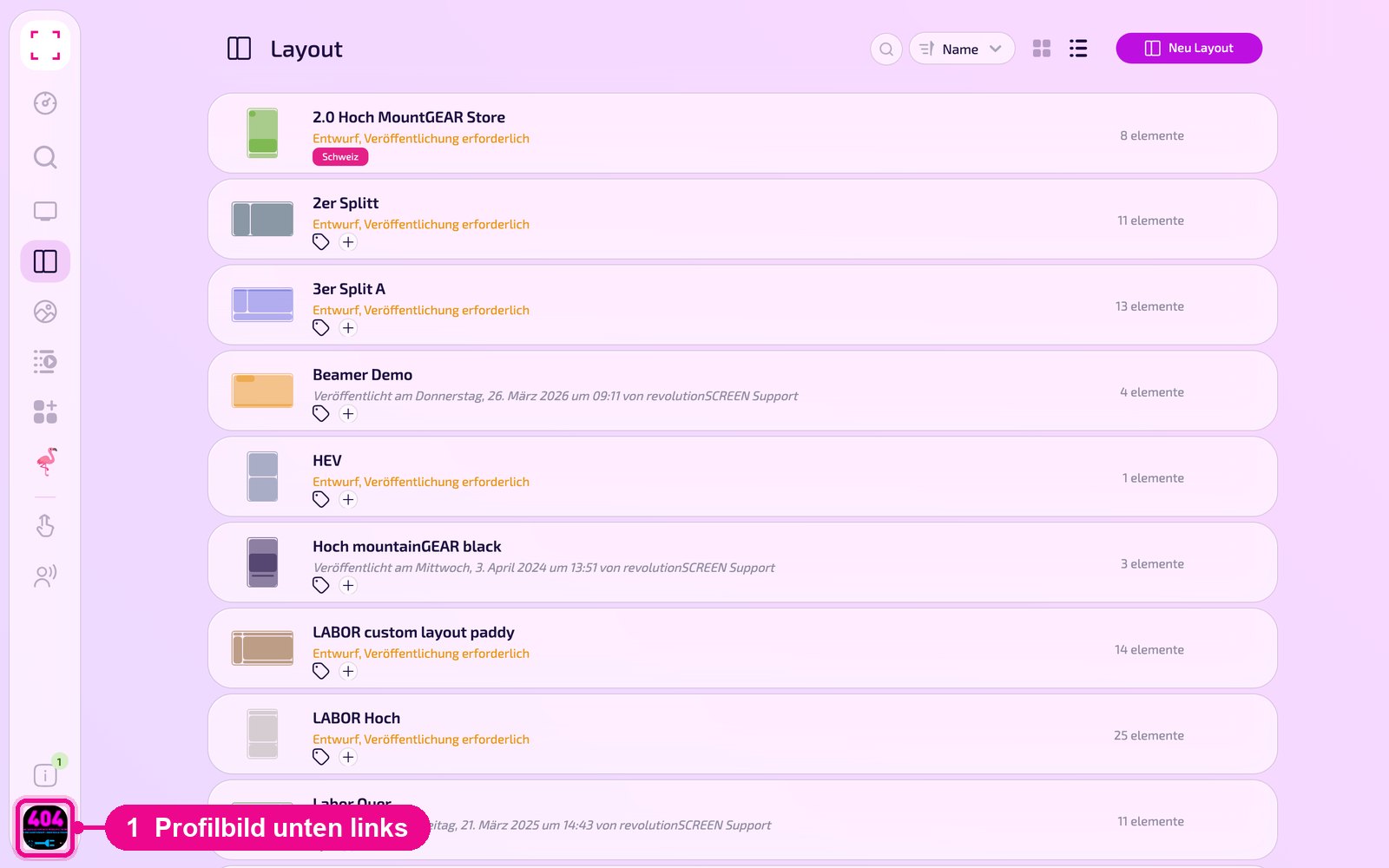
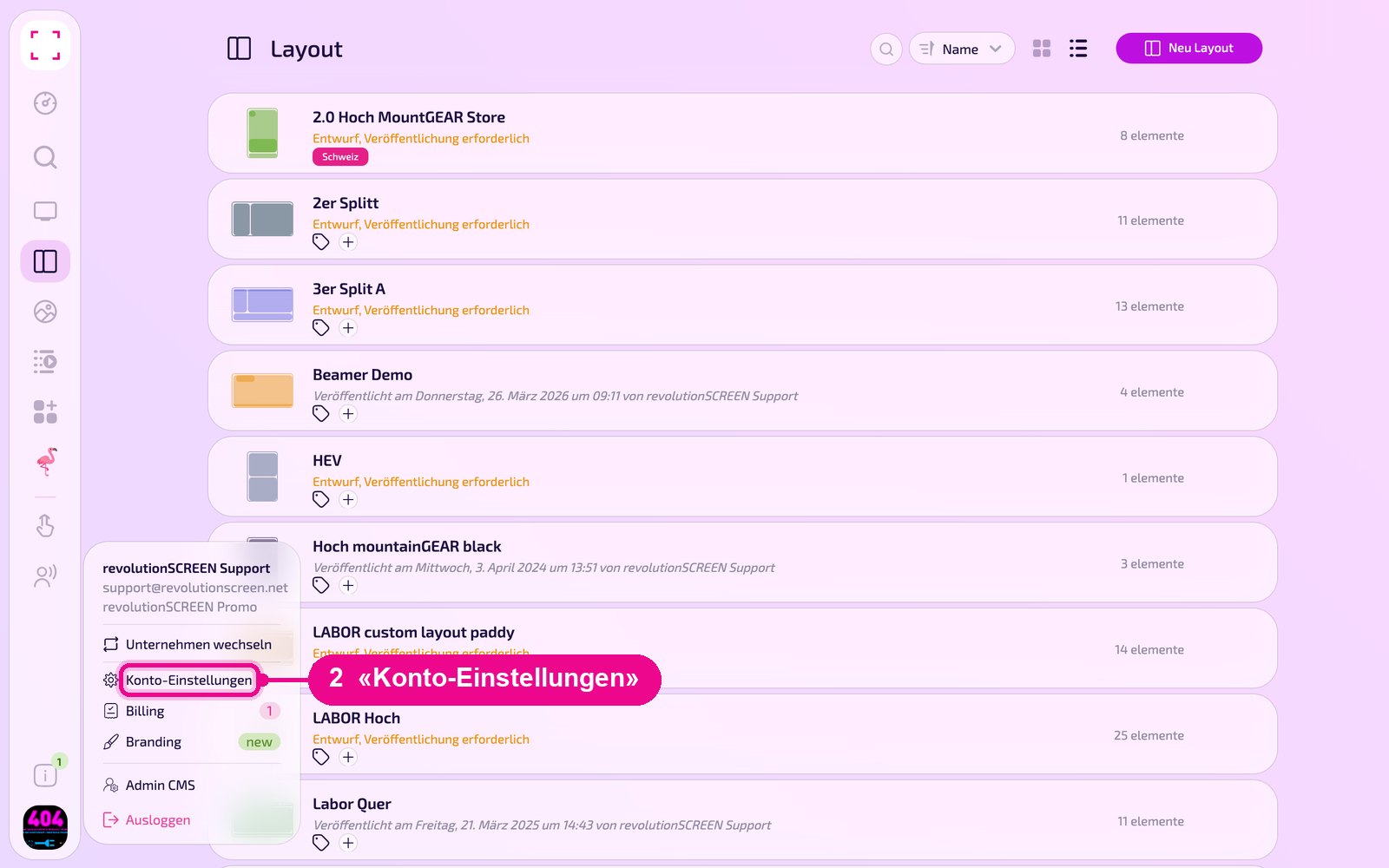
If you want to set the fallback for an app on several screens at once, it's faster via the account settings. Click your profile picture at the bottom left and select «Konto-Einstellungen» (account settings).
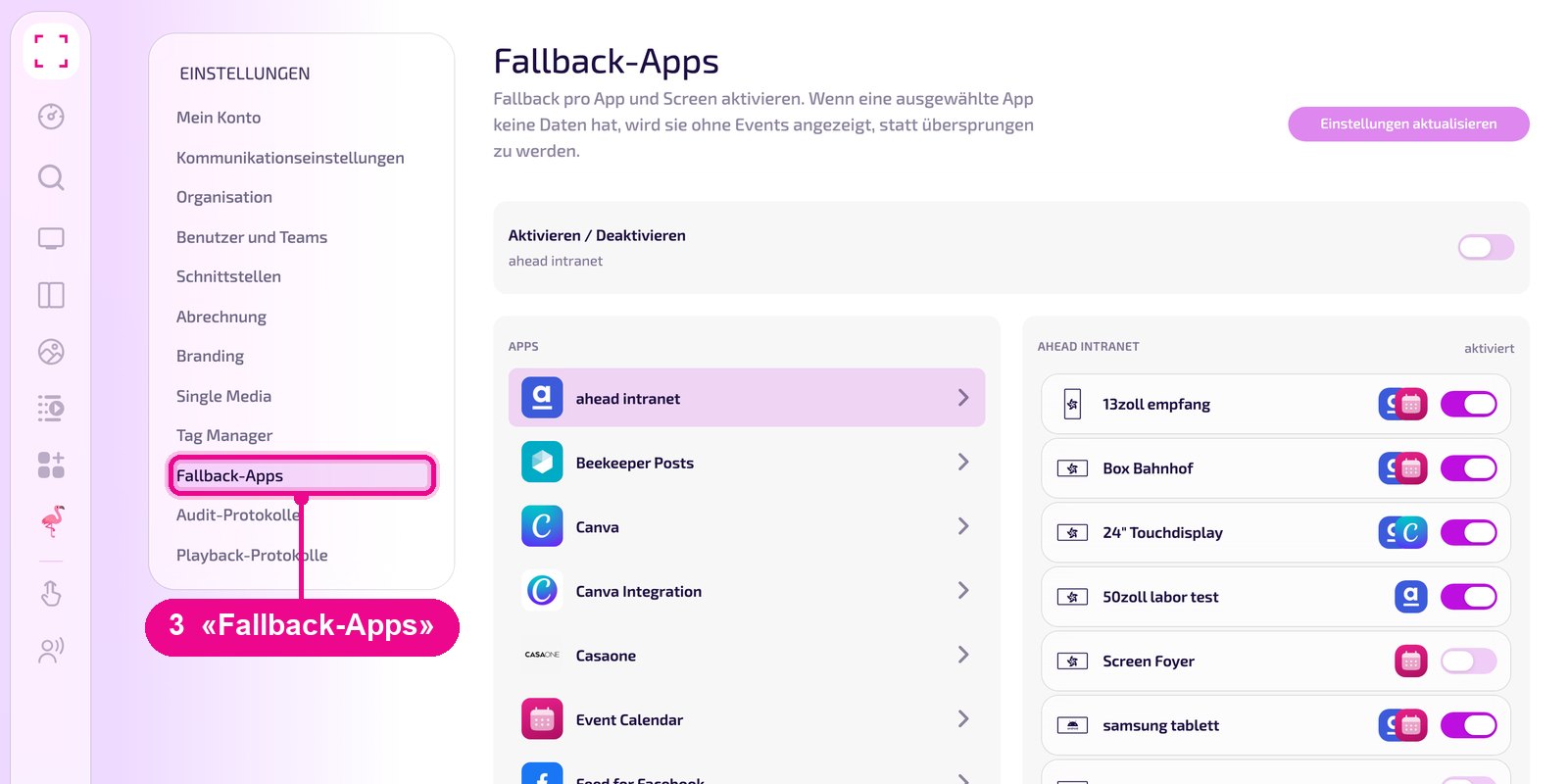
Select «Fallback-Apps» in the left-hand navigation.
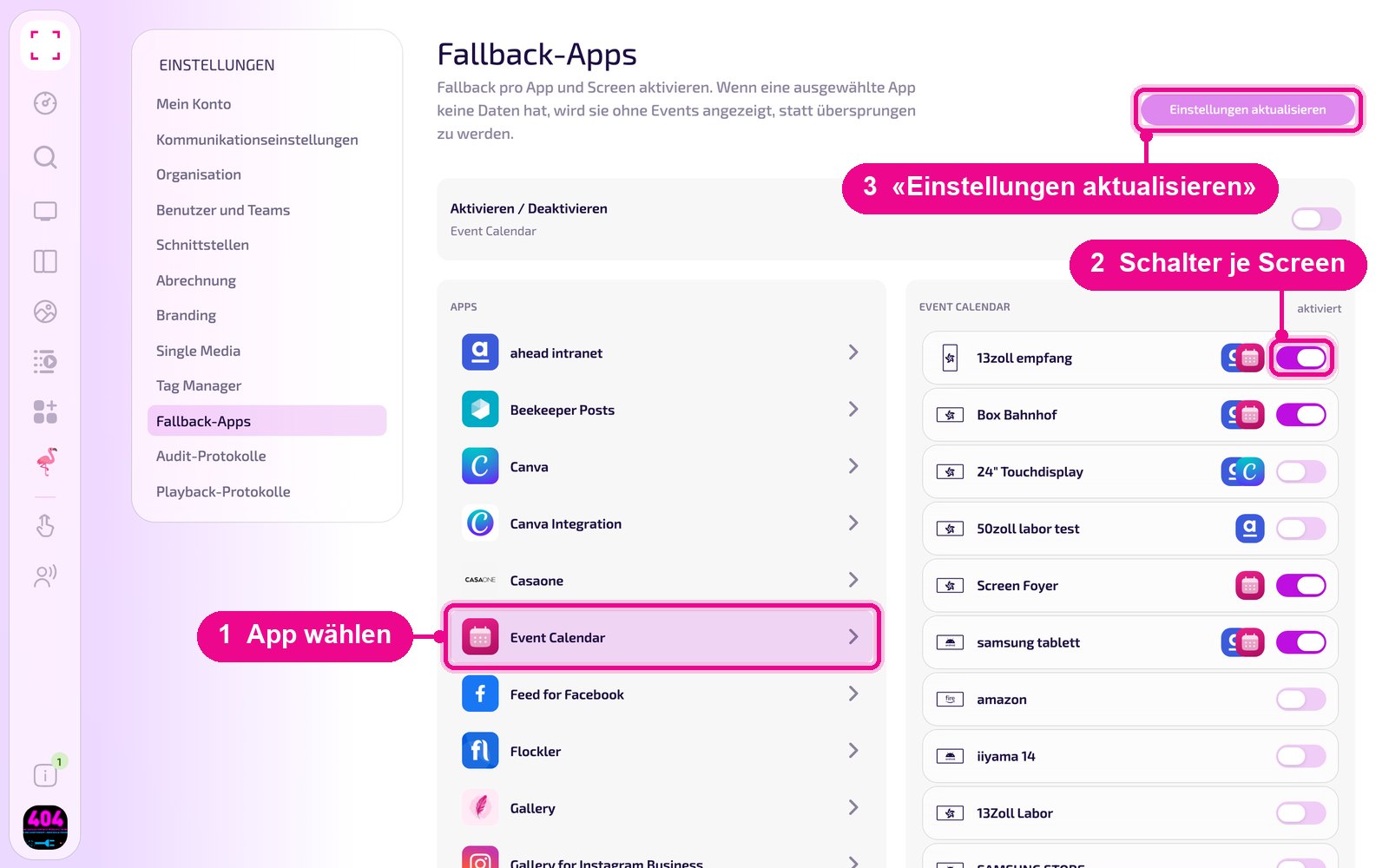
Select app and toggle screens
Click the desired app in the «Apps» list on the left. All screens appear on the right. The icons in each row show which apps already have the fallback switched on for that screen. Switch the fallback on or off for each screen using the toggle at the end of the row and save with «Einstellungen aktualisieren» (update settings).
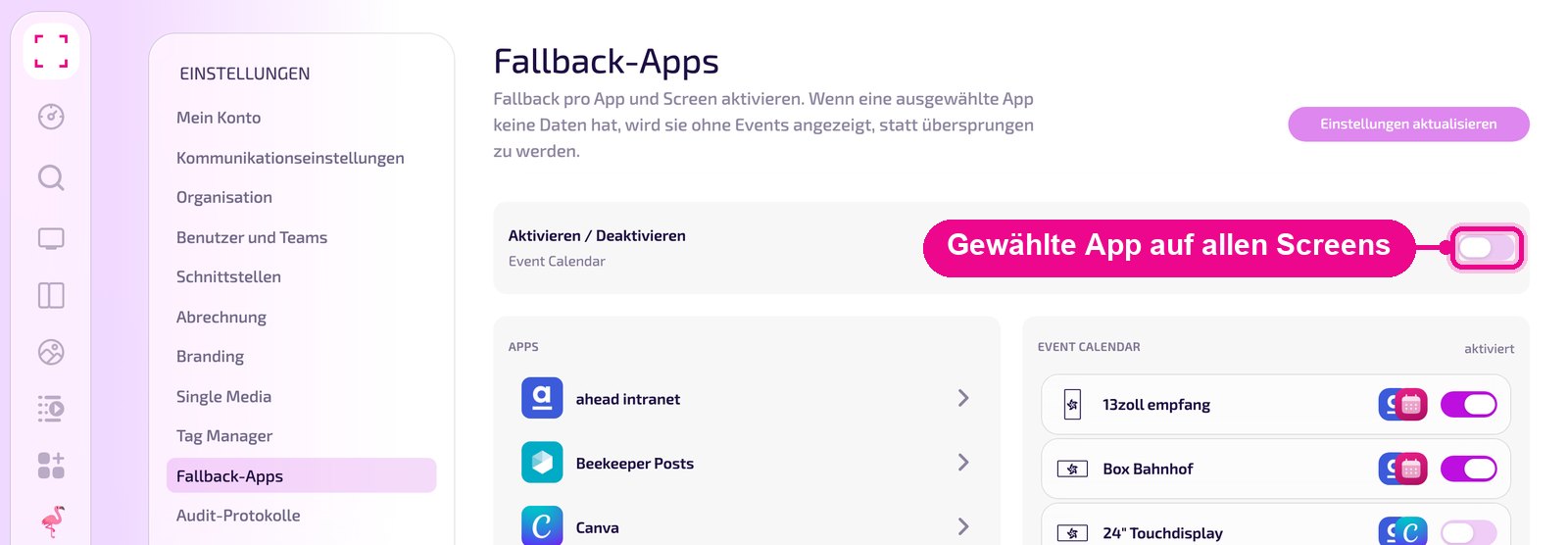
The «Aktivieren / Deaktivieren» (activate / deactivate) toggle at the top of the page switches the app selected on the left on or off as a fallback app on all screens. Below it, the name of the selected app is shown for reference. The toggles in the list on the right, in contrast, only apply to the respective screen. Here too, you apply the change with «Einstellungen aktualisieren» (update settings).
Both ways change the same setting. What you switch on here for a screen you also see in the «Fallback-Apps» row on that screen's page, and vice versa.
Interaction with the Emergency Channel
The «Emergency Channel» only kicks in when nothing else is playable on the screen. An empty app with the fallback switched on counts as playable: the screen then shows the empty app and not the content from the Emergency Channel. Without a fallback the empty app is skipped, and if nothing else is playable, the Emergency Channel takes over.