Emergency Channel
The Emergency Channel is a screen's fallback content. It runs whenever no other content is playable at that moment. This way a display never goes black, and you can use it deliberately for a base content that runs between scheduled overlays.
Sidebar on the left «Screens» → open screen → bottom row «Emergency Channel»
How the Emergency Channel works
The info icon at the end of the row sums it up: «The content played on this screen when no scheduled content is available.»
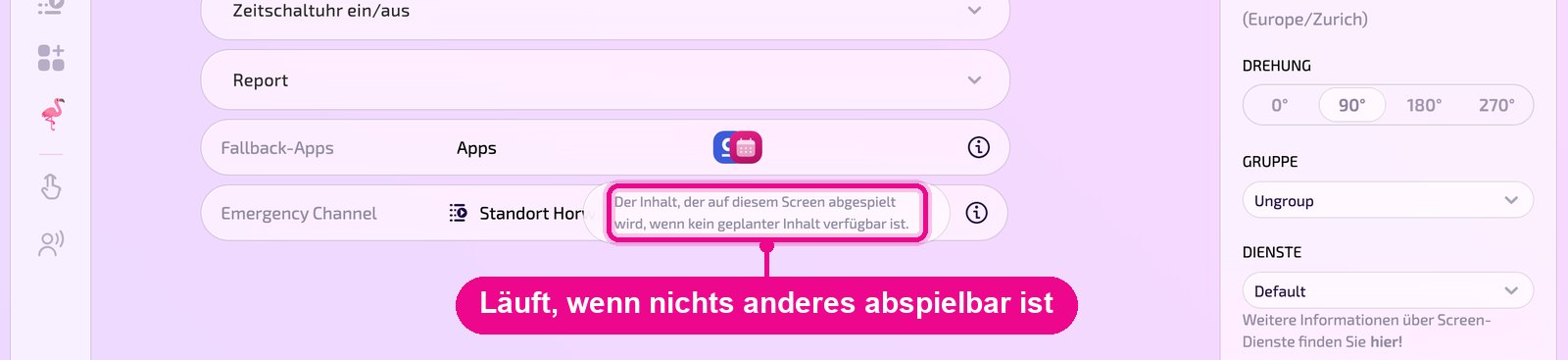
- There is scheduled content: The screen shows it, and the Emergency Channel waits.
- No content is playable: Scheduled content is skipped outside its time window. If nothing remains as a result, the Emergency Channel kicks in automatically.
Setting the Emergency Channel
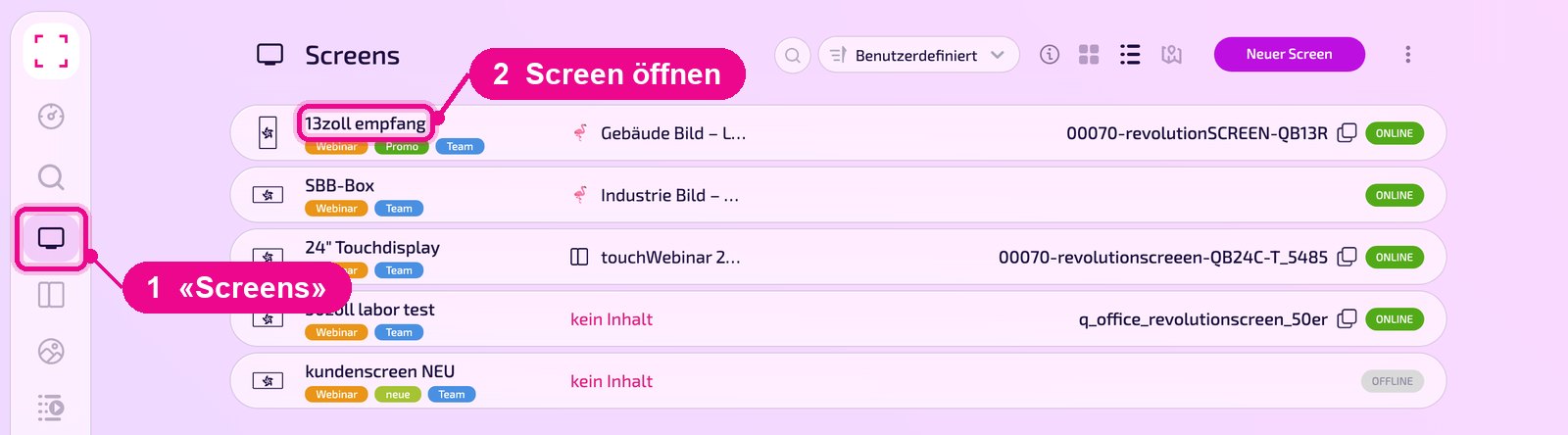
Open «Screens» on the left and click the name of the screen.
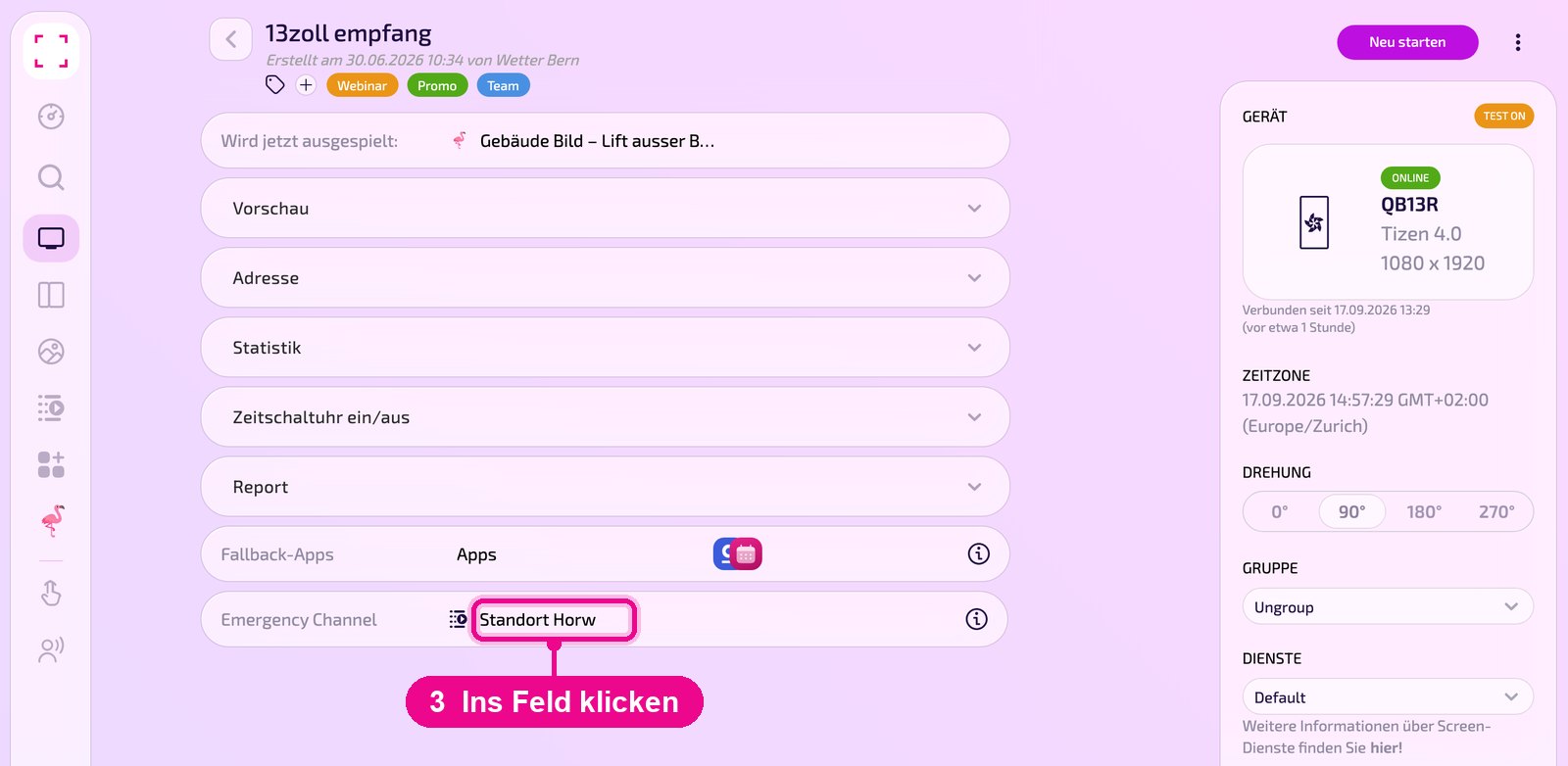
On the detail page, collapse the sections if needed. At the very bottom is the «Emergency Channel» row. Click into the field. If nothing is set yet, it shows «No content».
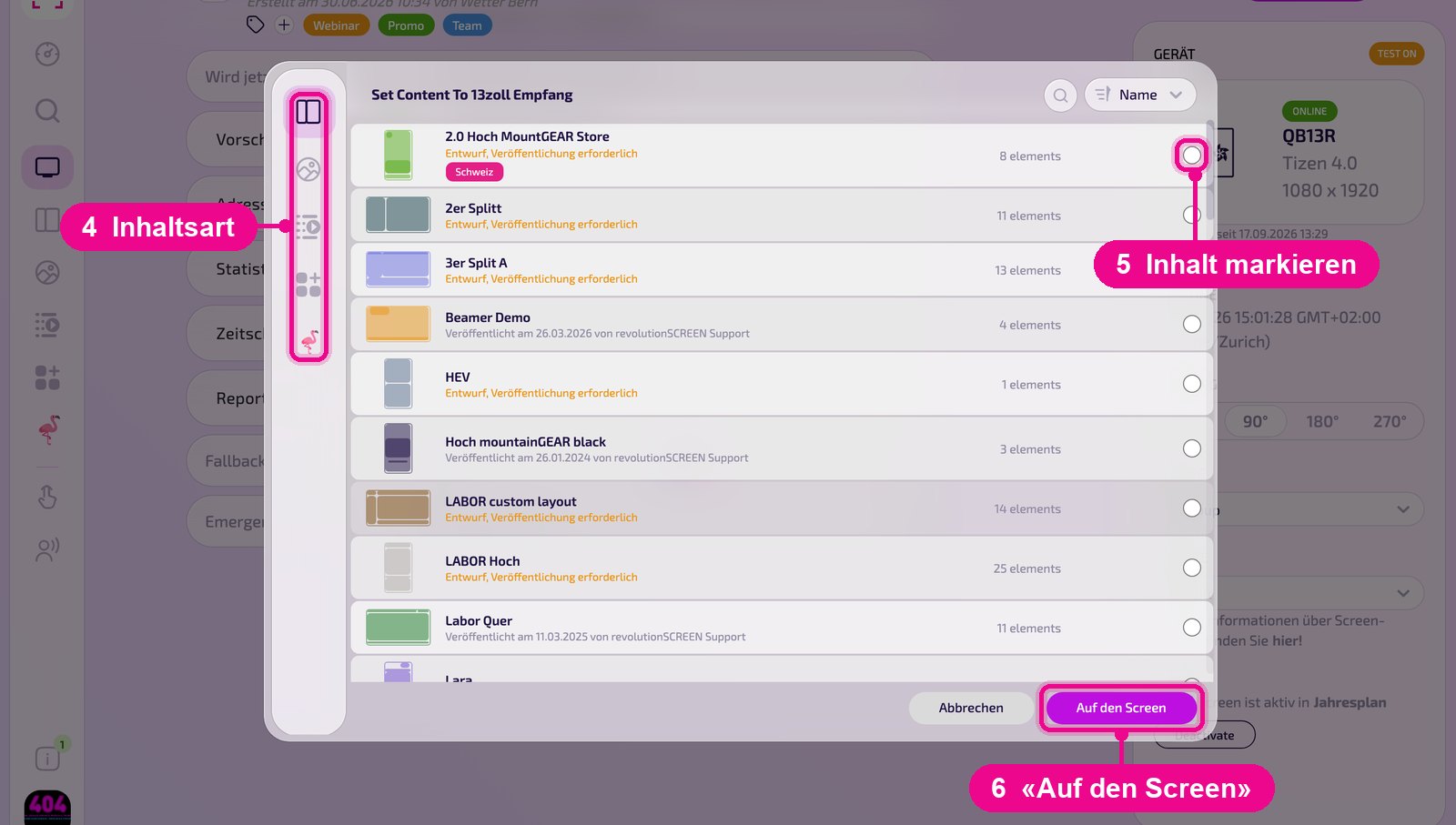
In the «Set Content To …» window, choose the content type on the left: Layouts, Media, Playlists, Apps or Designs. Select the desired content on the right and click «Auf den Screen» (add to screen). Use «Abbrechen» (cancel) to close the window without changes.
Use case: base content with scheduled overlays
If a video should normally run and something else should only appear at certain times, split the content like this:
- Put the base content, e.g. the video, into the screen's Emergency Channel.
- Put the scheduled overlays into the layout or playlist and give each one a schedule.
- Outside the time windows, the overlays are skipped, the Emergency Channel takes over and the video runs. During a time window, the overlay plays.
If you put base content and overlays into the same layout section, they alternate instead of replacing each other. The base content belongs in the Emergency Channel.
Symptoms, cause and solution step by step: «Video should run, except during scheduled overlays»
Good to know
- The Emergency Channel applies per screen. Set it up on every display that should run this way.
- Where possible, choose content that works without internet, e.g. an image or video from «Media».
- The «Fallback-Apps» row directly above handles something different: apps without data are still shown there instead of being skipped.