Two-Factor Authentication (2FA)
With two-factor authentication (2FA) you secure your account with an extra layer on top of your password. When you sign in, you then need a six-digit code generated by an authenticator app on your phone. Even if someone knows your password, they can't get into your account without your phone.
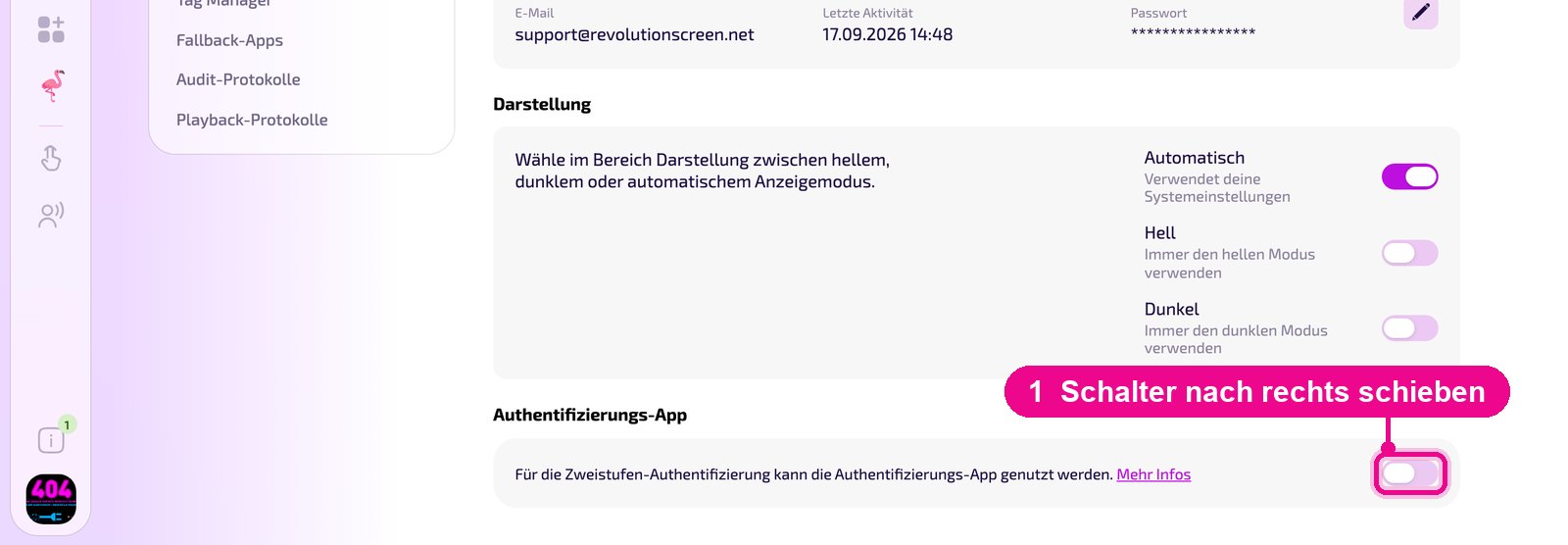
Slide the switch to the right in the «Authentifizierungs-App» section under «Mein Konto», scan the QR-Code with Microsoft or Google Authenticator, type in the displayed code, done.
What you need
An authenticator app on your smartphone. Both common apps are free and work equally well:
– Microsoft Authenticator (App Store / Google Play)
– Google Authenticator (App Store / Google Play)
Install the app before you start the setup in my.rstv.app. The QR-Code is shown only once.
Step 1: Open Mein Konto
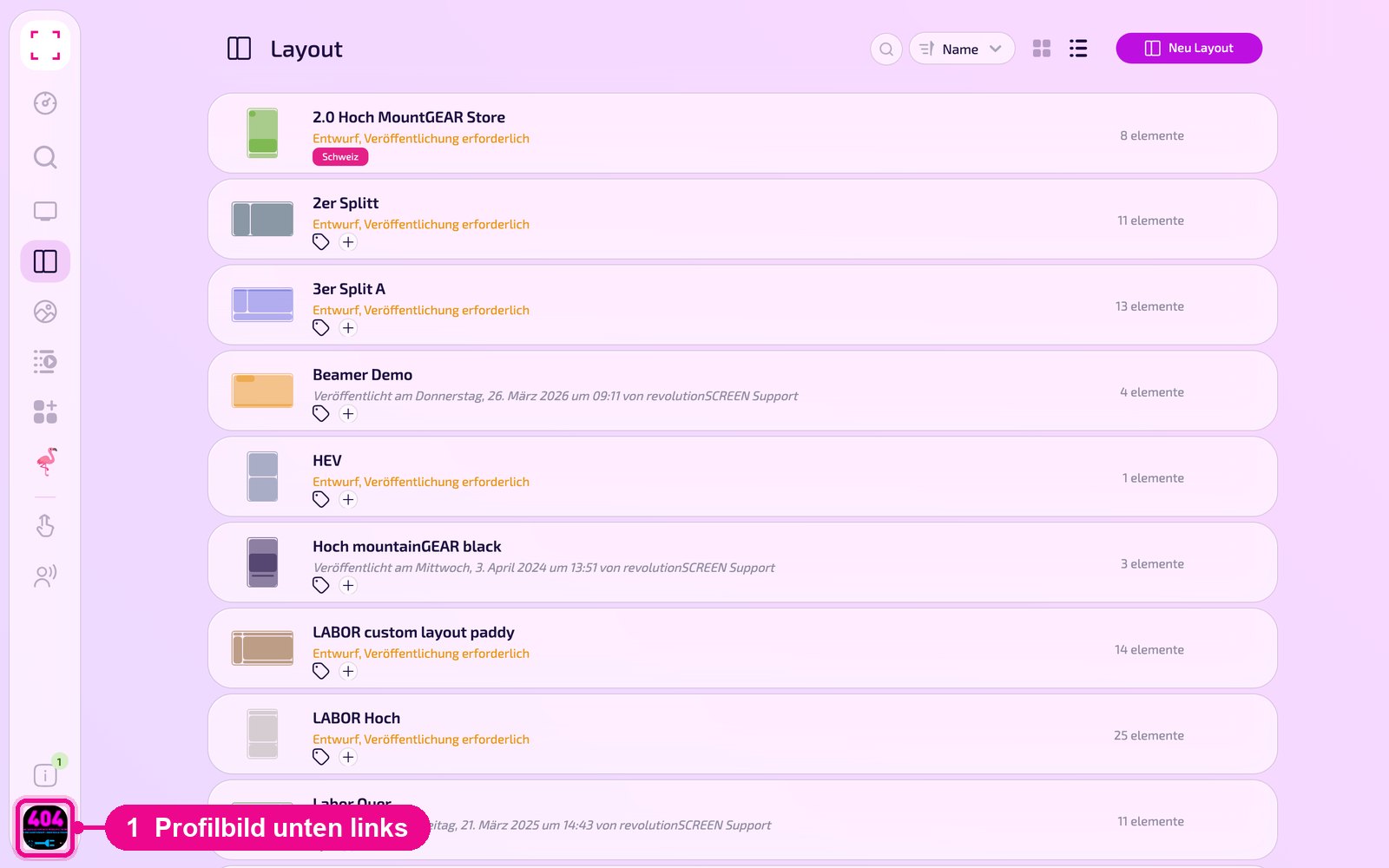
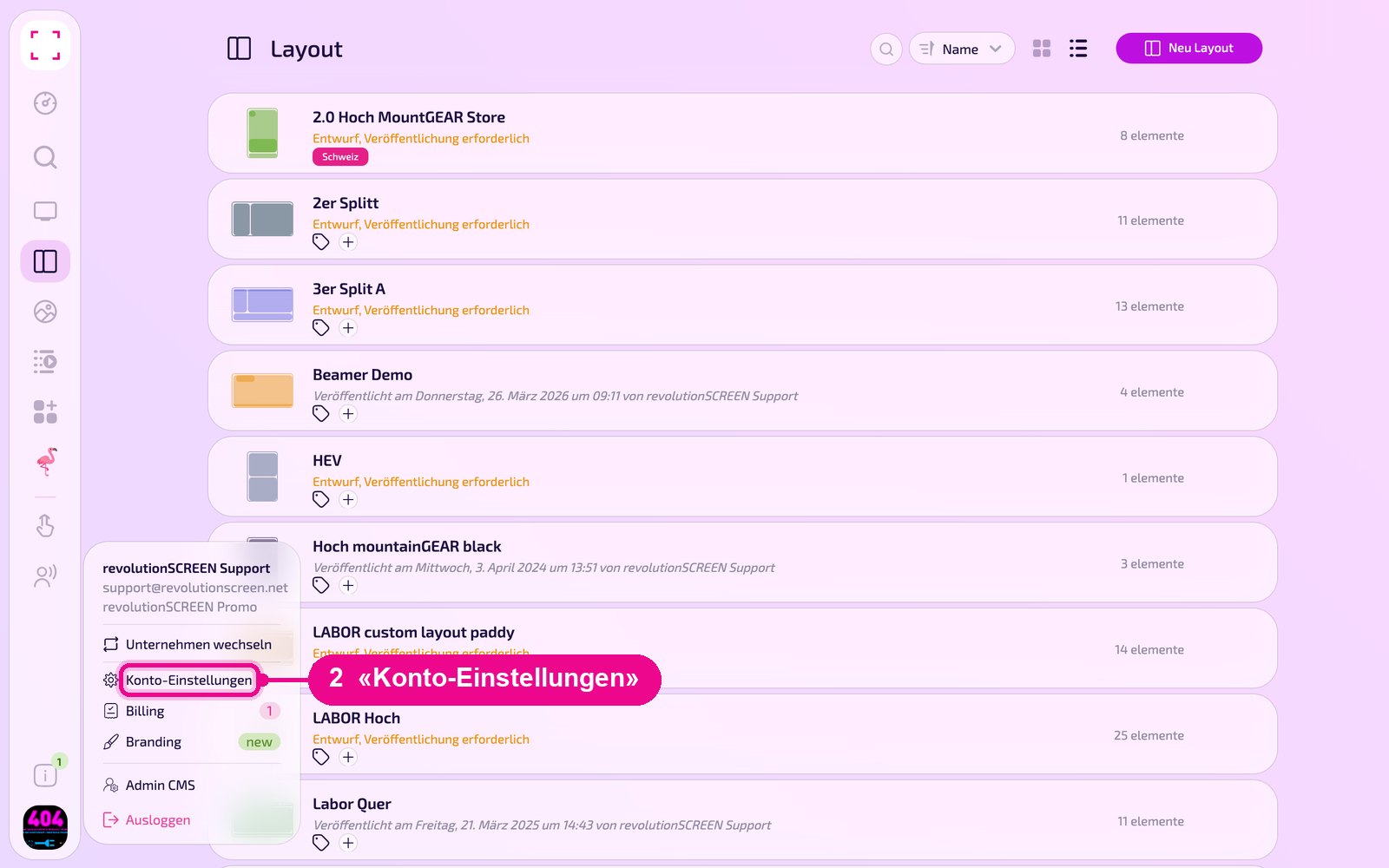
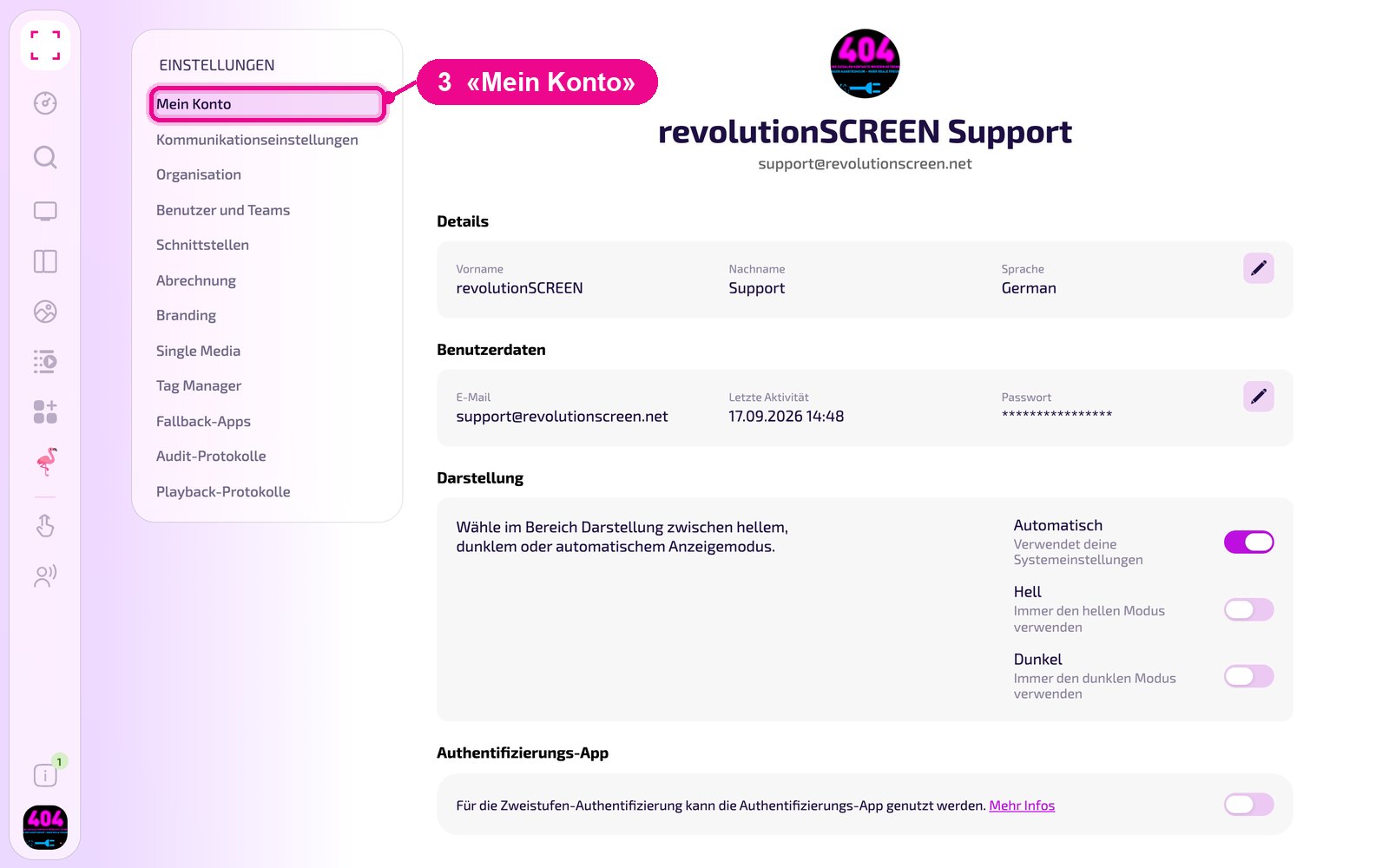
Click your profile picture at the bottom left, select «Konto-Einstellungen» and on the left «Mein Konto». At the very bottom of the page you'll find the «Authentifizierungs-App» section.
Profile picture at the bottom left → «Konto-Einstellungen» → left «Mein Konto»
Step 2: Slide the switch to the right
By default, two-factor authentication is turned off. Slide the switch on the right in the «Authentifizierungs-App» section to the right. This starts the setup and the QR-Code appears. The «Mehr Infos» link next to the switch leads to this guide.
Step 3: Scan the QR-Code with the app
The «Aktiviere die Authentifizierungs-App» window opens with a QR-Code. Now open the authenticator app on your phone and scan it.
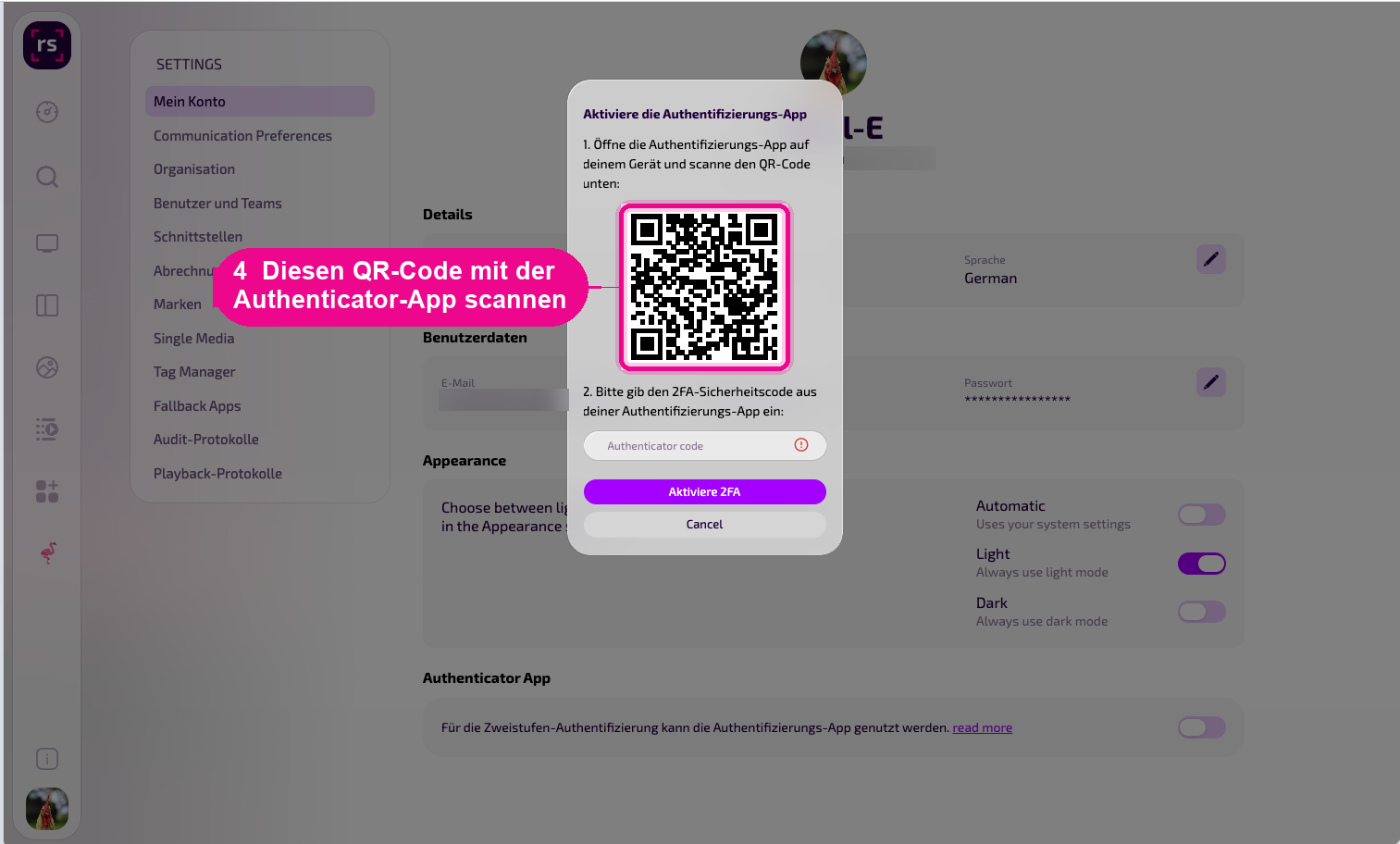
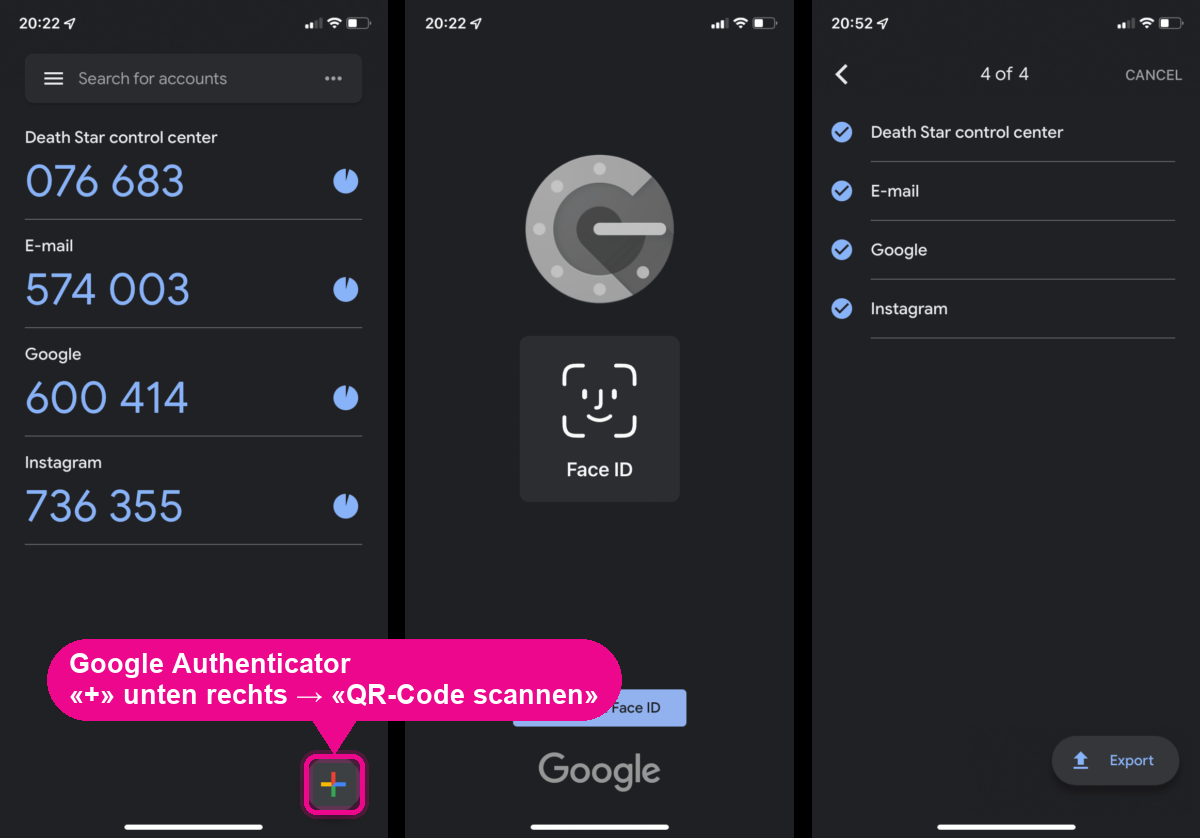
In Google Authenticator, tap the «+» at the bottom right and select «QR-Code scannen».
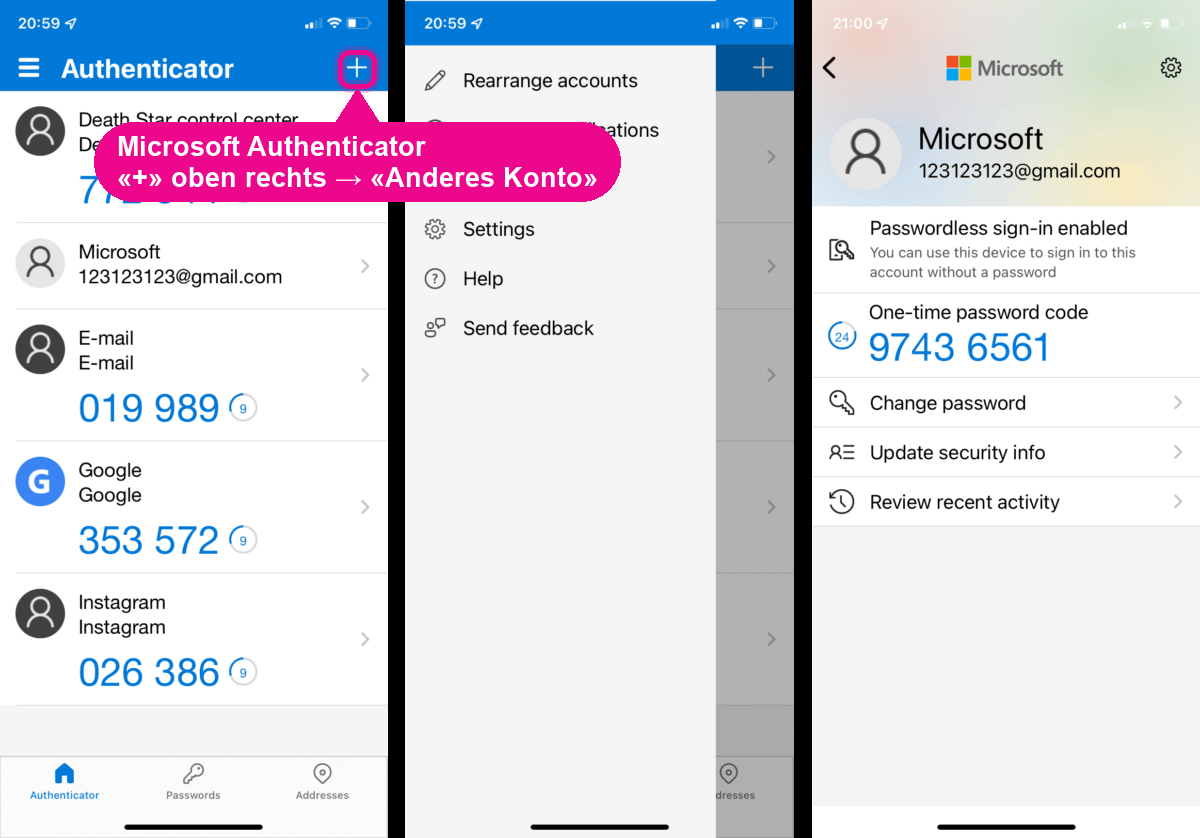
In Microsoft Authenticator, tap the «+» at the top right, select «Anderes Konto» and then scan the QR-Code.
After scanning, revolutionSCREEN appears as a new entry in your app and shows a six-digit code that changes every 30 seconds.
Step 4: Enter and confirm the code
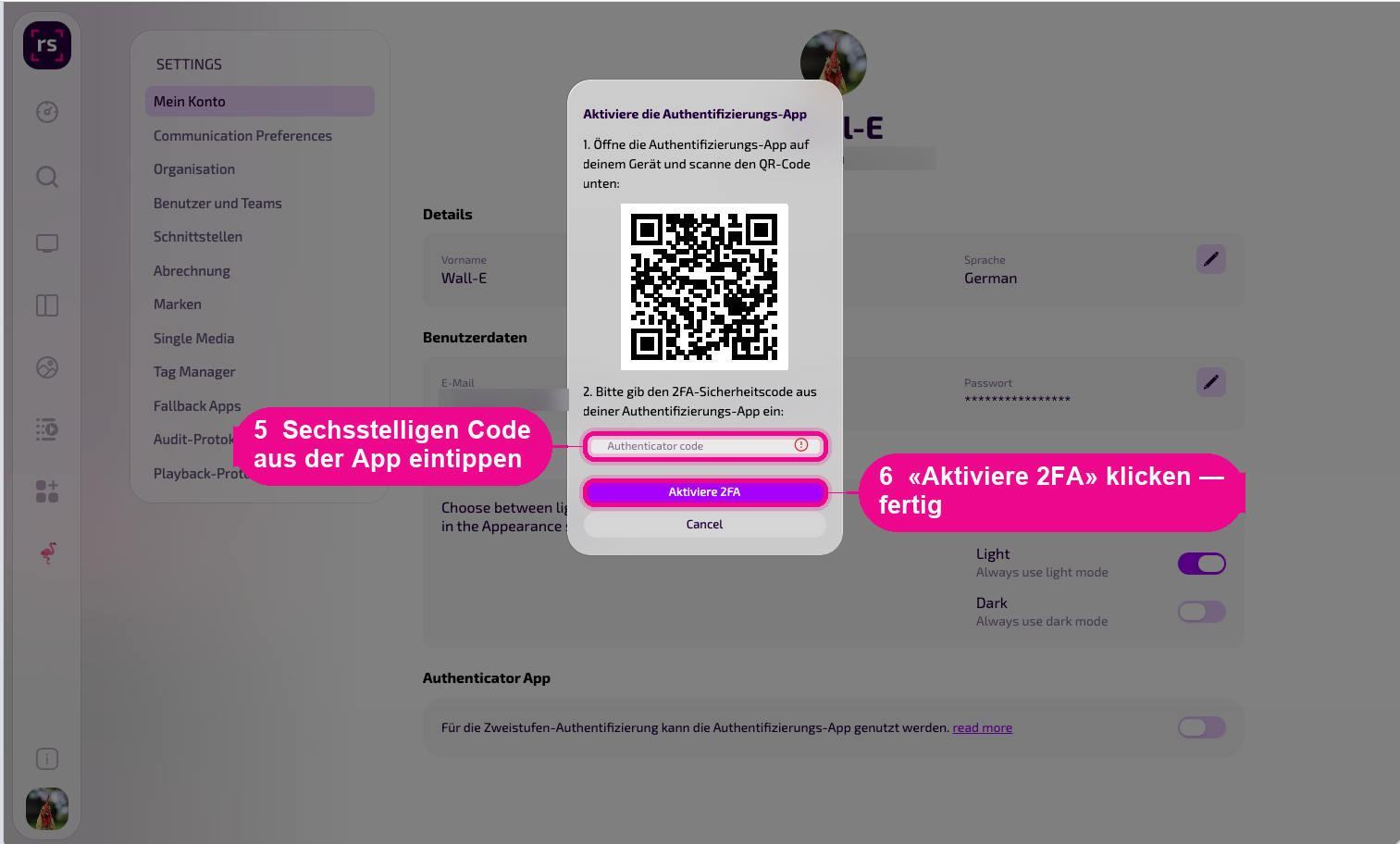
Type the currently displayed code from the app into the «Authenticator code» field and click «Aktiviere 2FA». If the code has expired, wait a moment for the next one. That's not an error.
The switch in the «Authentifizierungs-App» section is now turned on. Two-factor authentication is set up.
How you will sign in from now on
When signing in, you enter your email and password as usual. Then my.rstv.app asks for the six-digit code. Open the authenticator app, read the current code for revolutionSCREEN and enter it.
Turning 2FA off again
Open profile picture at the bottom left → «Konto-Einstellungen» → «Mein Konto» again and slide the switch in the «Authentifizierungs-App» section to the left. After that you can delete the revolutionSCREEN entry in your authenticator app.
Overview for administrators
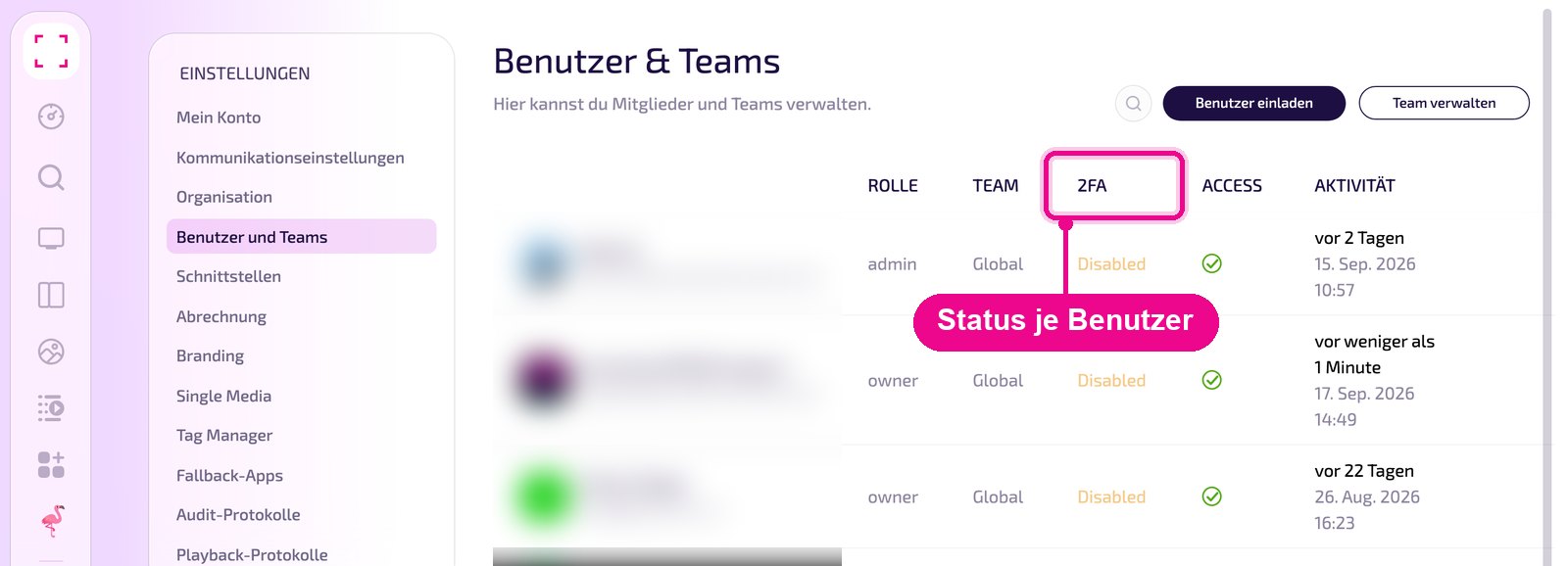
Under «Konto-Einstellungen» → «Benutzer und Teams», the «2FA» column shows which users have two-factor authentication turned on («Enabled») and which don't («Disabled»). Each user sets up 2FA themselves in their own account.
Phone lost or app deleted
Without the authenticator app you can no longer get into your account. In this case, contact us at support@revolutionscreen.net. We reset two-factor authentication for your account, after which you set it up again on the new device.
Do you have a new phone and still have access to the old one? Then turn 2FA off with the old device and turn it back on with the new one right afterwards.