Tag Manager
With tags you organise screens, media and other content by your own keywords, for example by location, department or campaign. In the «Tag Manager» you create categories with a colour and add tags to them. After that, you filter your lists by these tags with just a few clicks.
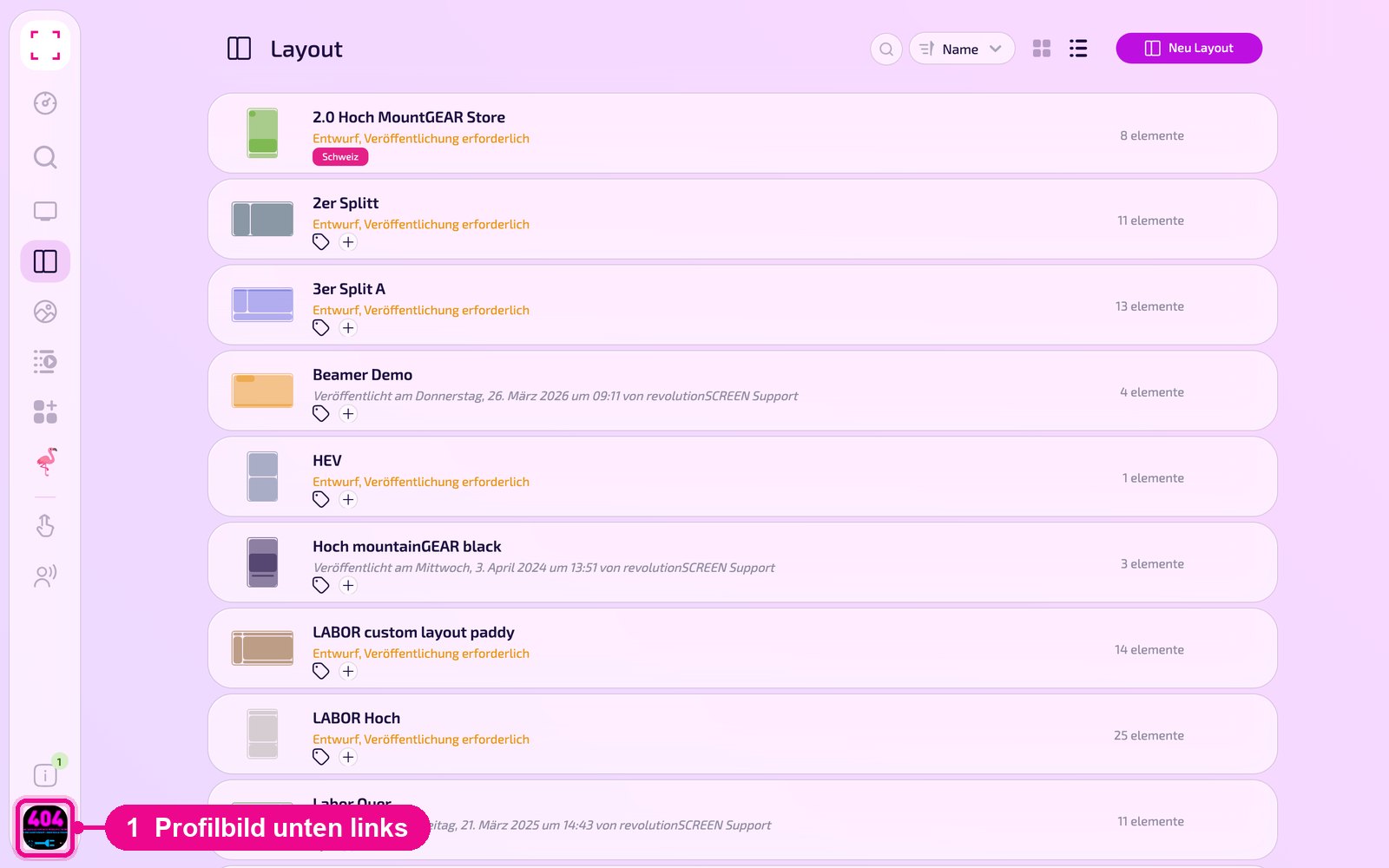
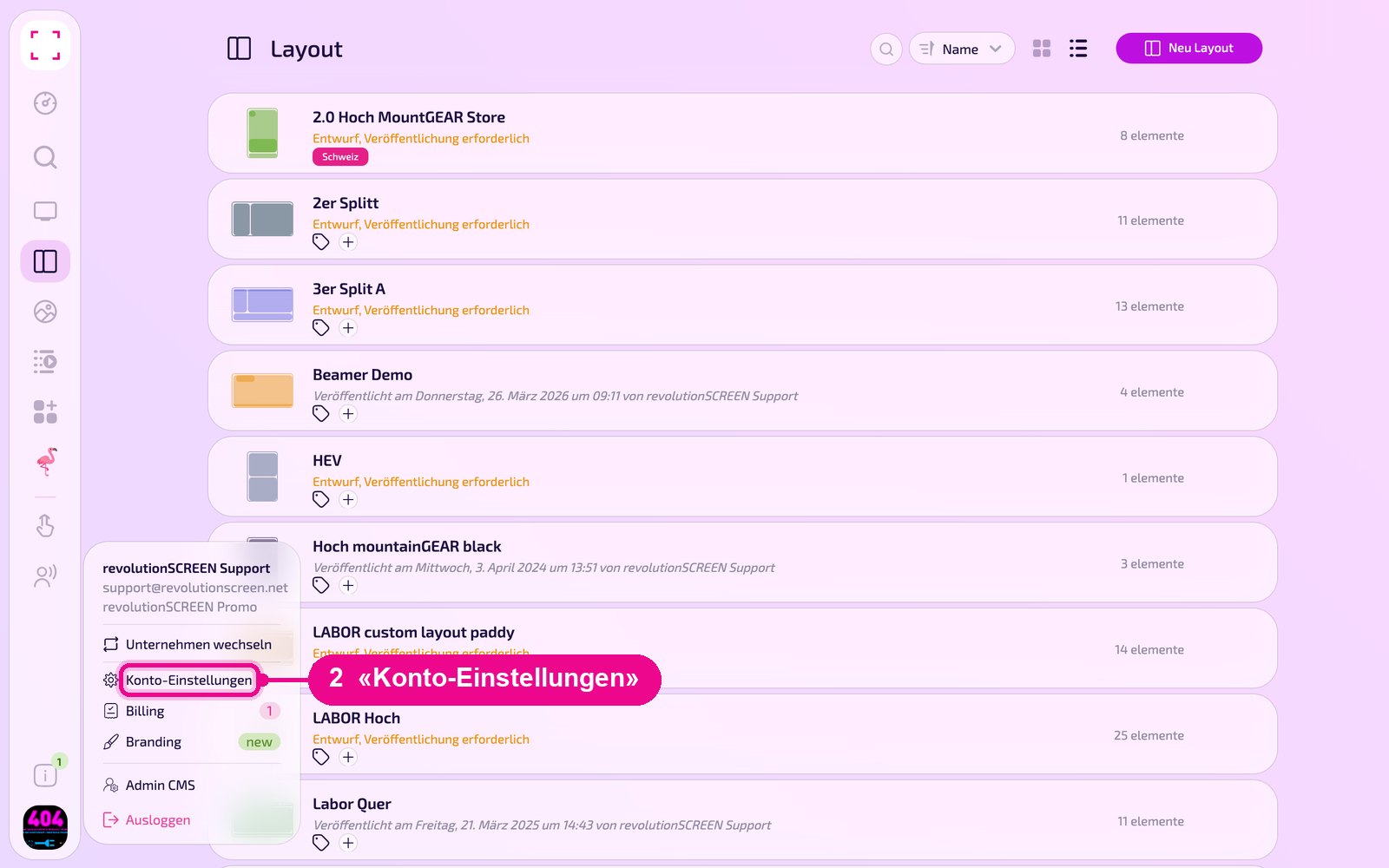
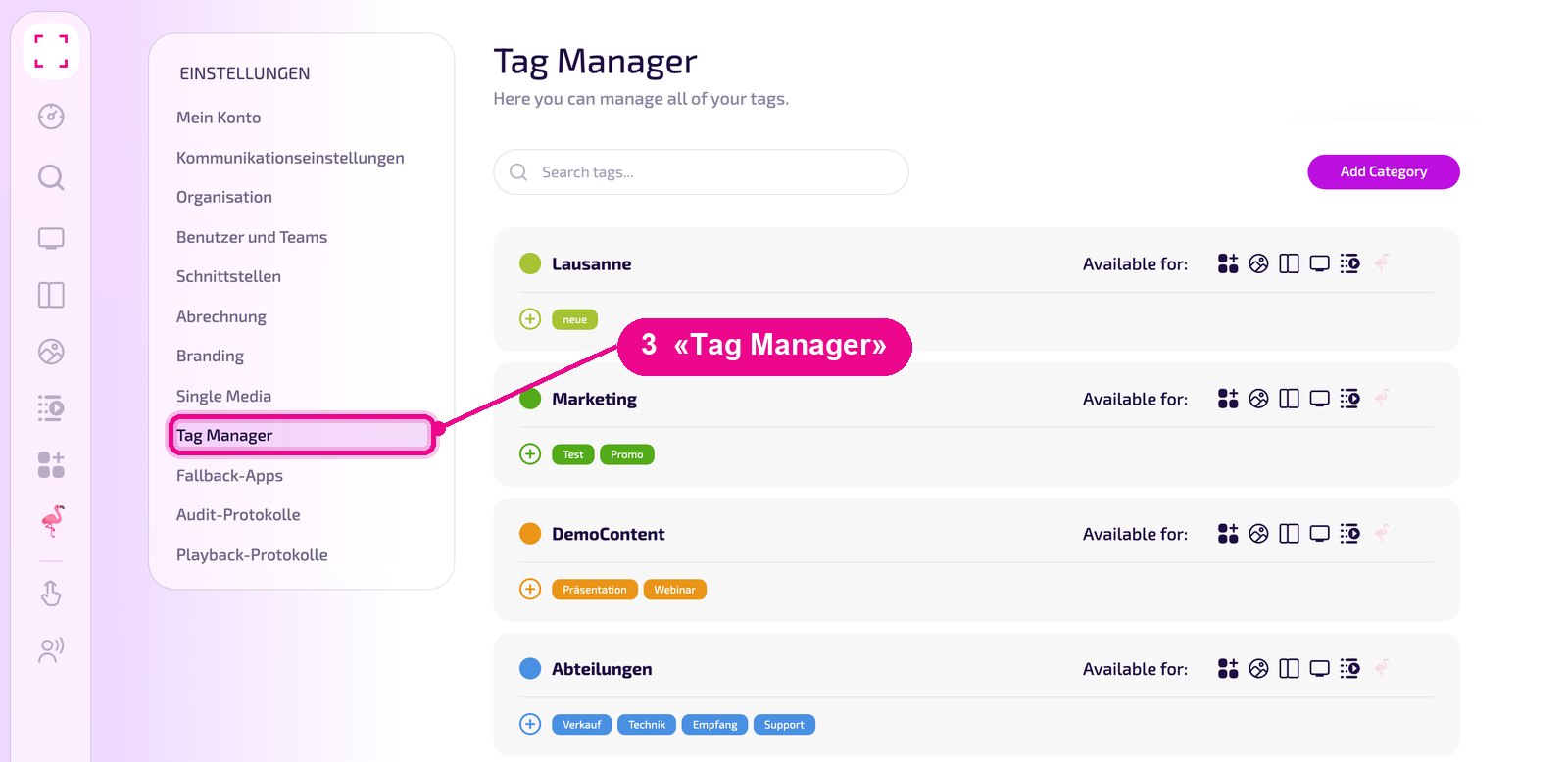
Profile picture at the bottom left → «Konto-Einstellungen» (account settings) → «Tag Manager» on the left
What you need tags for
- Filtering: With many screens or media, the search quickly finds all entries with a certain tag, for example all screens of one branch.
- Overview: Tags appear as coloured labels directly in the list. The colour comes from the category, so you recognise related tags at a glance.
- Examples: Category «Standorte» with the tags «Luzern», «Zürich» and «Bern» or category «Abteilungen» with «Verkauf», «Technik» and «Empfang».
Create a category
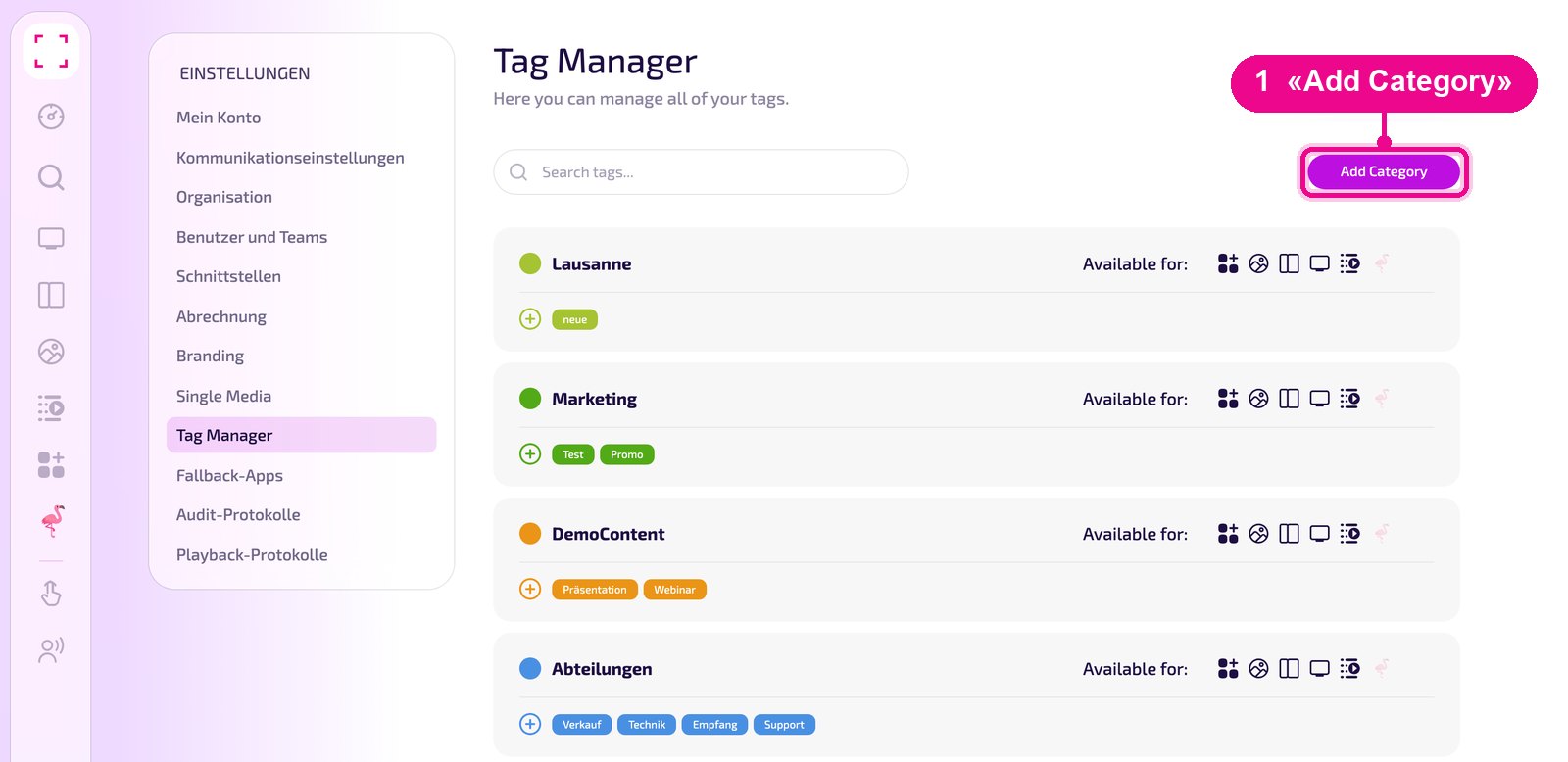
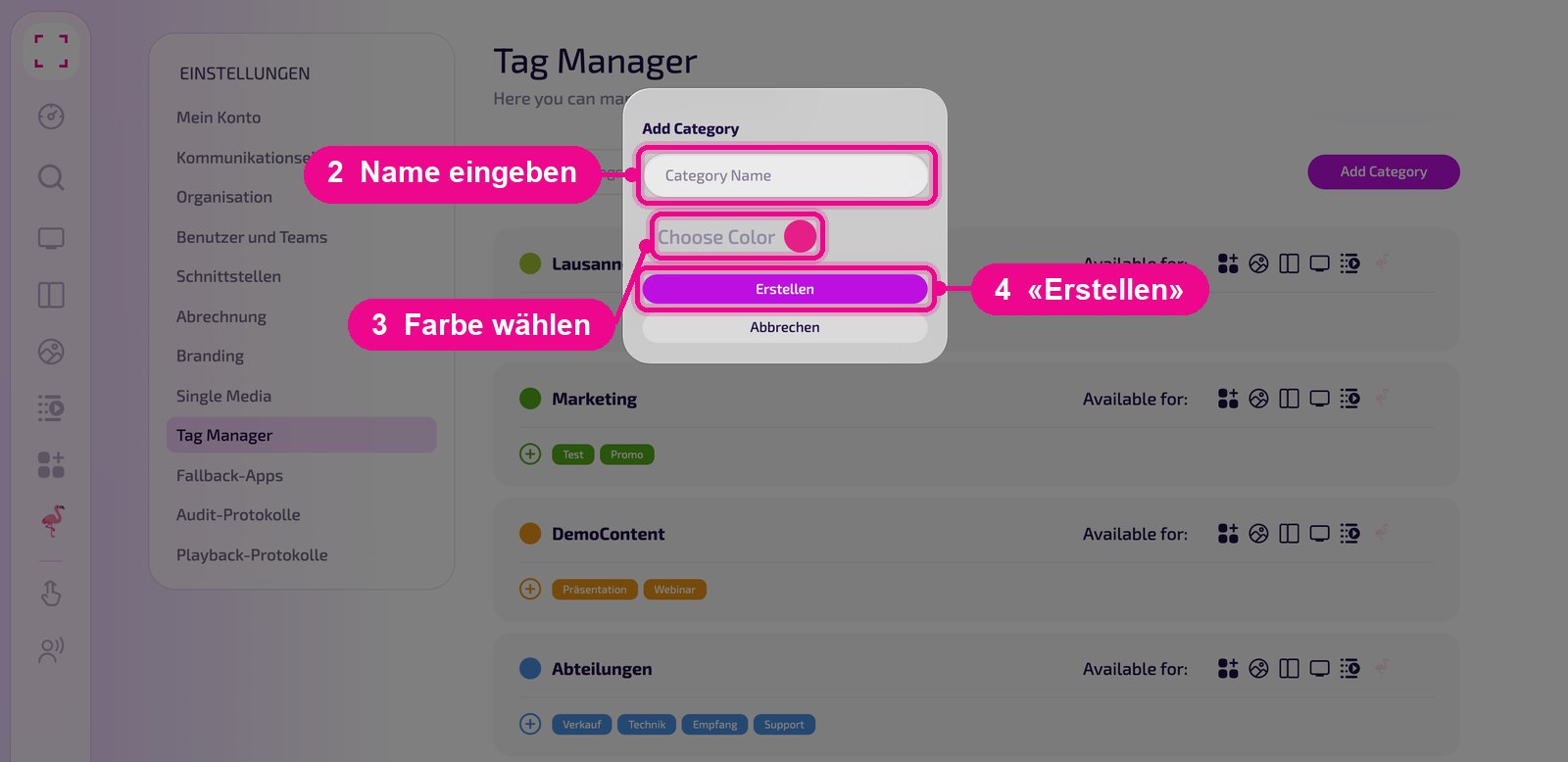
Click «Add Category» at the top right.
Enter a name for the category in the window, choose a colour by clicking the colour dot next to «Choose Color» and confirm with «Erstellen» (create). With «Abbrechen» (cancel) you close the window without any change.
Add tags and manage the category
Each category has its own row:
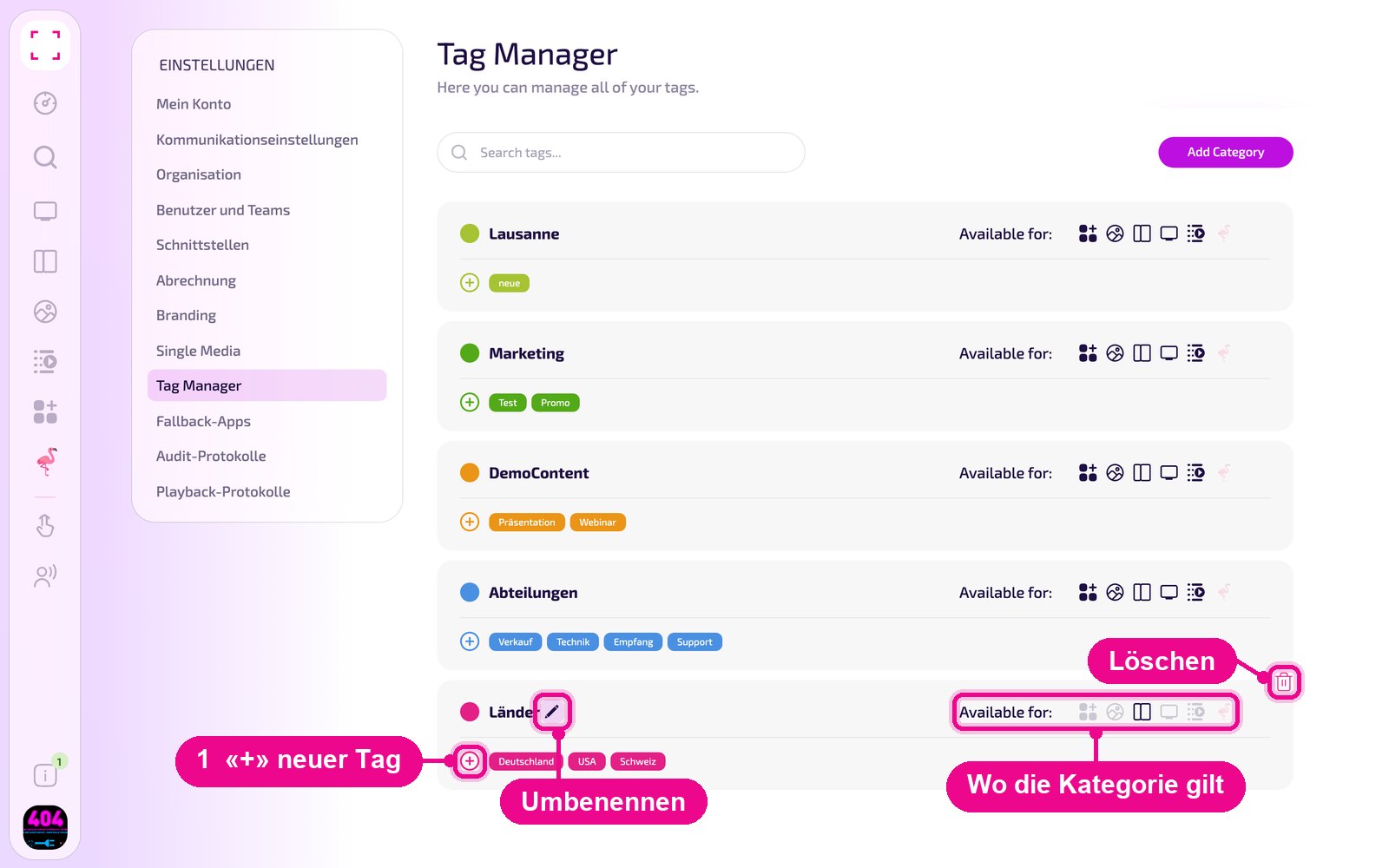
- With the «+» at the left below the name you add a new tag to the category. The existing tags are shown next to it.
- On the right at «Available for:» the icons show where the category can be used: apps, media, layouts, screens, playlists and designs. Dark icons are on, faded ones are off. Click an icon to toggle it.
- When you hover over the row, the pencil for renaming appears next to the name and the trash can for deleting the category on the right.
With the search field «Search tags…» at the top of the page you quickly find a tag again when you have created many categories.
Filter by tags
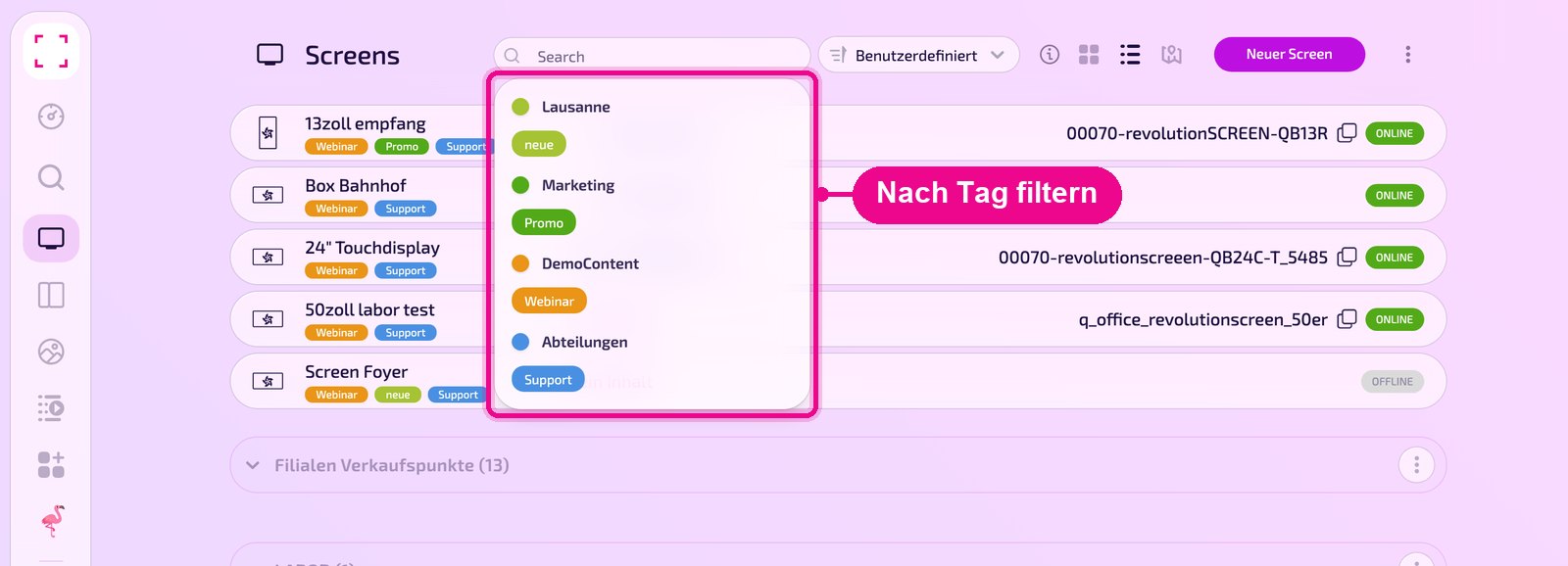
For example, under «Screens» click the search field at the top. Below it, all tags appear, grouped by category. Click a tag to show only the screens with this tag. Which tags appear here is determined in the Tag Manager via «Available for:».
You assign tags to a screen on its detail page: there, click the «+» at the top below the name next to the label icon. You find more about the detail page under «Screens».