Create a Playlist
A Playlist is a sequence of content such as images, videos, app instances and designs that play one after another. You set the order and display duration and then play the Playlist on a Screen or in a Layout section.
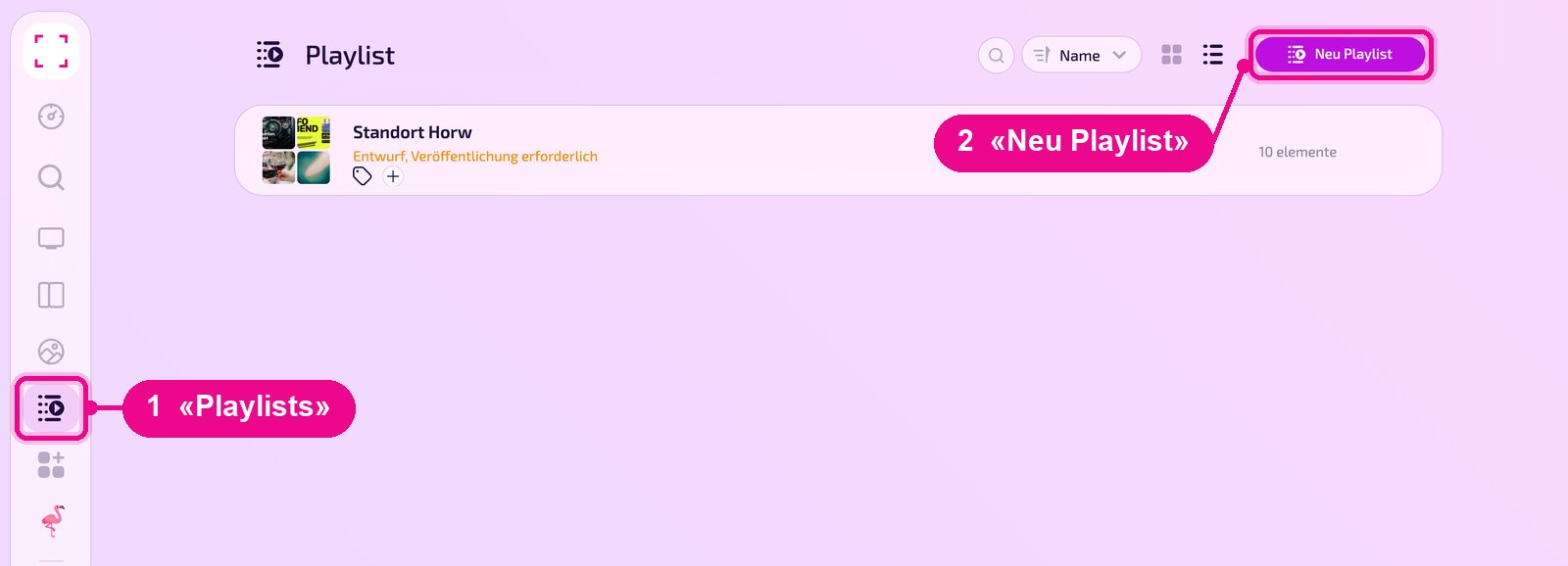
Sidebar on the left «Playlists» → top right «Neu Playlist». Open an existing Playlist by clicking on its row.
Create a new Playlist
Open «Playlists» in the sidebar and click «Neu Playlist» at the top right.
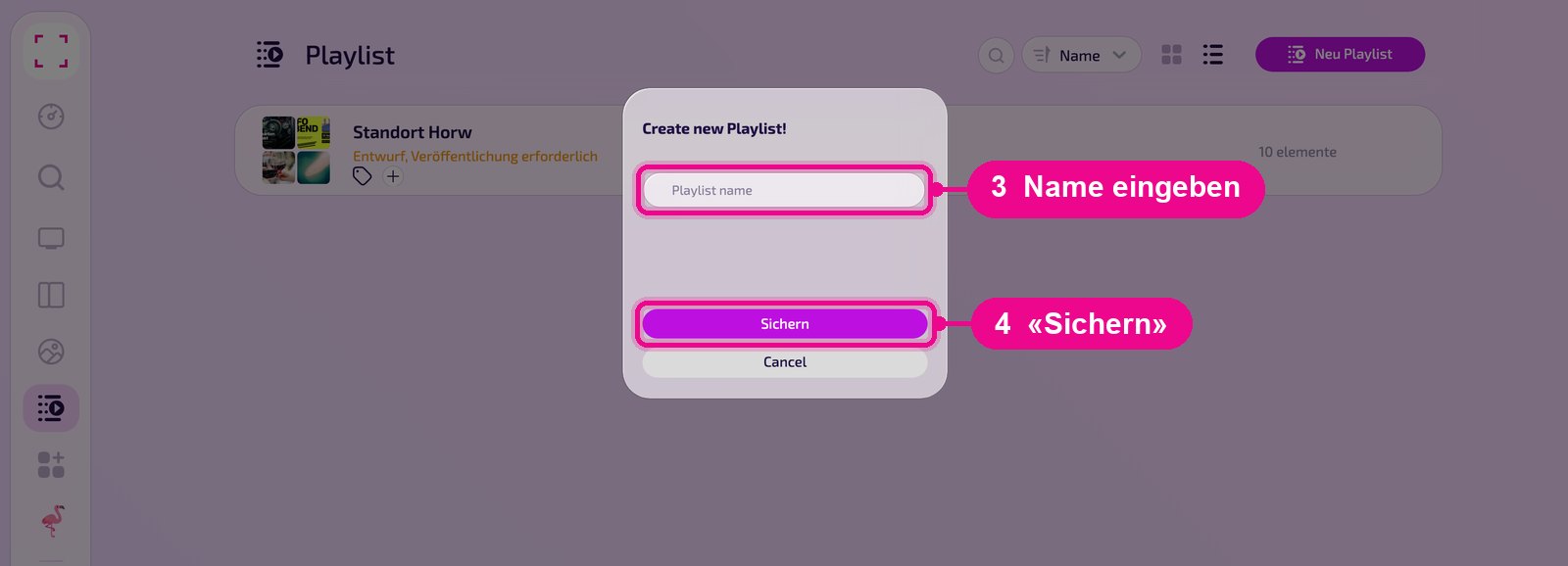
In the «Create new Playlist!» window, give the Playlist a name and click «Sichern». You go straight to the editor.
Add and arrange content
On the left of the editor are the Playlist's elements, on the right the selection. Use the four tabs below the search field to switch between «Neueste» (Latest, clock), «Media», «Apps» and «Designs». Above that, a line shows total duration, used storage and number of elements.
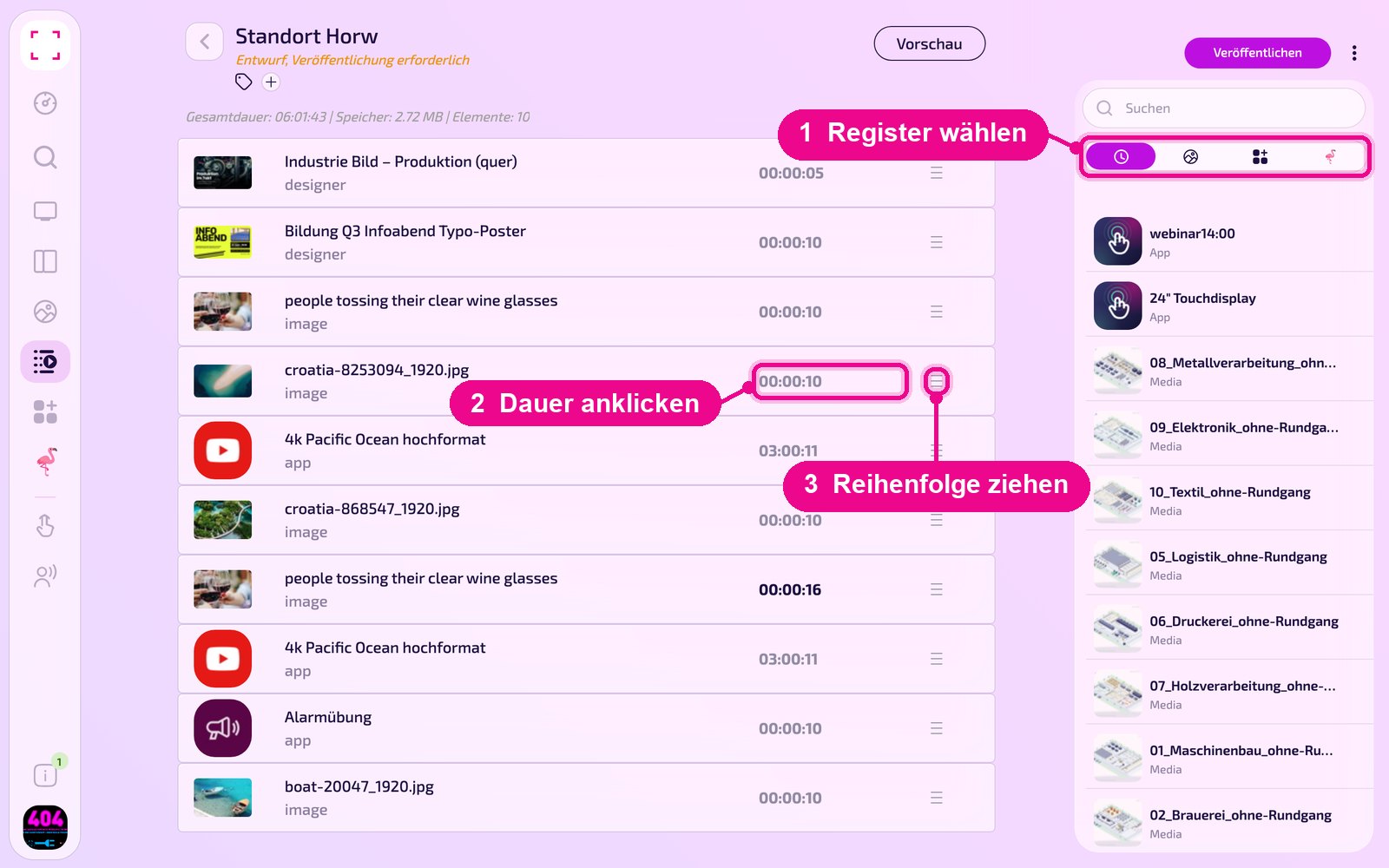
Clicking an entry in the right-hand selection places it immediately at the end of the Playlist. You then change the order using the handle on the right of the row. To remove it, hover over the element with the mouse and click the × that appears.
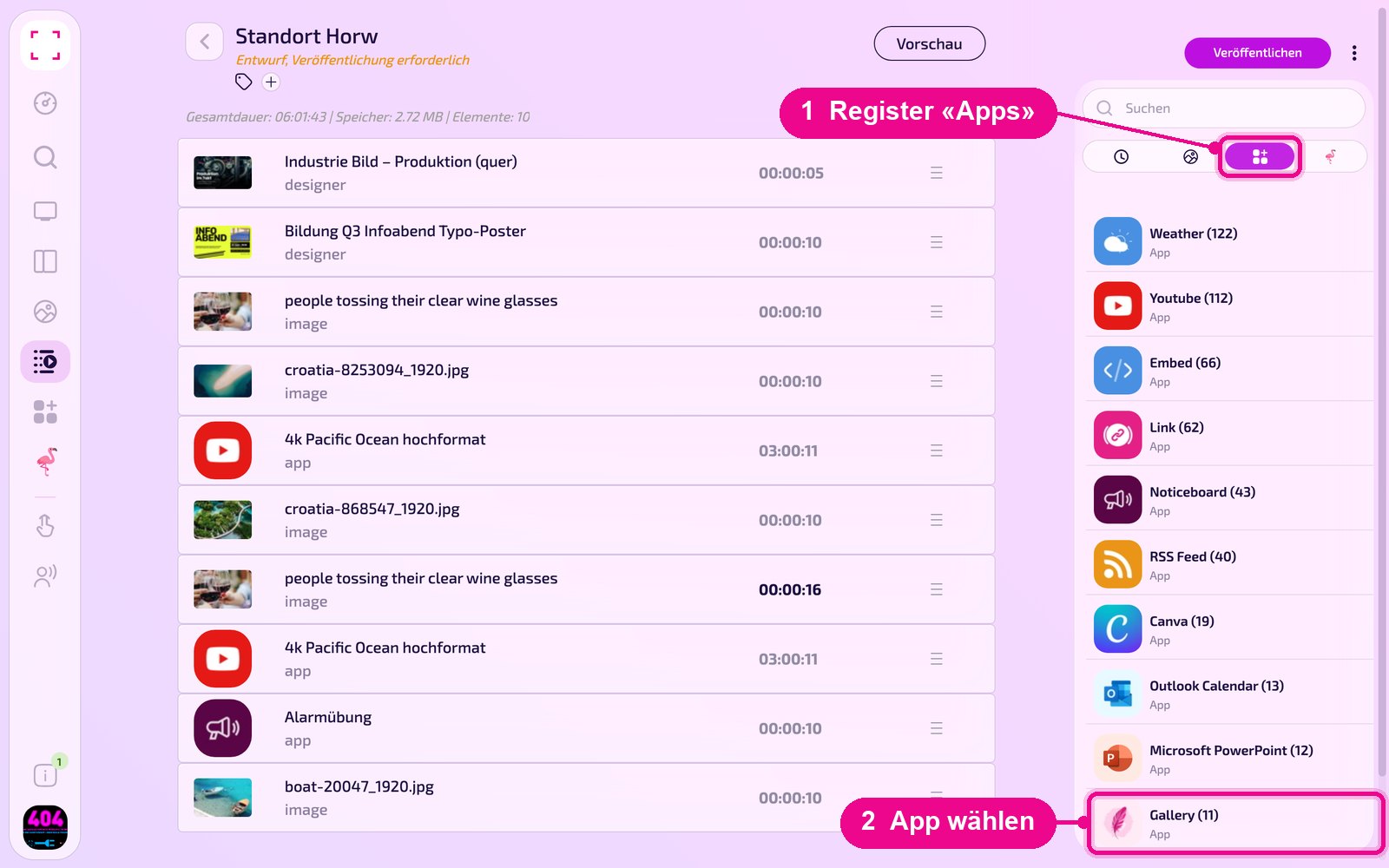
In the «Apps» tab you first see the apps with their number of instances, e.g. «Gallery (11)». Clicking the app shows its instances, from which you select the one you want.
Set the display duration
Click on the duration of an element. In the «Elementdauer bearbeiten!» window, set hours, minutes and seconds with the arrows and apply with «Bestätigen».
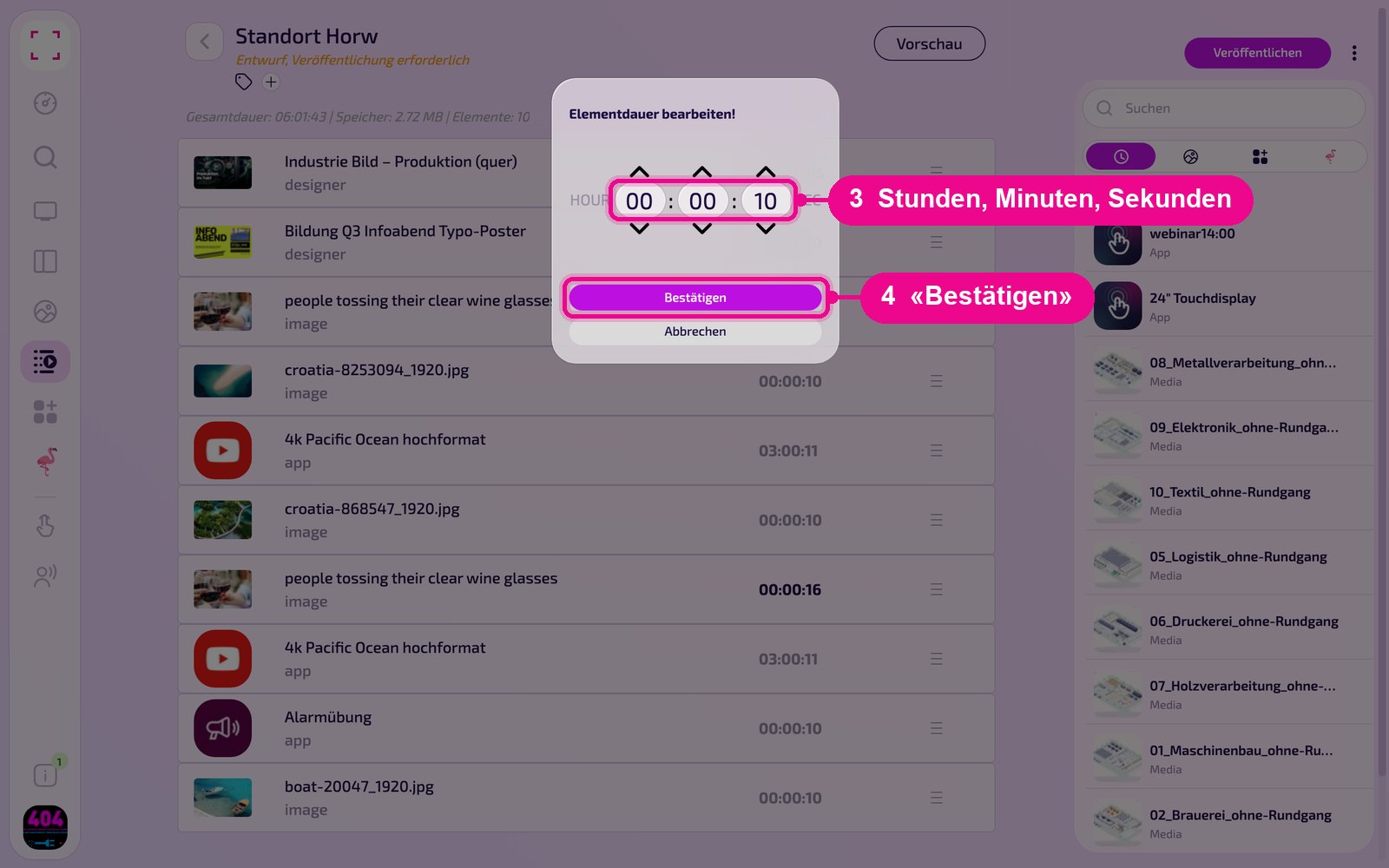
For apps like Instagram or PowerPoint, the window also shows the «pro Post» (per post) toggle. This makes the time apply to each post instead of the whole instance. In the list, «pro Slide» then appears below the duration. Each app guide shows the details in the section «Anzeigedauer in Playlist & Layout».
Preview and publish
Use «Vorschau» (Preview) at the top center to check the sequence. Changes only take effect once you click «Veröffentlichen» (Publish) at the top right. Until then, «Entwurf, Veröffentlichung erforderlich» (Draft, publishing required) is shown below the name.

The three-dot menu next to it offers «Auf den Screen», «Einstellungen», «Duplikat», «Inhalt bereinigen», «Discard Changes» and «Löschen». For how to place Playlists in a Layout section, see «Layout erstellen».
Good to know
Content missing from the selection
You find images and videos under «Media», app instances under «Apps», designs under «Designs». If something is missing, upload it first or create the instance.
Playlist not running
Check whether the Playlist is published and assigned to a Screen or a Layout section.
Wrong element added
Hover over the element with the mouse and remove it with the ×.
Same Playlist for a second location
Use «Duplikat» in the three-dot menu to create a copy and adjust only the differences.