Outlook Calendar
With the «Outlook Calendar» app you embed your Outlook calendar (Microsoft 365) and show upcoming or individual appointments on the screen, e.g. as a customer greeting.
Purpose
Typical uses are greeting visitors at reception, holidays and events, or a team's appointments. You maintain entries in Outlook as usual, and the screen shows them automatically.
Requirements
- An active revolutionSCREEN account with access to my.rstv.app.
- An active Microsoft 365 account with a password and access to the desired calendar, possibly with the support of your IT administration.
- At least one configured screen.
Install the app
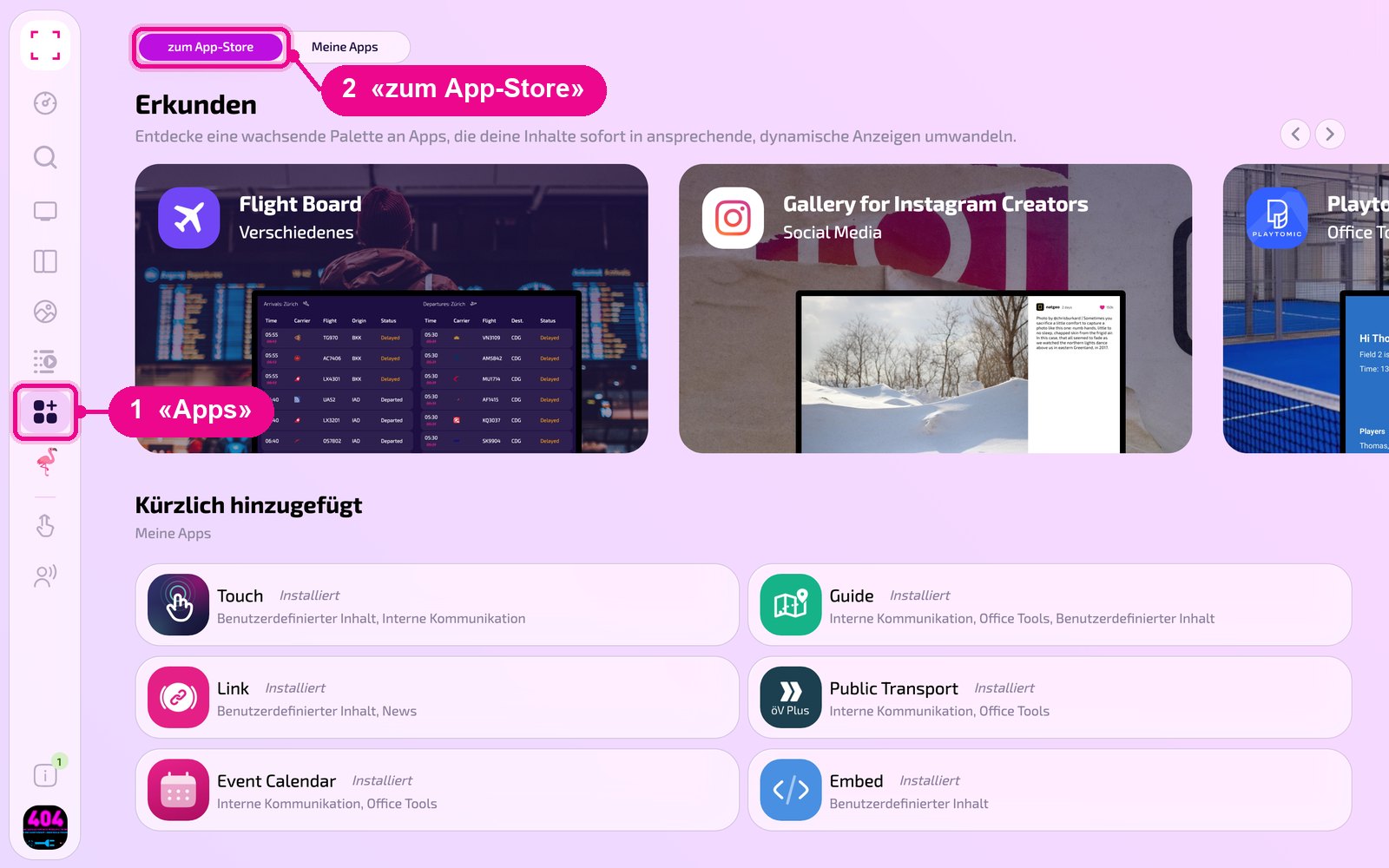
In the sidebar on the left, click «Apps» and at the top click «zum App-Store» (to the app store).
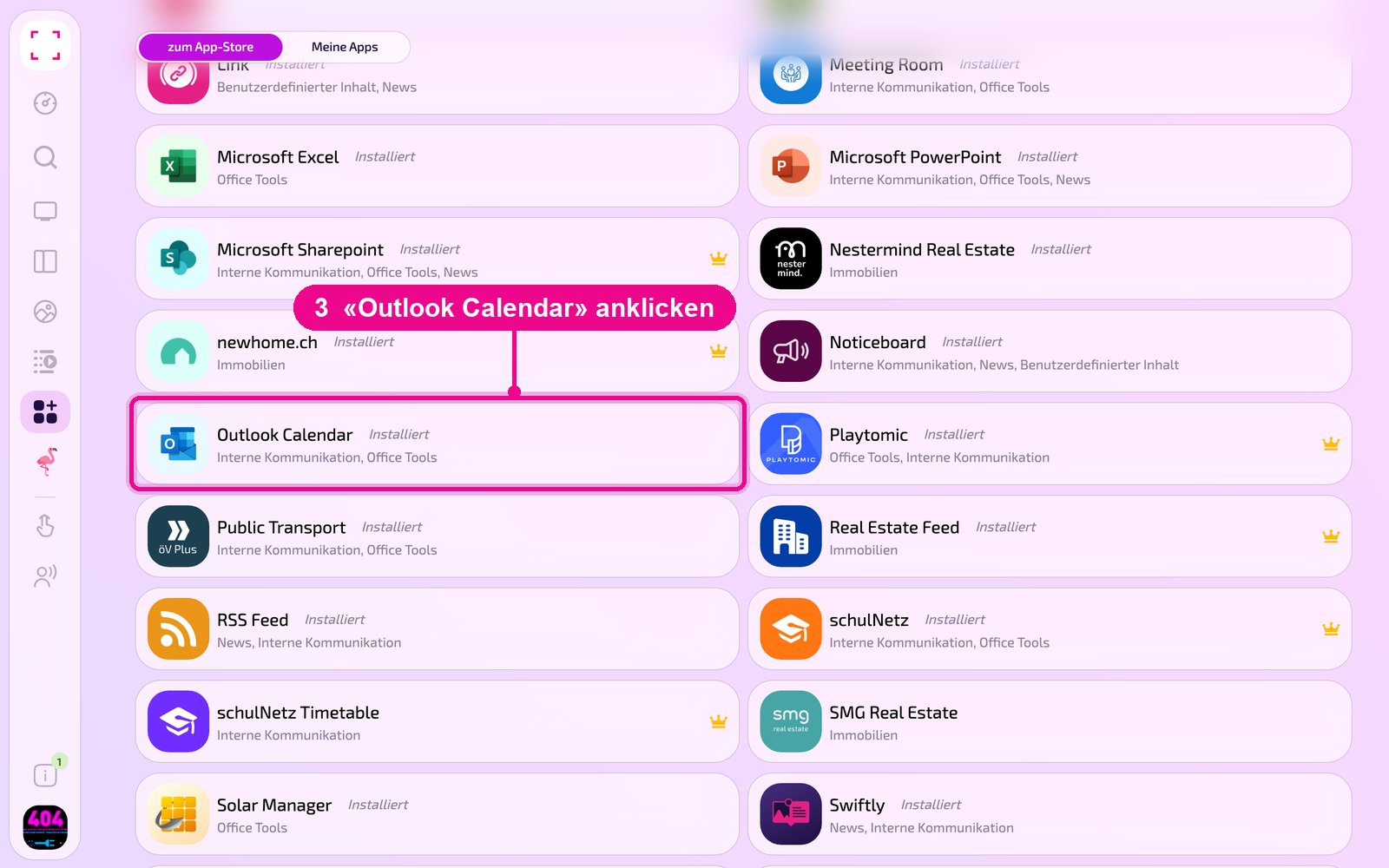
Scroll to the «Alle» (All) list and click the «Outlook Calendar» tile. Use the category buttons to narrow down the list.
The app's detail view opens. If it isn't installed yet, first click «Installiere» (Install). Then click «Neue Instanz» (New instance). «App Guide» opens a short guide.
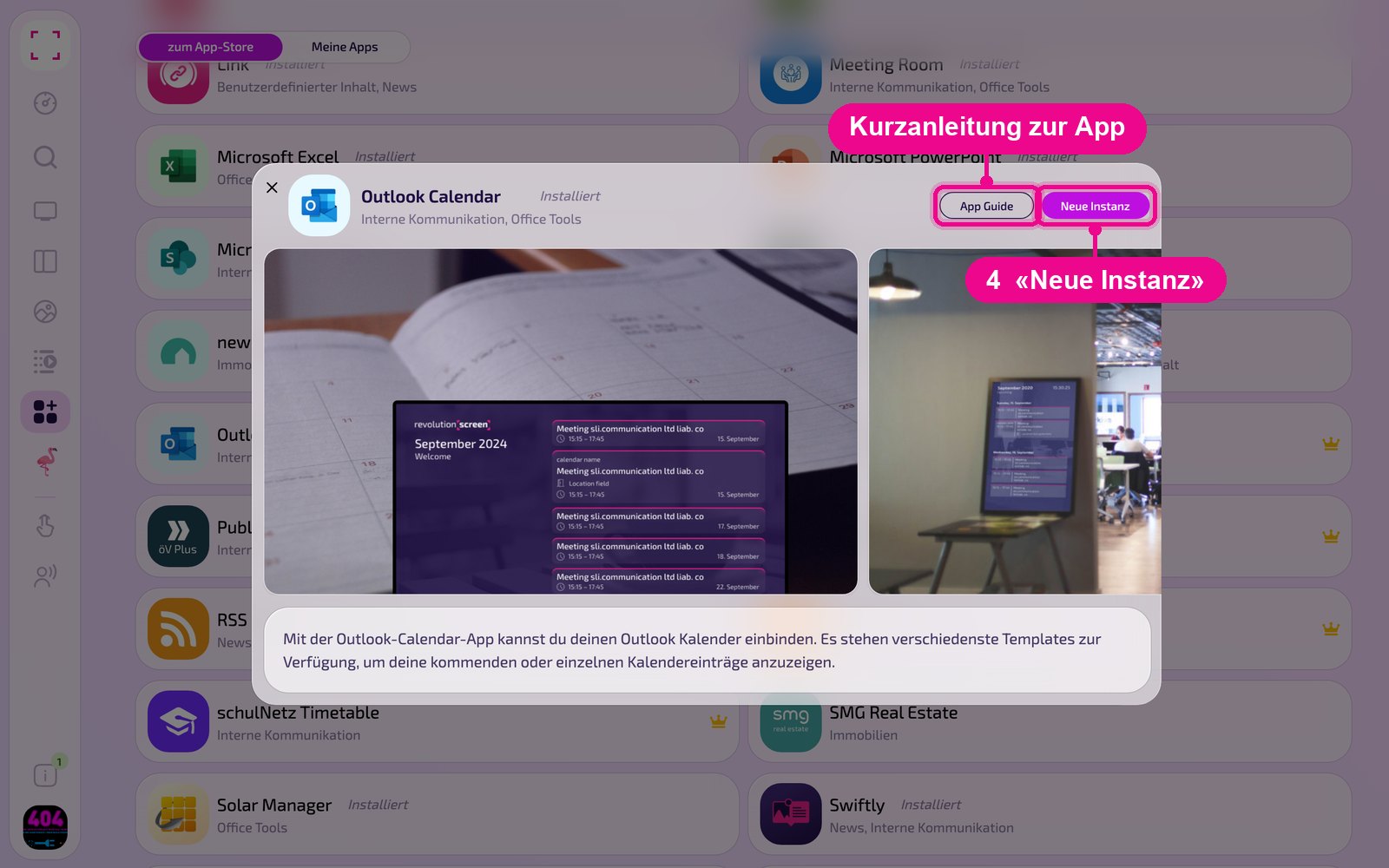
An instance is a separate configuration of the app, e.g. one gallery for reception and another for the canteen. You can create as many instances as you like and use each one individually on screens, in playlists or layouts.
Create a new instance
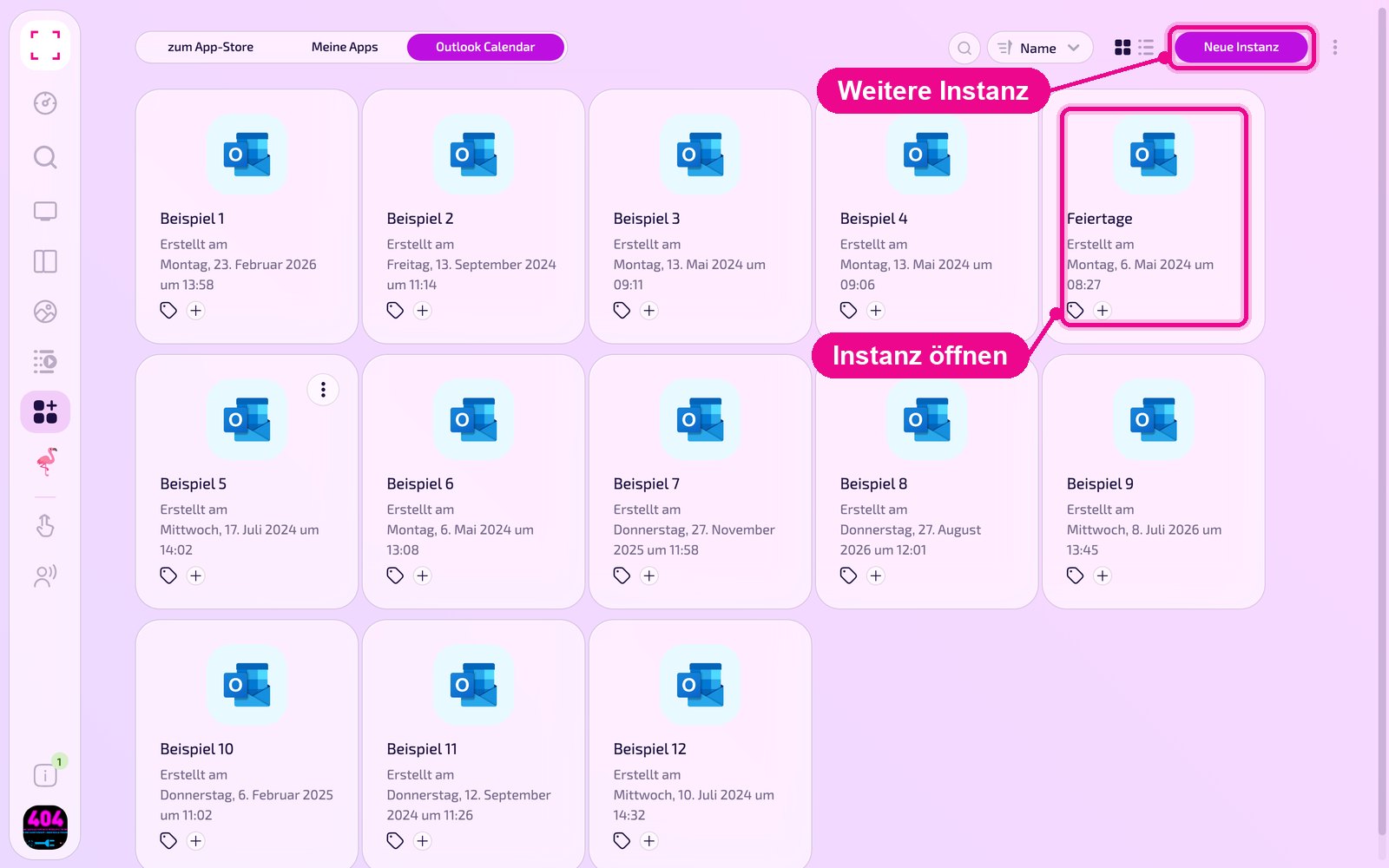
Under «Apps › Meine Apps» (My apps) you see all instances of the app as tiles. Use «Neue Instanz» (New instance) at the top right to create another, and click a tile to open an existing one.
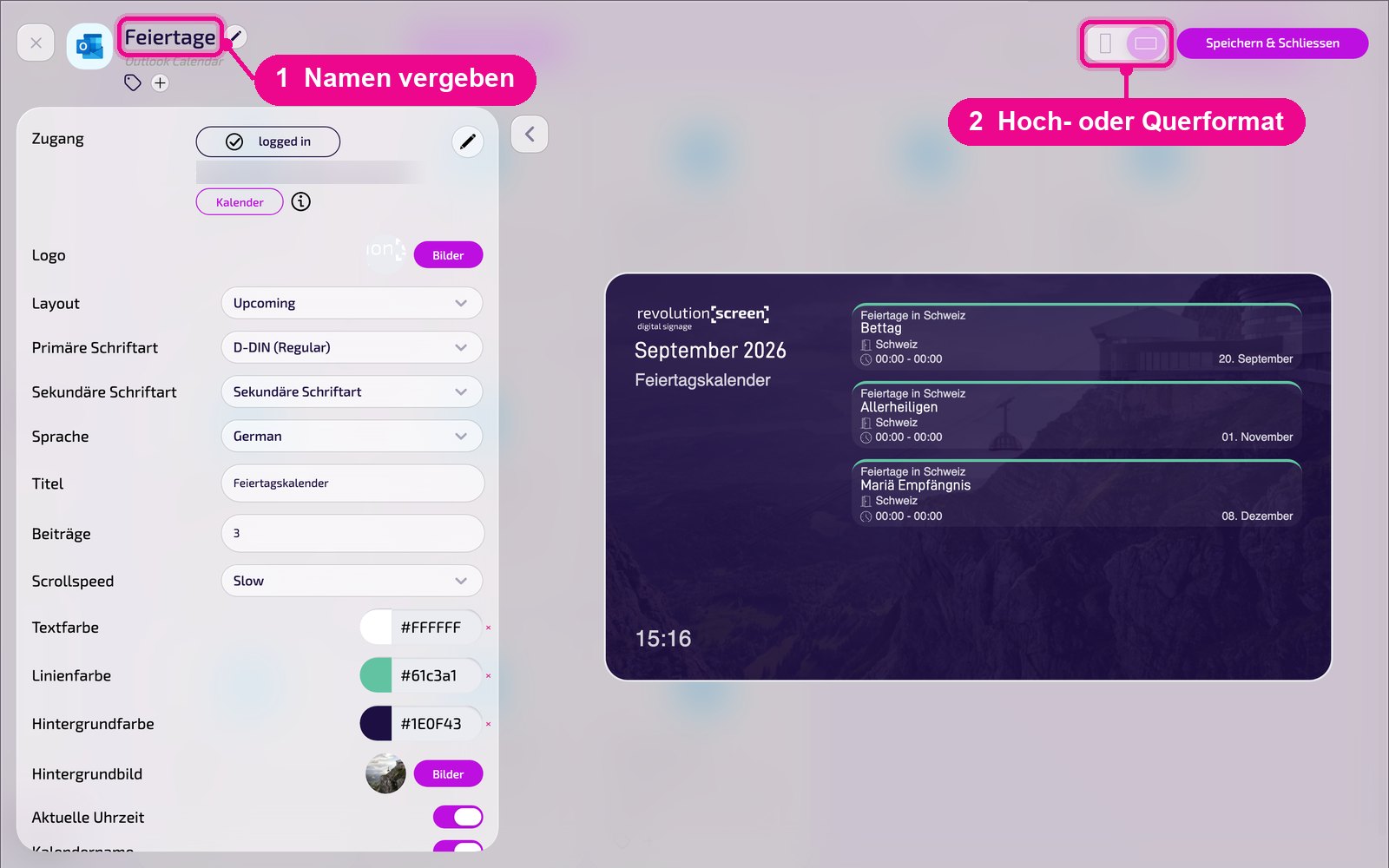
In the editor, hover over the title and click the pencil to give the instance a name. A new instance shows «Kein Name angegeben» (No name given) in red until then. At the top right you choose whether the preview appears in portrait or landscape format.
Connect Microsoft account
At the very top of the settings is «Zugang» (Access). There you connect the instance with your Microsoft account. When the connection is active, it shows «logged in» and below it the connected account. Use the pencil next to it to change the connection. Via «Kalender» (Calendar) you select the calendar whose appointments should appear.
Enter appointments for display
You enter the appointments directly in Outlook: either as an entry in the display's calendar or via «Neuer Termin» (New appointment), where you select the display's calendar. The subject appears as the title, and in the «Notizen» (Notes) field you add your own text.
If only your company uses the calendar, enter e.g. the guest's name in the subject and, in the notes, who is receiving them and where they check in. If several companies in the building share the calendar, put the respective company name in the subject.
Configuration in detail
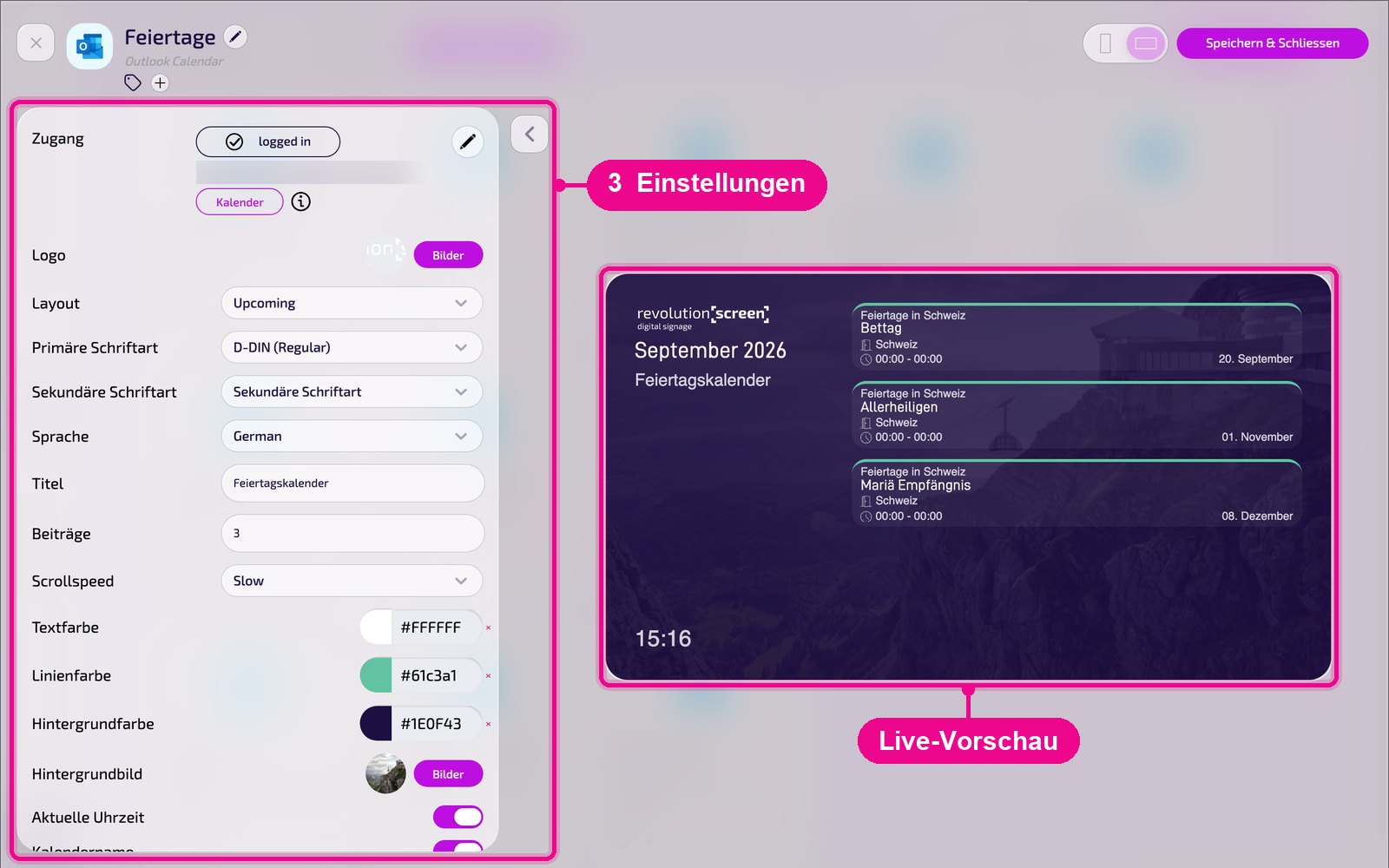
On the left are all the settings; on the right the live preview immediately shows how the instance looks on the screen. Use the arrow next to the card to collapse the settings.
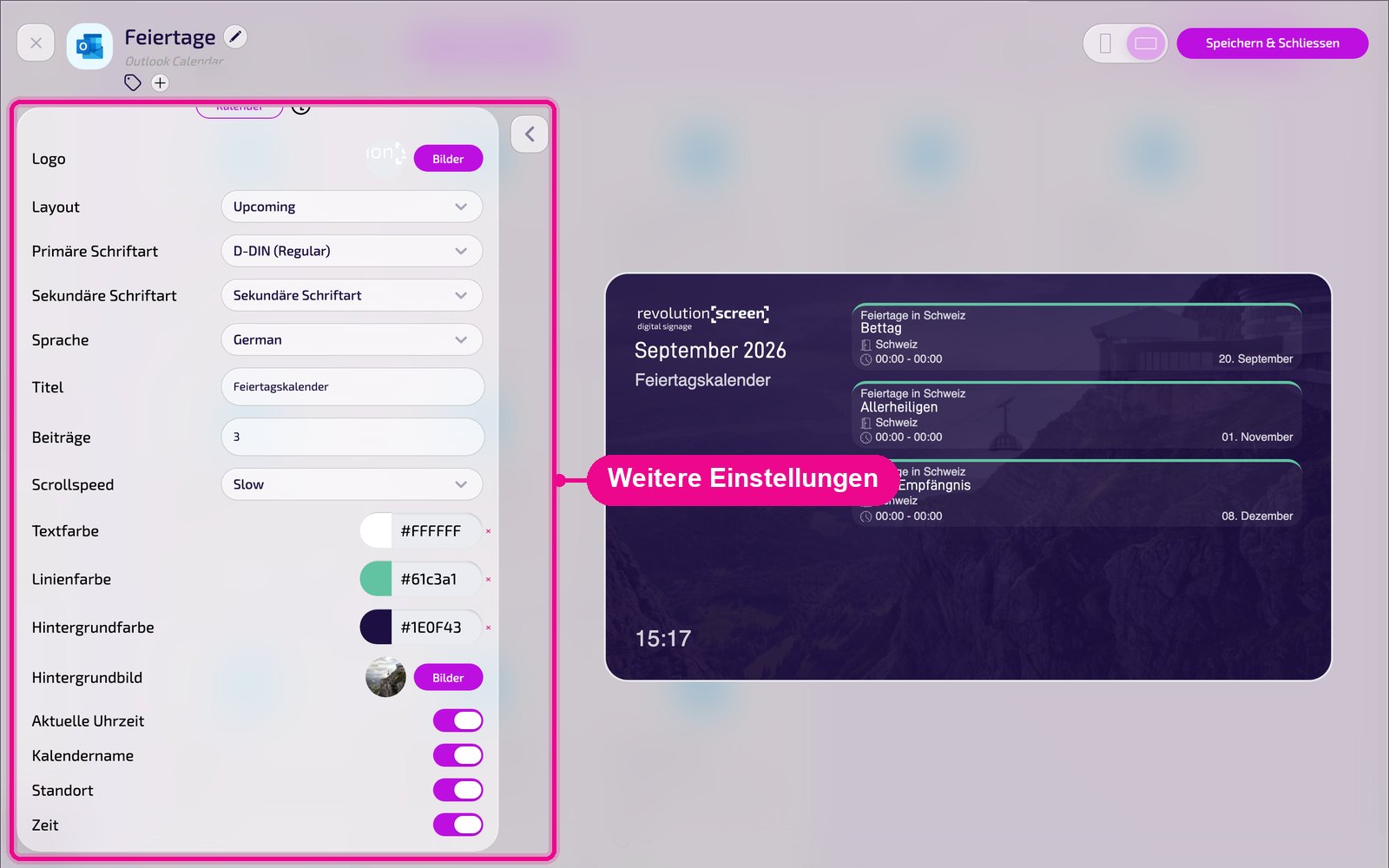
Further down in the card follow the toggles for time, calendar name, location and time.
- Zugang (Access): the connected Microsoft account (see «Connect Microsoft account»).
- Logo: select your own logo via «Bilder» (Images).
- Layout: how appointments are displayed: «Upcoming», «Upcoming-2», «Today», «Week», «Single» or «Next Event». Depending on the layout, further fields appear.
- Primäre / Sekundäre Schriftart (Primary / Secondary font): fonts for title and text.
- Sprache (Language): language of dates and weekdays, e.g. «German».
- Titel (Title): heading above the appointments, e.g. «Feiertagskalender» (Holiday calendar).
- Beiträge (Entries): maximum number of displayed appointments, e.g. 3.
- Scrollspeed: how fast a long appointment list scrolls, e.g. «Slow».
- Textfarbe / Linienfarbe / Hintergrundfarbe (Text / line / background color): colors for text, dividers and background. Use × to reset a color.
- Hintergrundbild (Background image): optional image via «Bilder» (Images).
- Aktuelle Uhrzeit (Current time): shows or hides the current time.
- Kalendername / Standort / Zeit (Calendar name / location / time): show or hide the calendar name, location and time for the appointment.
Save & play out on the screen
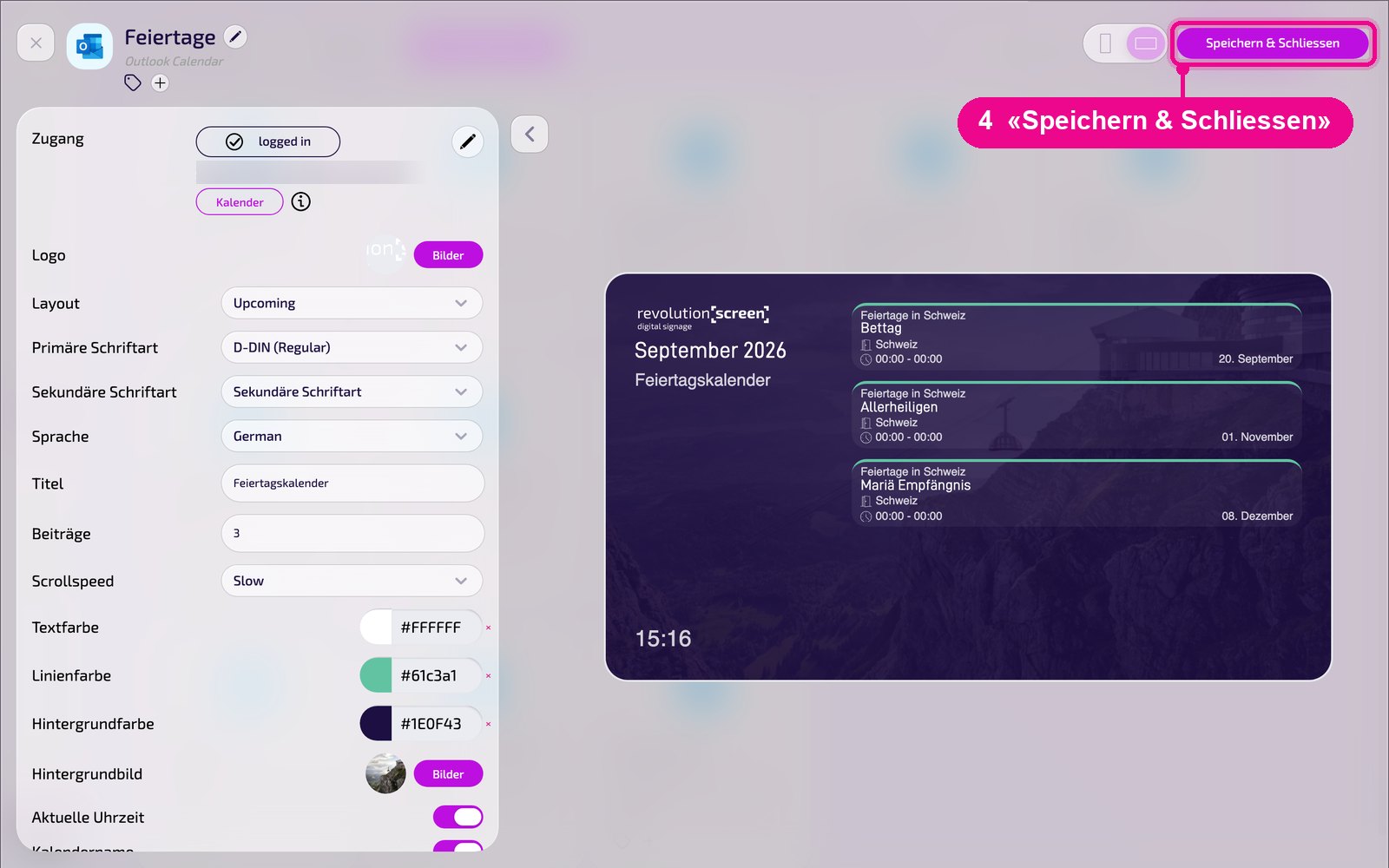
Save the instance at the top right with «Speichern & Schliessen» (Save & close).
Add to a playlist: Open the playlist, select the «Apps» tab on the right, click the app and then the instance. The instance is added immediately.
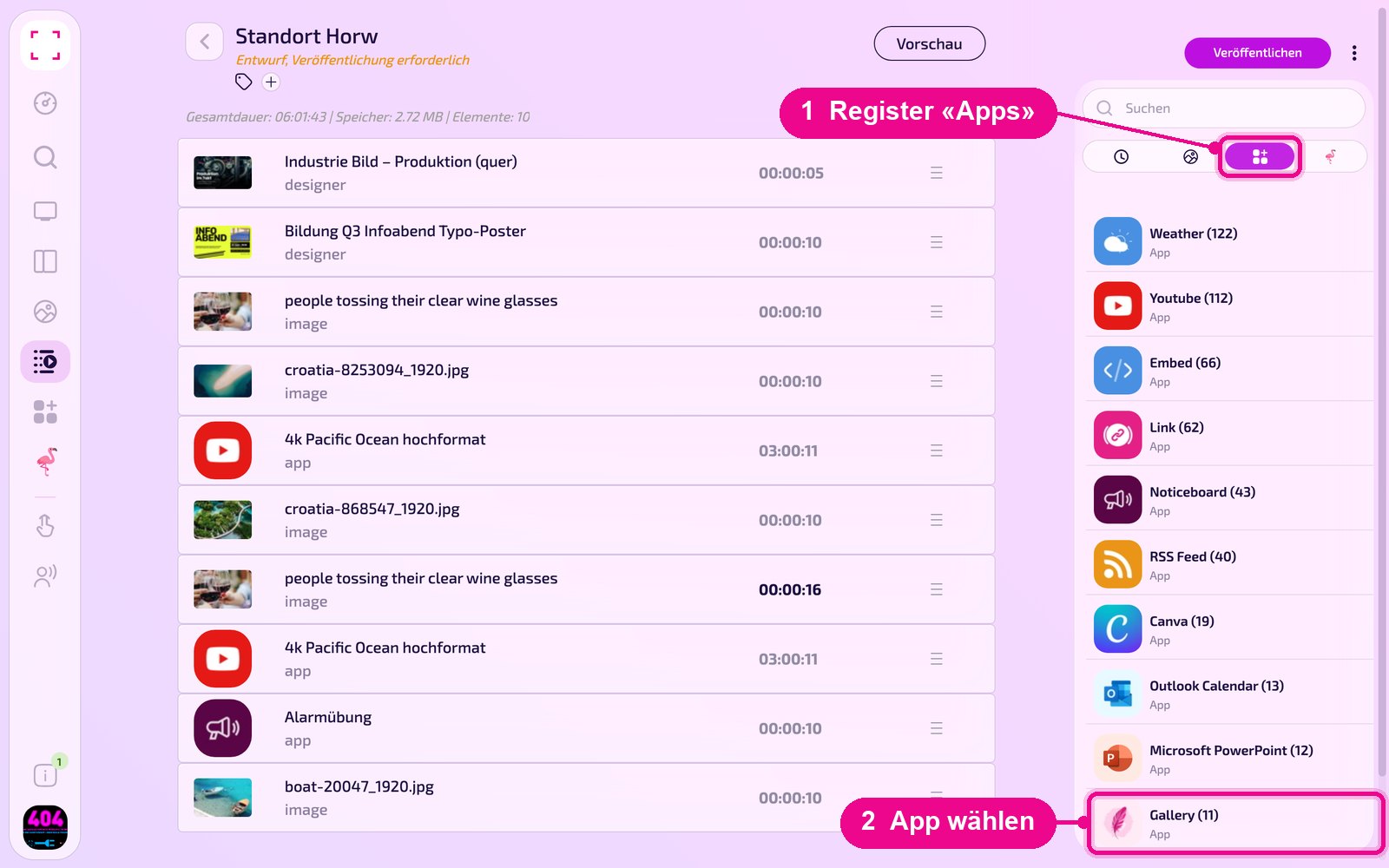
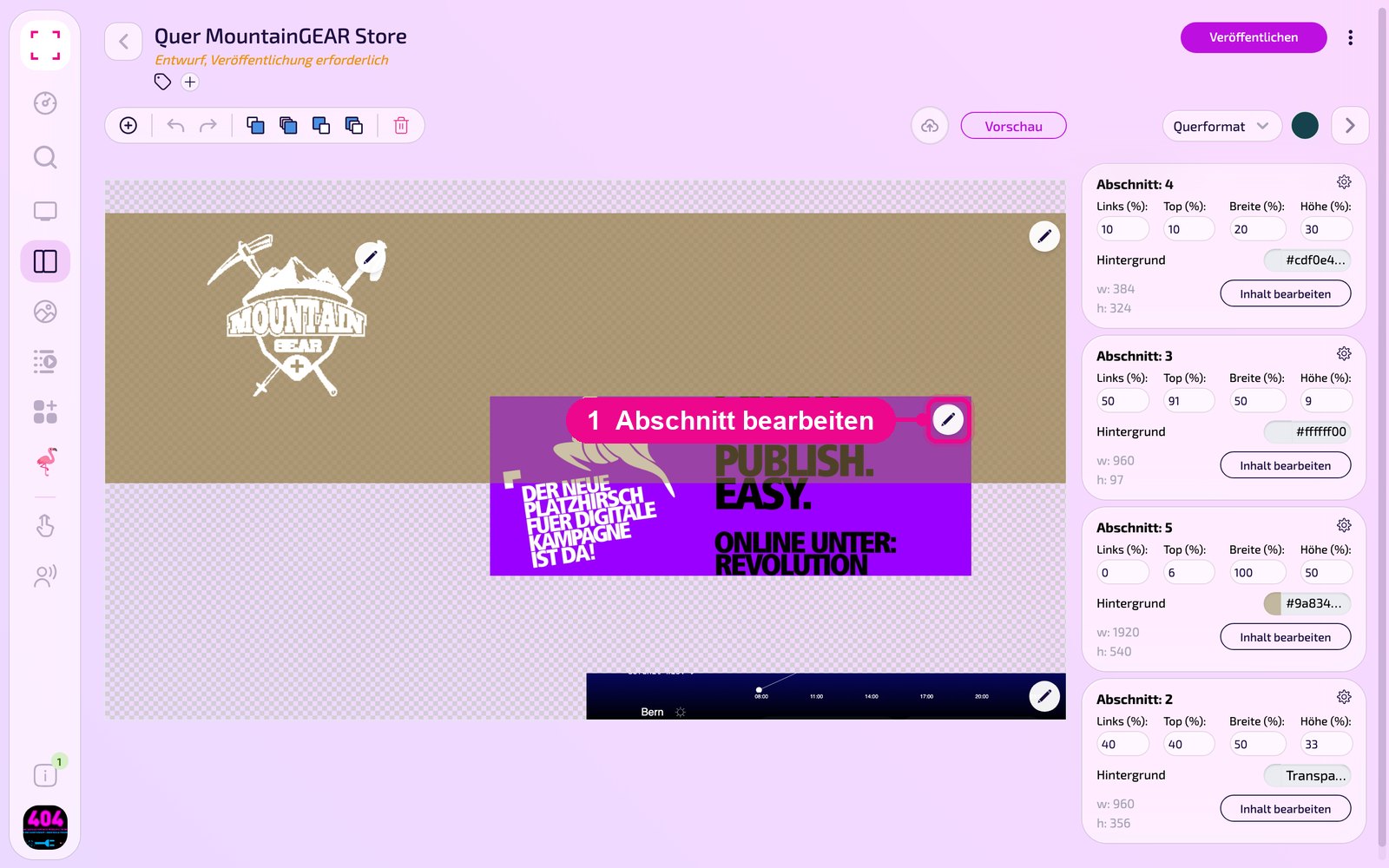
Add to a layout: Open the layout and click the pencil at the desired section.
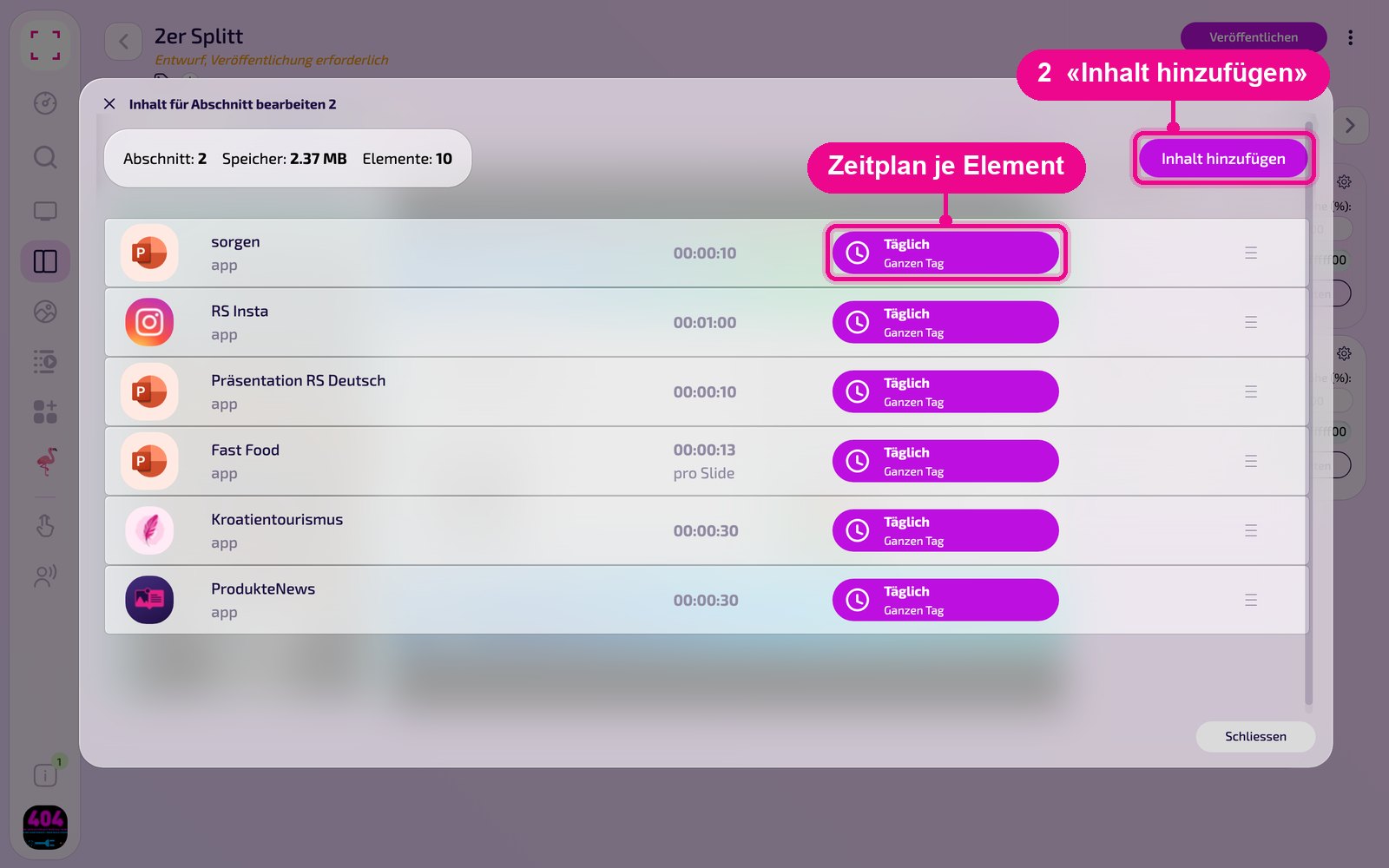
In the «Inhalt für Abschnitt bearbeiten» (Edit content for section) window, add the instance with «Inhalt hinzufügen» (Add content). On the right of each element you set the schedule via «Täglich» (Daily).
Then click «Veröffentlichen» (Publish) in the playlist or layout. As long as it shows «Entwurf, Veröffentlichung erforderlich» (Draft, publishing required), the screen still shows the old state.
Tips & troubleshooting
No appointments
Check whether «logged in» is shown under «Zugang» (Access) and whether the correct calendar is selected via «Kalender» (Calendar).
Calendar without appointments is skipped
If the calendar currently has no appointments, the screen skips the app. If it should still appear empty, enable the fallback, see «Fallback apps».
Only the next appointment
Select «Next Event» under «Layout», e.g. for a greeting shortly before the visit.
Hard to read
Ensure sufficient contrast between text and background color.
Content does not appear
Check whether the Playlist or Layout is published and assigned to the correct Screen, and that the Player is online.