Upload & manage media
Under «Media» you'll find all the images, videos and GIFs you show on your screens. You upload files, organise them into folders, and then use them in Playlists, Layouts or directly on a Screen.
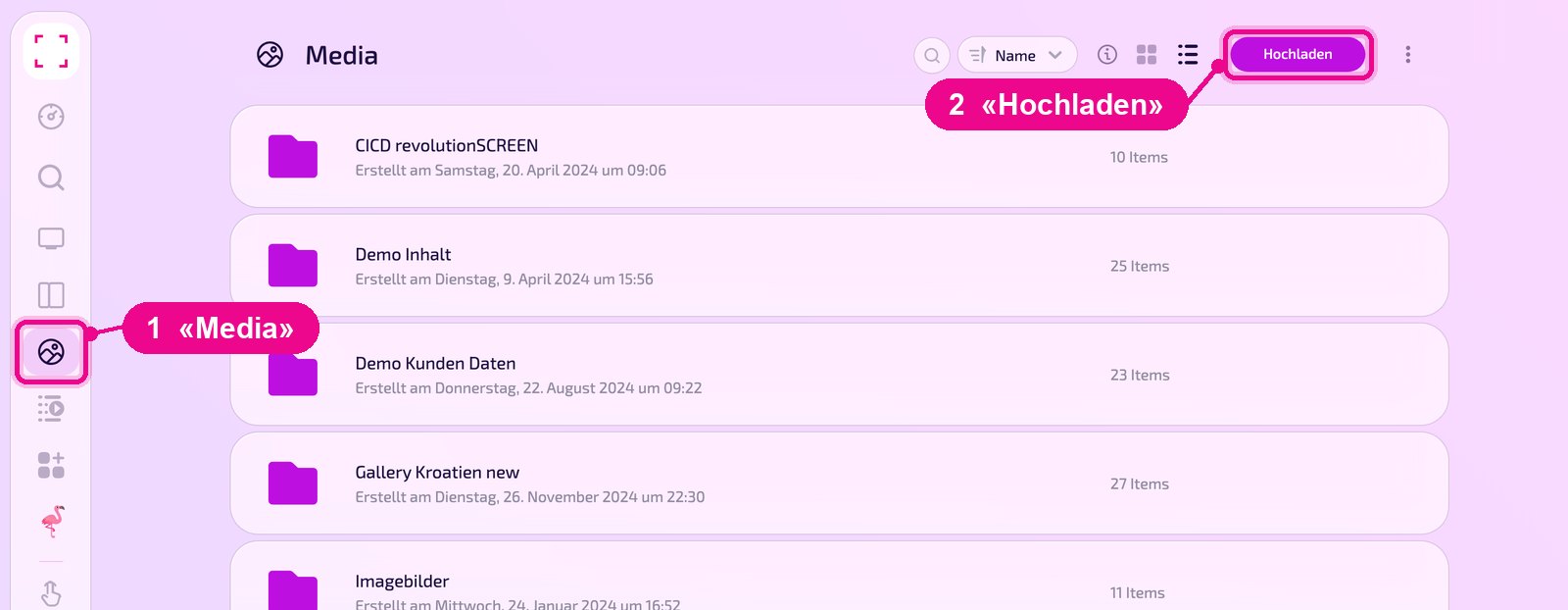
Sidebar on the left «Media». At the top right you'll find «Hochladen» (Upload) and the three-dot menu.
Upload files
Open «Media» in the sidebar and click «Hochladen» (Upload) at the top right.
In the window, choose the source on the left: «Mein Drive» (your computer), «OneDrive», «Unsplash» (free photos), «Google Drive» or «Link (URL)». Drag the files into the field or click «browse files». With «Ordner auswählen» (Select folder) you set which folder the files go into. Use «Schliessen» (Close) to close the window.
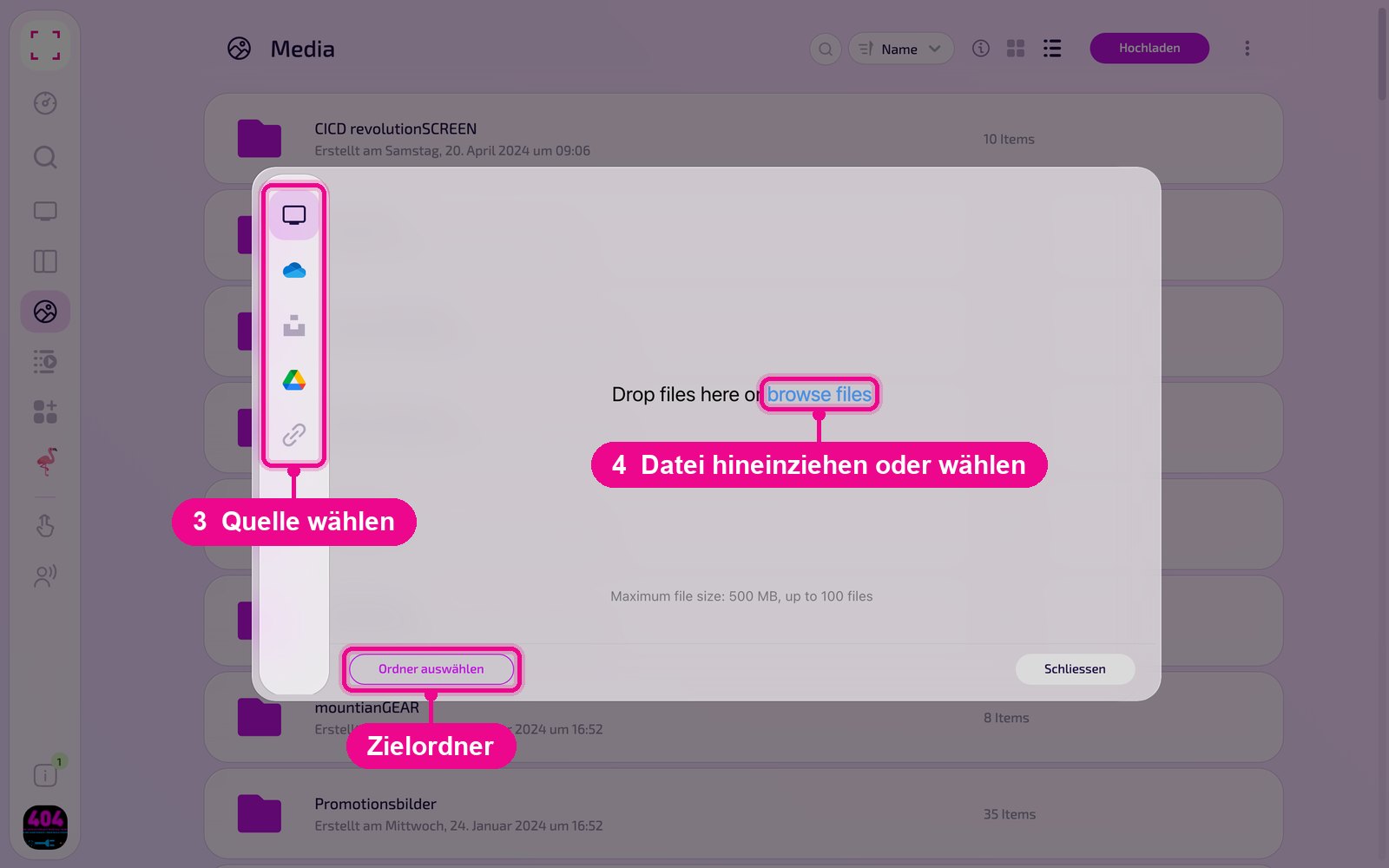
Up to 500 MB per file, and up to 100 files per upload. It's better to compress very large videos beforehand. How much storage you're using is shown in the Dashboard in the «Speicher» (Storage) tile.
Create a folder
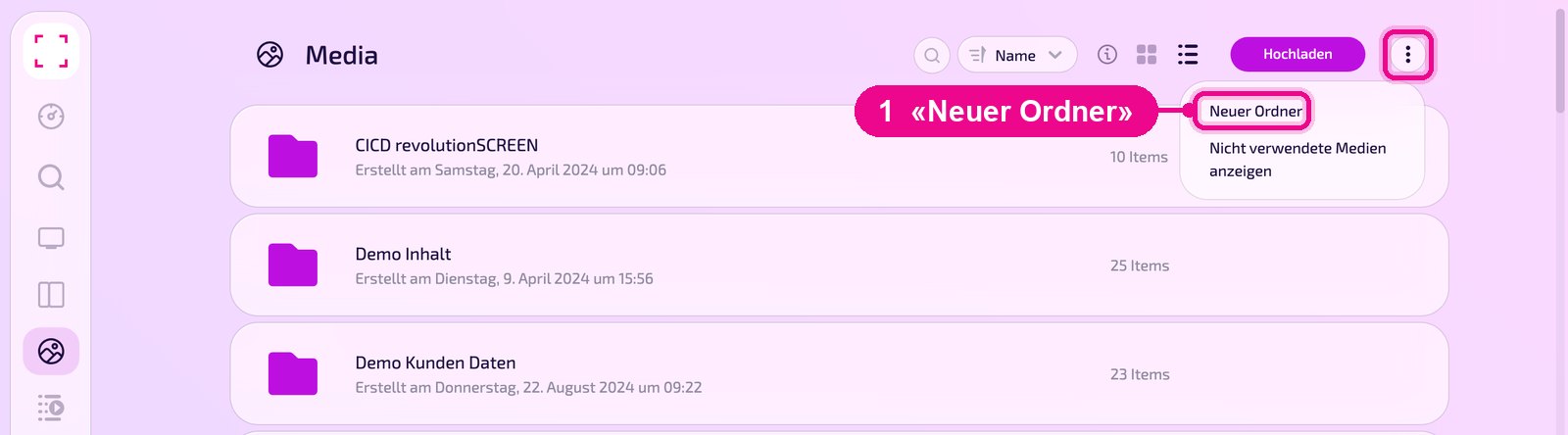
Click the three dots next to «Hochladen» (Upload) at the top right and choose «Neuer Ordner» (New folder). In the same menu, «Nicht verwendete Medien anzeigen» (Show unused media) shows files that aren't used in any Playlist, Layout or on any Screen.
Manage folders
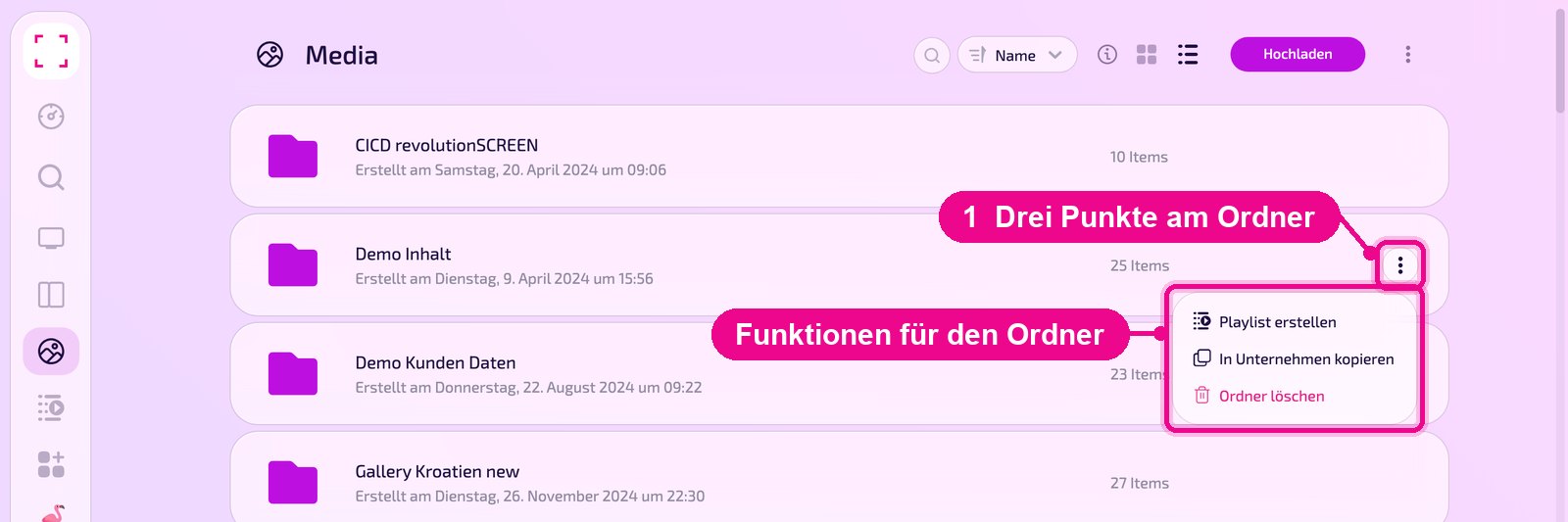
Hover over a folder and click the three dots on the right. With «Playlist erstellen» (Create playlist) you turn all files in the folder into a Playlist. «In Unternehmen kopieren» (Copy to company) copies the folder into another company in your account, and «Ordner löschen» (Delete folder) removes it.
Manage files
Each file also has three dots on the right as soon as you hover over it. Below each file you can see when and by whom it was uploaded. Use the label and «+» to assign tags.
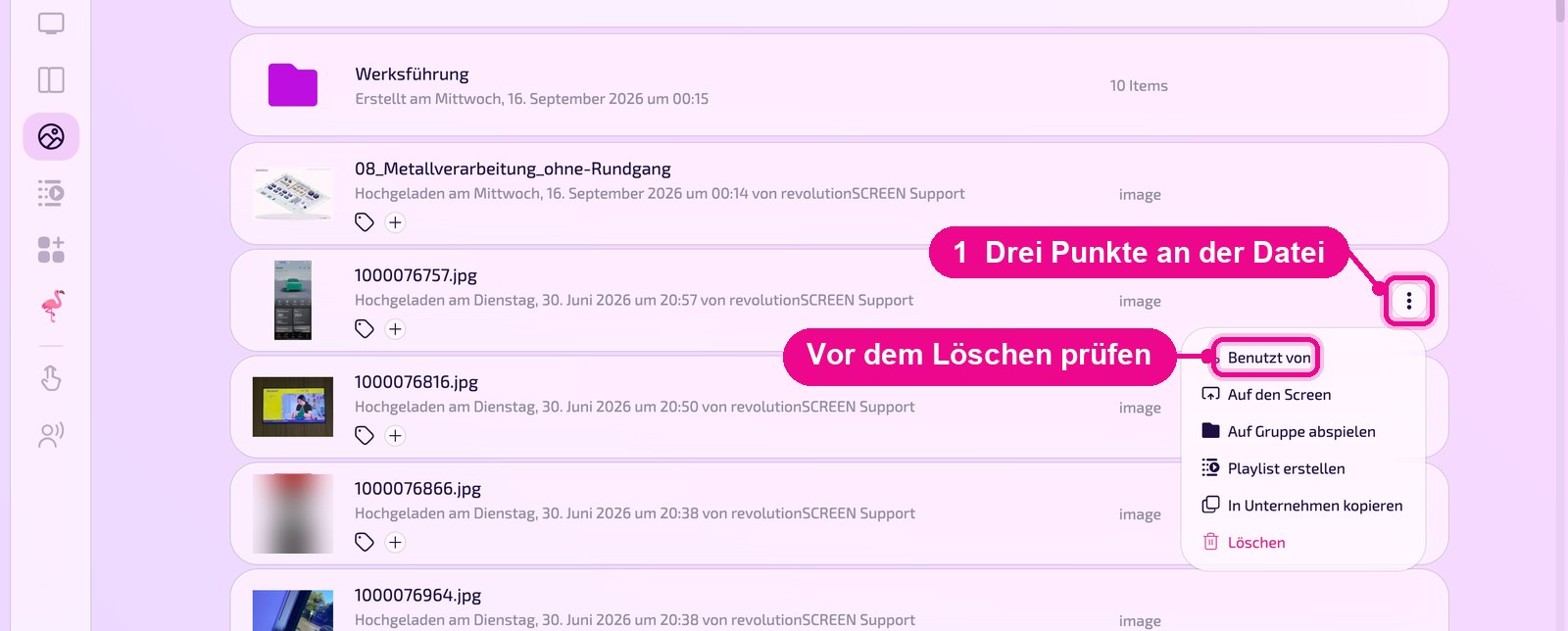
- Benutzt von: shows which Playlists, Layouts and Screens the file is used in.
- Auf den Screen: plays the file directly on a display.
- Auf Gruppe abspielen: plays the file on all displays in a group.
- Playlist erstellen: creates a new Playlist with this file.
- In Unternehmen kopieren: copies the file to another company in your account.
- Löschen: removes the file.
Before deleting, check under «Benutzt von» (Used by) where the file is used. Otherwise it will be missing from Playlists and Layouts afterwards.
Good to know
File is rejected
Check the format and size. A maximum of 500 MB per file is allowed.
Storage running low
With «Nicht verwendete Medien anzeigen» (Show unused media) in the top-right menu, you'll find files you no longer need.
Use a file
You'll find uploaded files in Playlists and Layouts under the «Media» tab. See «Create playlist».
Stay organised
Create a folder per location or campaign and assign tags. Use the magnifier at the top right to search the list.