Users and teams
Under «Benutzer und Teams» you invite additional people into your company and define their role. With teams you control who can view or edit which screens, folders, playlists, layouts and instances.
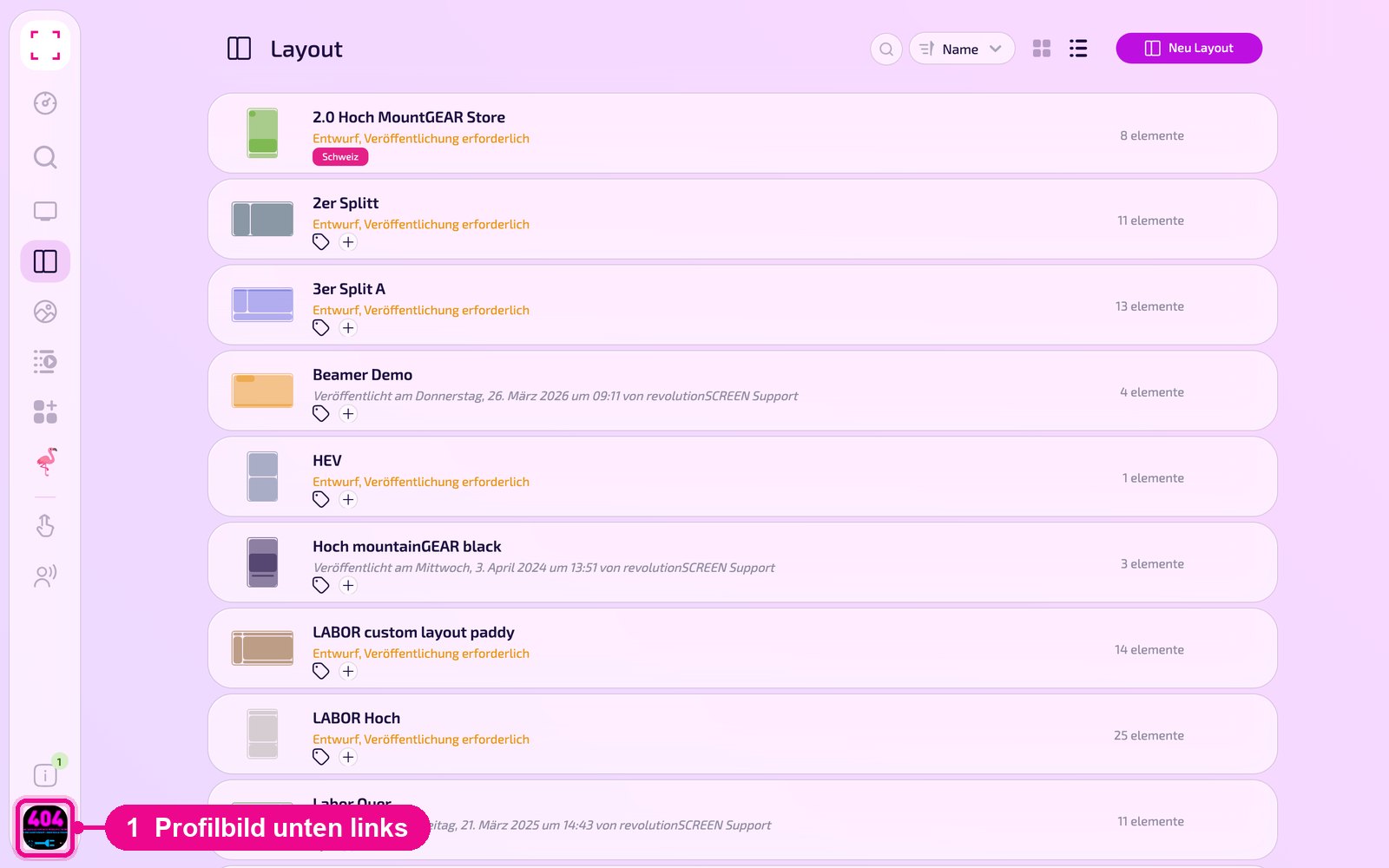
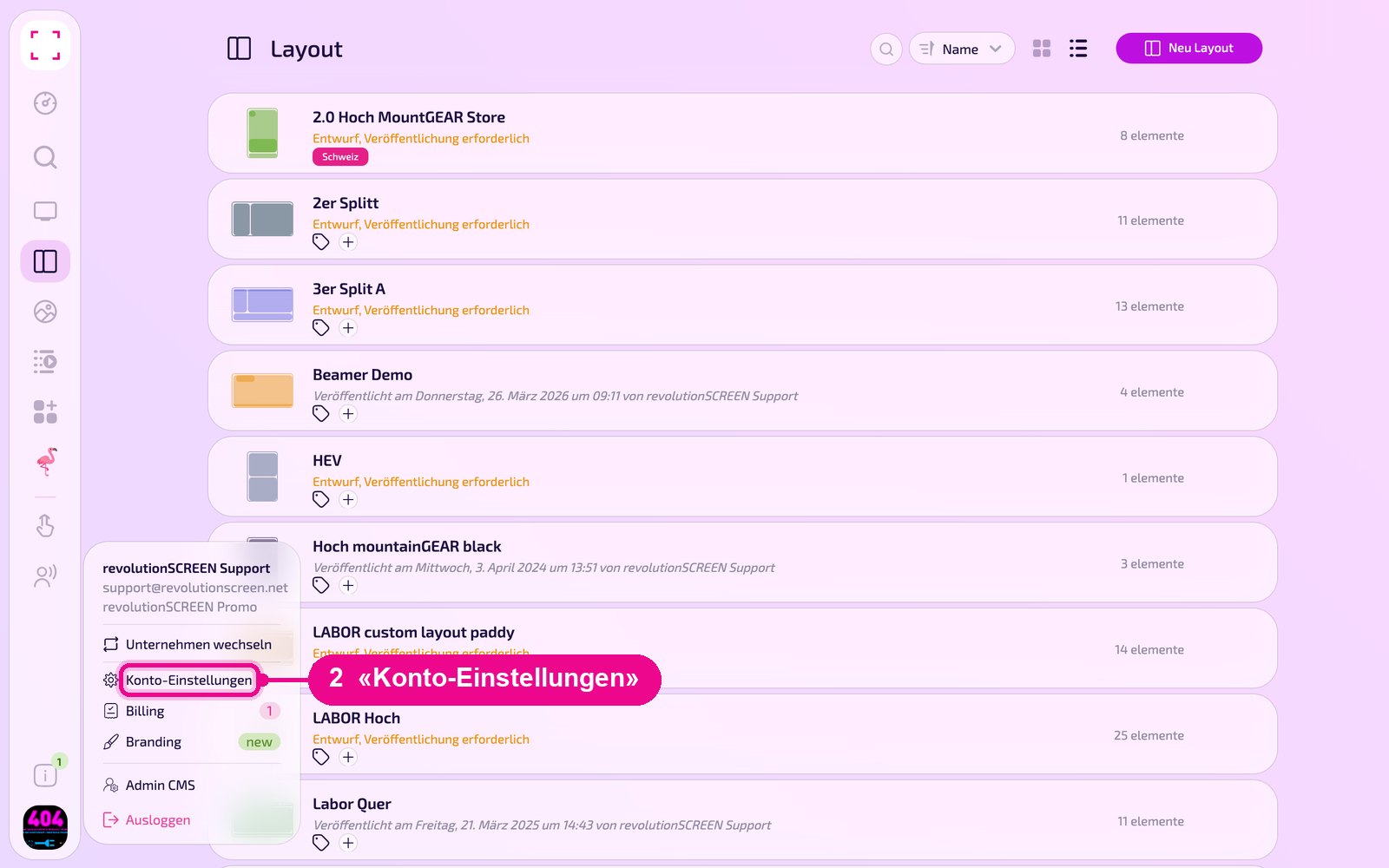
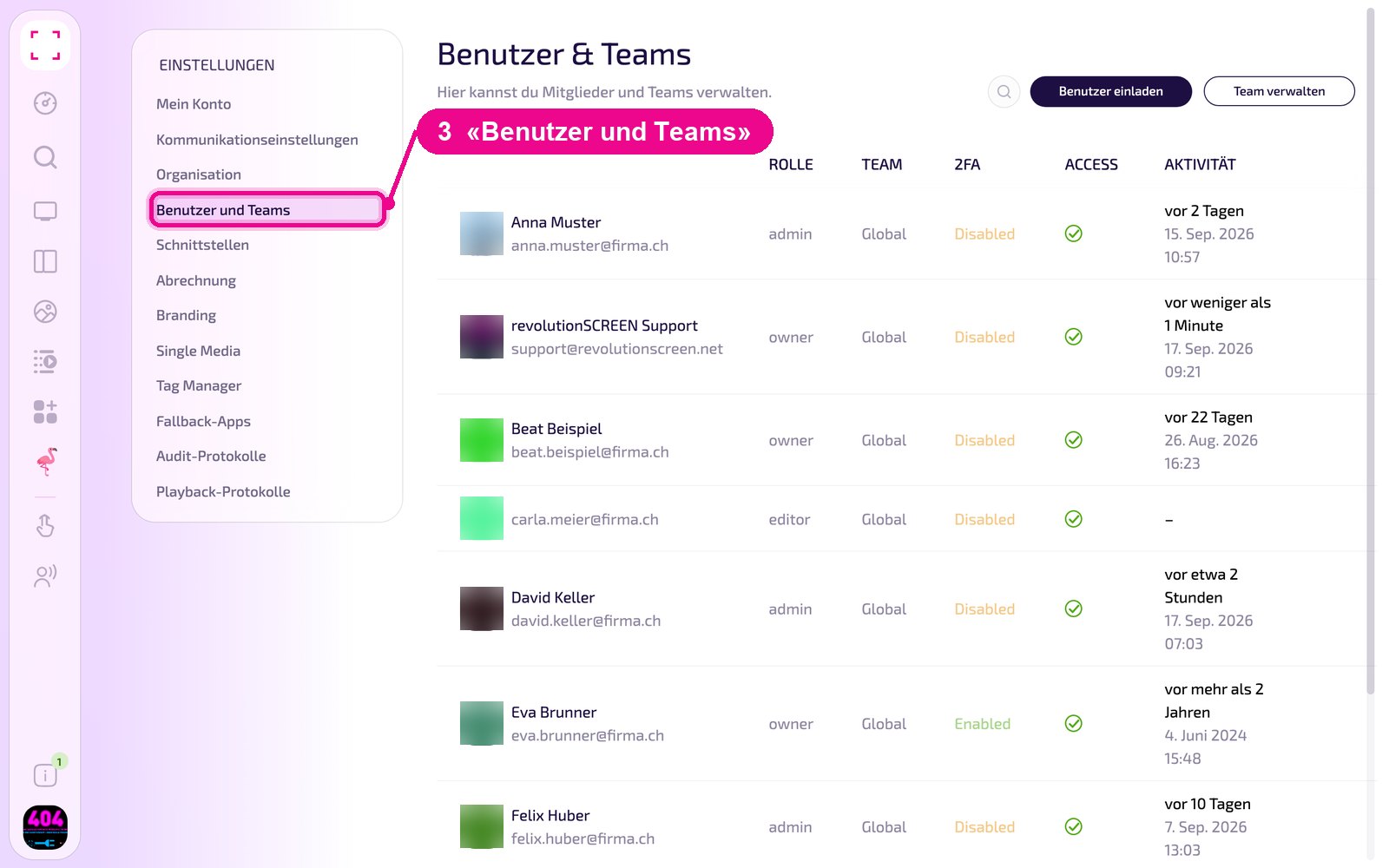
Profile picture at the bottom left → «Konto-Einstellungen» → «Benutzer und Teams» on the left
Invite user
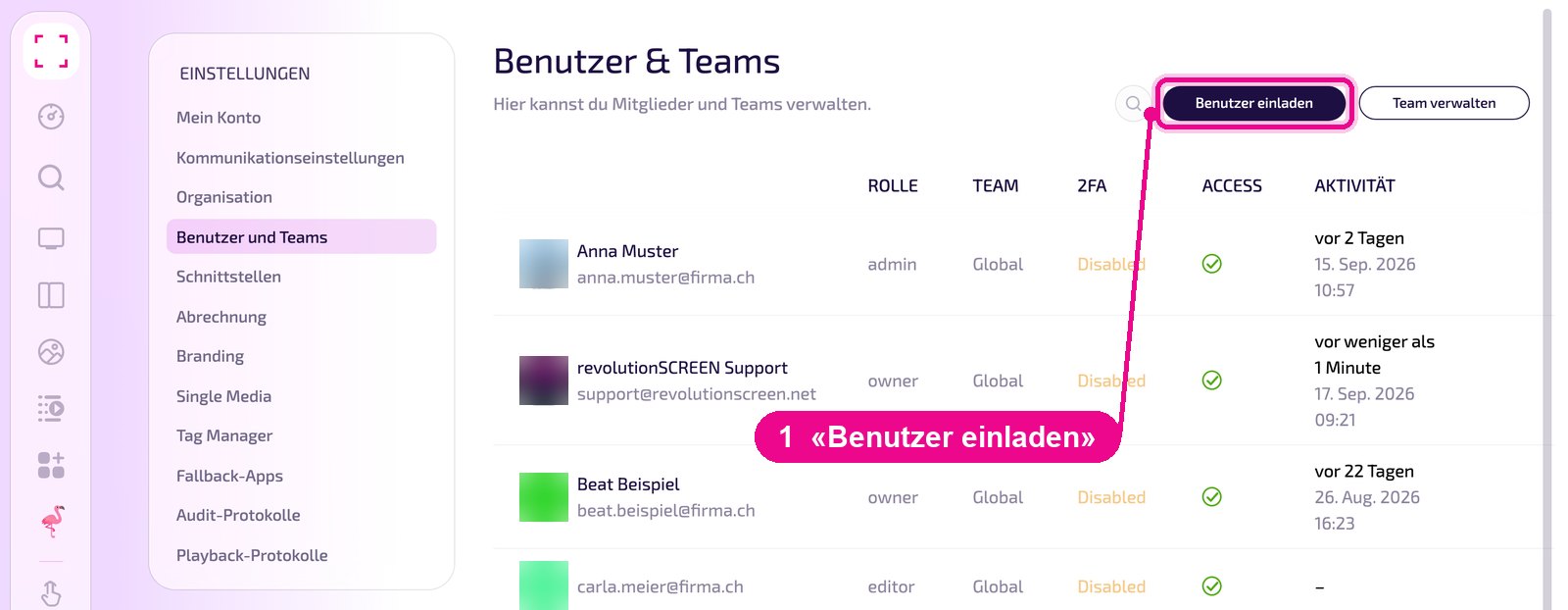
Click «Benutzer einladen» at the top right.
In the «Benutzer einladen» window, enter the email address as well as the first and last name. Under «Teams», select the team (default «Global») and the role below. With «Einladung versenden» the invitation is sent to the entered address.
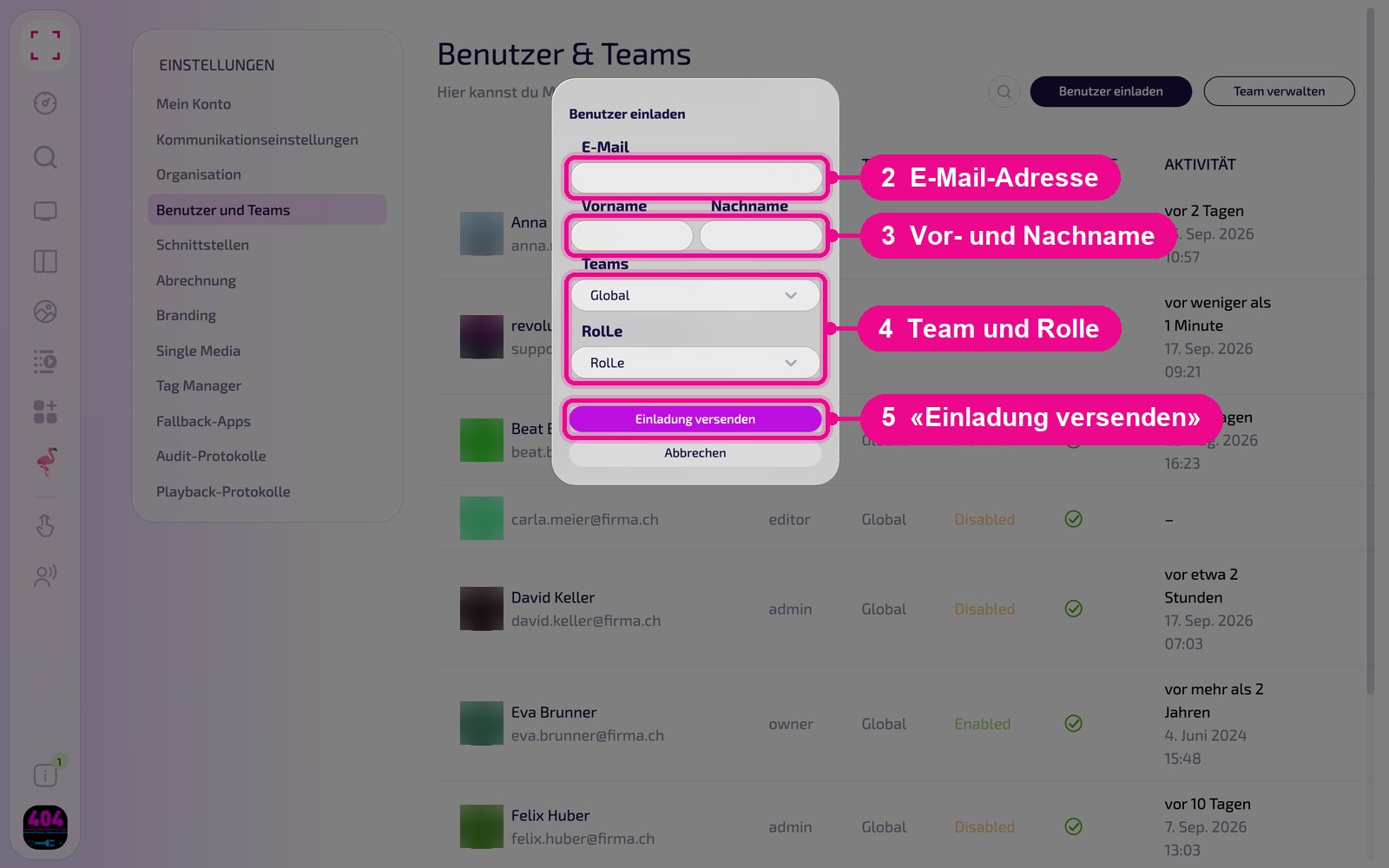
Check the spelling of the email address and ask the person to also look in their spam folder.
Users at a glance
The list shows all users of your company with name and email address. In the columns you see, per user, the role (e.g. owner, admin or editor), the team, whether two-factor authentication is enabled («Enabled» or «Disabled»), the «ACCESS» column and the last activity. Use the magnifier at the top to search the list.
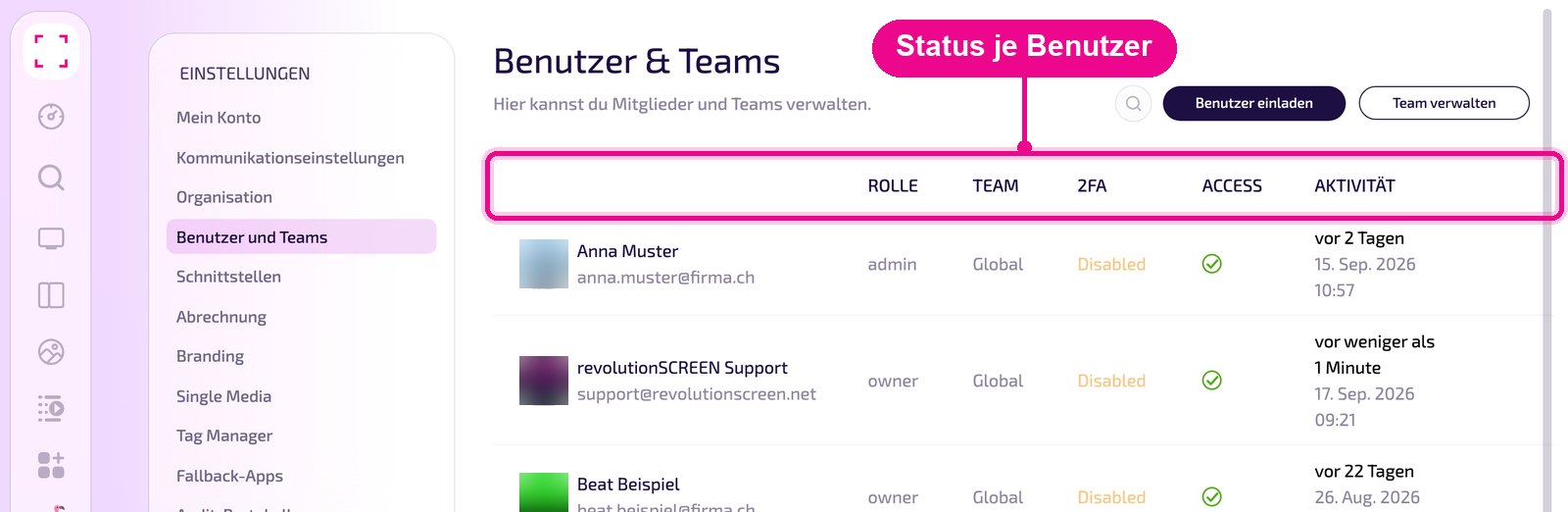
Each user enables 2FA themselves in their own account. How this works is shown in «Zwei-Faktor-Authentifizierung».
Edit user
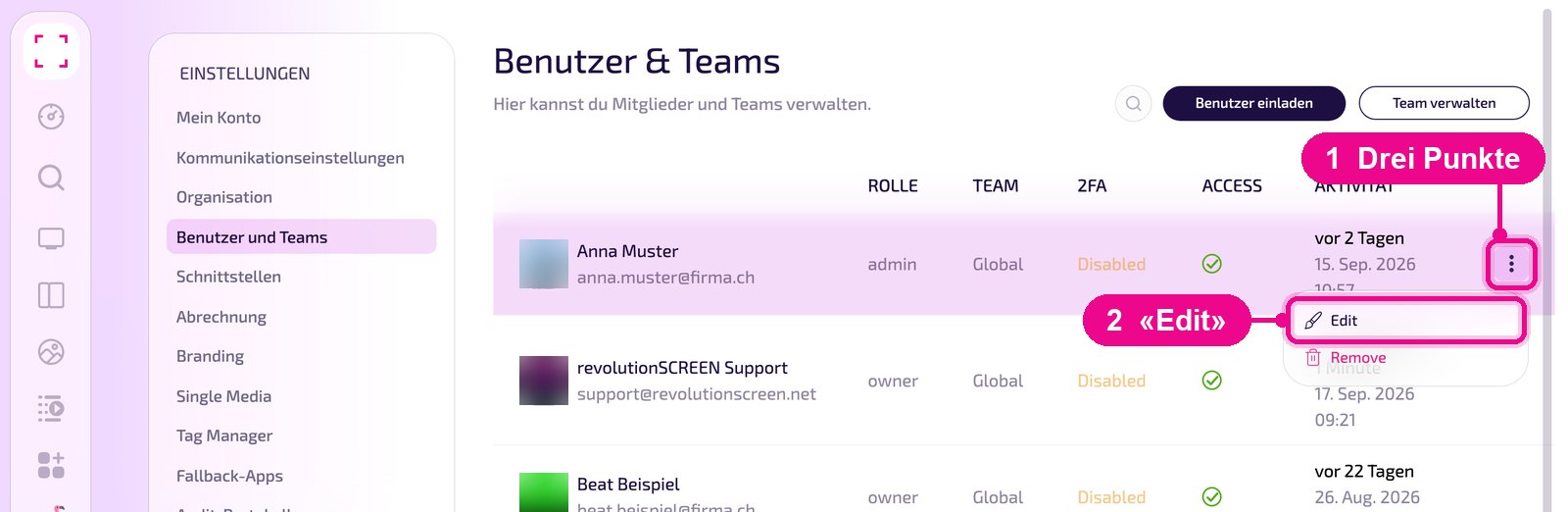
Hover with the mouse over the user's row. Only then do the three dots appear on the right. Click them and select «Edit». «Remove» removes the user.
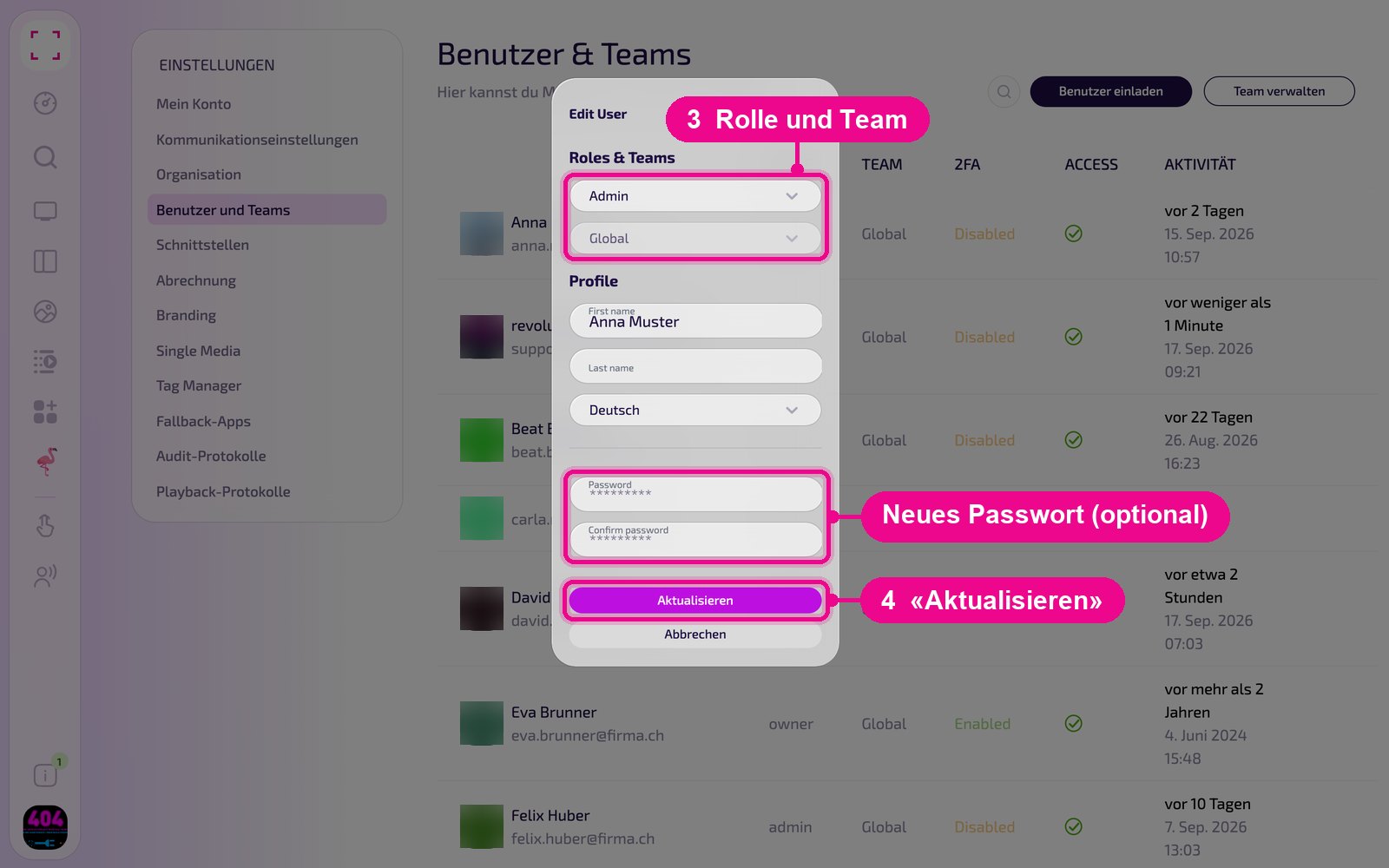
In the «Edit User» window you change the role and team under «Roles & Teams». Under «Profile» you adjust first name, last name and language. In the «Password» and «Confirm password» fields you can set a new password for this user if needed. With «Aktualisieren» you save.
Create team
Click «Team verwalten» at the top right.
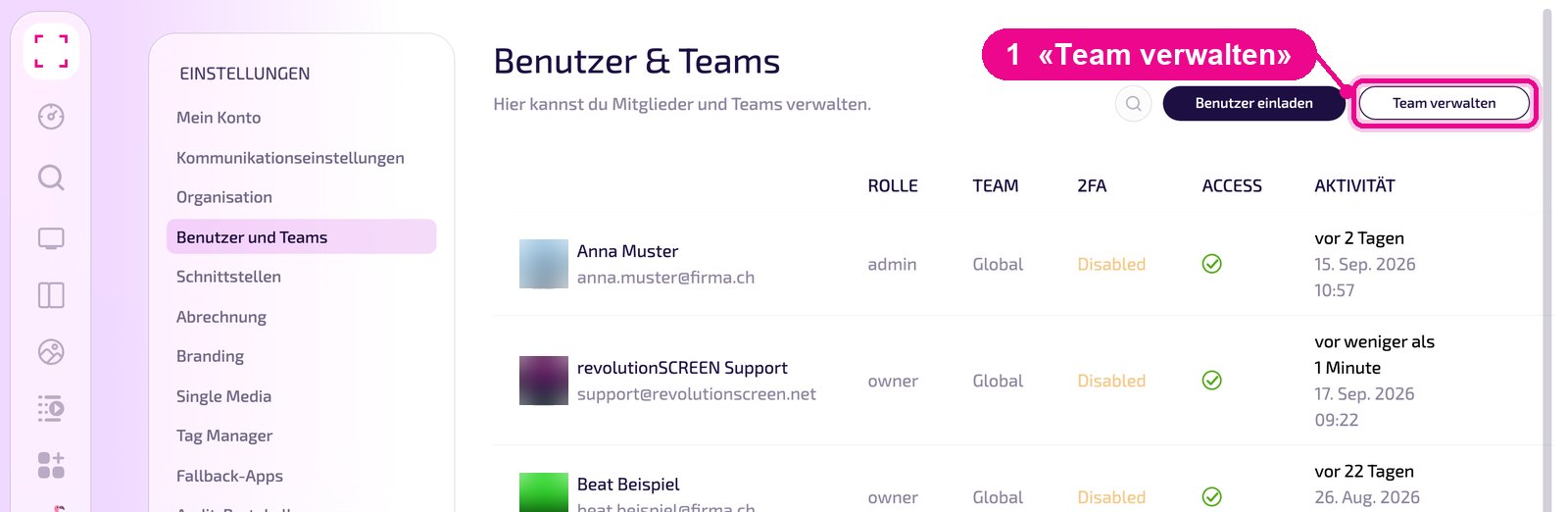
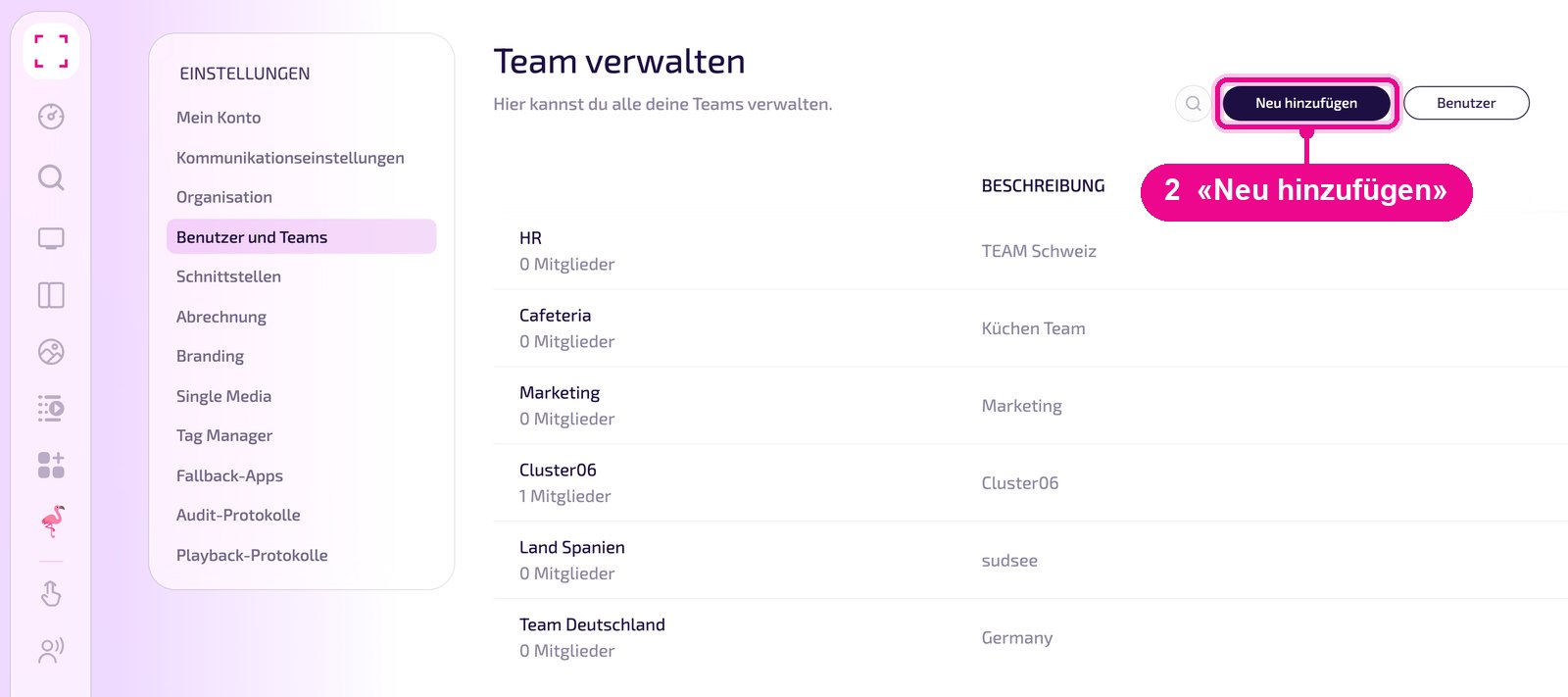
The list shows all teams with the number of members and the description. Click «Neu hinzufügen». With «Benutzer» you return to the user list.
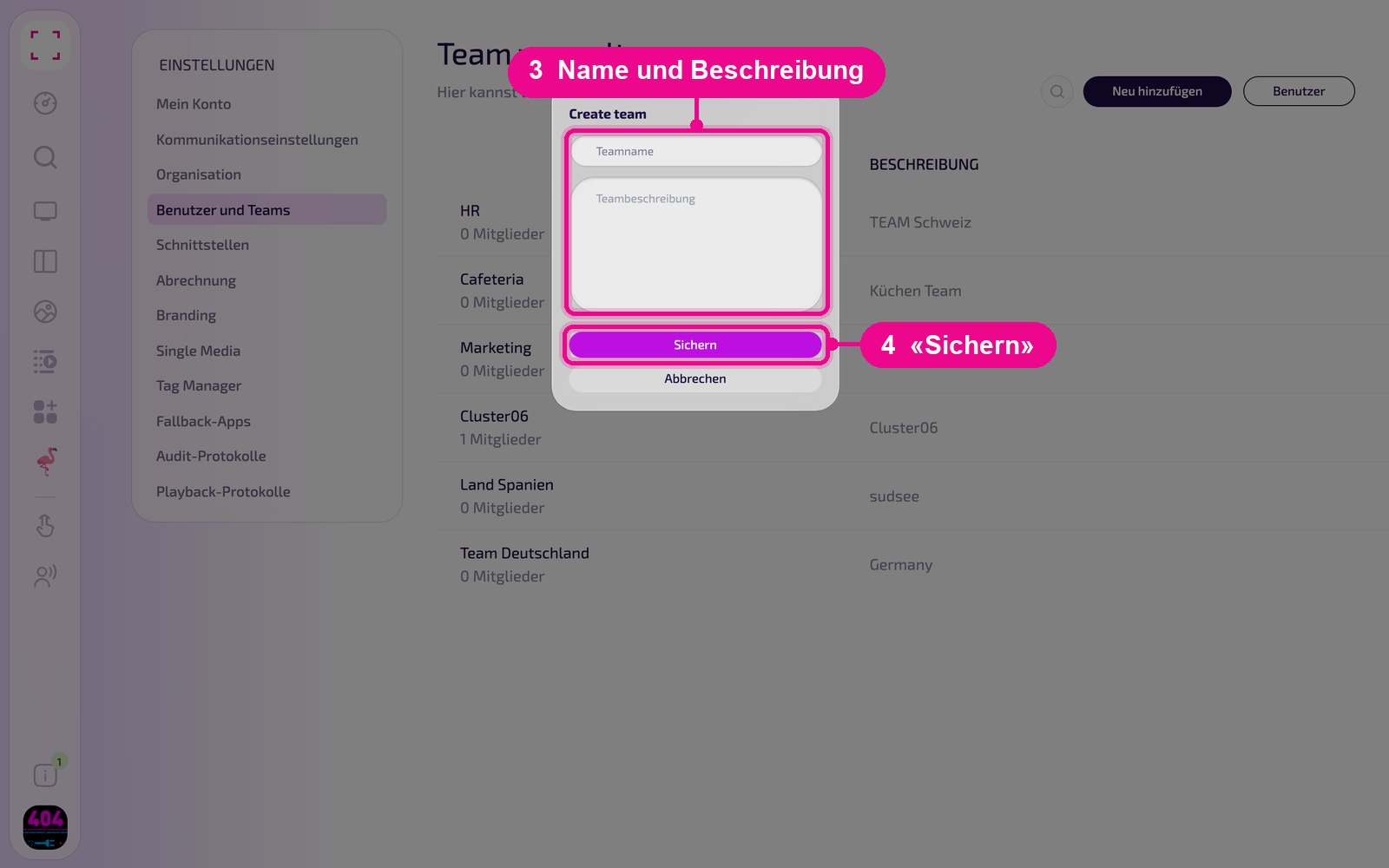
Give the team a unique name and a short description in the «Create team» window. With «Sichern» you create the team.
Add a user to a team
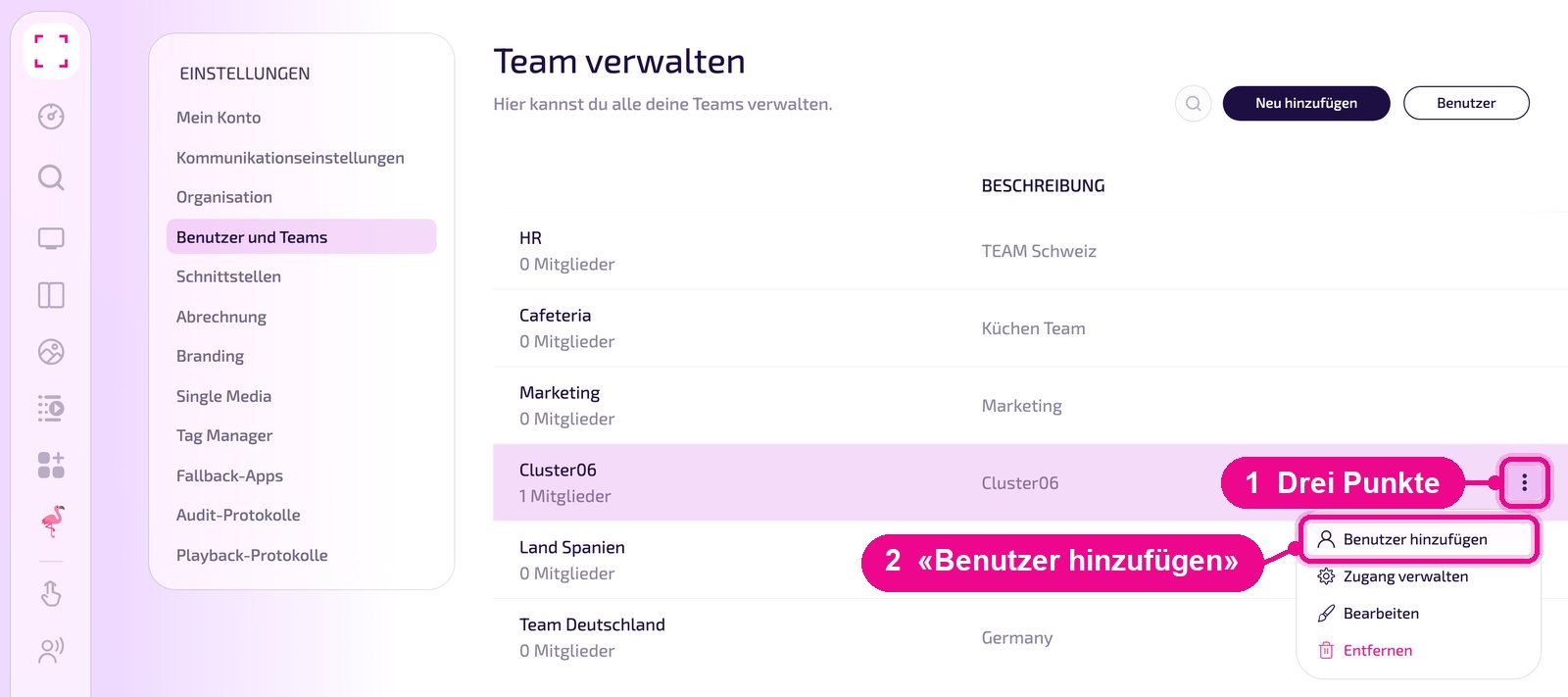
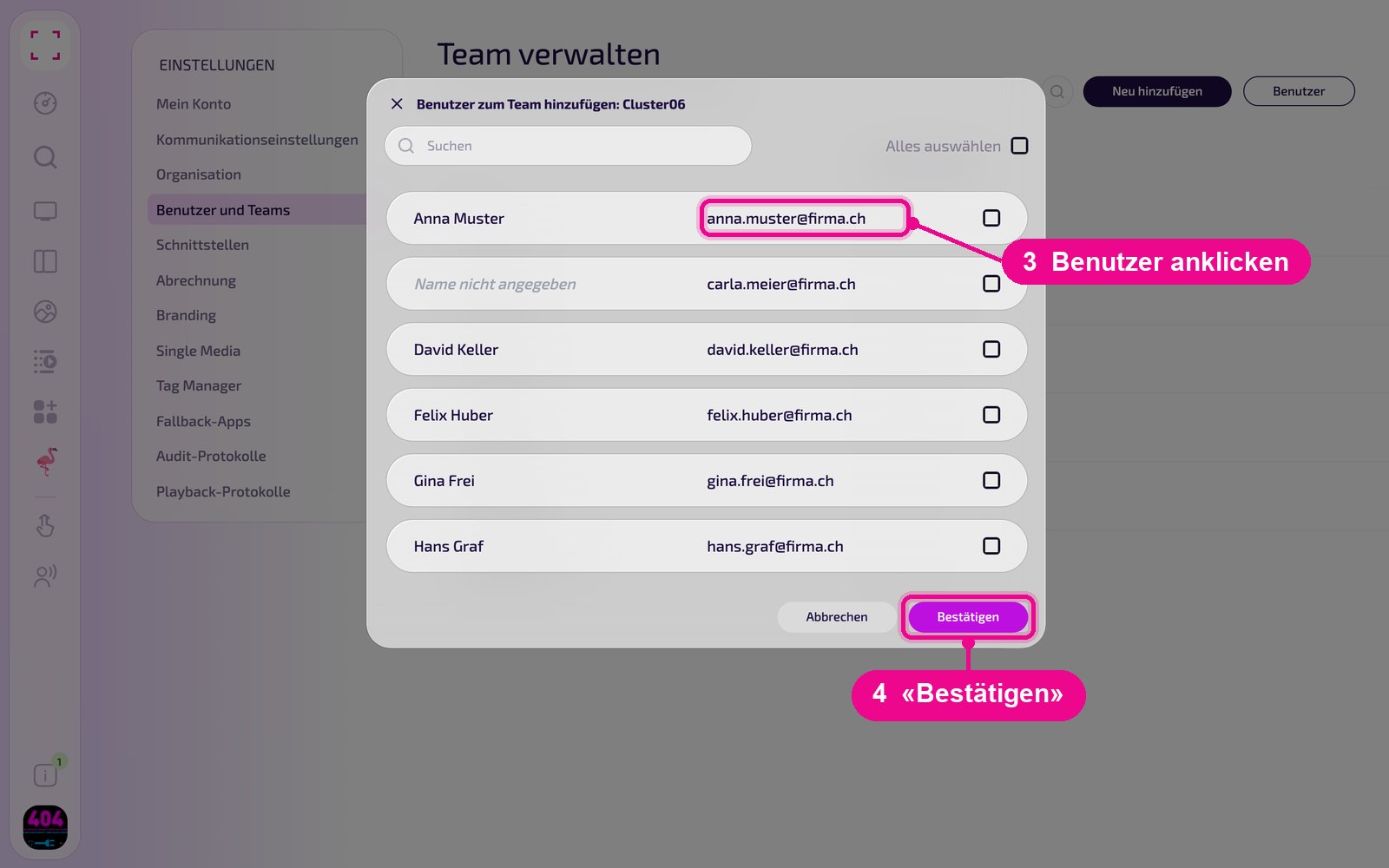
Hover with the mouse over the team's row, click the three dots on the right and select «Benutzer hinzufügen». In the same menu you edit the team with «Bearbeiten» or delete it with «Entfernen».
In the «Benutzer zum Team hinzufügen» window, place a checkmark on the right for each desired user. With «Alles auswählen» you add them all at once, and via «Suchen» you find individual people faster. Confirm with «Bestätigen».
Set a team's access rights
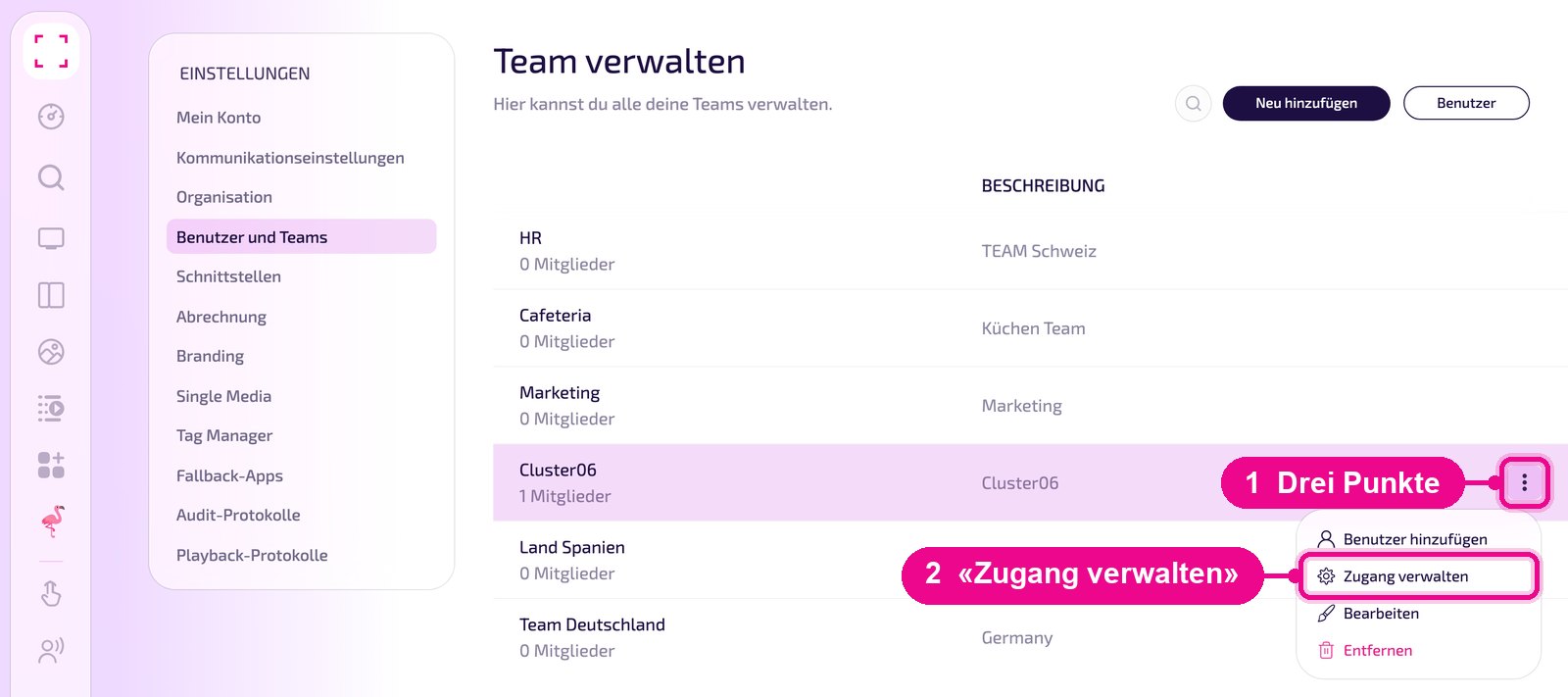
Hover with the mouse over the team's row, click the three dots and select «Zugang verwalten».
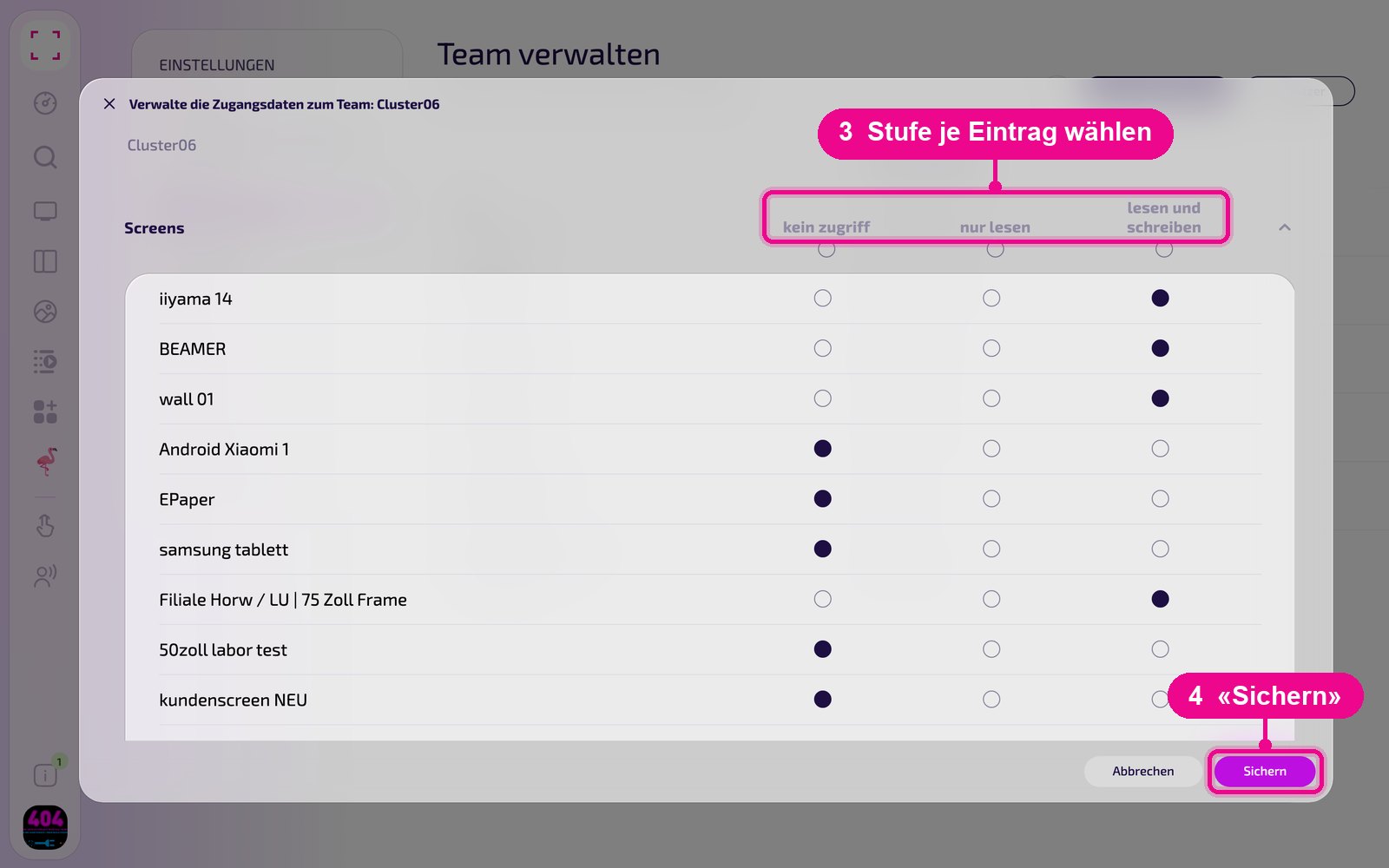
In the «Verwalte die Zugangsdaten zum Team» window, you choose one of three levels for each entry: «kein Zugriff» (no access), «nur lesen» (read only) or «lesen und schreiben» (read and write). With the button in the header of a column you set the level for all entries in the area at once. With «Sichern» you apply the rights.
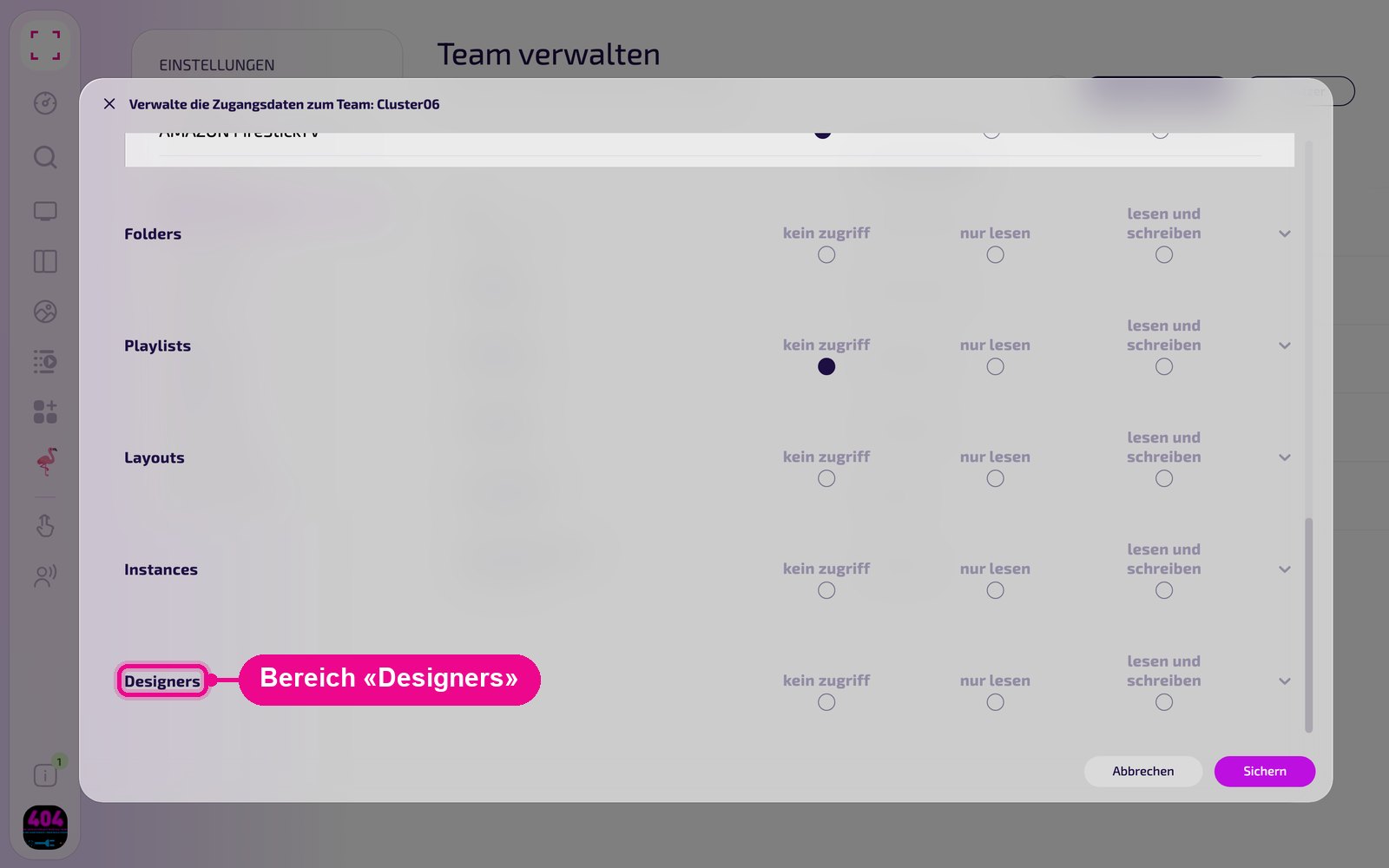
Below the screens further areas follow: «Folders» (media folders), «Playlists», «Layouts», «Instances» (app instances) and «Designers». «Designers» controls access to the designs from the LayoutDesigner, i.e. the «Designs» area in the sidebar (see «Designs»). With the arrow on the right you expand an area and assign the rights individually.
A user receives the rights of the team they belong to. The «Global» team is the default when inviting.