Apps & Appstore
With apps you display dynamic content on your screens: weather, calendar, social media feeds, menus, real estate and much more. You set up each app as an instance, e.g. a specific calendar, and then use it in Playlists or Layouts.
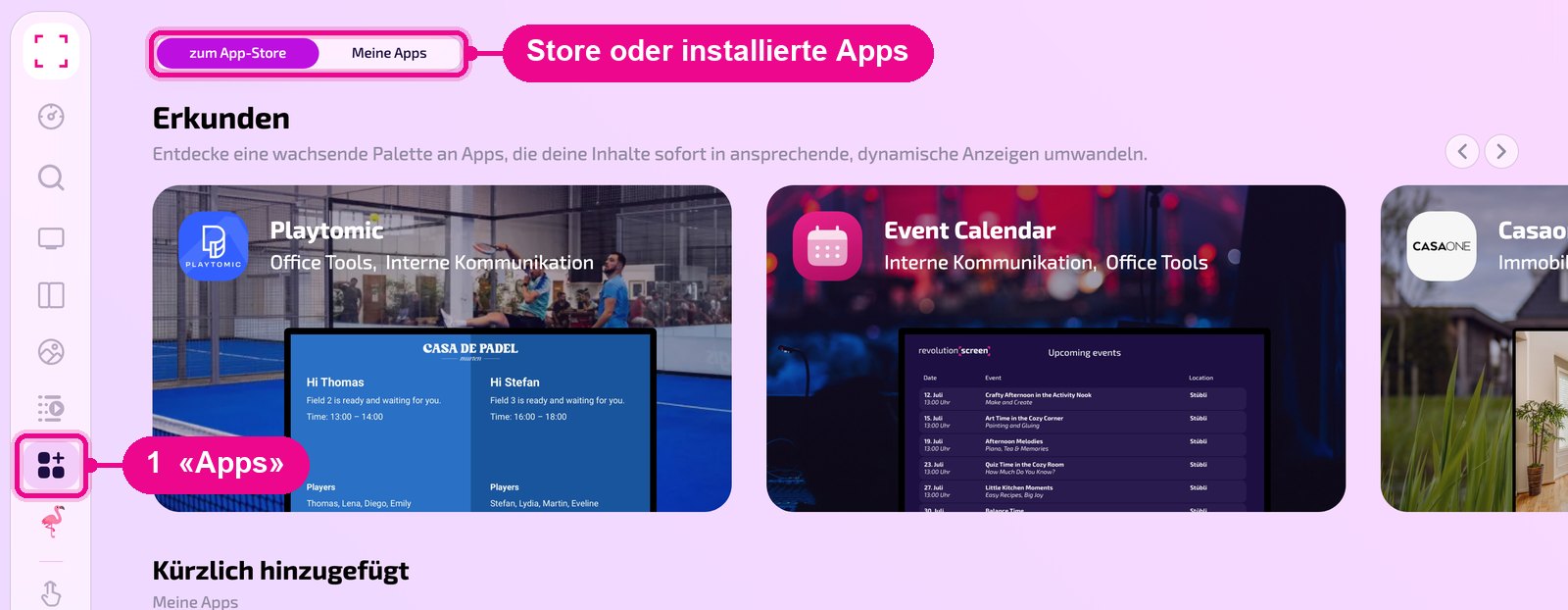
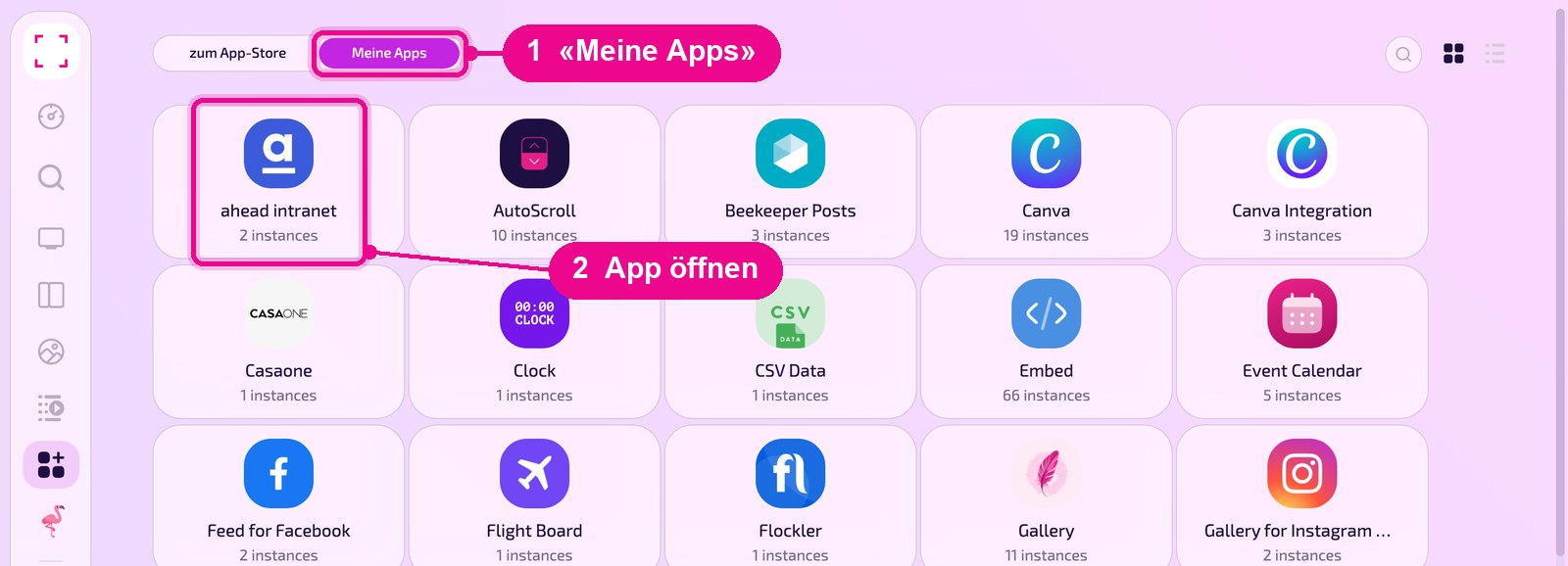
Left sidebar «Apps». At the top you switch between «zum App-Store» (to the Appstore) and «Meine Apps» (My Apps).
Open the Appstore
Open «Apps» in the sidebar. The «zum App-Store» tab shows all available apps, «Meine Apps» only the installed ones. At the very top, «Erkunden» (Explore) presents selected apps with sample images, followed by «Kürzlich hinzugefügt» (Recently added).
Find an app
Further down you filter the list with the category buttons, e.g. «Social Media» or «Kalender» (Calendar). «Alle» (All) shows all apps again. Installed apps carry the label «Installiert» (Installed), premium apps a crown.
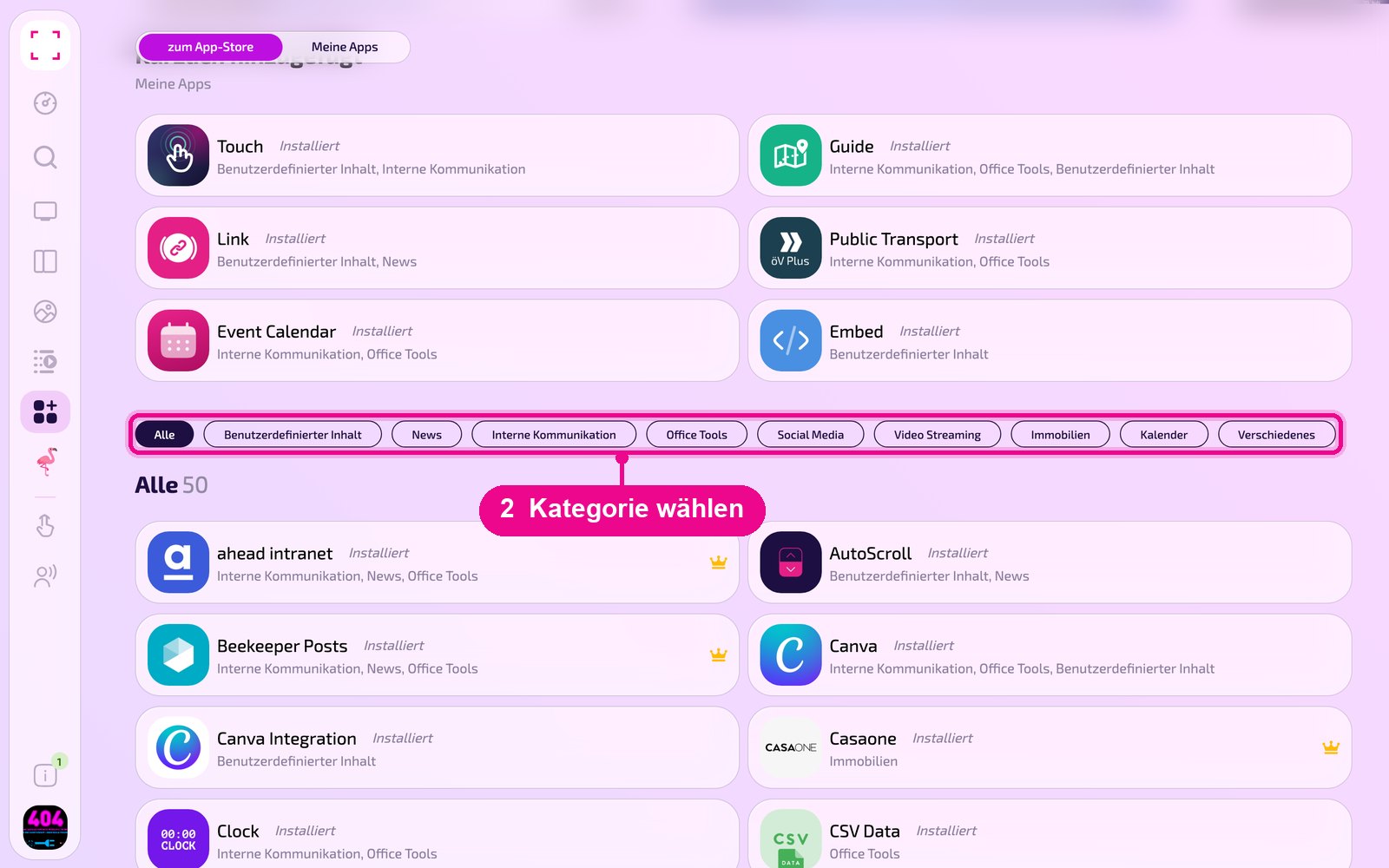
There is no longer a search field on the Apps page. You find apps via the categories or in the «Alle» (All) list. The search (⌘K) in the sidebar finds your instances, but no apps from the store.
App details, install and create an instance
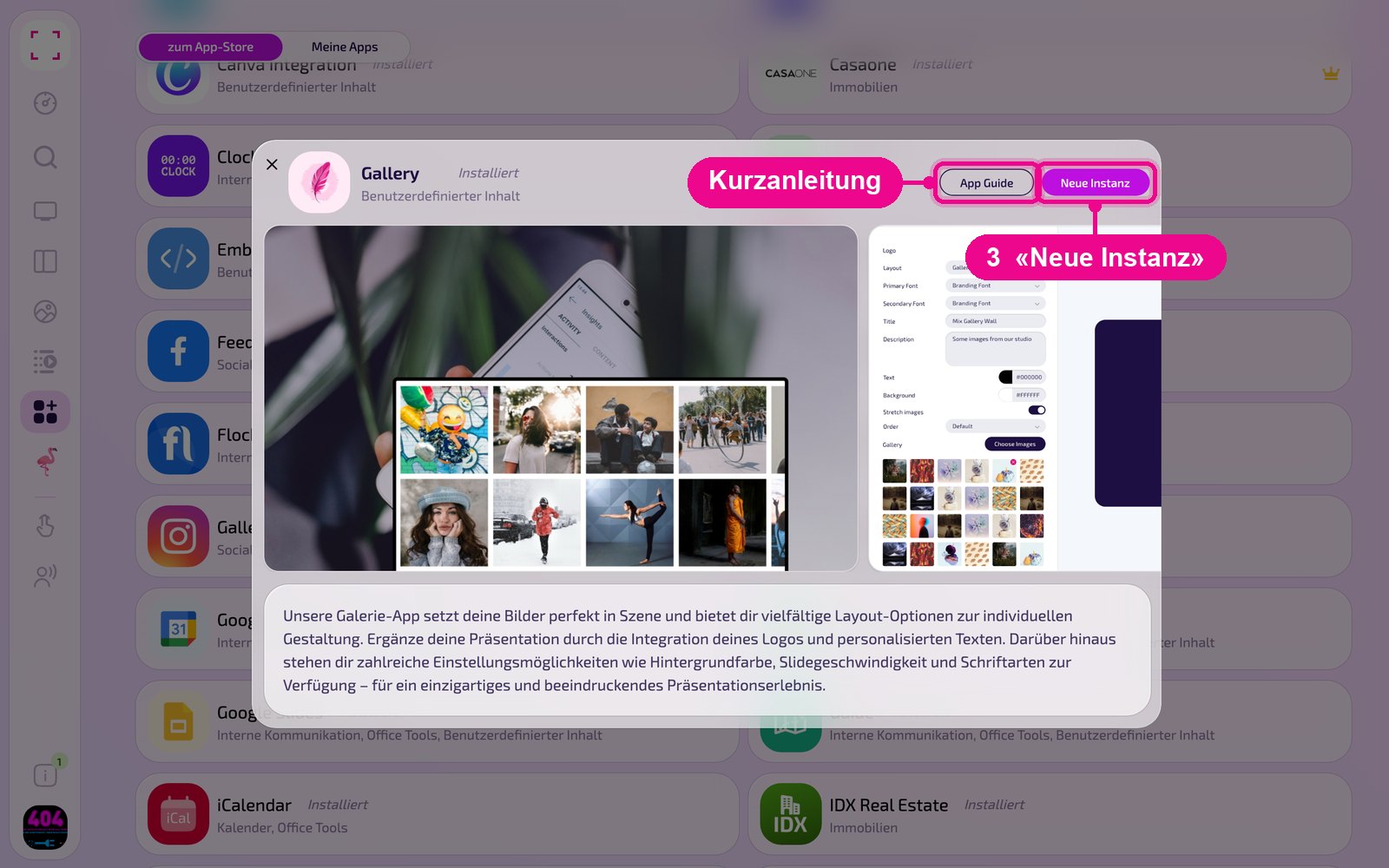
Clicking an app opens its details as a window over the list: description, sample images and categories. With «App Guide» you open the quick guide for the app. If the app is already installed, you create an instance directly with «Neue Instanz» (New instance).
If the app is not yet installed, «Installiere» (Install) appears here instead. After installation you can create instances. Use the × at the top left to close the window.
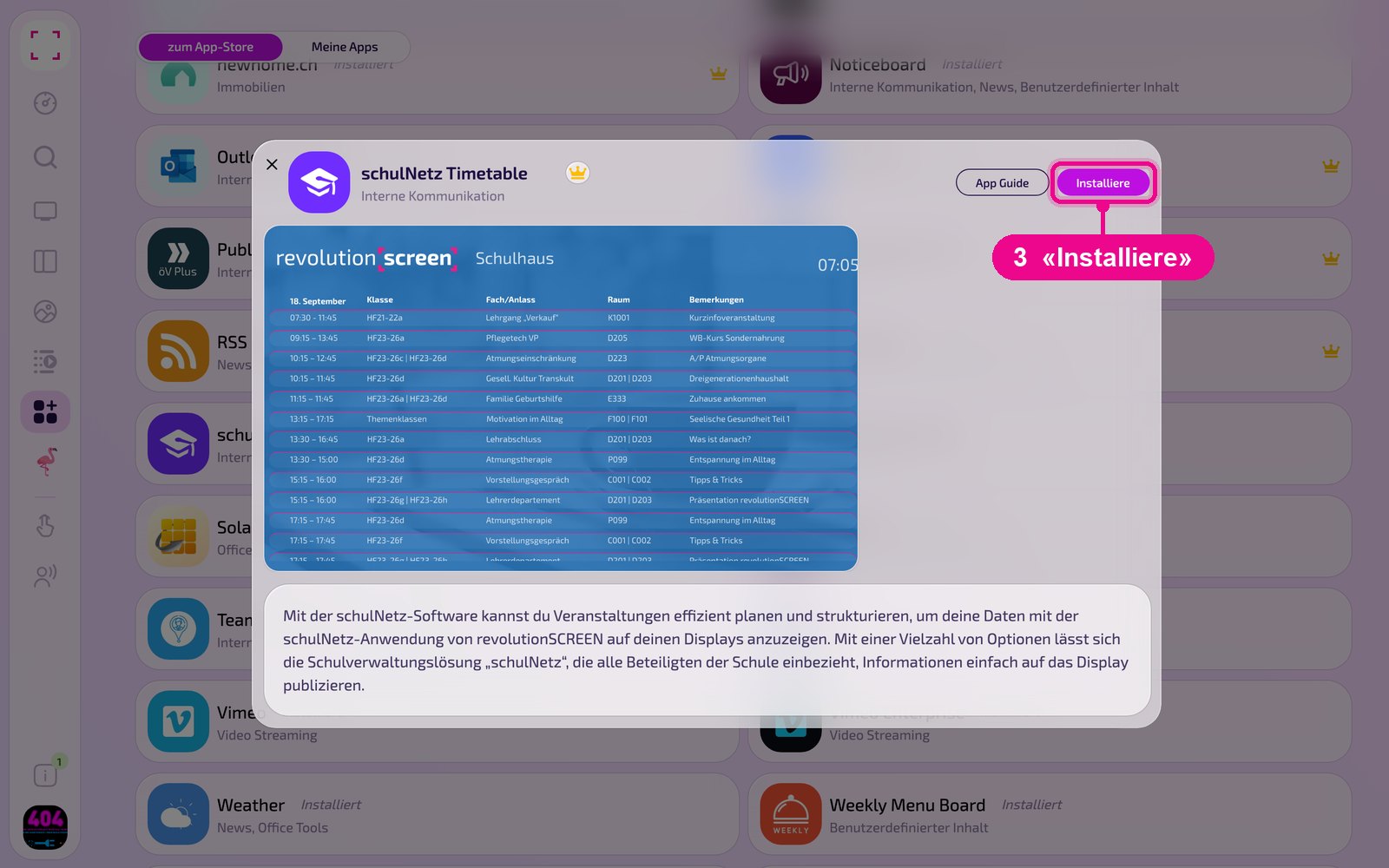
Apps with a crown are paid. How to activate a premium app is shown in the guide on premium installation.
Manage installed apps and instances
Under «Meine Apps» you see every installed app with the number of its instances. Clicking an app opens its instances. There you edit existing instances or create more with «Neue Instanz» (New instance).
Each app has its own step-by-step guide with all settings. You find all apps in the application overview.
Good to know
App not found
Check that the «zum App-Store» tab is active and set the category to «Alle» (All).
App shows no content
The instance must be set up and, for apps with an account, connected. Details in the app's guide.
Use an instance
You find instances in Playlists and Layouts under the «Apps» tab. See «Create Playlist».
Quick guide
The «App Guide» button in the details window leads directly to the app's guide.