Noticeboard
«Noticeboard» is the app for short messages on your screens. You align the text, choose a font from a wide range of Google Fonts, and give the message the right emphasis with a background image or background colour.
Purpose
Noticeboard is ideal for spontaneous notices and short messages, e.g. «meeting room occupied today», greetings, opening hours or internal announcements. The message appears as a styled text block. It's about one clear statement per instance.
Requirements
- An active revolutionSCREEN account with access to my.rstv.app.
- At least one configured screen.
- Optional: a background image in «Media» (e.g. logo or mood image).
Install the app
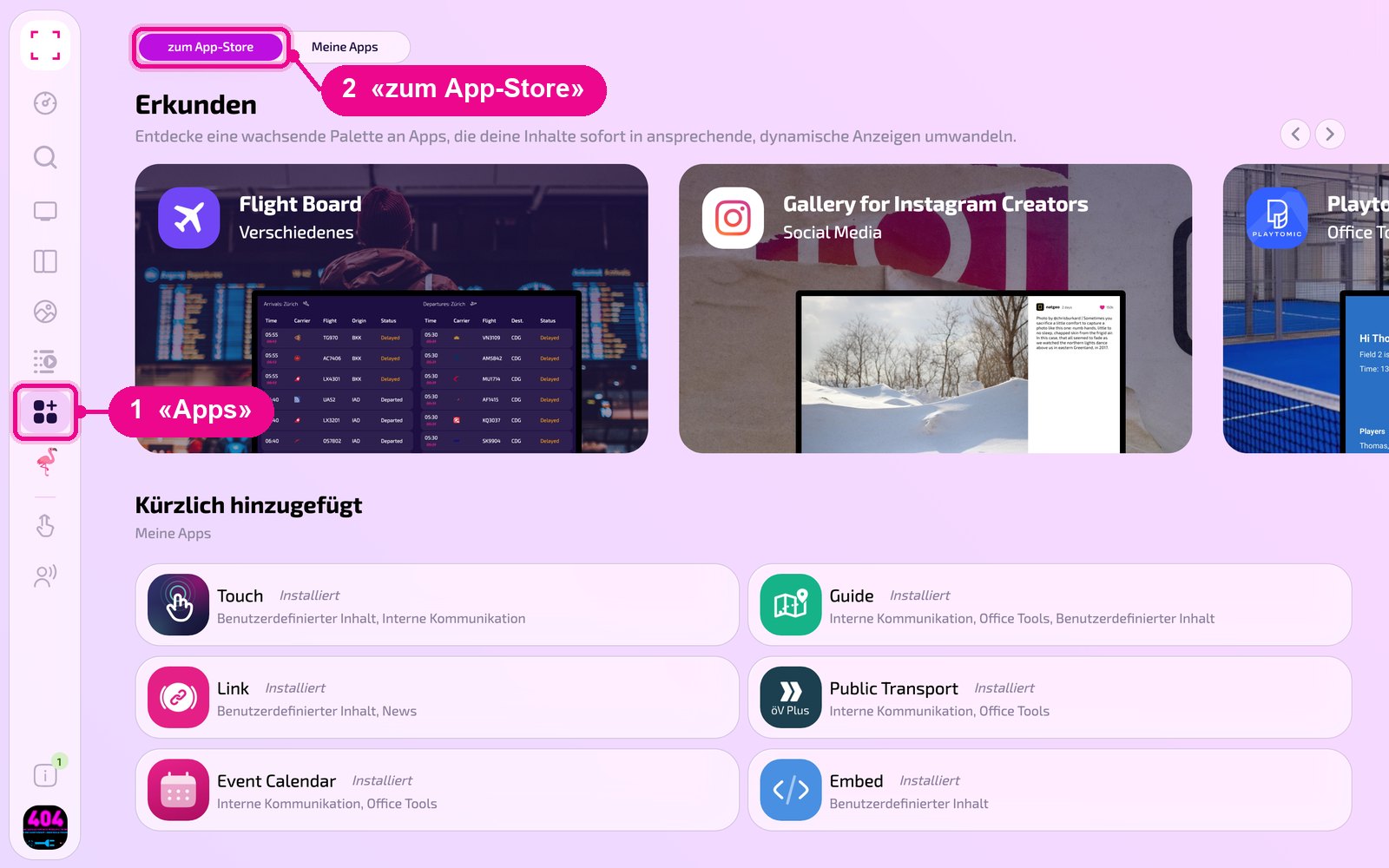
In the sidebar on the left, click «Apps» and then «zum App-Store» (to the app store) at the top.
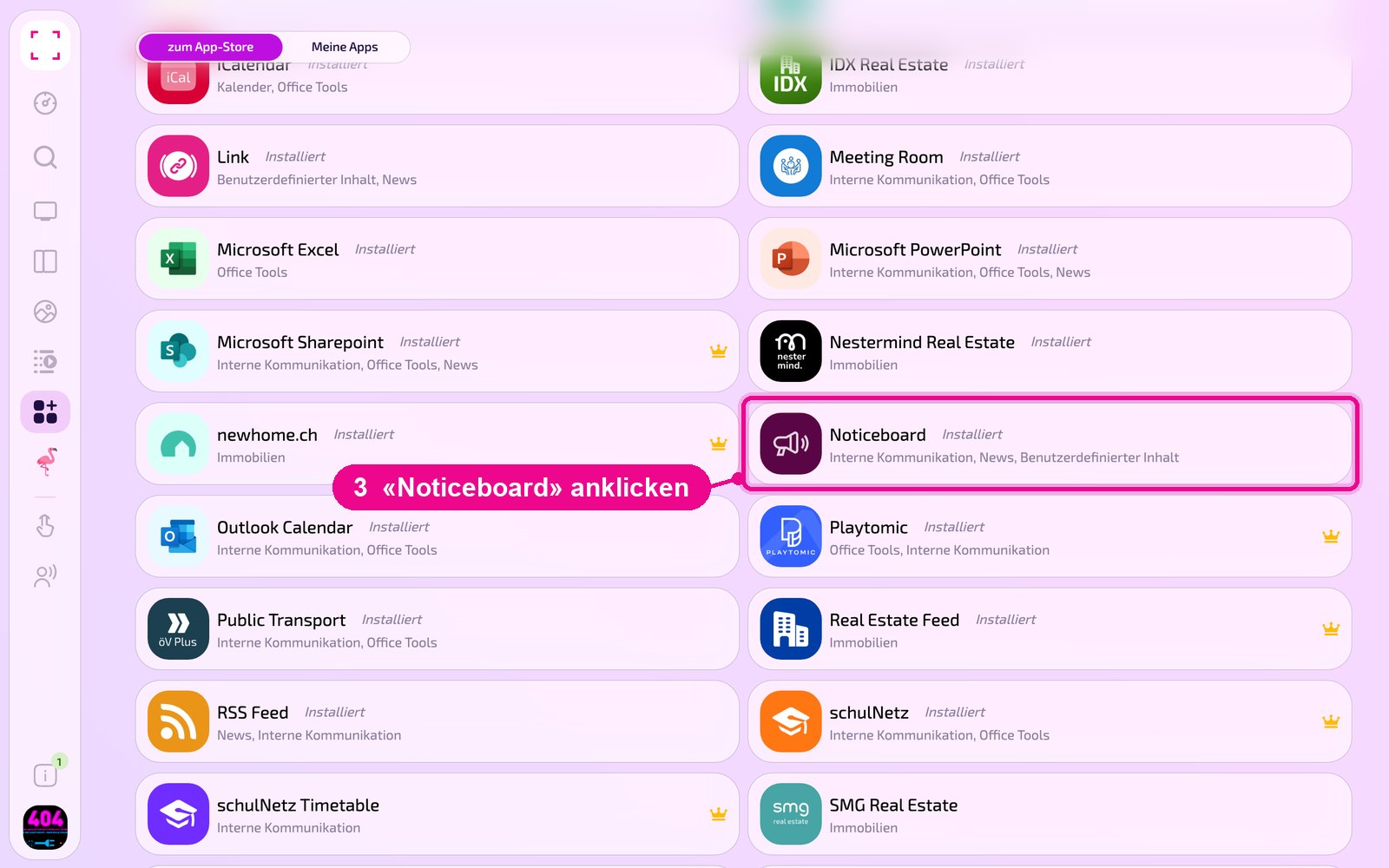
Scroll to the «Alle» (all) list and click the «Noticeboard» tile. Use the category buttons to narrow the list.
The app's detail view opens. If it isn't installed yet, first click «Installiere» (install). Then click «Neue Instanz» (new instance). «App Guide» opens a quick guide.
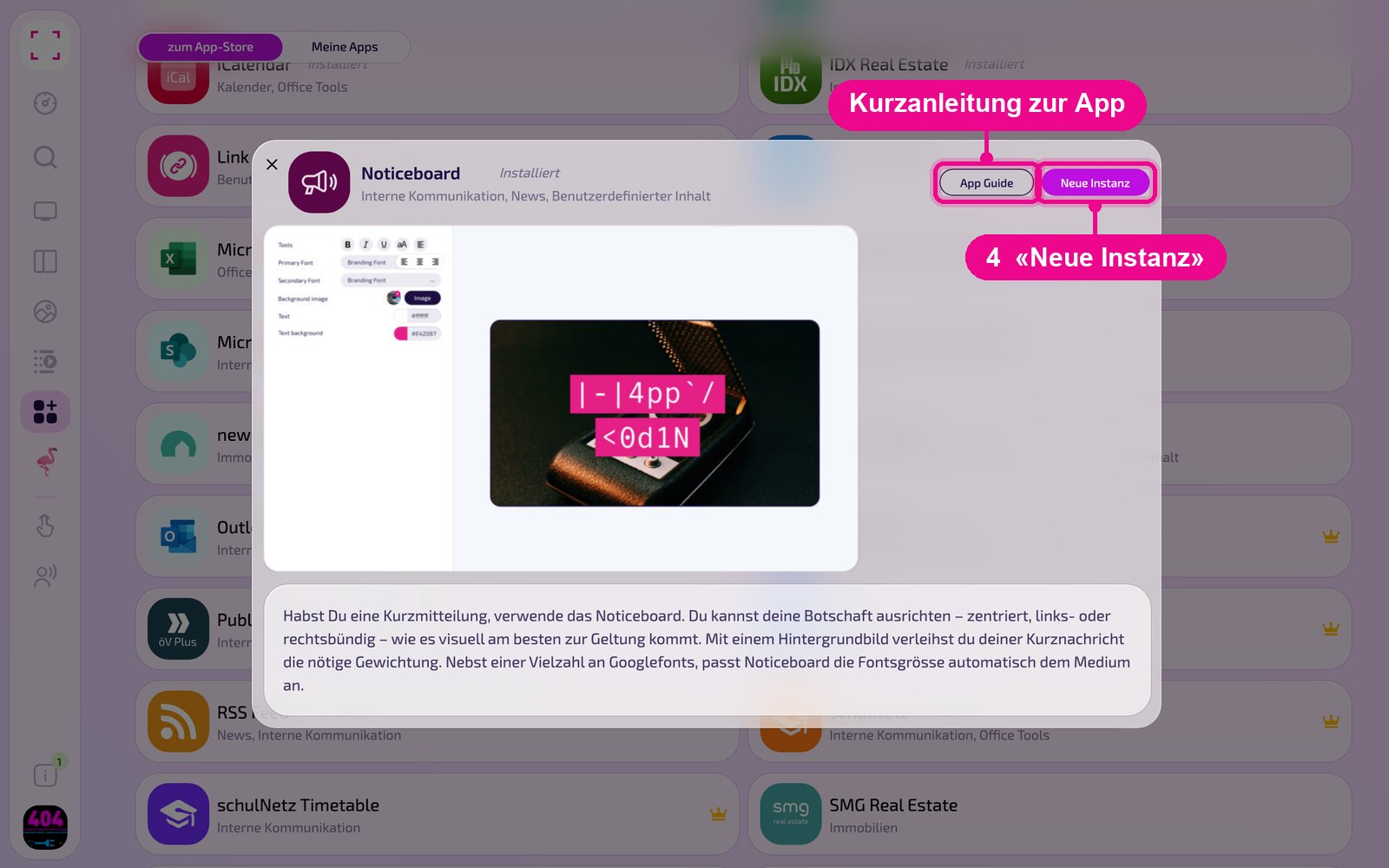
An instance is a separate configuration of the app, e.g. one gallery for reception and another for the cafeteria. You can create as many instances as you like and use each one individually on screens, in playlists or layouts.
Create a new instance
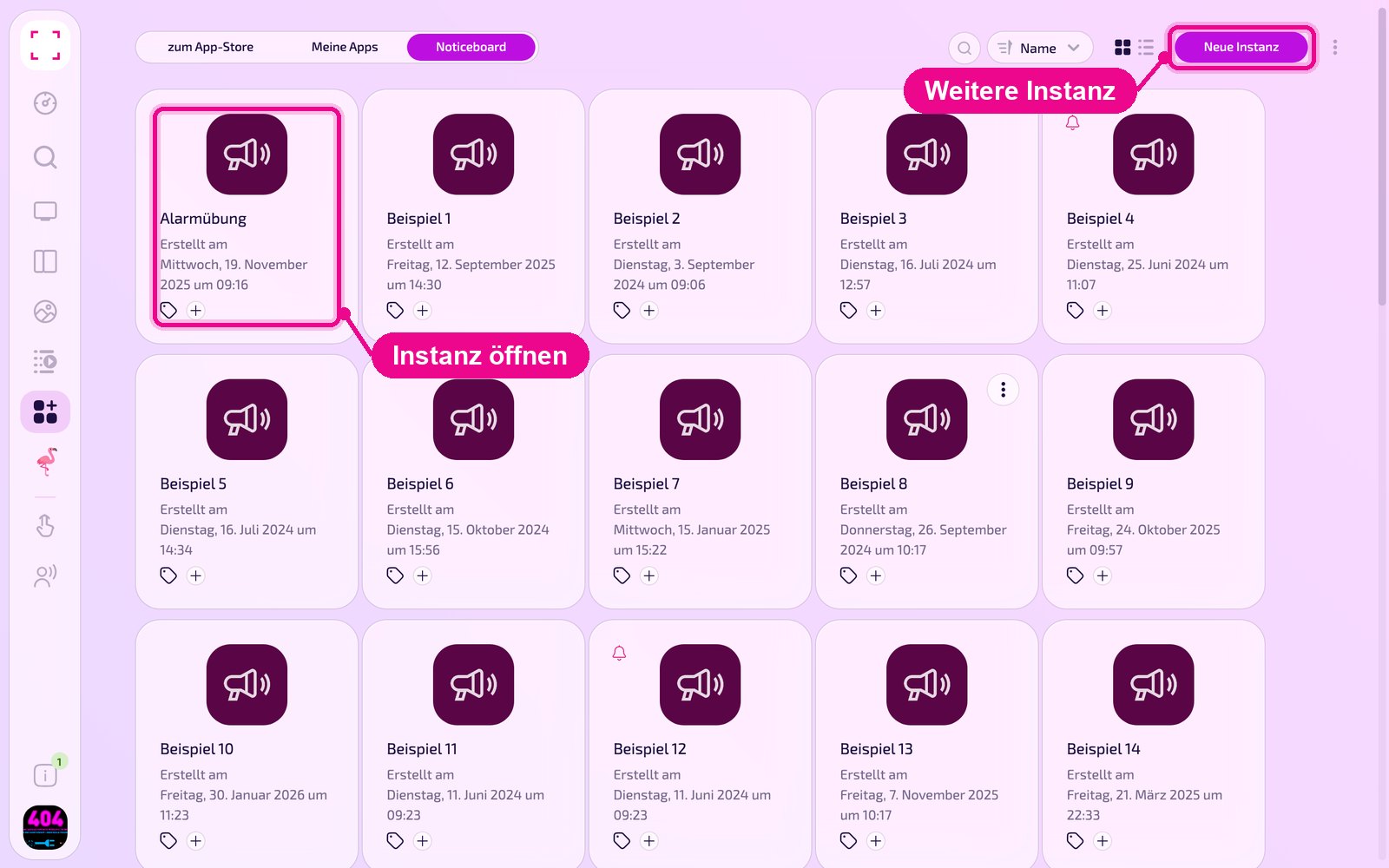
Under «Apps › Meine Apps» (my apps) you'll see all instances of the app as tiles. Use «Neue Instanz» (new instance) at the top right to create another, and click a tile to open an existing one.
In the editor, hover over the title and click the pencil to give the instance a name. A new instance shows «Kein Name angegeben» (no name given) in red until you do. At the top right you choose whether the preview appears in portrait or landscape.
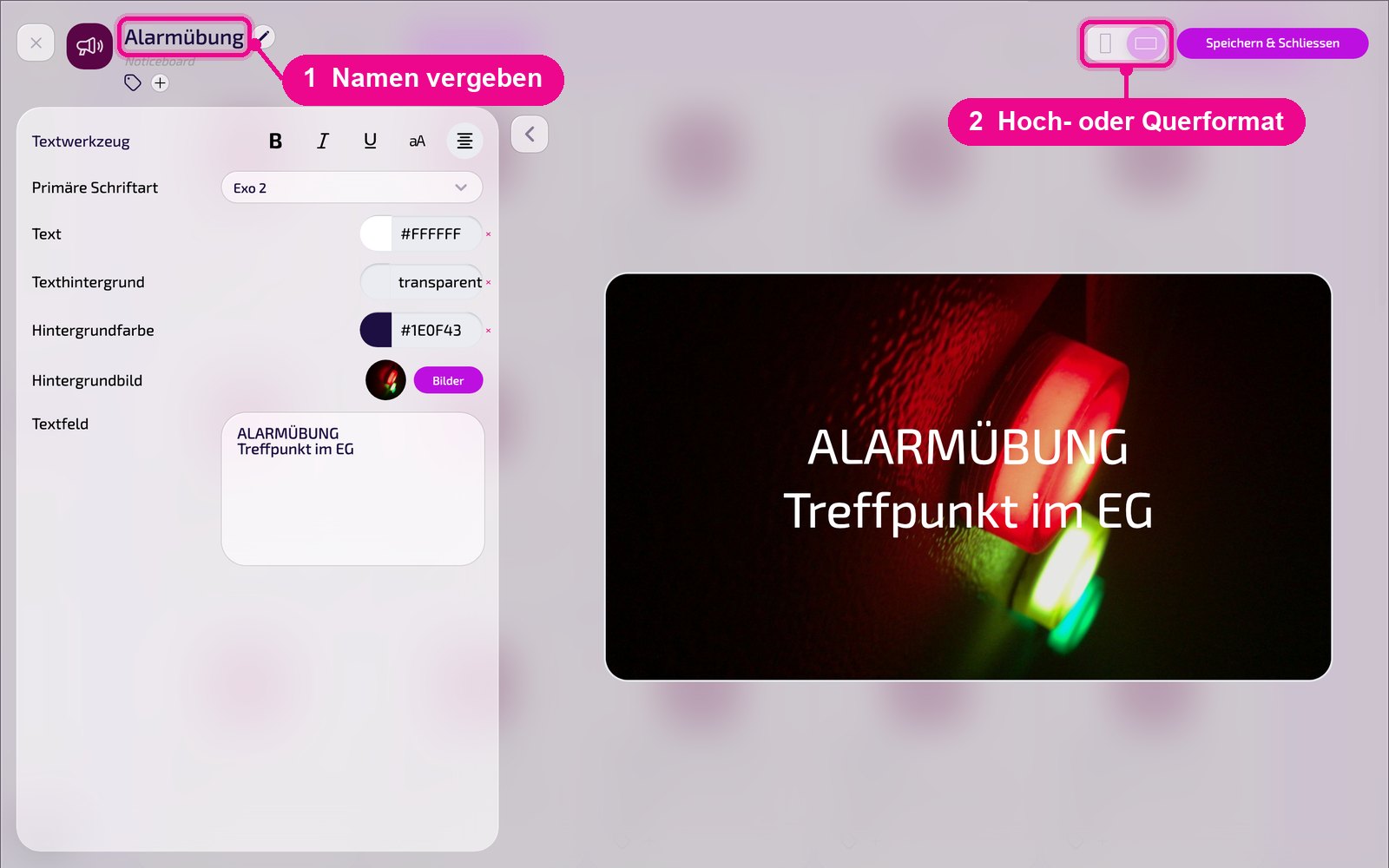
Configuration in detail
All settings are on the left, and on the right you see immediately in the live preview how the instance looks on the screen. Use the arrow next to the card to collapse the settings.
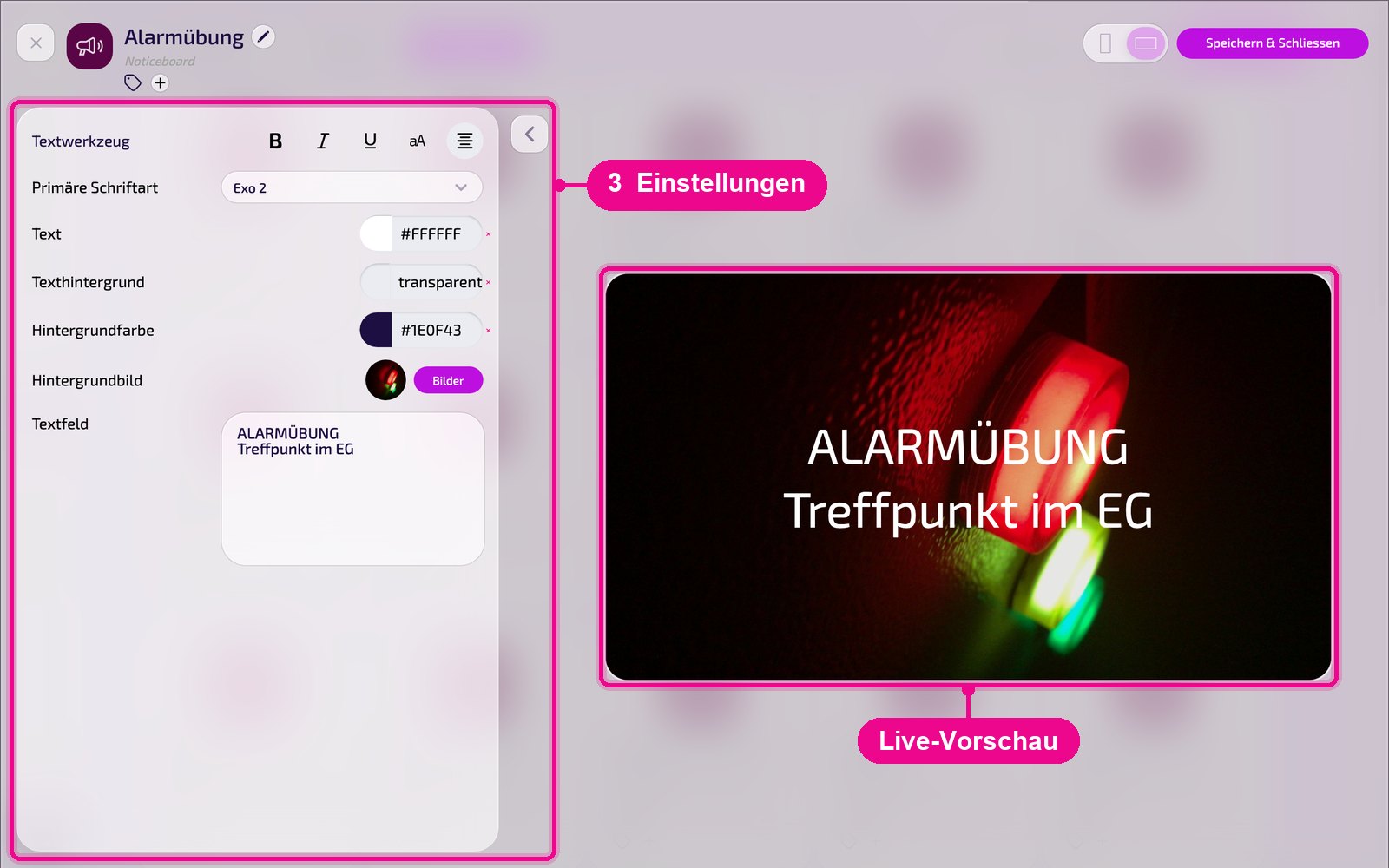
- Text tool: Bold, Italic, Underline and the alignment (left, centred, right). Noticeboard automatically adjusts the font size to the screen.
- Primary font: the Google Font for your text, e.g. «Exo 2».
- Text: the text colour, e.g. #FFFFFF for white.
- Text background: fill colour directly behind the text. Leave it «transparent» or set a colour so the text stays legible on images.
- Background colour: the surface colour of the whole message, e.g. #1E0F43. Use × to reset a colour.
- Background image: select an image from «Media» via «Bilder» (images).
- Text field: here you type the actual message. The live preview updates instantly.
In the live preview, make sure there is enough contrast between text and background colour, especially with background images. Short, easy-to-read messages work best on the screen.
Save & play out on the screen
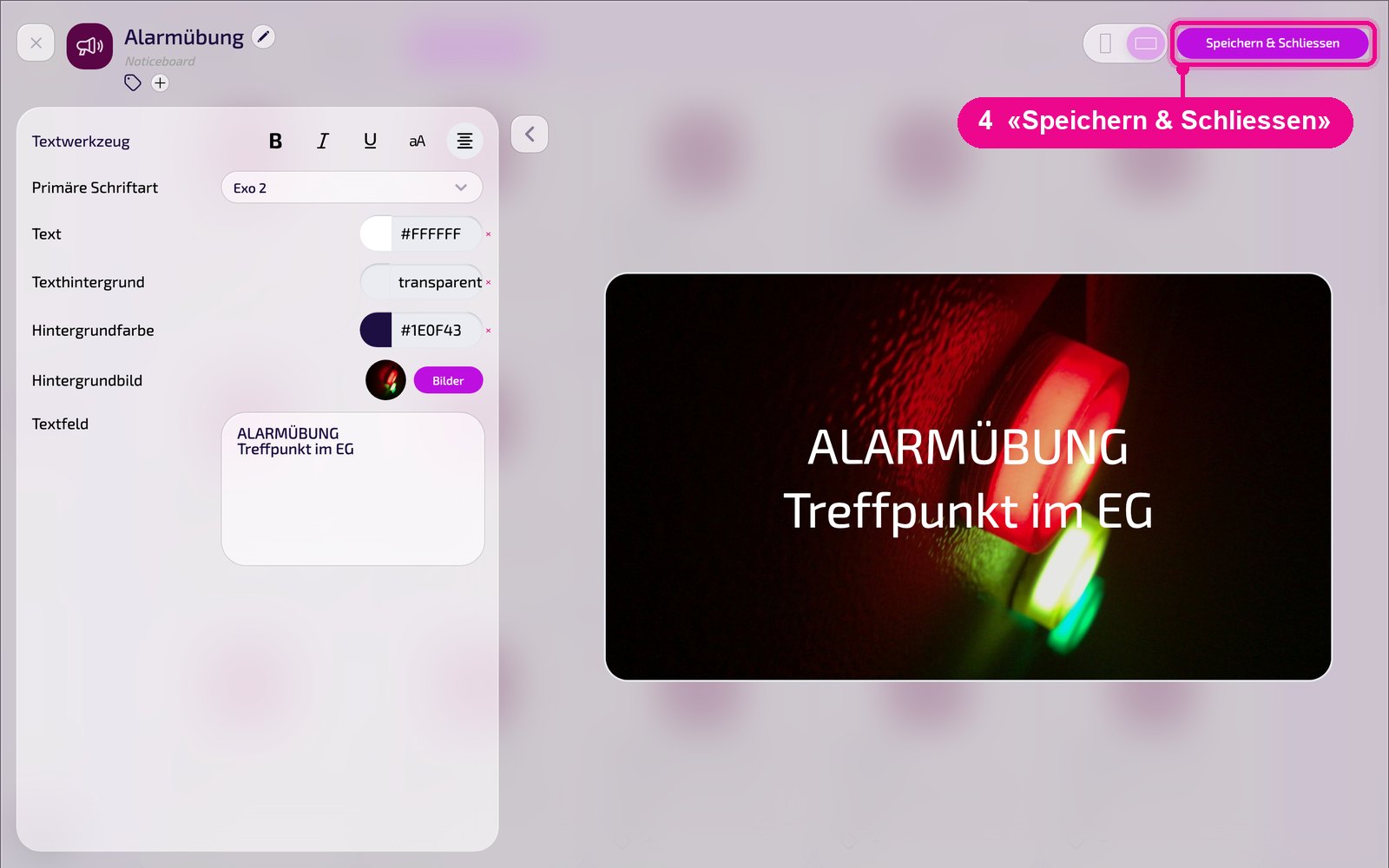
Save the instance at the top right with «Speichern & Schliessen» (save & close).
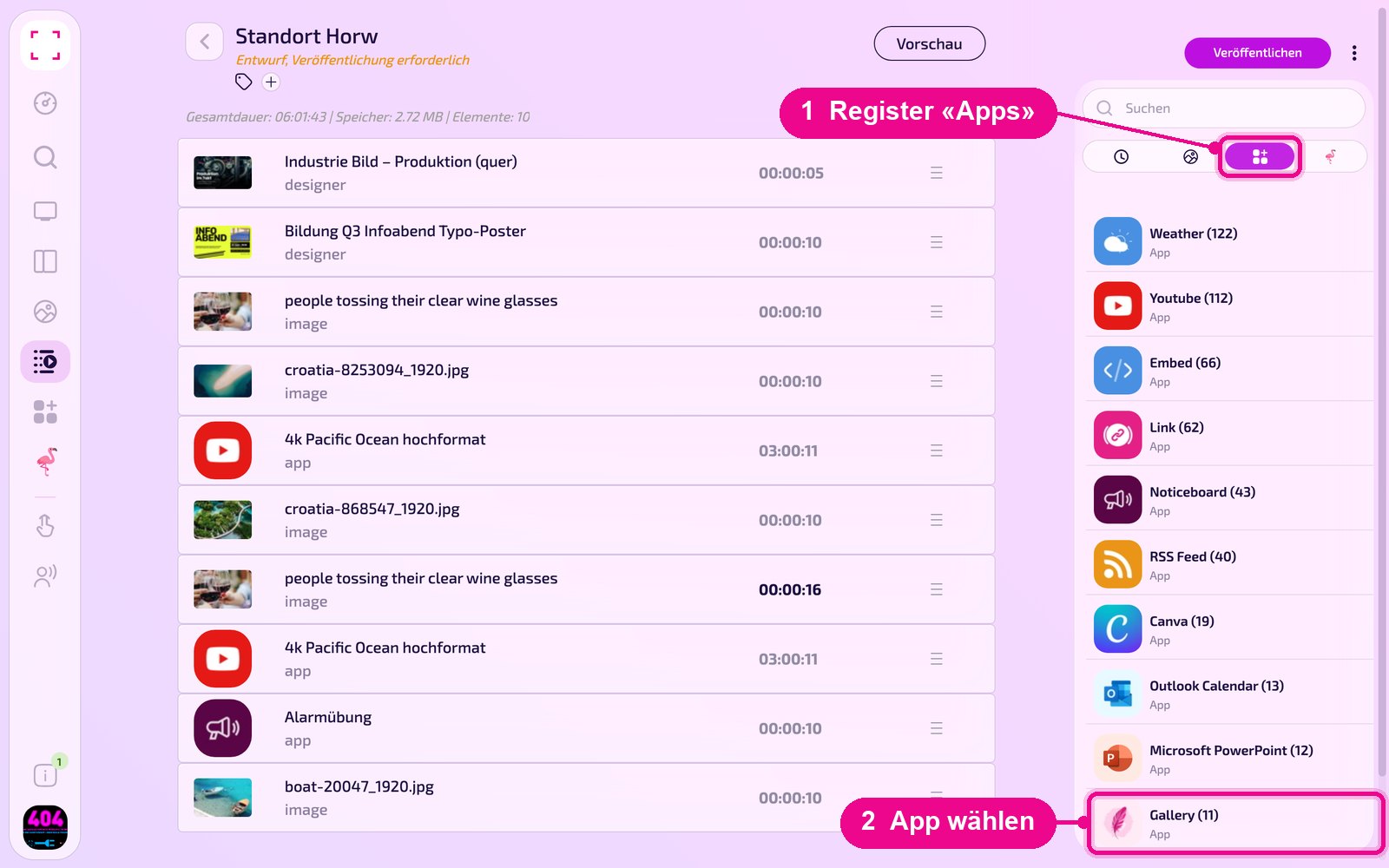
Add to a playlist: Open the playlist, select the «Apps» tab on the right, click the app and then the instance. The instance is added immediately.
Add to a layout: Open the layout and click the pencil at the desired section.
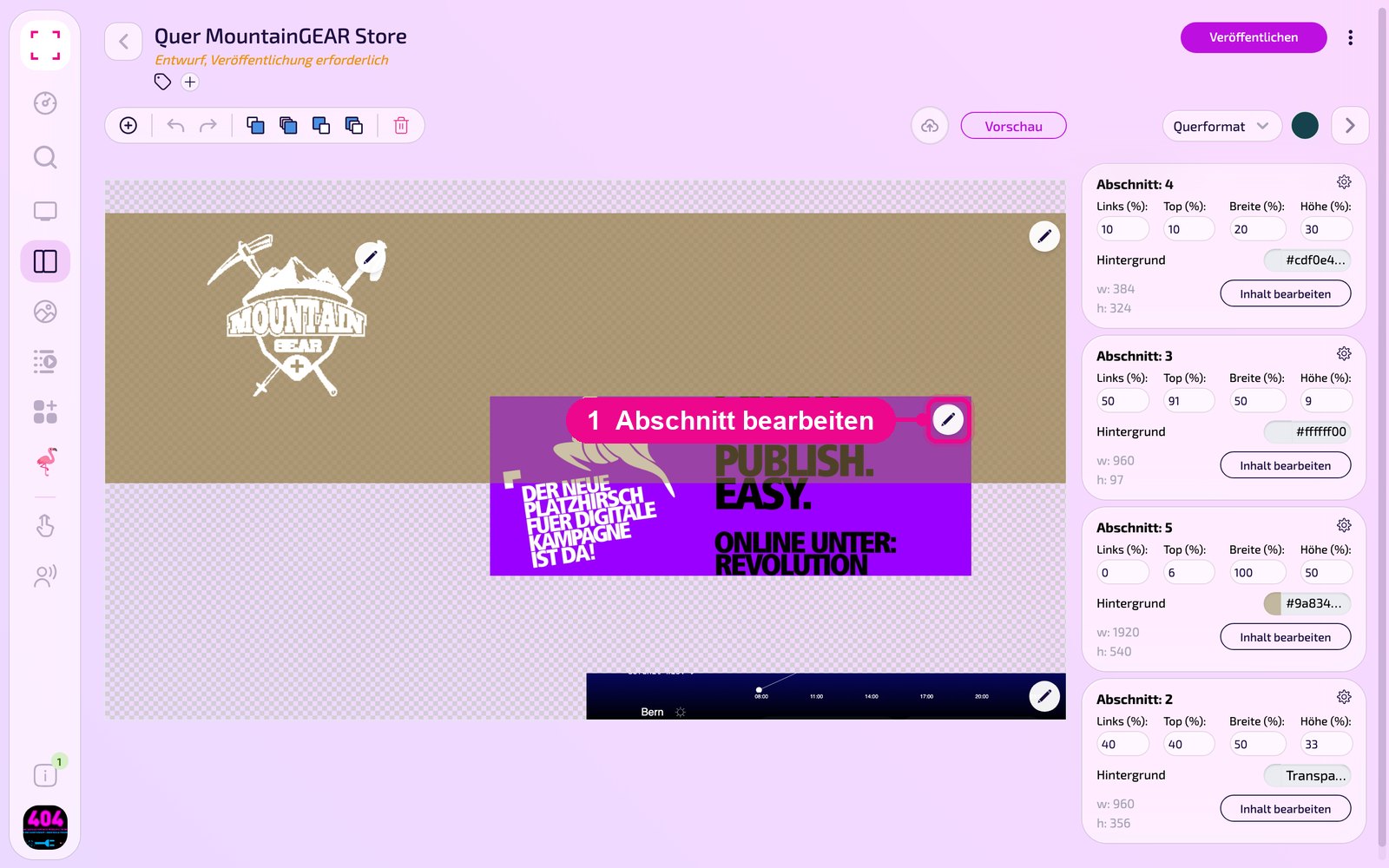
In the «Inhalt für Abschnitt bearbeiten» (edit content for section) window, add the instance with «Inhalt hinzufügen» (add content). On the right of each element, set the schedule via «Täglich» (daily).
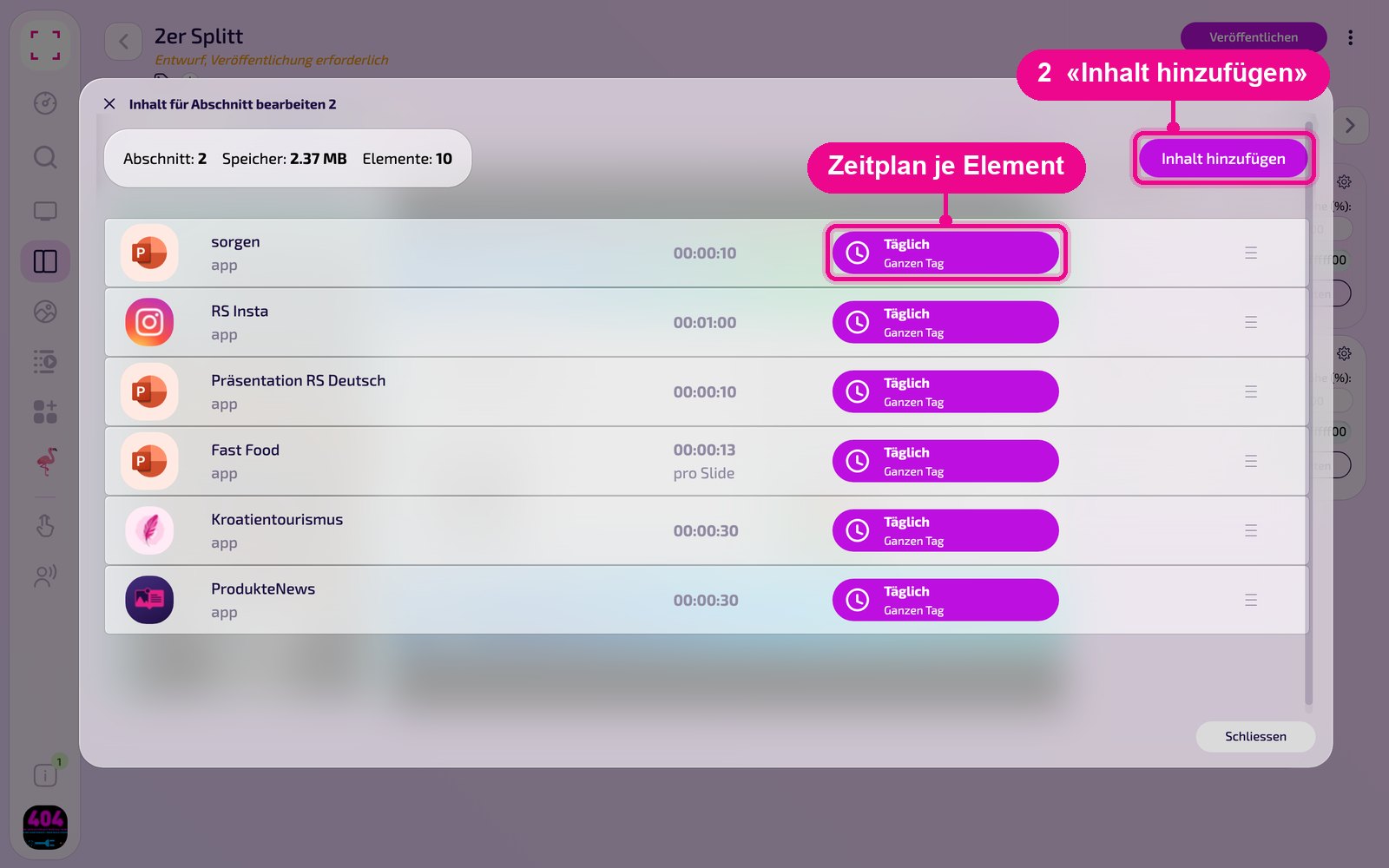
Then click «Veröffentlichen» (publish) in the playlist or layout. As long as it says «Entwurf, Veröffentlichung erforderlich» (draft, publication required), the screen still shows the old state.
Tips & troubleshooting
Multiple messages?
Create a separate instance for each statement and combine them in a playlist.
Text is cut off
Shorten the message. The font scales automatically to the screen size; there is no manual downscaling.
Poor readability on image
Set a text background or choose a calmer background image.
Content doesn't appear
Check that the playlist or layout is published and assigned to the correct screen, and that the Player is online.