Flockler
Flockler — displays a Flockler social wall feed (curated social media content) on the screen.
Purpose
Bring a social wall curated in Flockler to your display – multiple channels bundled together, updated automatically.
Use cases
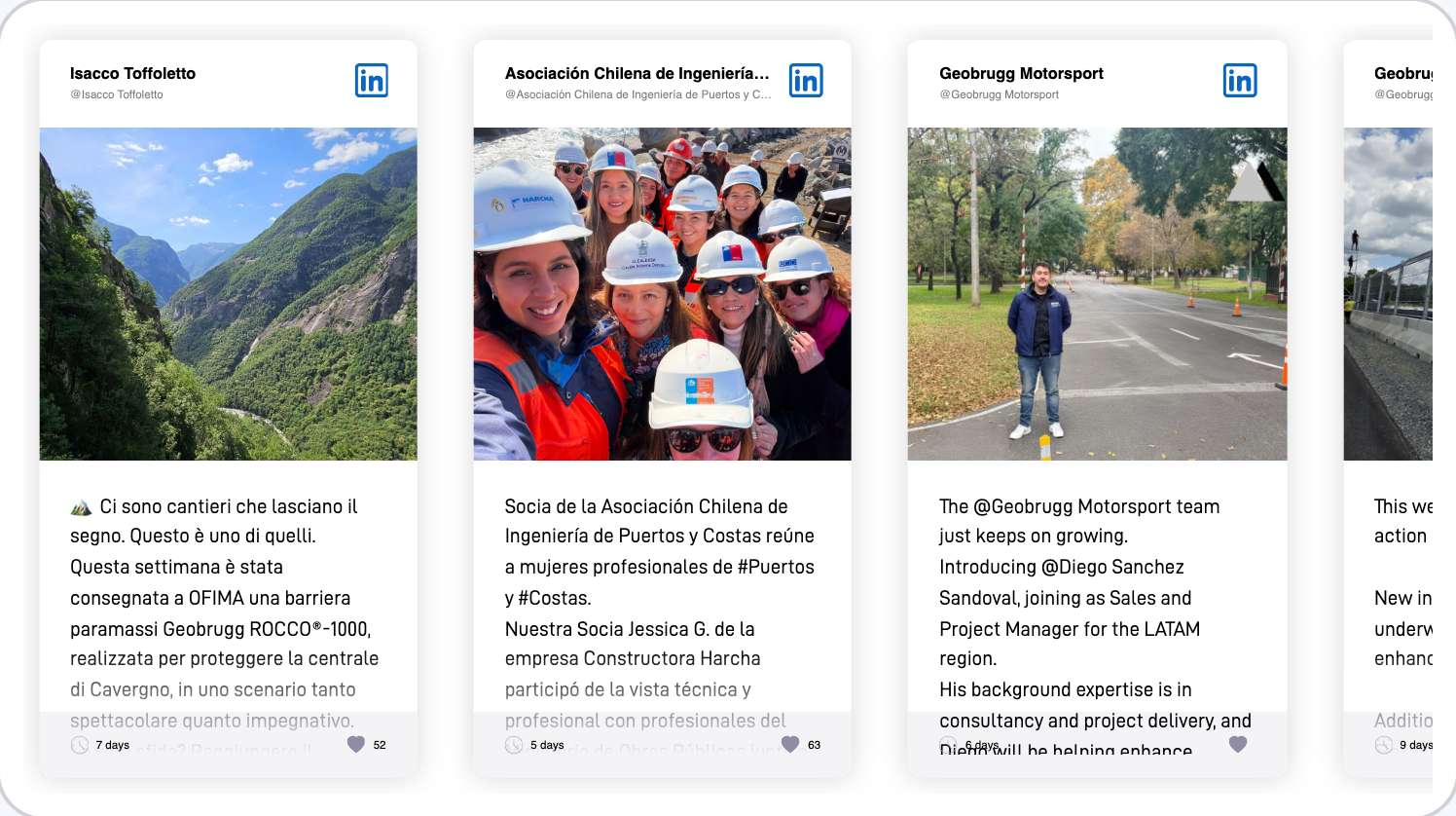
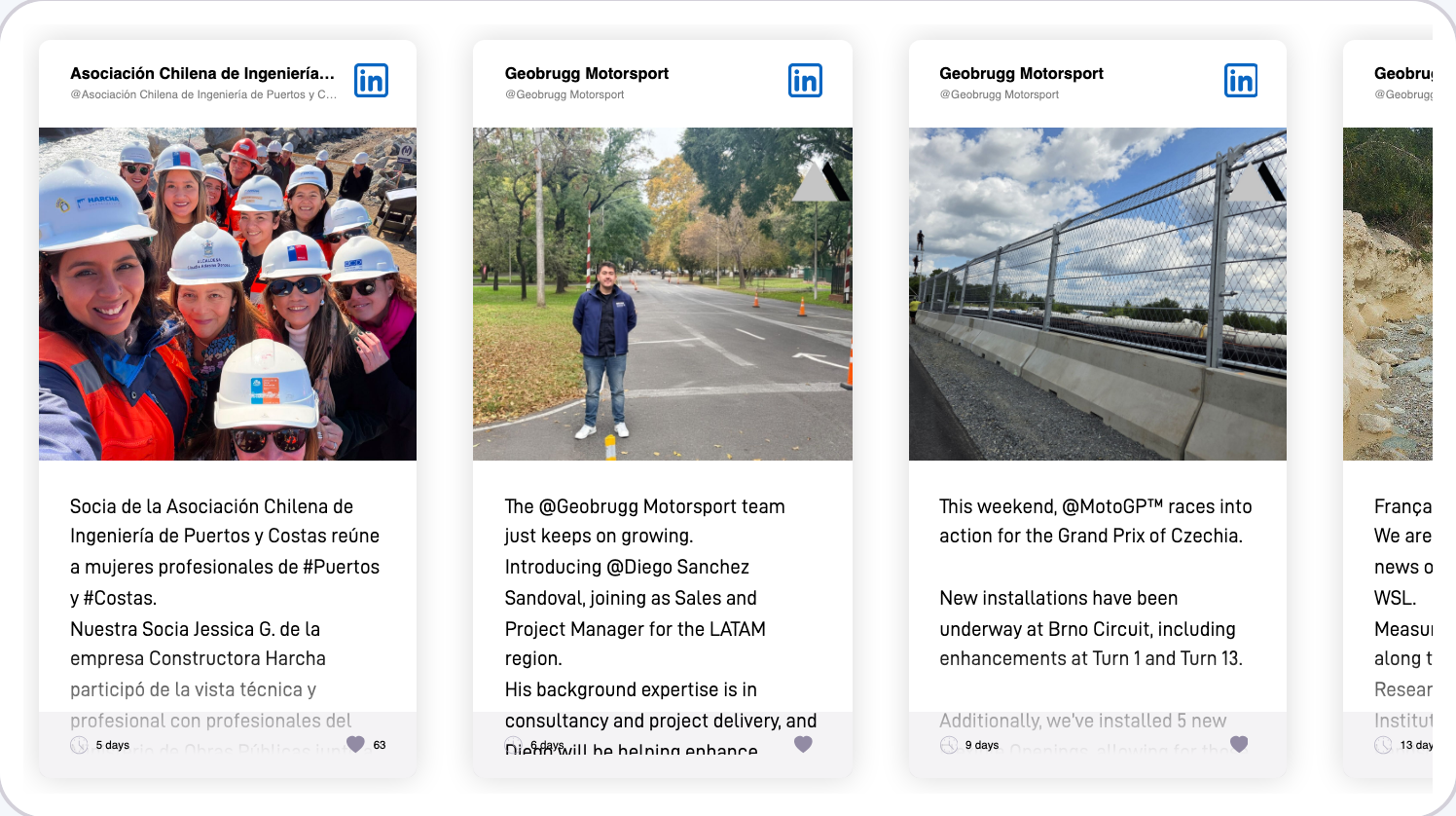
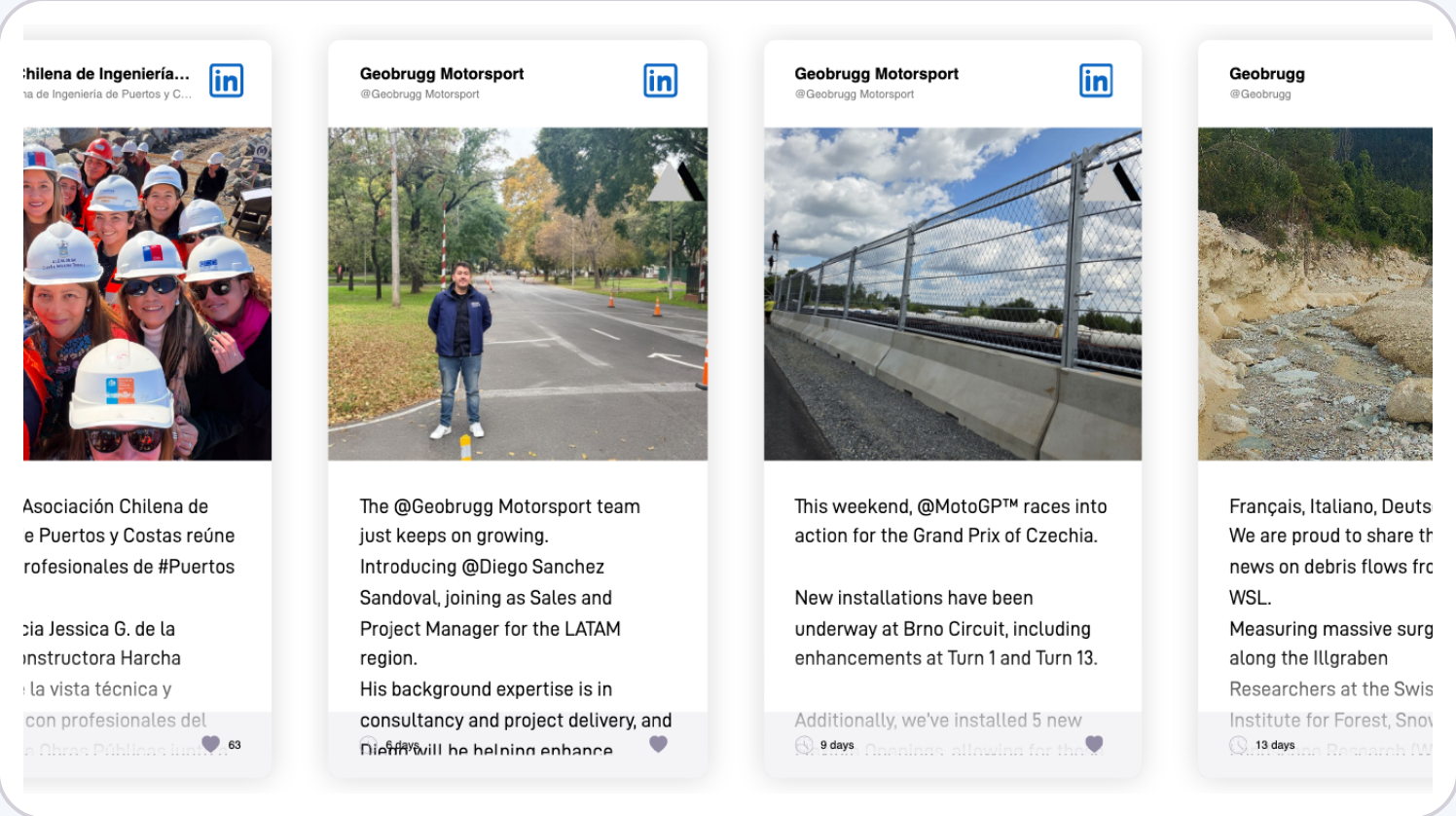
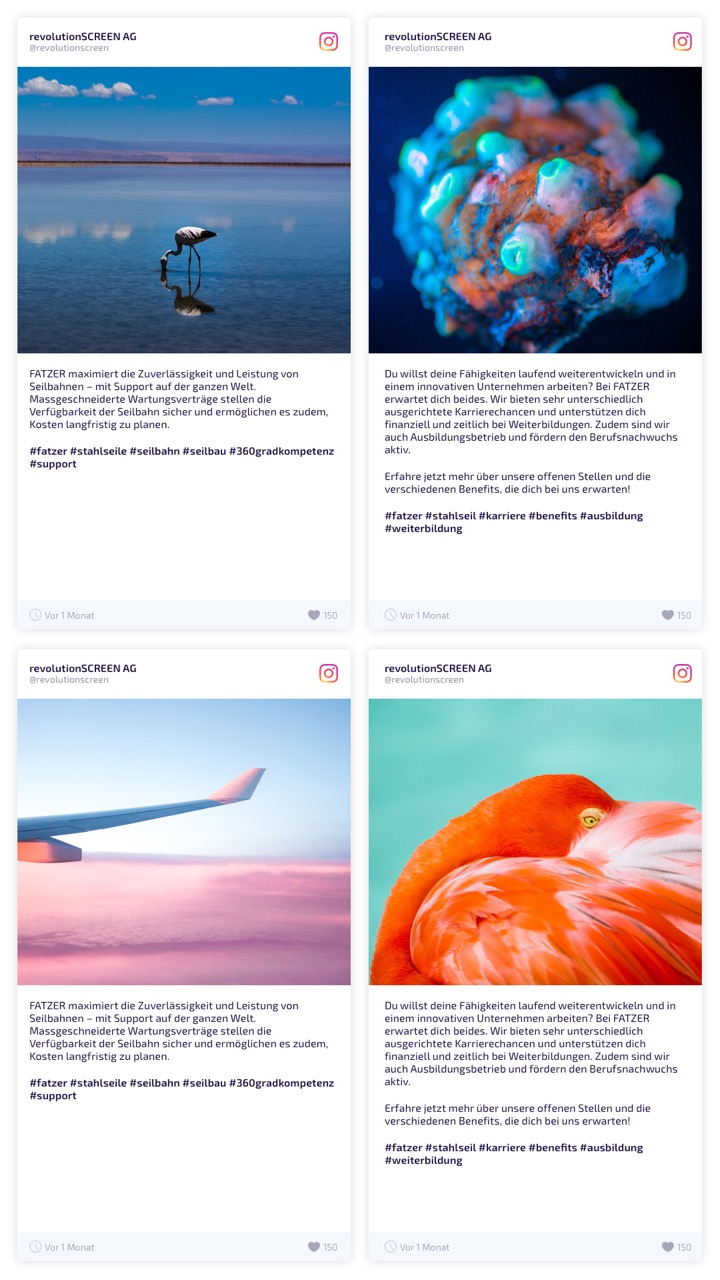
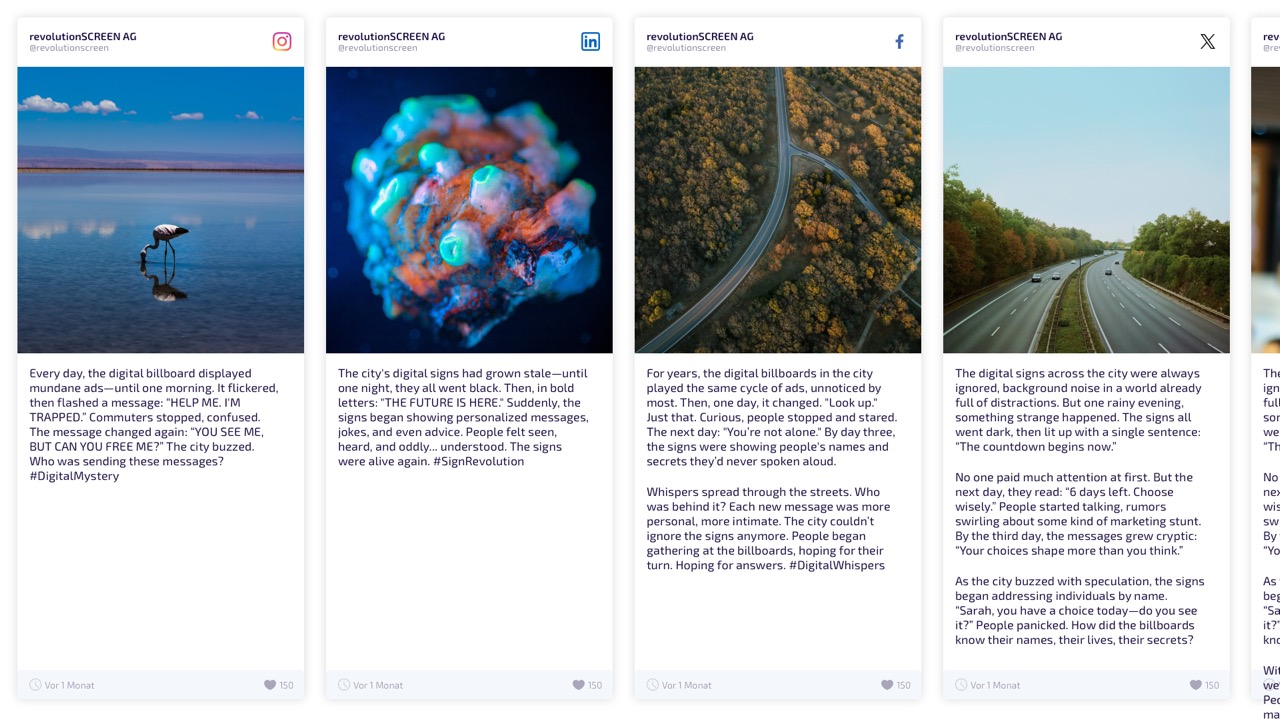
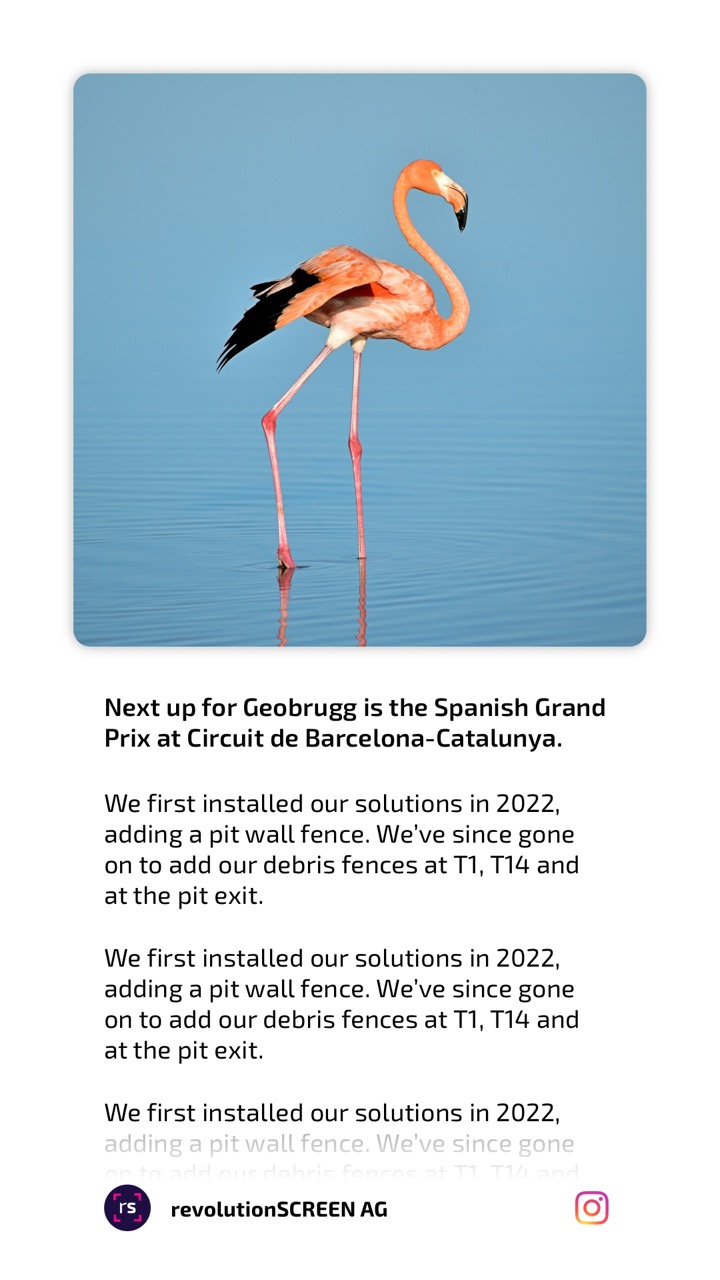
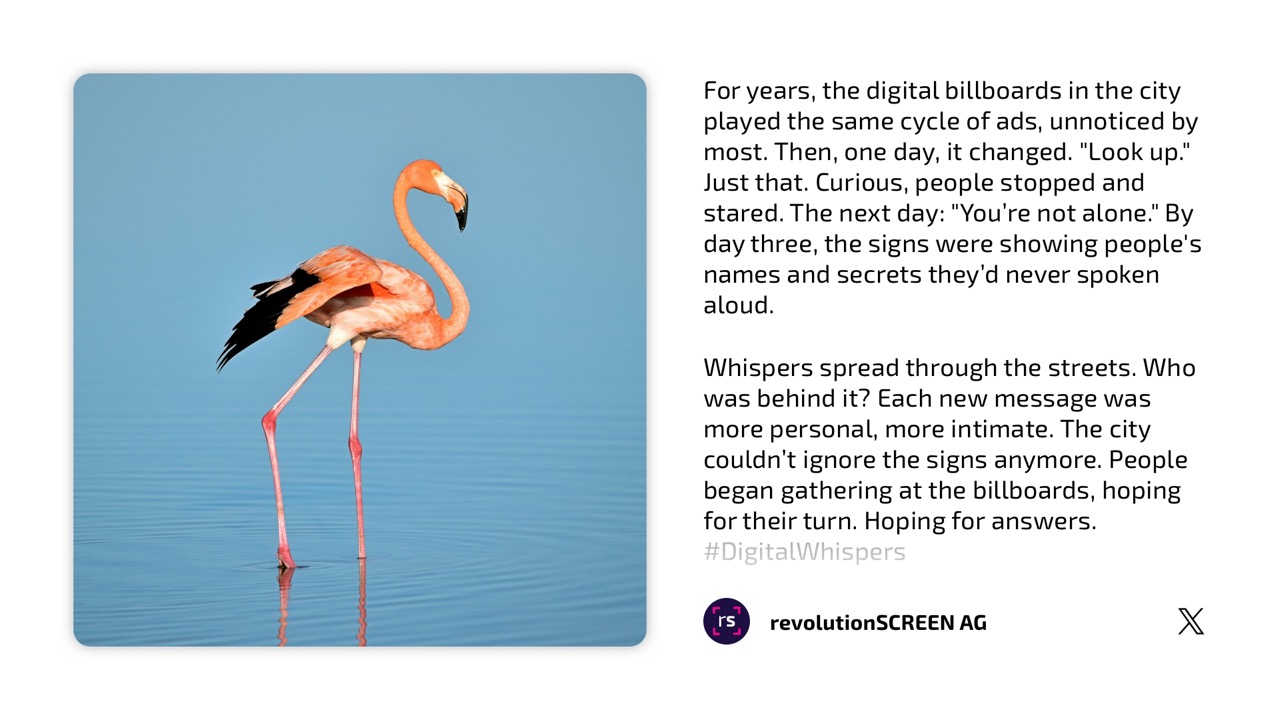
Here's how Flockler looks on the screen – examples from real use:
Requirements
- An active revolutionSCREEN account with access to my.rstv.app.
- A Flockler account with configured sections.
- At least one configured screen for playout.
Install the app
Open my.rstv.app and go to Apps. In the Alle (All) list, find the Flockler tile and click it.
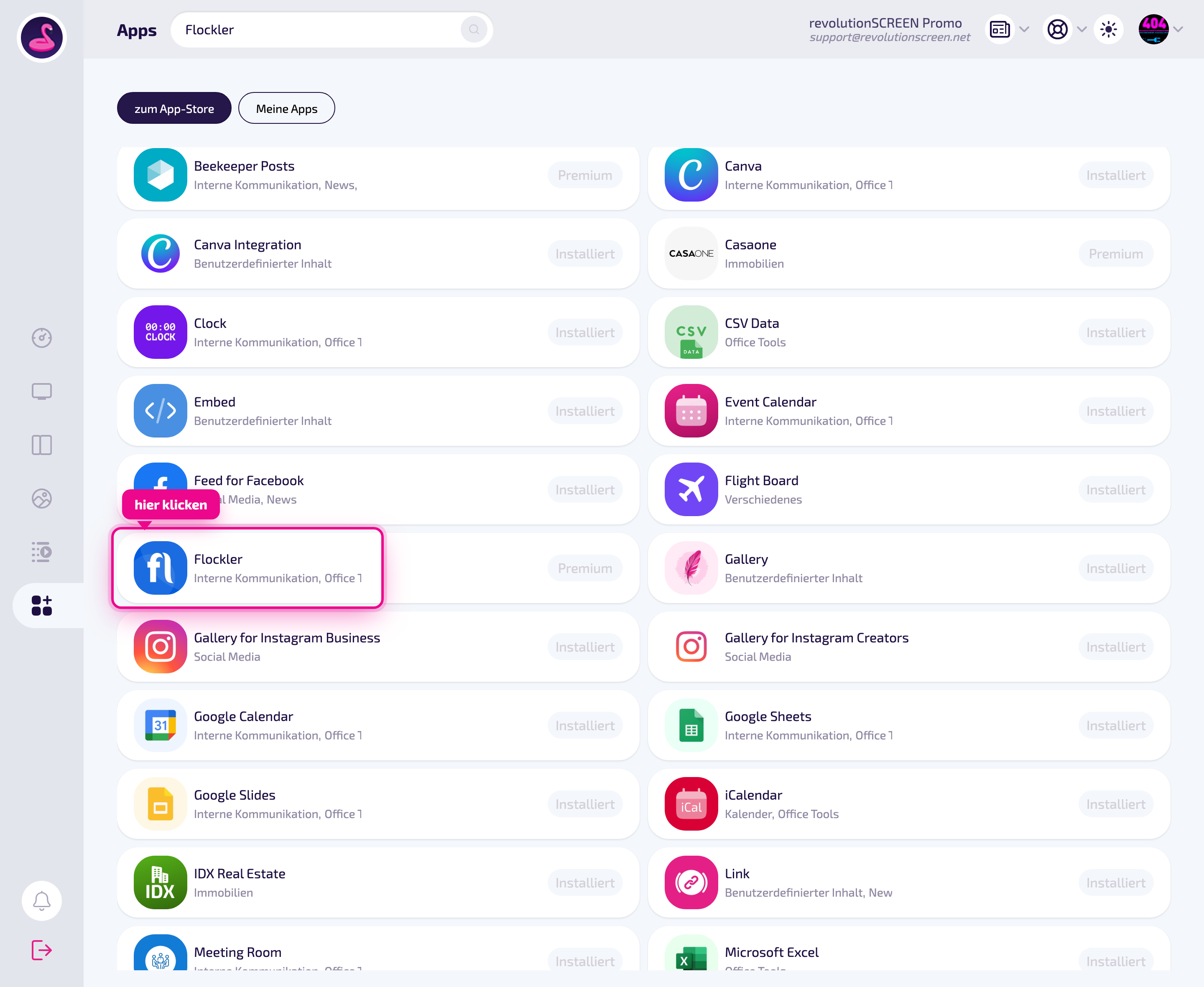
The detail page opens. If the app is not yet installed, first click Installieren (Install). Then (or if it already says Installiert (Installed)) click Neue Instanz (New instance).
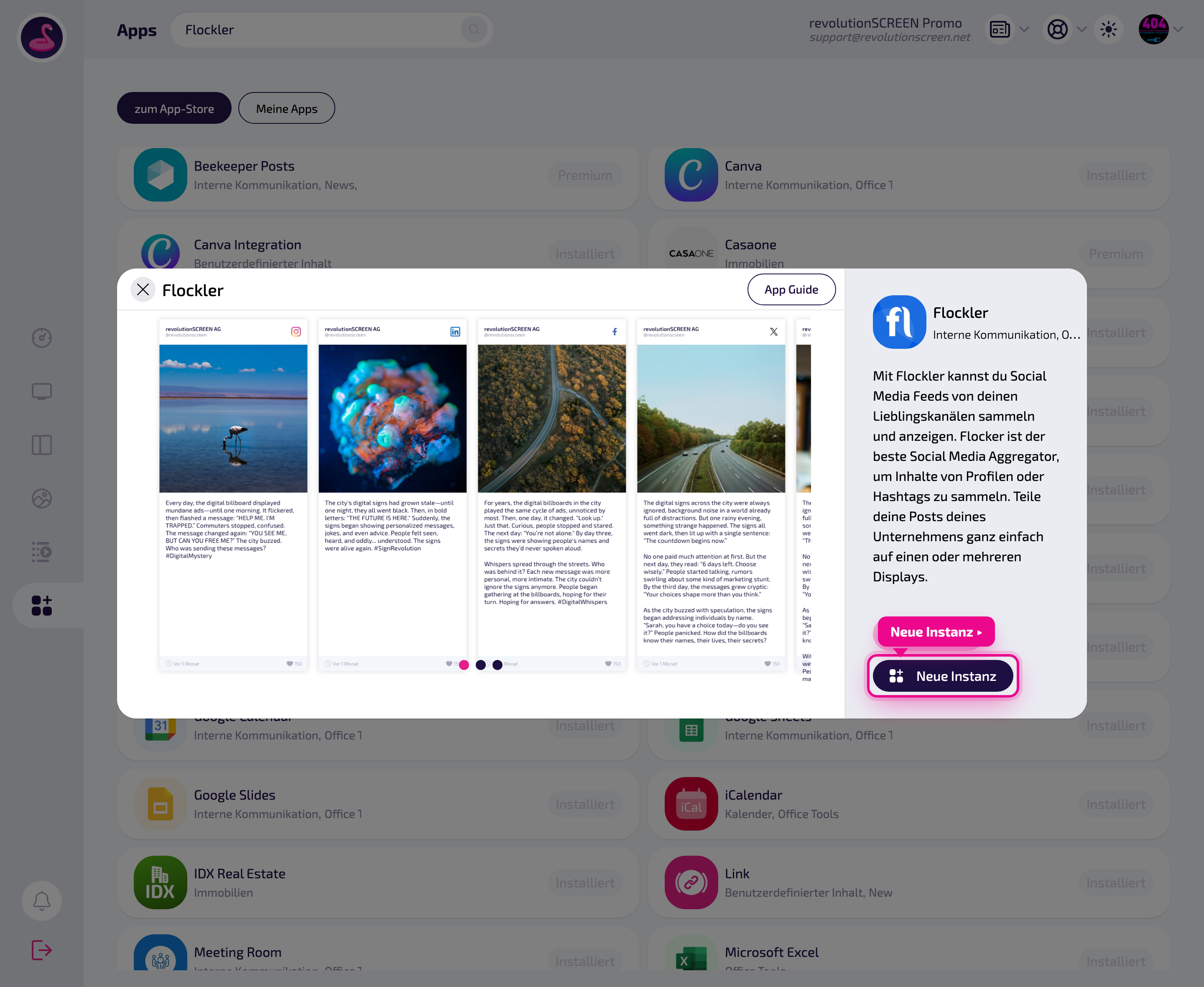
An instance is a specific, configured output of the app – a connected Flockler feed with its display settings. You can create multiple instances and assign them to different screens.
Manage instances
After clicking, you land in the app's instance management. Here you see existing instances and create another one with Neue Instanz (New instance) (top right).
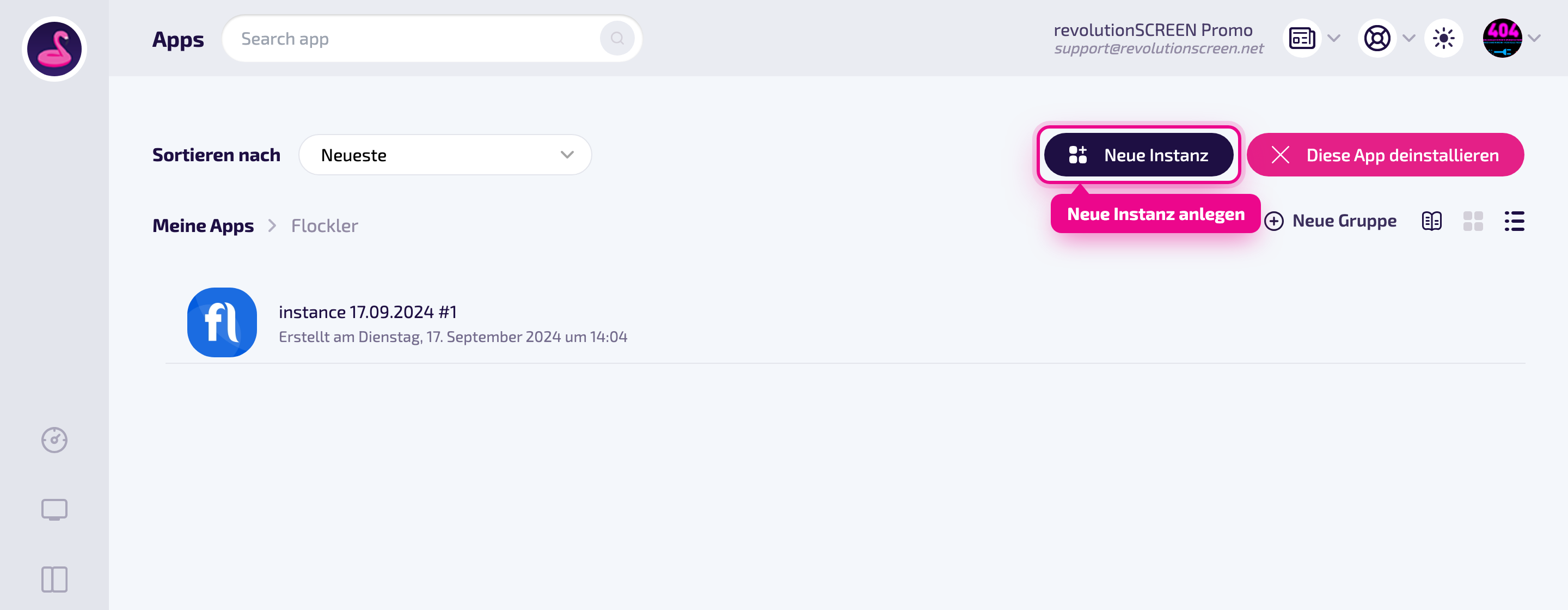
Connect & configure Flockler
In the editor, connect your Flockler account via einloggen (log in) (status logged in), select the Sections and the appearance. The live preview runs on the right.
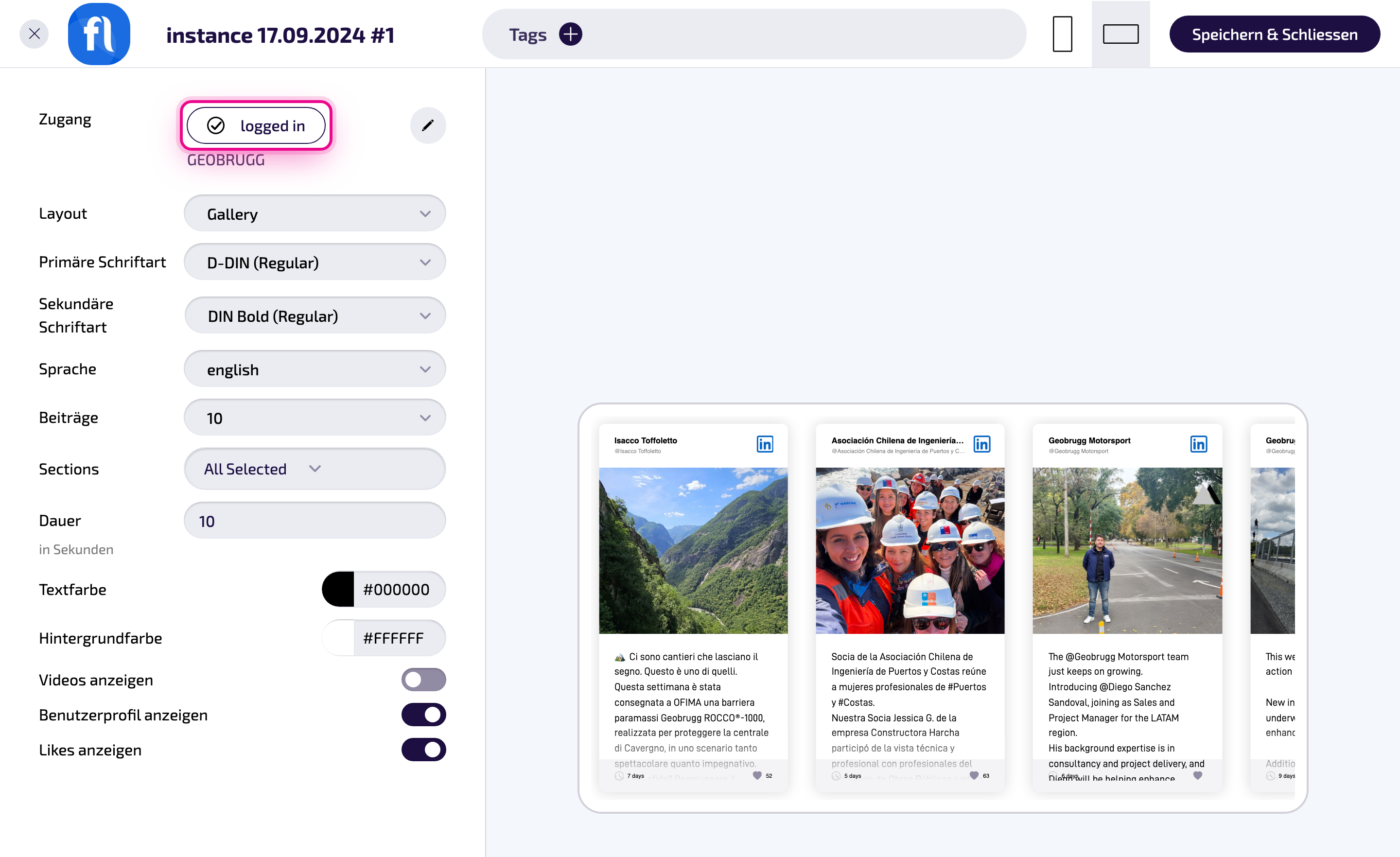
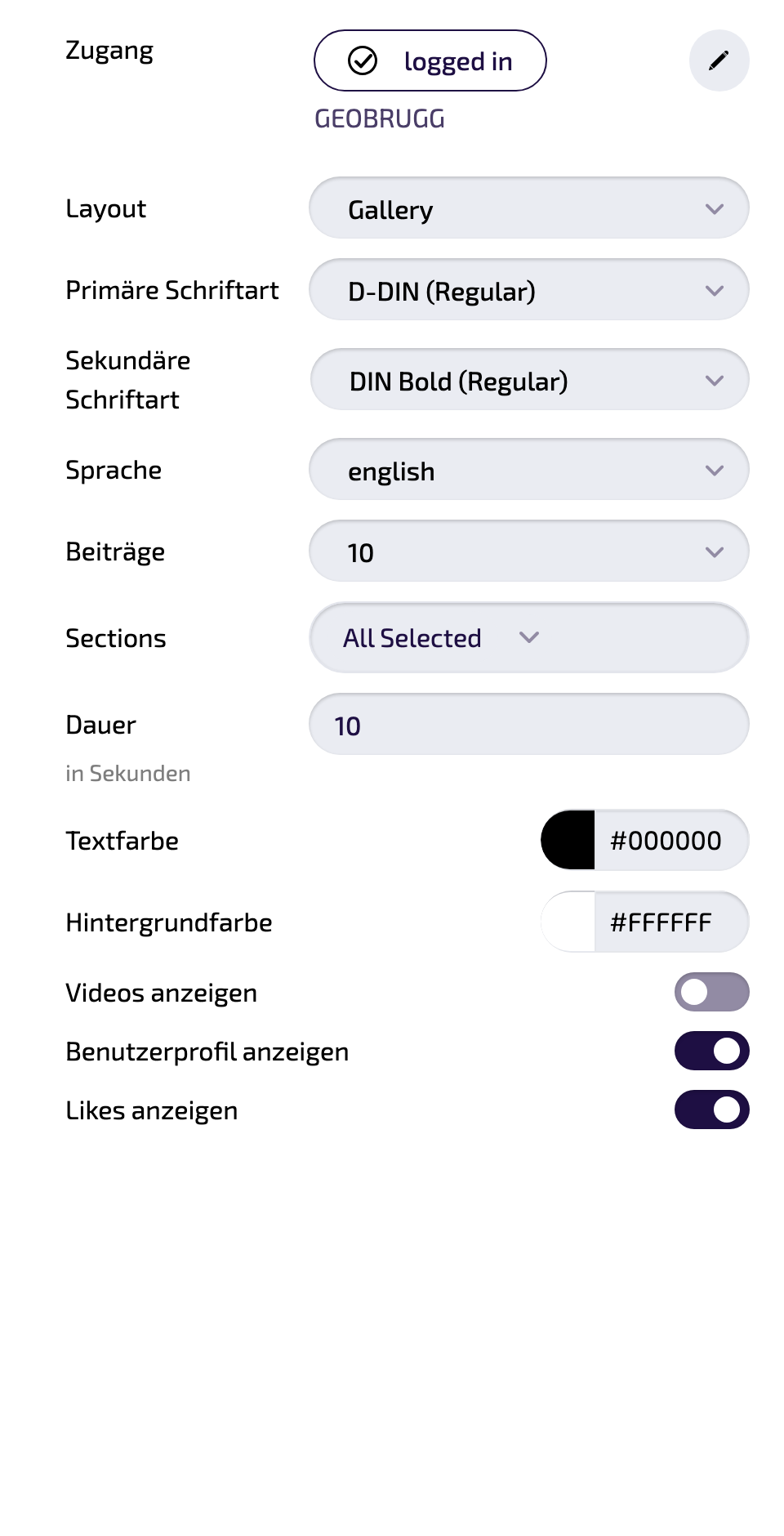
The settings in the left area – field by field:
- Access: connected Flockler account (status logged in).
- Layout: arrangement/template of the display (e.g. Gallery).
- Primary / Secondary font: fonts for titles and body text.
- Language: display language of the content.
- Posts: number of posts shown.
- Sections: which Flockler sections are shown (e.g. All Selected).
- Duration (in seconds): display time per post.
- Text / Background color: board colors (color picker).
- Show videos: show/hide video posts.
- Show user profile / likes: show/hide profile or like count.
Display duration in Playlist & Layout
Flockler shows multiple posts in sequence per instance. If you add the instance to a Playlist or a Layout, you control how long it runs via the element duration. To do this, click the Dauer (Duration) of the app element in the playlist.
Note: This logic applies to all apps with multiple posts per instance.
In the Elementdauer bearbeiten (Edit element duration) dialog, the pro Post (per post) switch determines two variants:
Variant 1: pro Post (per post) = OFF (total duration)
The set time is the total duration of the instance. Example 00:01:40 (100 seconds): The instance is shown for 100 seconds. The posts cycle through in order during this time and start over from the beginning if needed – so depending on the time, not all posts are necessarily shown (or some are shown multiple times).
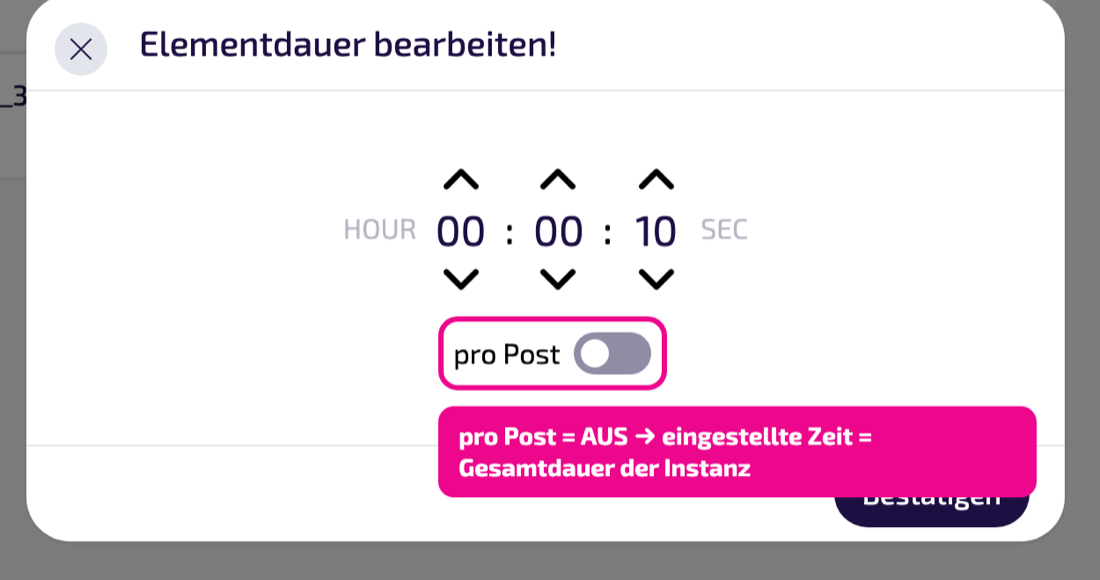
Variant 2: pro Post (per post) = ON (duration per post)
The set time applies per post. Example 00:00:10: Each post is shown for exactly 10 seconds. With 12 posts, all 12 posts are shown for 10 seconds each (total duration 120 seconds). This ensures that every post really appears.
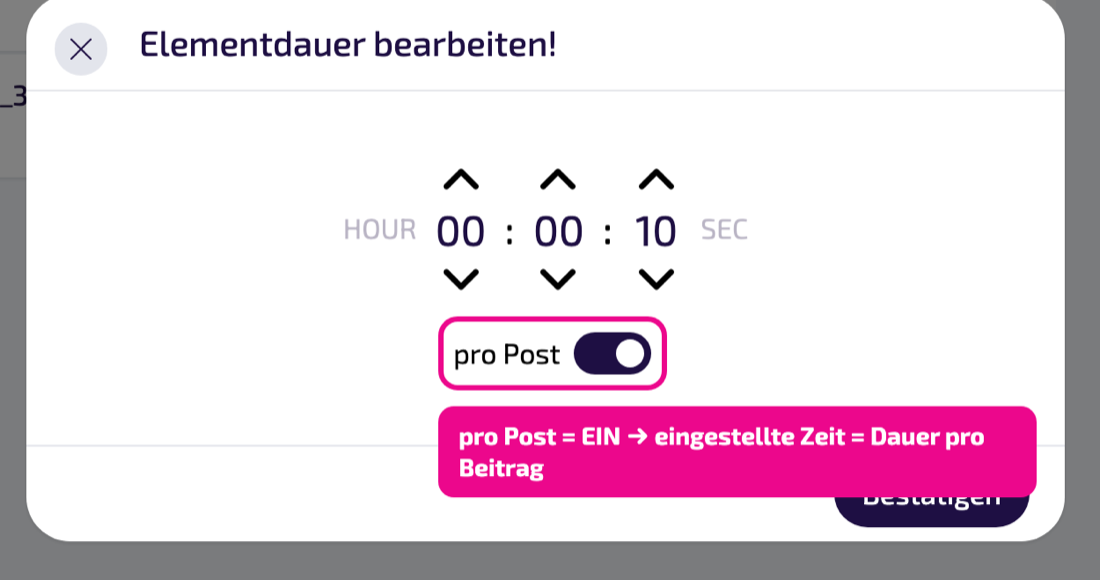
Should every post appear reliably? Turn on per post and set seconds per post. Fixed timing (e.g. for the timing of a Playlist)? Leave per post off and set the total duration.
Save & play out on the screen
- Name the instance and configure it as desired.
- Save at the top right with Speichern & Schliessen (Save & Close).
- The instance is now available under the app.
- Assign it to your Screen – directly as content or embedded in a Layout or a Playlist.
- On the next sync, the content appears on the display and updates automatically.
Tips & troubleshooting
No content
Connect Flockler via einloggen (log in) and select Sections.
Too many posts
Limit via Beiträge (posts).
Hard to read
Ensure sufficient contrast between text and background color.
Content does not appear
Check whether the instance is assigned to the correct Screen/Layout and the Player is online.