Abacus
With the «Abacus» app, you pull personnel data from your Abacus software directly onto your screens, e.g. welcoming new employees or birthdays. The content is generated automatically from Abacus, without duplicate maintenance.
Purpose
Welcome new colleagues and celebrate birthdays without designing every slide by hand: revolutionSCREEN reads the data from Abacus and displays it in the chosen layout with photo, name and date. Using the date range you decide how far in advance entries appear.
We create the layouts individually according to your wishes, matching your corporate design. To arrange this, contact revolutionSCREEN support.
Requirements
- An active revolutionSCREEN account with access to my.rstv.app.
- An Abacus installation that is reachable over the internet, and access to the Abacus user management (usually through your Abacus administrator or partner).
- An Abacus service user with access to the REST API, see «Setting up Abacus access».
- At least one configured screen.
Setting up Abacus access
revolutionSCREEN accesses the data via the Abacus REST API. For this, Abacus requires its own service user. It can only log in through the interfaces, not in the Abacus UI, and is identified by a Client ID and a Client Secret (client key).
- In Abacus, open the user management (program 981) or the Abacus API connections (program 910).
- Create a new service user and choose a user-independent connection.
- Assign the service user the necessary API permissions (scopes) for the personnel data and select the client.
- Copy the Client ID and Client Secret immediately and store them securely.
- Service users created in program 910 must be approved once by Abacus, usually by email. If approval is not given within 21 days, the access is deactivated.
Abacus shows the Client Secret only right after creation. If it is lost, use «Passwort ändern» (change password) in the user management to generate a new one and re-register the instance with it.
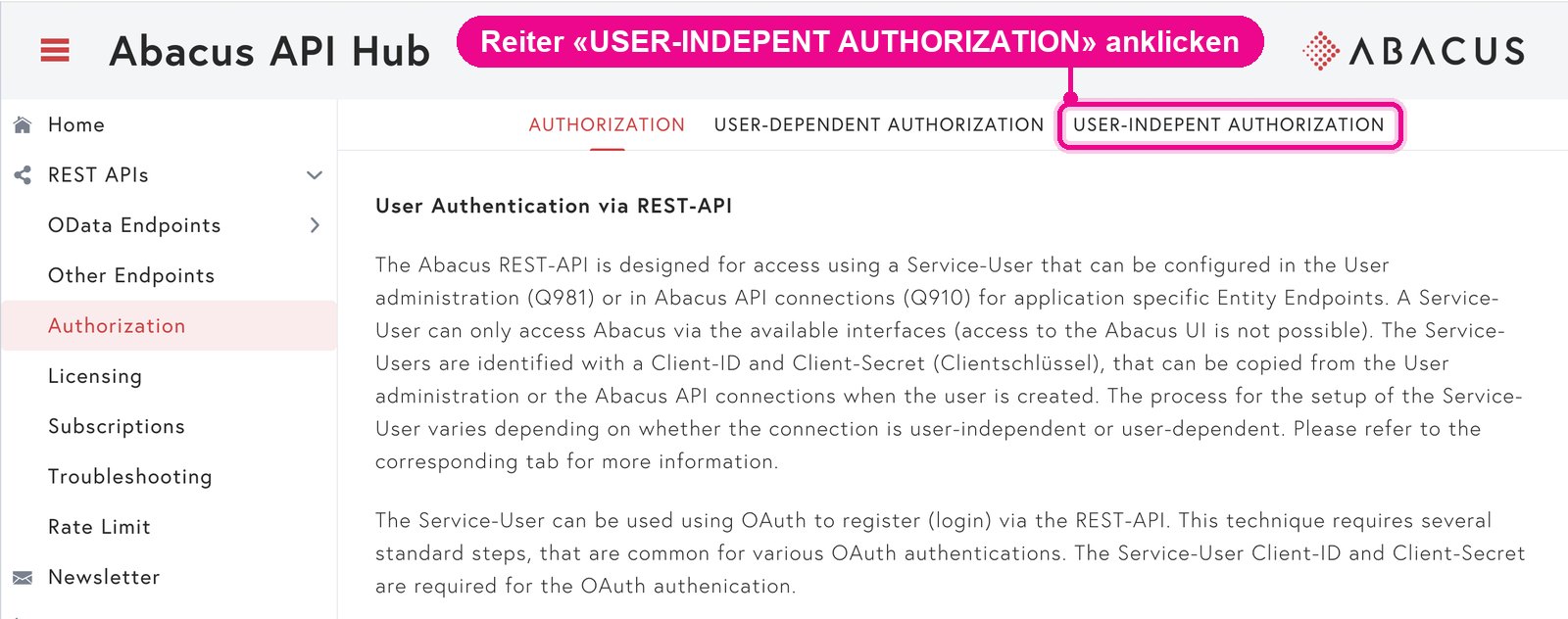
You'll find the complete technical guide from Abacus, including videos on setting up the service user, in the Abacus API Hub › Authorization. For revolutionSCREEN you need the user-independent connection: click the «USER-INDEPENT AUTHORIZATION» tab at the top there.
Install app
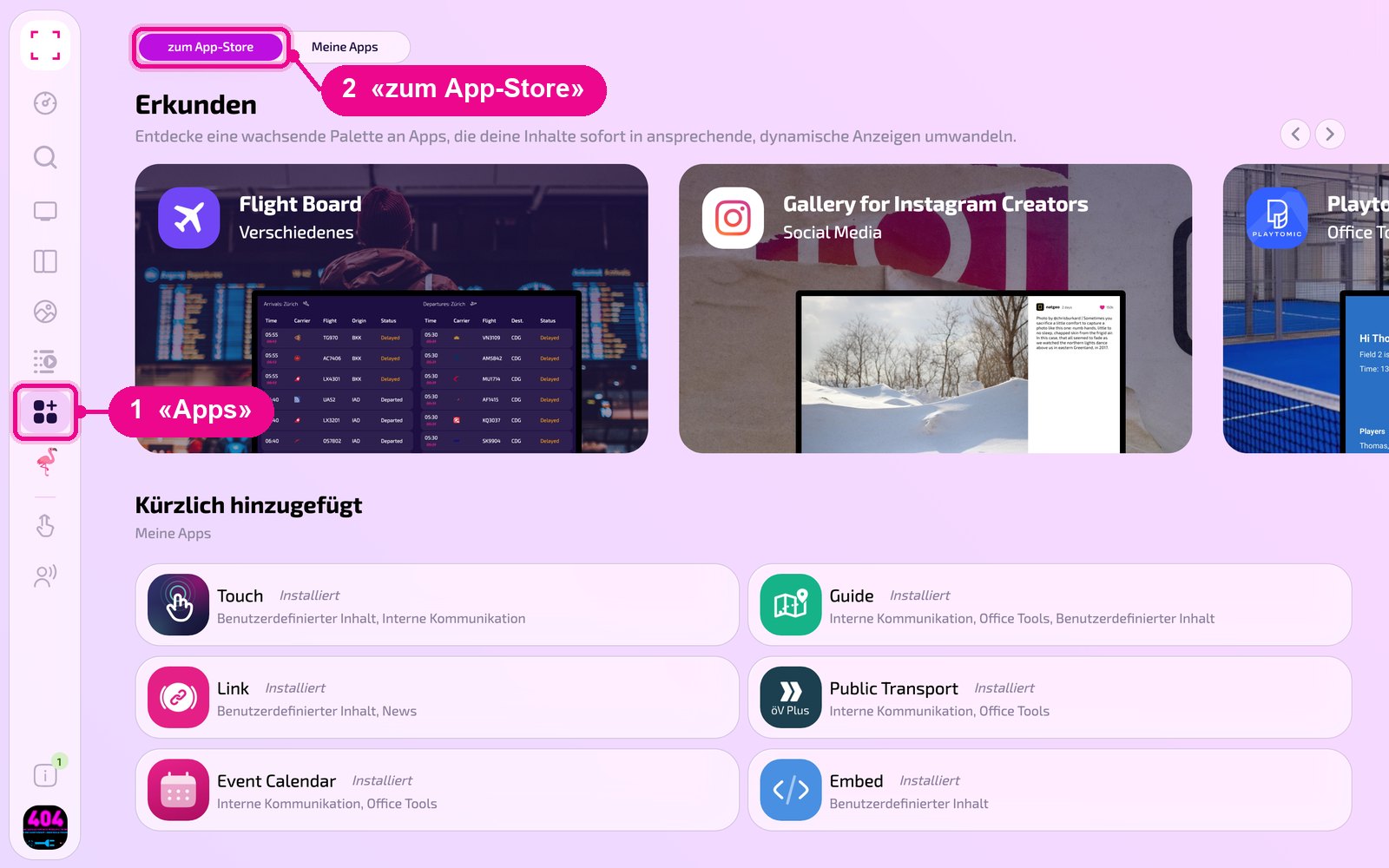
In the sidebar on the left, click «Apps» and at the top click «zum App-Store» (to the Appstore).
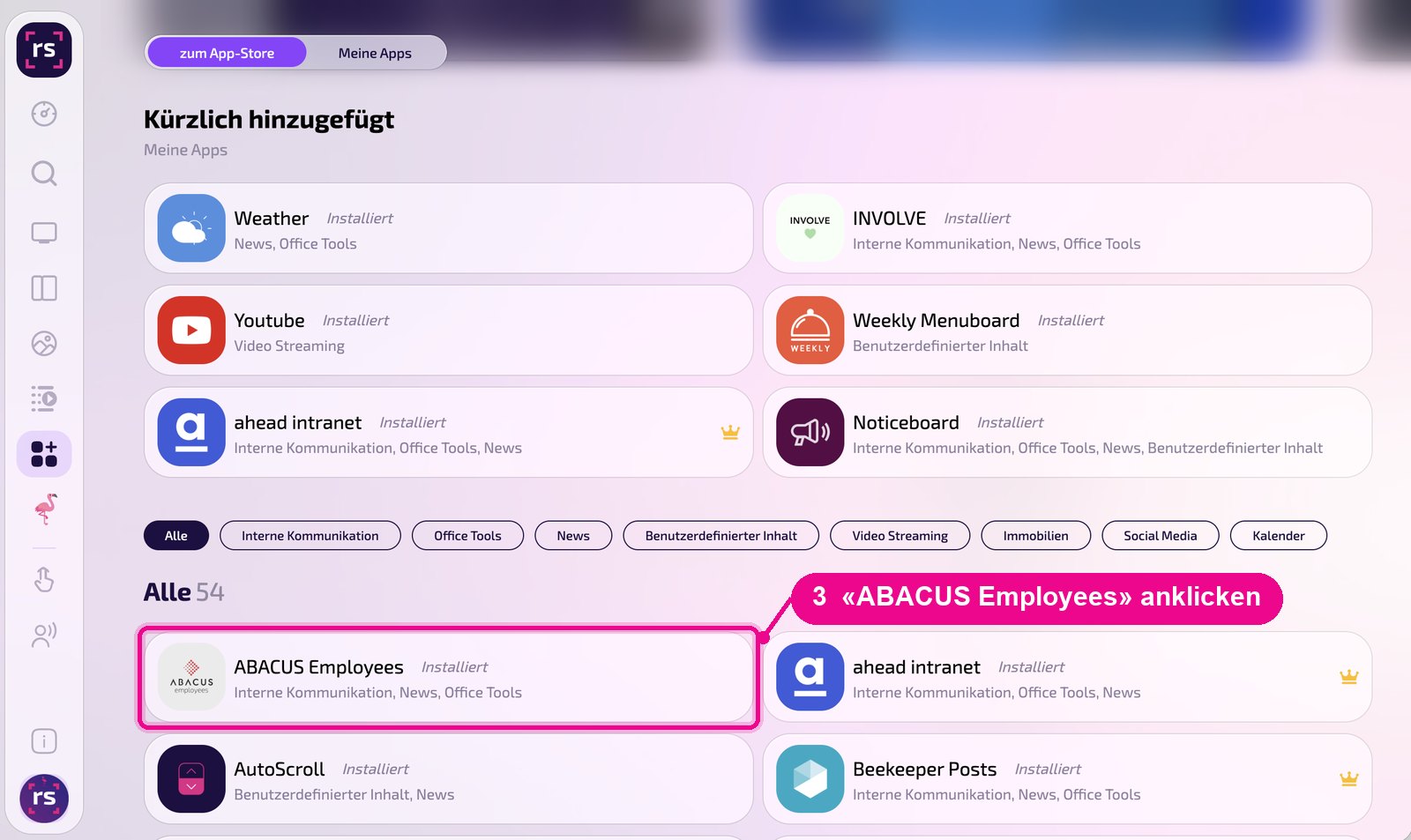
Scroll to the «Alle» (All) list and click the «ABACUS Employees» tile. Use the category buttons to narrow down the list.
The app's detail view opens. If it's not yet installed, first click «Installiere» (Install). Then click «Neue Instanz» (New instance). «App Guide» opens a short guide.
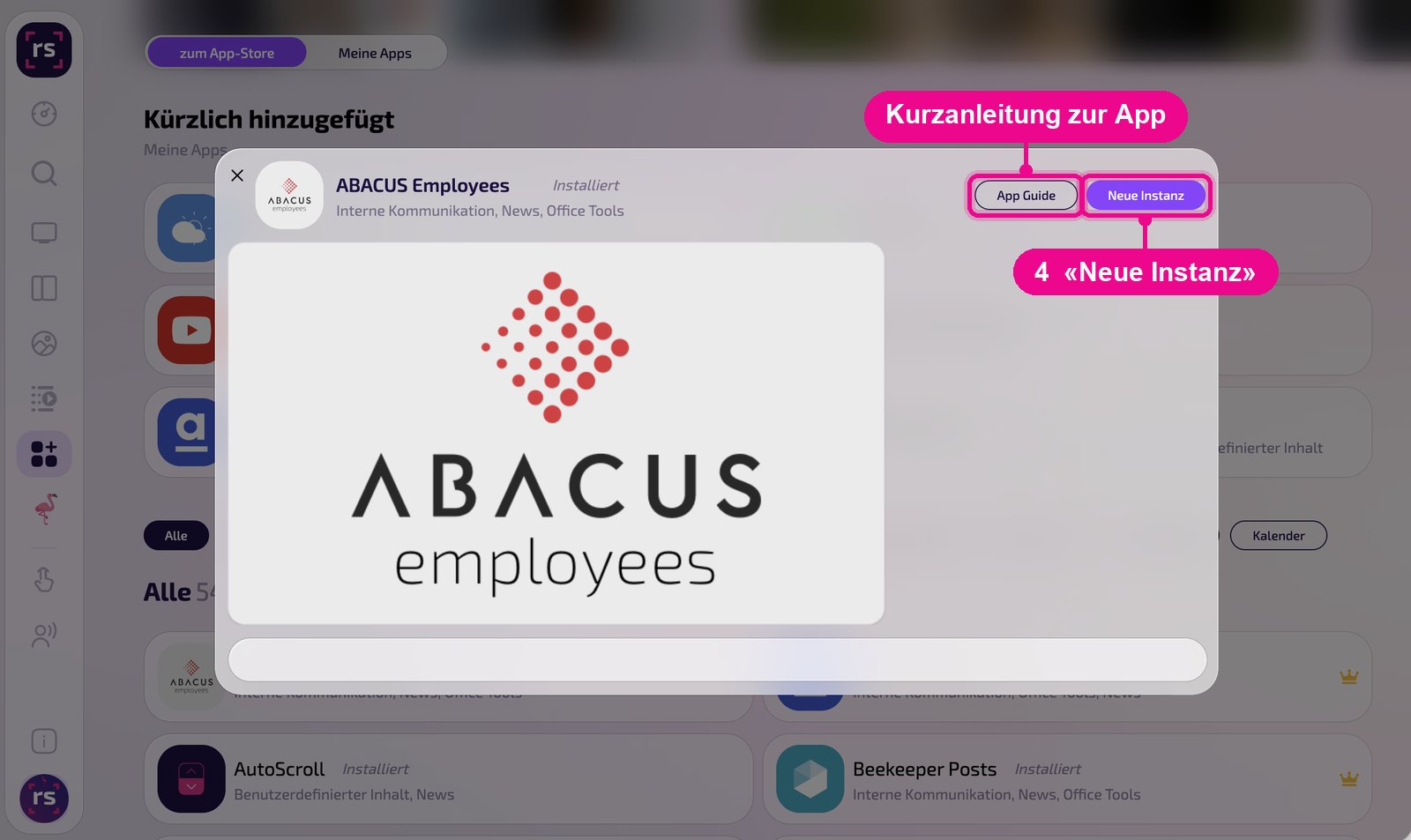
An instance is a separate configuration of the app, e.g. one gallery for reception and another for the cafeteria. You can create as many instances as you like and use each one individually on Screens, in Playlists or Layouts.
Create a new instance
Under «Apps › Meine Apps» (My Apps) you'll see all instances of the app as tiles. Use «Neue Instanz» (New instance) at the top right to add another one, and click a tile to open an existing one.
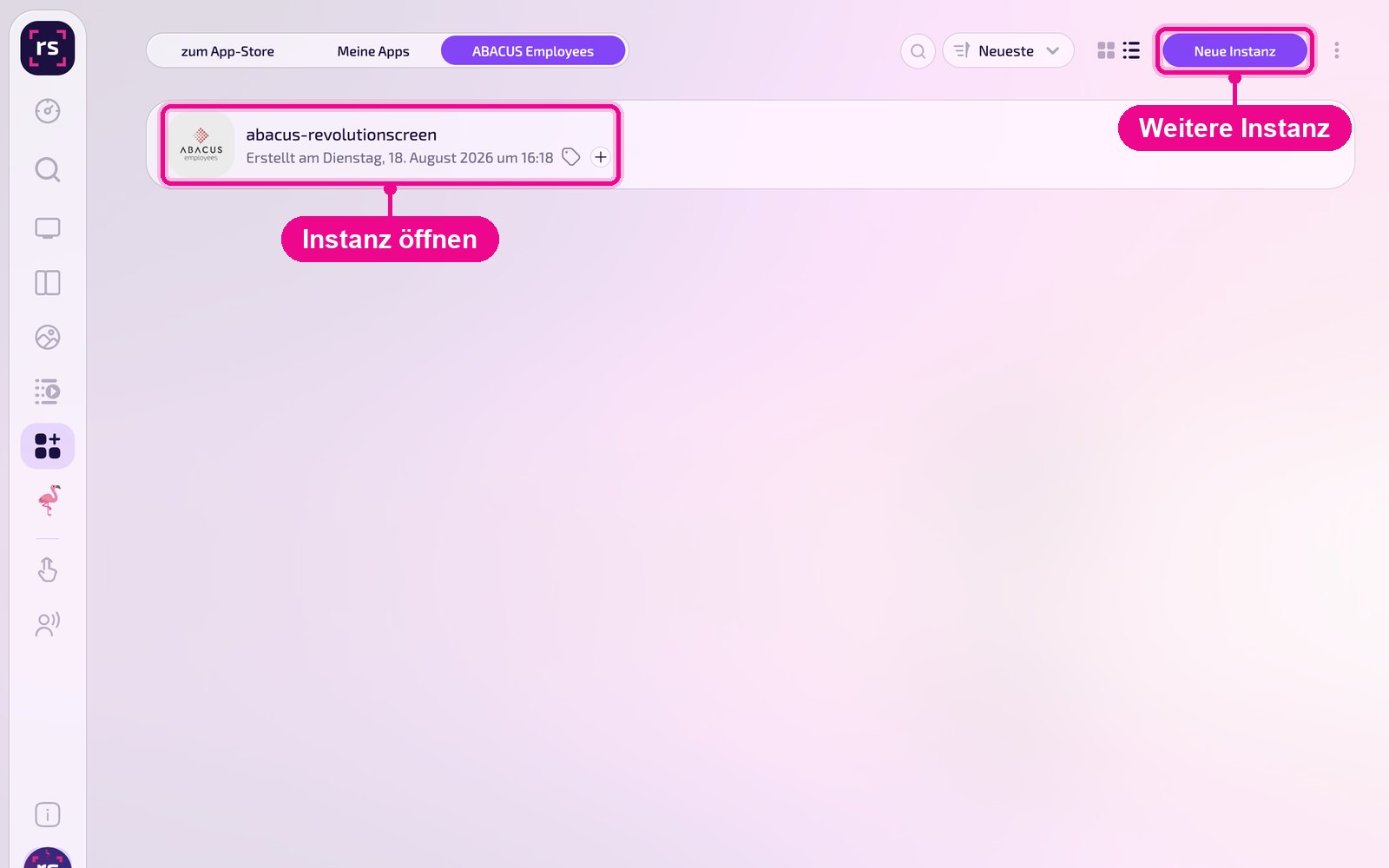
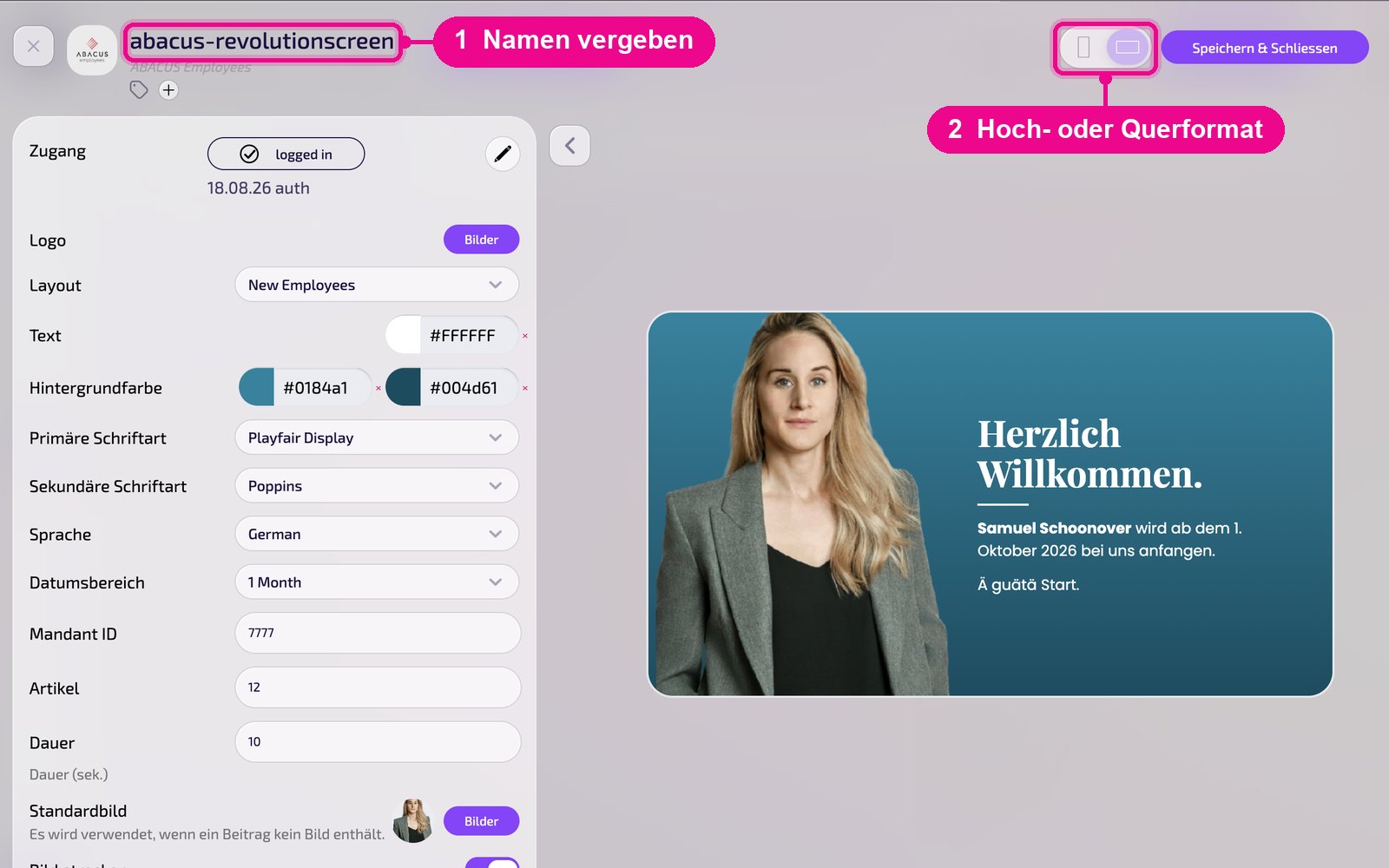
In the editor, hover over the title and click the pencil to give the instance a name. A new instance shows «Kein Name angegeben» (No name given) in red until then. At the top right you choose whether the preview appears in portrait or landscape format.
Connect account
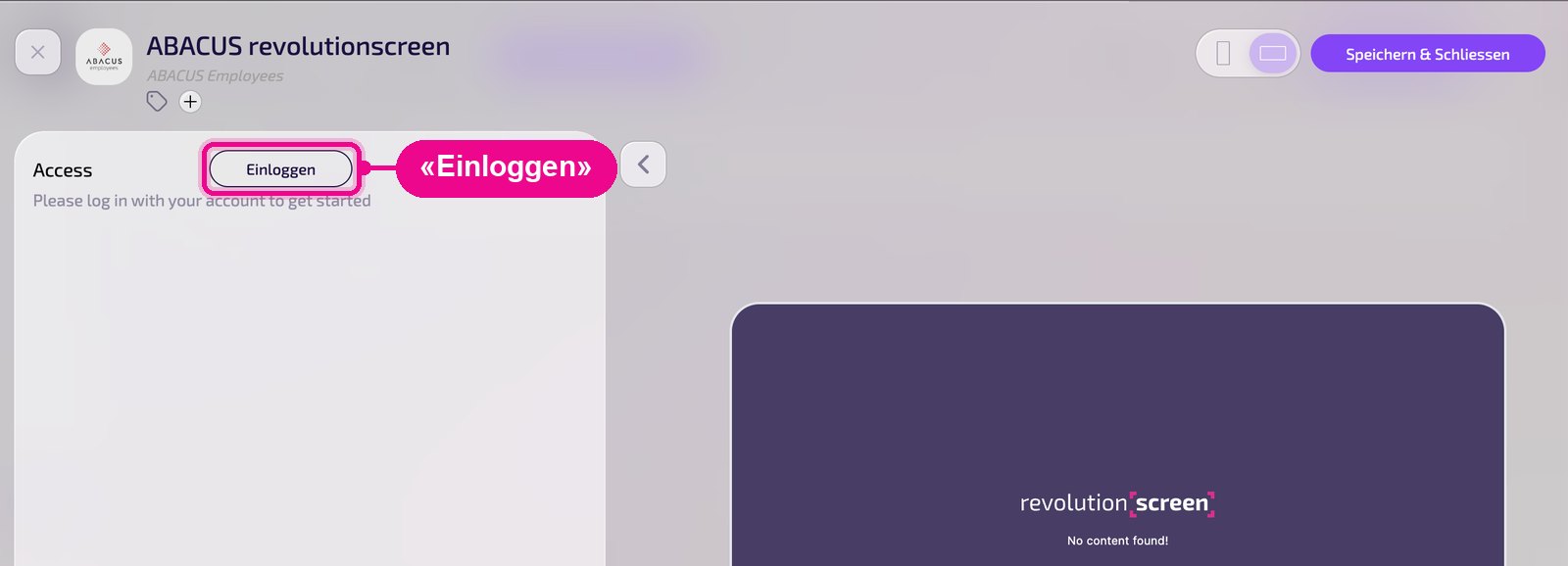
At the very top of the settings it says «Access» or «Zugang». For a new instance, click «Einloggen» (Log in).
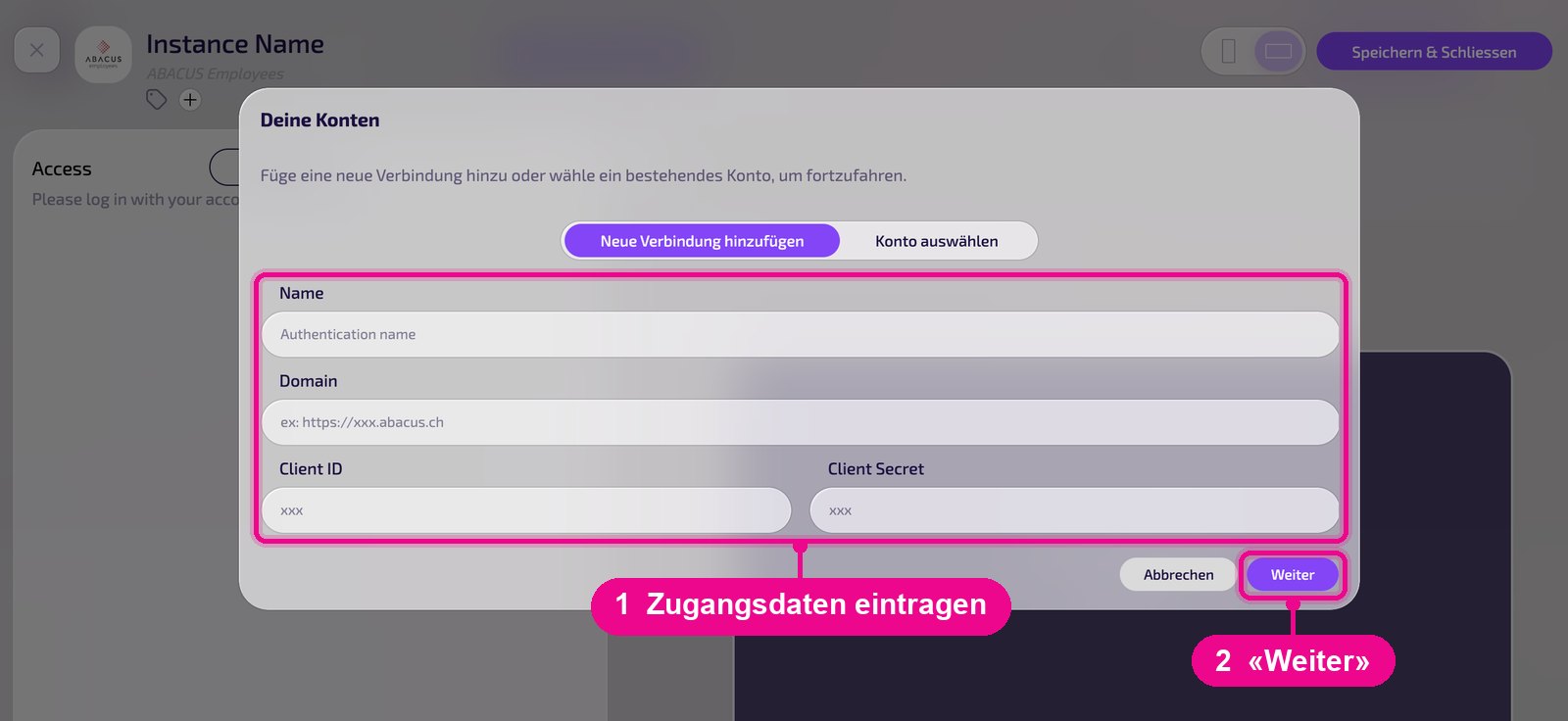
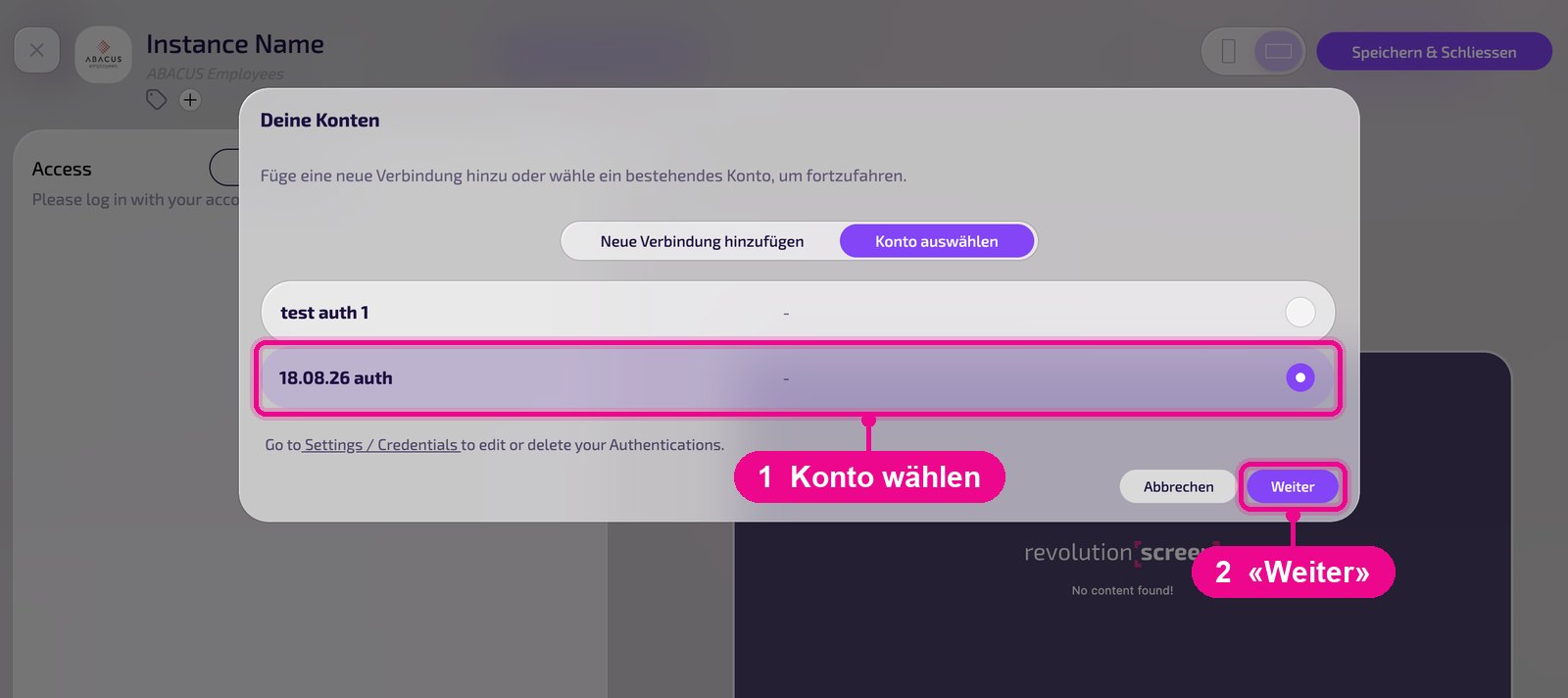
The «Deine Konten» (Your accounts) window opens. The first time, choose «Neue Verbindung hinzufügen» (Add new connection) and fill in these fields:
- Name: a freely chosen label for this access, e.g. «Abacus Personal». You'll find it again under this name later.
- Domain: the address of your Abacus installation, e.g. https://xxx.abacus.ch.
- Client ID and Client Secret: the service user's credentials from «Set up Abacus access».
With «Weiter» (Next) the connection is saved and linked to the instance.
If you have already set up an access, e.g. for another instance, choose the desired account in the «Konto auswählen» (Select account) tab and click «Weiter» (Next). You can edit or delete saved accesses under «Settings / Credentials».
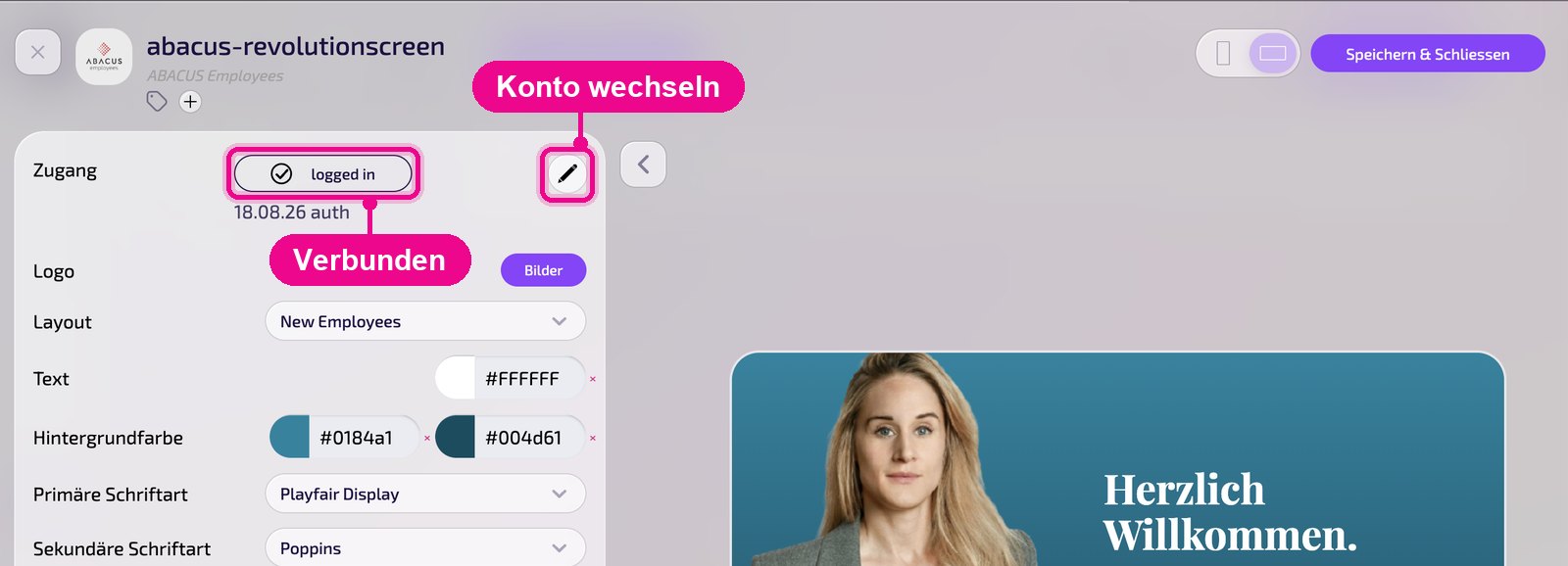
When the connection is active, it says «logged in» with the name of the access. Use the pencil on the right to switch to a different access.
If the preview stays empty after logging in («No content found!»), check the «Mandant ID», the «Datumsbereich» (Date range) and whether the service user is approved in Abacus and has the necessary permissions.
Configuration in detail
On the left are all the settings; on the right you immediately see in the live preview how the instance looks on the screen. Use the arrow next to the card to collapse the settings.
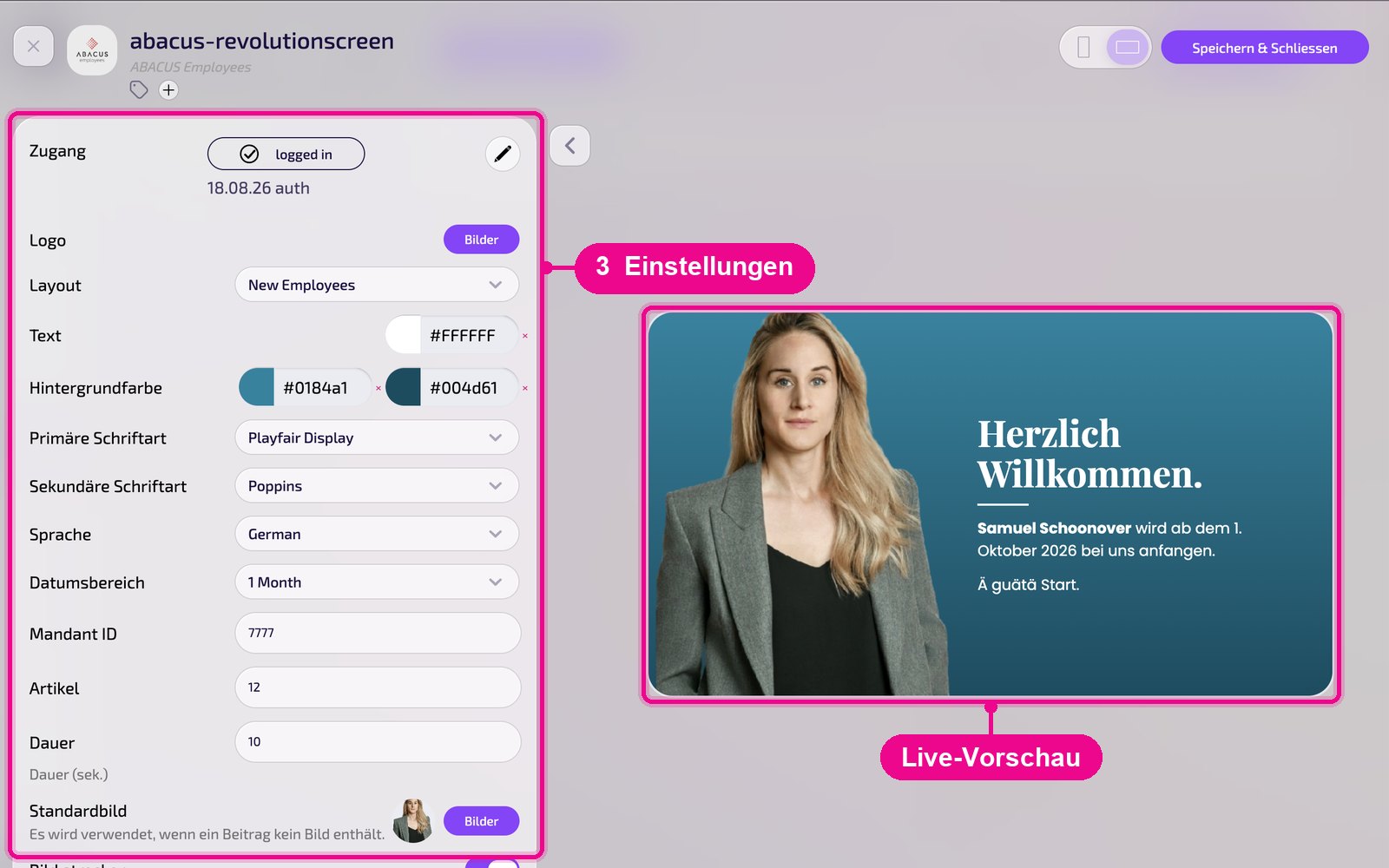
- Zugang (Access): connected Abacus service user (status «logged in»).
- Logo: select your own logo via «Bilder» (Images).
- Layout: type and structure of the display, e.g. «New Employees» for new staff or a birthday layout. The layouts are created individually according to customer requirements.
- Text / background color: colors for text and background, with two colors for a gradient on the background. Use × to reset a color.
- Primary / Secondary font: fonts for titles and text.
- Language: language of the fixed texts on the screen, e.g. «Herzlich Willkommen» (Welcome).
- Datumsbereich (Date range): period from which entries are shown, e.g. «1 Month».
- Mandant ID: number of the Abacus tenant the data comes from.
- Artikel (Items): number of entries displayed.
- Dauer (Duration): display time per entry in seconds.
- Standardbild (Default image): replacement image when an entry has no photo of its own.
- Bild strecken (Stretch image): fills the image area completely; images may be cropped in the process.
Save & play out on the screen
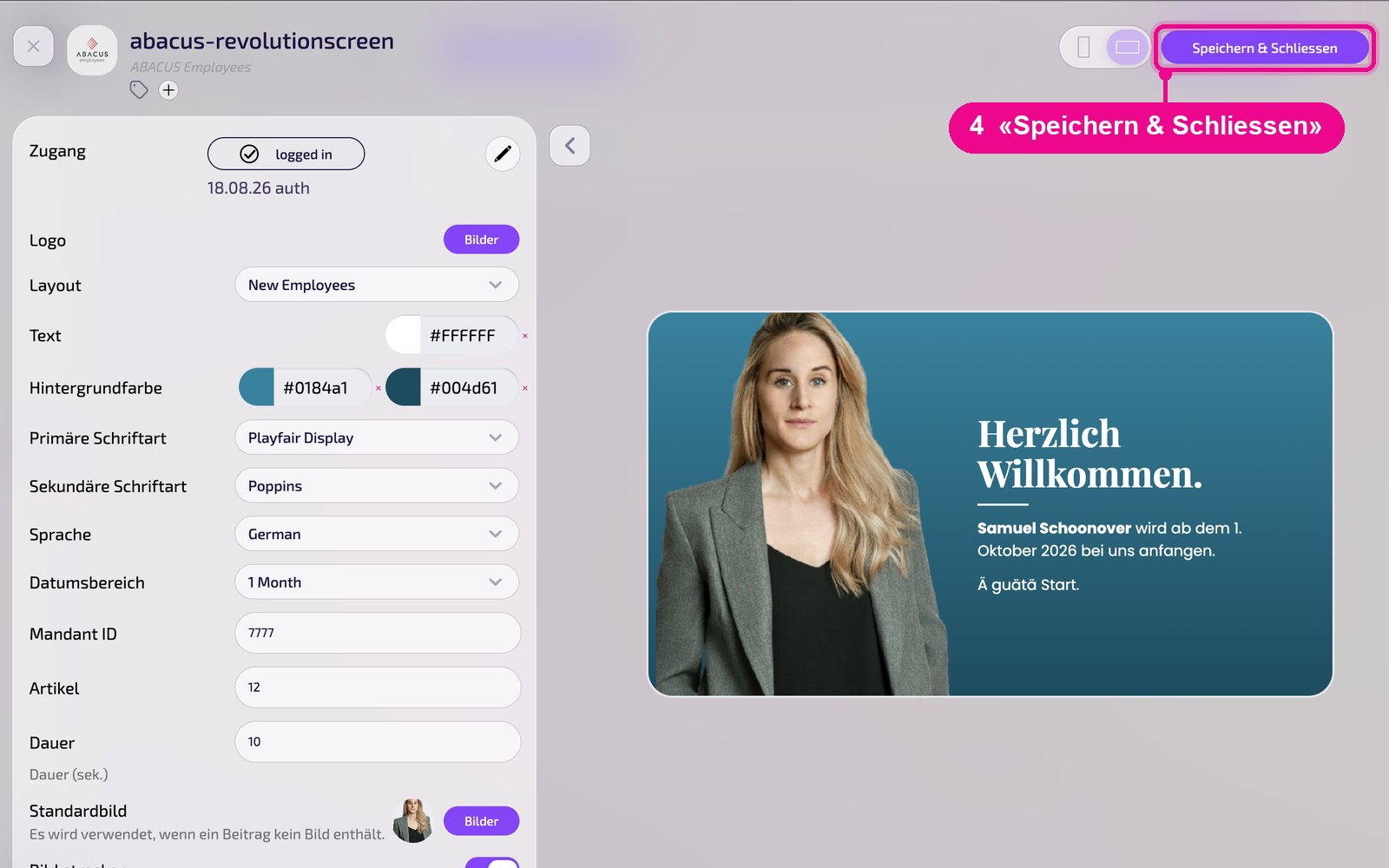
Save the instance at the top right with «Speichern & Schliessen» (Save & close).
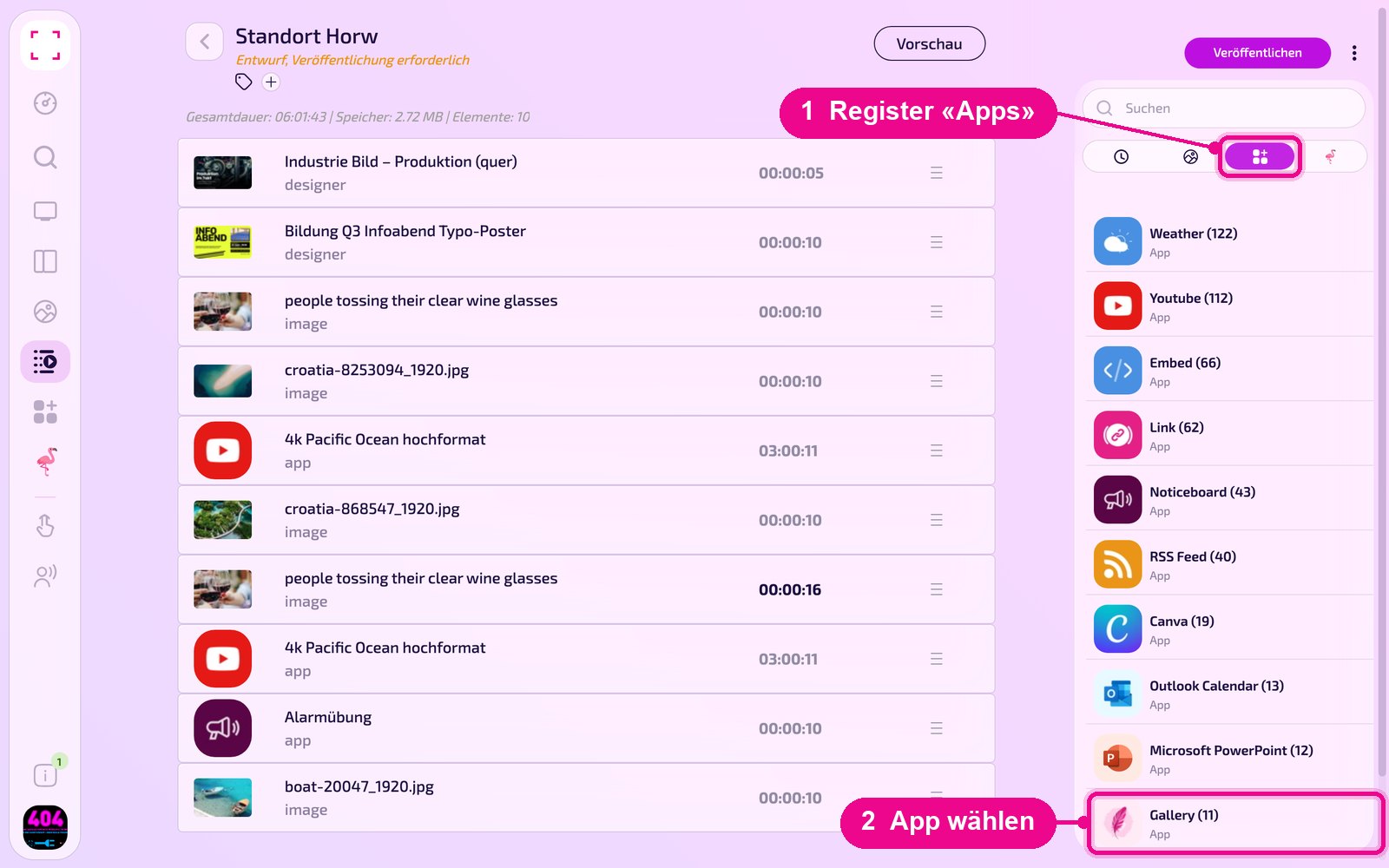
Add to a Playlist: open the Playlist, select the «Apps» tab on the right, click the app and then the instance. The instance is added immediately.
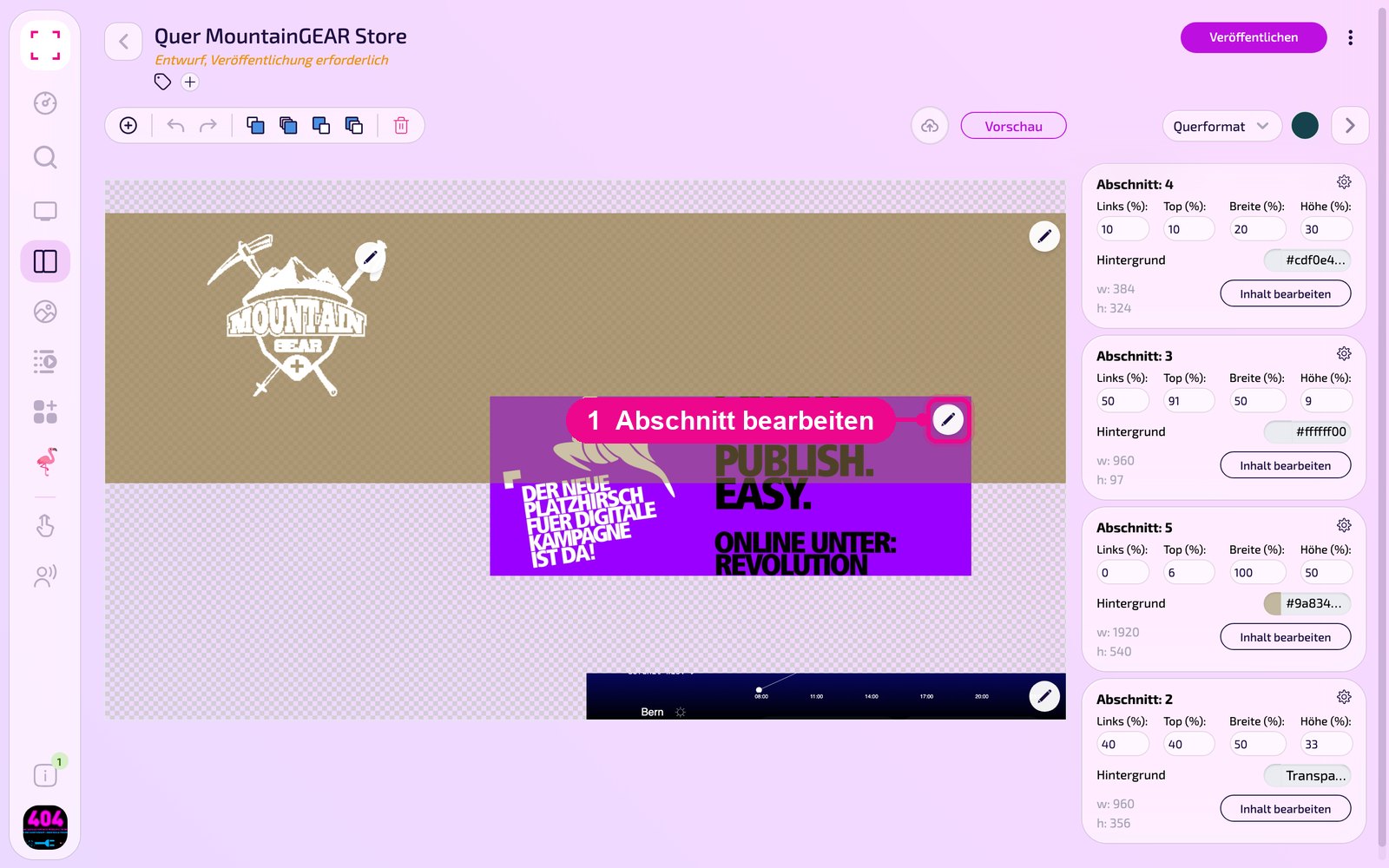
Add to a Layout: open the Layout and click the pencil on the desired section.
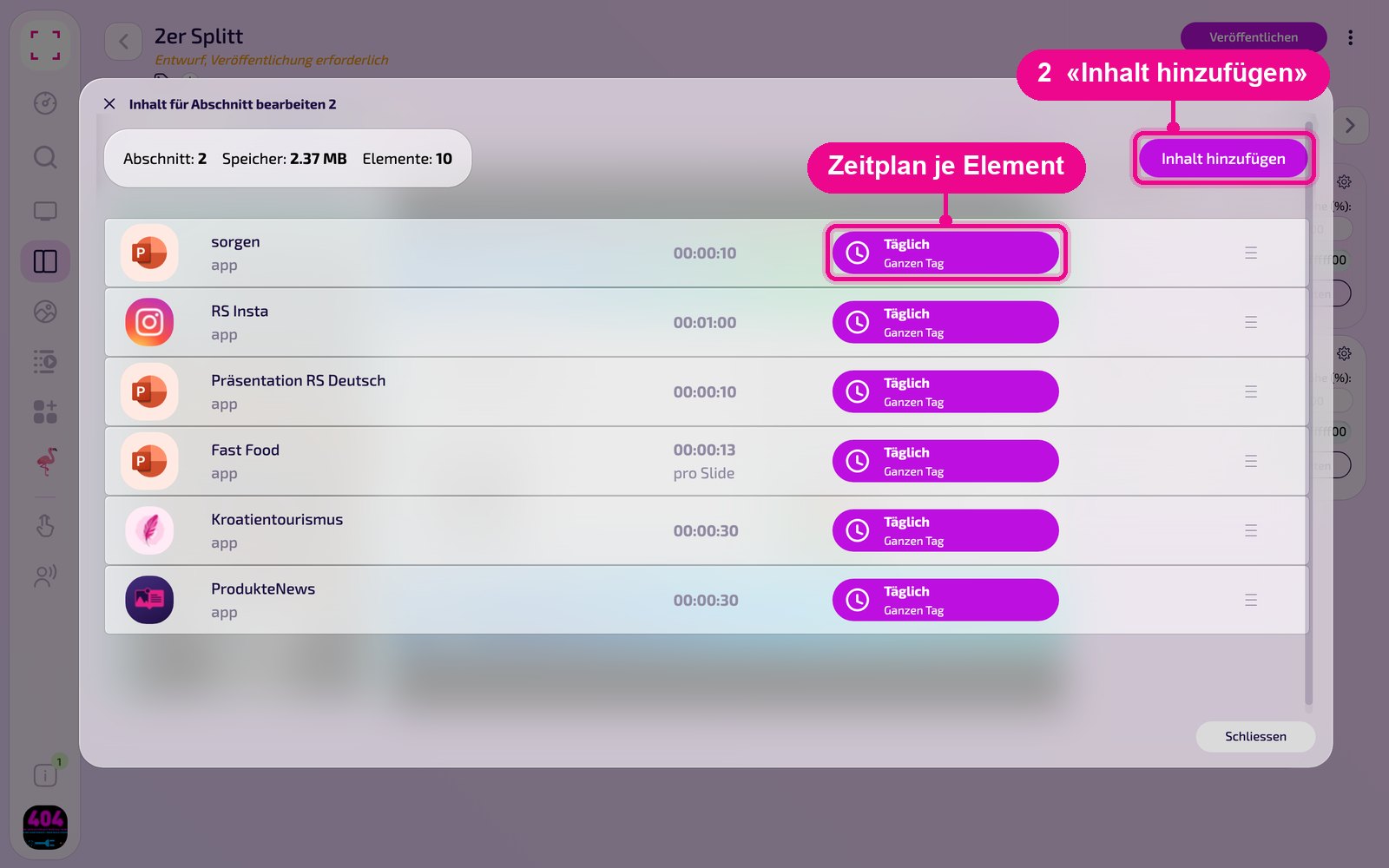
In the «Inhalt für Abschnitt bearbeiten» (Edit content for section) window, use «Inhalt hinzufügen» (Add content) to add the instance. On the right of each element, use «Täglich» (Daily) to set the schedule.
Then click «Veröffentlichen» (Publish) in the Playlist or Layout. As long as it says «Entwurf, Veröffentlichung erforderlich» (Draft, publishing required), the screen still shows the old state.
Display duration in Playlist & Layout
Abacus shows several posts per instance one after another. When you add the instance to a Playlist or Layout, you set how long it runs via the element duration. To do this, click the element's duration. This logic applies to all apps with multiple posts per instance.
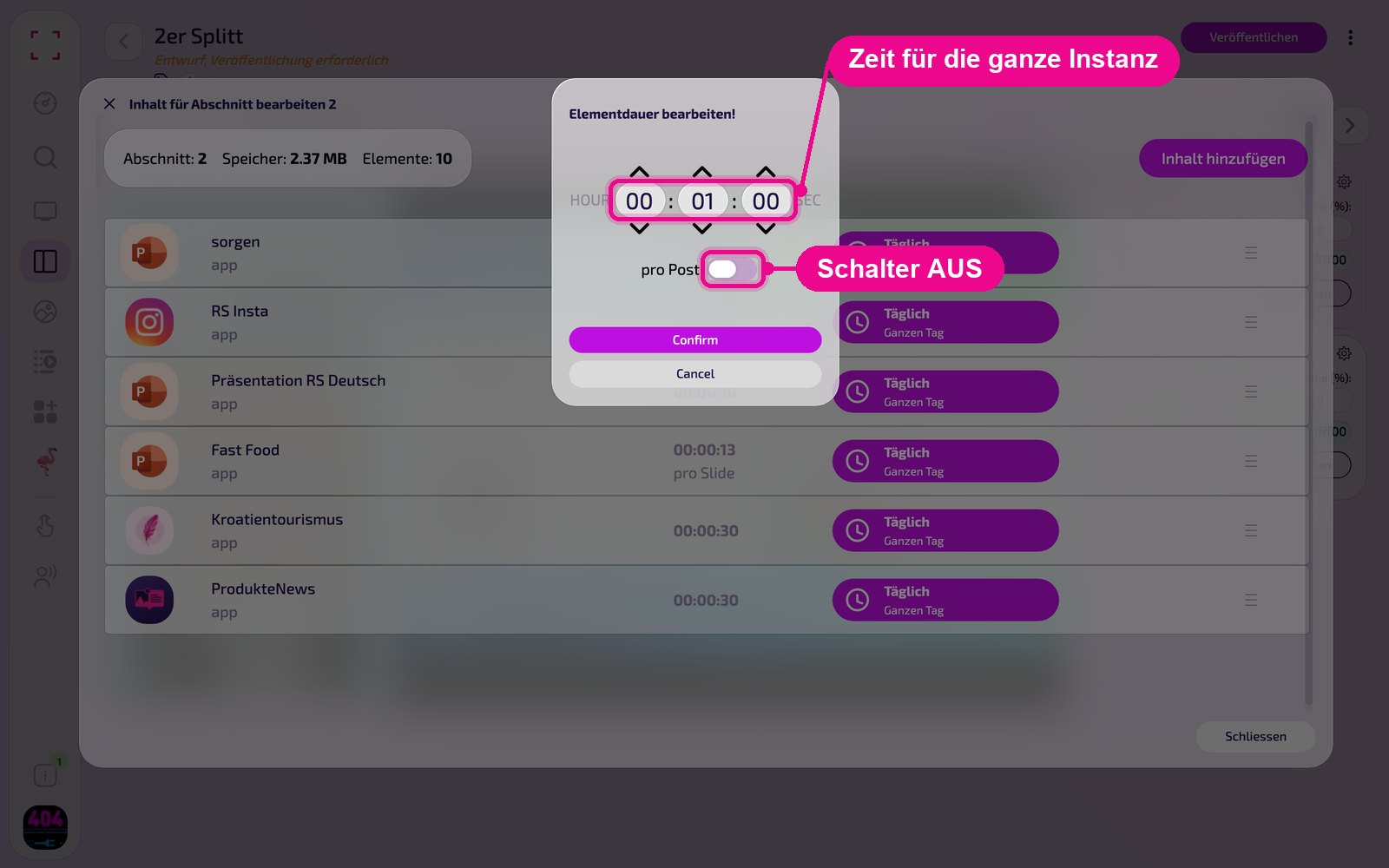
In the «Elementdauer bearbeiten!» (Edit element duration) window, the toggle decides between two variants. It's usually called «pro Post» (per post), and «pro Slide» (per slide) for presentations. Use «Confirm» to apply the setting.
Variant 1: toggle OFF (total duration)
The set time applies to the entire instance. Example 00:01:00: the instance runs for one minute. During this time the posts rotate in order and, if needed, start again from the beginning. So not necessarily all posts appear.
Variant 2: toggle ON (duration per post)
The set time applies to each post. Example 00:00:10 with 12 posts: each post appears for exactly 10 seconds, and the instance runs for 2 minutes in total. The list then shows «pro Post» (per post) or «pro Slide» (per slide) under the duration.
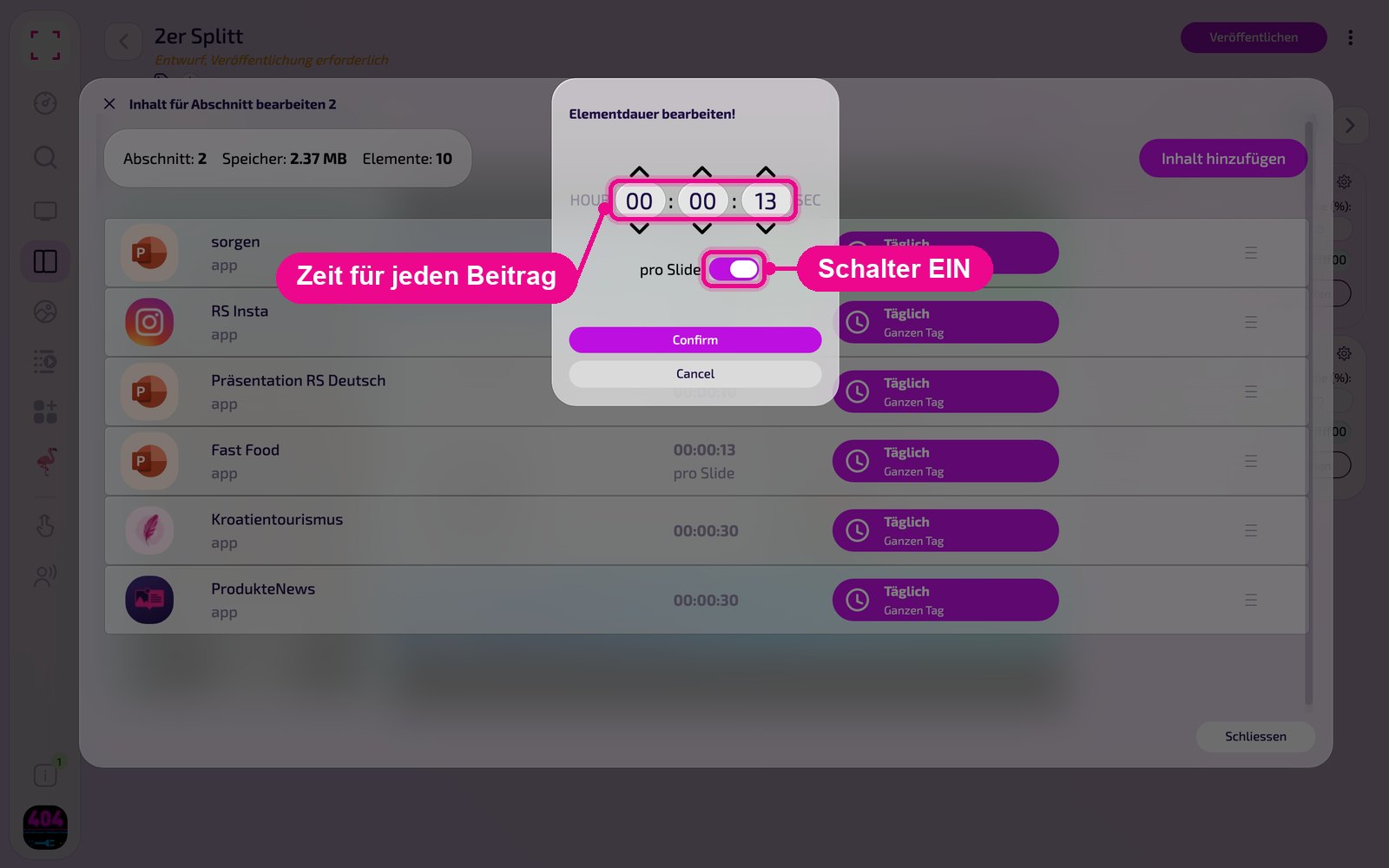
If you want to be sure all posts appear, turn on «pro Post» (per post). If the instance should take up exactly a fixed time, leave the toggle off.
Tips & troubleshooting
Preview stays empty
Log in under «Zugang» (Access) and check the «Mandant ID» and «Datumsbereich» (Date range). If there are no entries in the period, the display stays empty.
Login fails
Check the domain, Client ID and Client Secret. Is the service user approved in Abacus and does it have the necessary permissions?
Custom layout required
Layouts are created individually according to your wishes. Contact revolutionSCREEN support.
Entry without a photo
Set a «Standardbild» (default image).
Not all entries appear
In the Playlist or Layout, set the element duration to «pro Post» (per post), see «Anzeigedauer in Playlist & Layout».