Reseller
As a reseller, you manage not only your own account in the Dashboard, but also your customers' accounts. You create new customer accounts yourself and see at a glance how many screens are active, which subscription plan is running and when something last happened in the account – without having to log in to each account individually.
The reseller view only appears in accounts that are enabled for it. If the buttons described here are missing, contact your revolutionSCREEN representative.
Finding customer accounts in the Dashboard
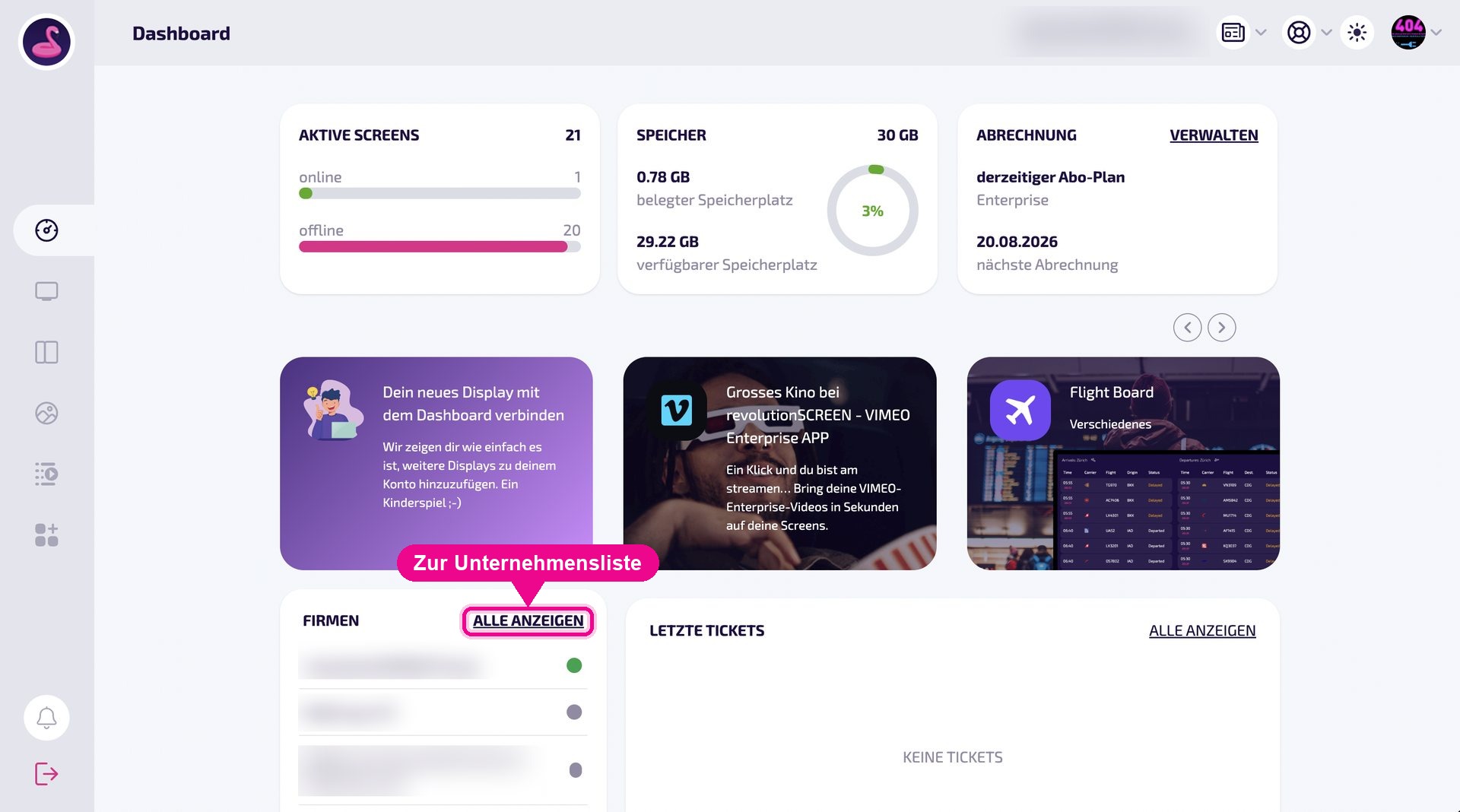
Right on the Dashboard, the Firmen (Companies) tile lists the accounts assigned to you. The dot to the right of the name shows the status of each account. Use Alle anzeigen (Show all) to get to the full overview.
The company overview
The Unternehmen (Companies) page lists all accounts with their most important metrics. Use the search field at the top to find an account directly by its name.
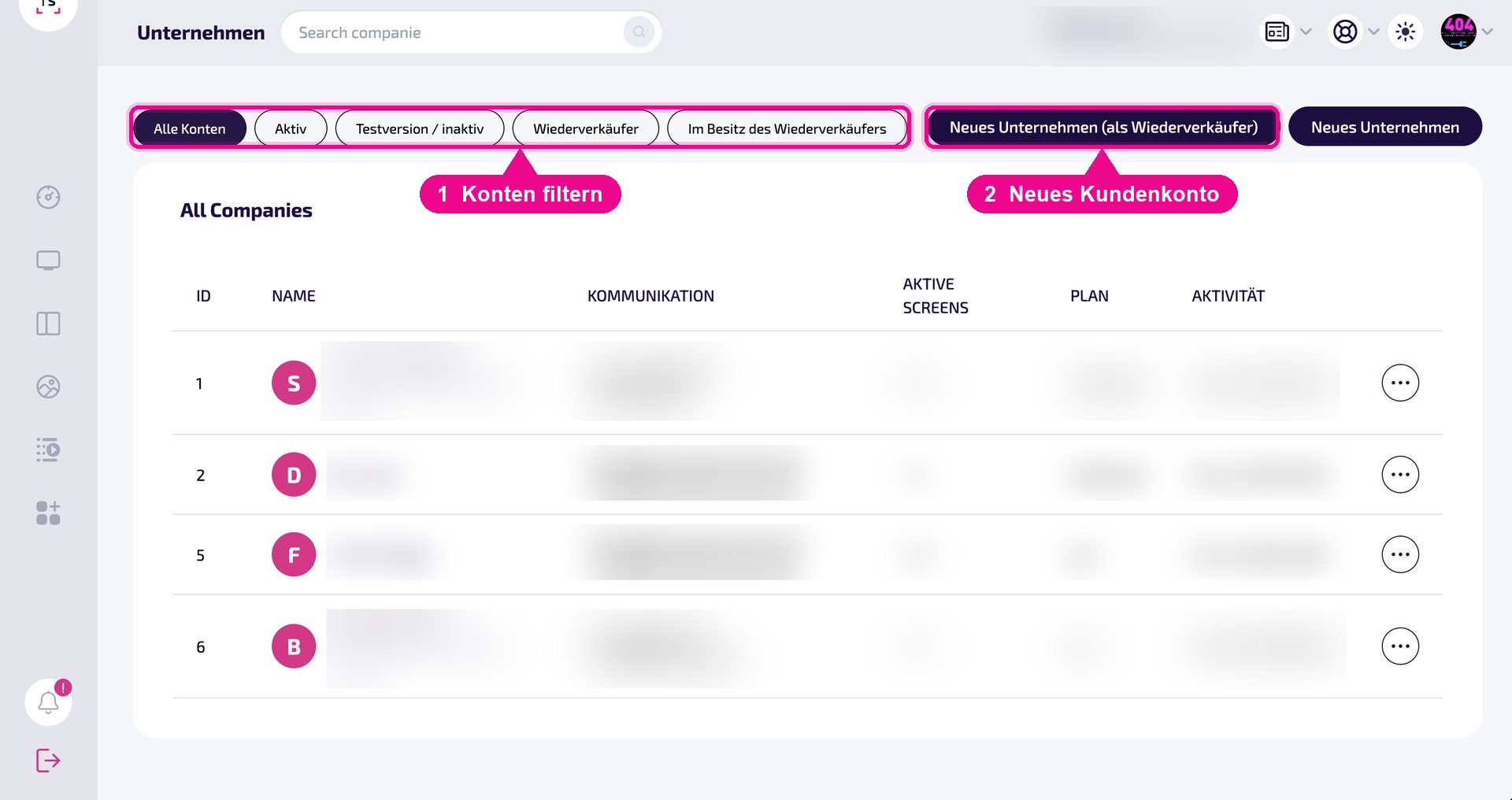
The following details are shown per account in the list:
- ID – the account's sequential number
- NAME – company name and stored address
- KOMMUNIKATION (Communication) – the contact addresses stored in the account
- AKTIVE SCREENS (Active screens) – how many screens are active in the account
- PLAN – the booked subscription plan, for example pro or enterprise
- AKTIVITÄT (Activity) – when something last happened in the account
Use the … menu at the end of a row to open the actions for that account.
Filtering accounts
The buttons above the list narrow down the display:
- Alle Konten (All accounts) – shows the list unfiltered
- Aktiv (Active) – only active accounts
- Testversion / inaktiv (Trial / inactive) – accounts in the trial phase and inactive accounts
- Wiederverkäufer (Reseller) – only accounts with reseller status
- Im Besitz des Wiederverkäufers (Owned by the reseller) – only the accounts assigned to your reseller management
Creating a new customer account
There are two buttons in the top right: Neues Unternehmen (als Wiederverkäufer) (New company (as reseller)) creates an account assigned to your reseller management. Neues Unternehmen (New company) creates a standalone account.
- Click Neues Unternehmen (als Wiederverkäufer) – the Create new reseller Company dialog opens.
- Enter the Name des Unternehmens (Company name).
- Add the Rechtsform (Legal form) and Slogan.
- Select the Industrie (Industry) and Mitarbeiter (Employees) from the two dropdown lists.
- Click Erstellen (Create).
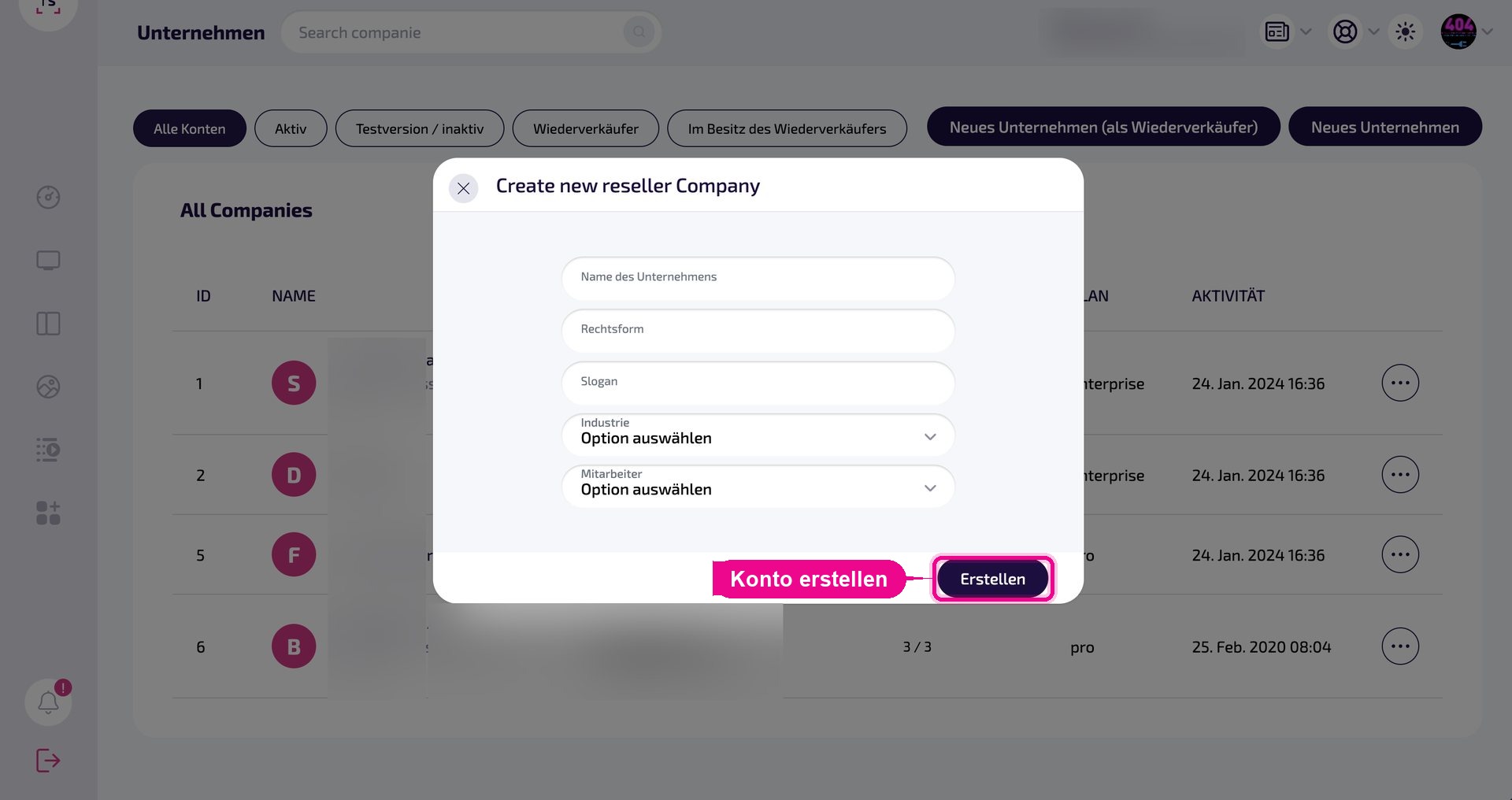
The new account then appears in the company list and can be found again at any time using the Im Besitz des Wiederverkäufers (Owned by the reseller) filter.
What comes next
You set up a newly created customer account just like any other account – invite users, pair screens, add logo and fonts. The relevant guides:
- Users and teams – assign access and roles
- Brands – add logo and CI/CD fonts
- Billing – subscription plan and invoices