Installation Tizen 4.0
Quick guide to setting up a Samsung Digital Signage display
The key data at a quick glance
URL launcher address
http://rstv.app or
https://rstv.app
RM server address:
rm.rstv.app
TLS:
Do not use
Port:
7001
Set the language
Select the language that suits you from the available options.

Display orientation
Select the correct display orientation for your display.
The display orientation selected here must match the actual orientation of the device. The ventilation and thus the cooling of the device is based on this setting. If the orientation selected here does not match that of the device, the device will be damaged.

Automatic shutdown
Select [Aus] (Off) and click Next.
Since switching the display on and off is controlled by a schedule,
this function is not needed in these settings.

Set up the network
Select your wireless network from the list of detected networks. If the network you intend to use does not appear in the list, check the following:
- Is the router switched on?
- Is the device close enough to the router/transmitter?
- Is the network actually available? (Test with other devices)
Enter the password for your wireless network
to establish a connection.
Wait until the check has been completed and the connection is established.
Wired connection
If you connect your device to the internet via an Ethernet cable, this step is not necessary. However, make sure that all cables are properly connected and that the router is connected to the internet.

Play with …
- Click the "URL Startprogramm" (URL launcher) button
- In the text field that appears, enter the following URL: http://rstv.app or https://rstv.app The spelling must match exactly. This also applies to uppercase and lowercase letters as well as all other characters such as the colon and the two slashes
- Press the right arrow button on the remote control to continue to the next menu item. You can switch between the individual menu items at any time using the left or right arrow button on the remote control, for example to correct entries you have made.


Then click the "Fertig" (Done) button and afterwards the "Weiter" (Next) button at the top right
Connect to the RM server
- Set up the Remote Management Server and click "Jetzt einrichten" (Set up now)
- In the text field that appears, enter the following address: rm.rstv.app Pay attention to all characters, including periods. The spelling must match exactly. This also applies to uppercase and lowercase letters as well as all other characters
- For the TLS option, select [nicht verwenden] (do not use).
- Set the port value to [7001]
Make sure that port 7001 is open "outbound" in your firewall. Depending on the configuration, a device-specific authorization may also be required

- Enter the following URL in the "Serveradresse" (Server address) line: rm.rstv.app
- Attention/Important: Pay attention to the correct spelling.


Device name
- Click "Weiter" (Next)

Time setting
- Set the desired time and then click "Weiter" (Next)

Complete the setup
- Click "Fertig" (Done)

Start revolutionSCREEN
- Click "Source" on the remote control

- Scroll left with the arrow button to the "URL Startprogramm" (URL launcher) button
- Start revolutionSCREEN with a click

Pair display
Screen Code
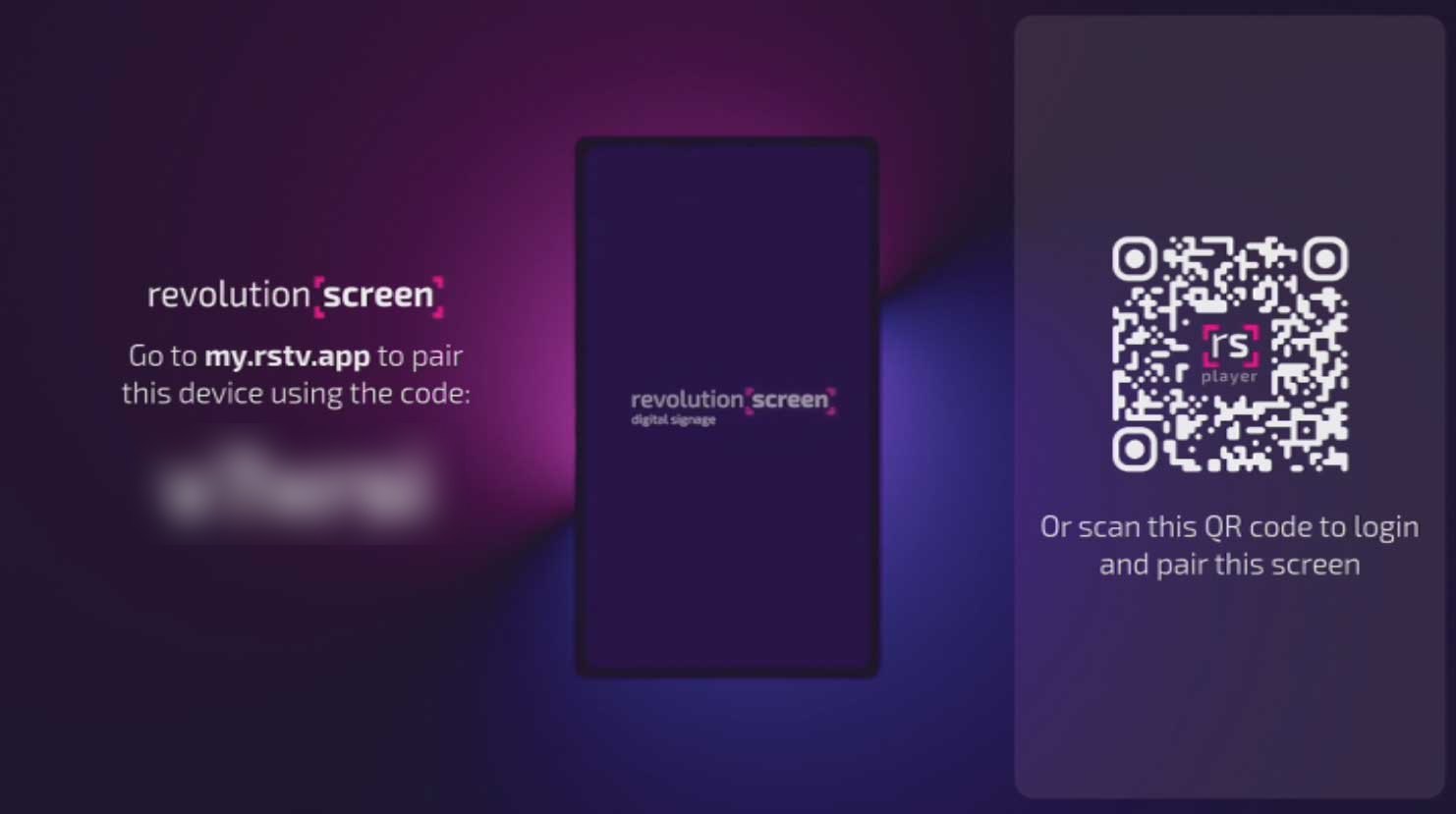
The unique 6-digit code appears on the Screen.
You have two options to pair your display.
Scan QR-Code
Scan the QR-Code with your mobile phone camera. Afterwards
the display is automatically paired to your account.
If you don't have a revolutionSCREEN account yet or aren't registered,
you'll be directed to the corresponding page.
PAIRING-Code
As an alternative, the six-digit code is available to you. Register if you don't have a revolutionSCREEN account yet. Log in
to your Dashboard and follow step 16 in this guide.
Log in
- Enter the link «my.rstv.app» in your browser.
- Log in with your email address and password.

Register (if you don't have an account yet)
- Enter the link «my.rstv.app/register» in your browser.
- Fill in all fields with your details.
- Confirm your registration with the confirmation email sent to the email address you provided.

Dashboard
- Click the [SCREEN] icon on the right,
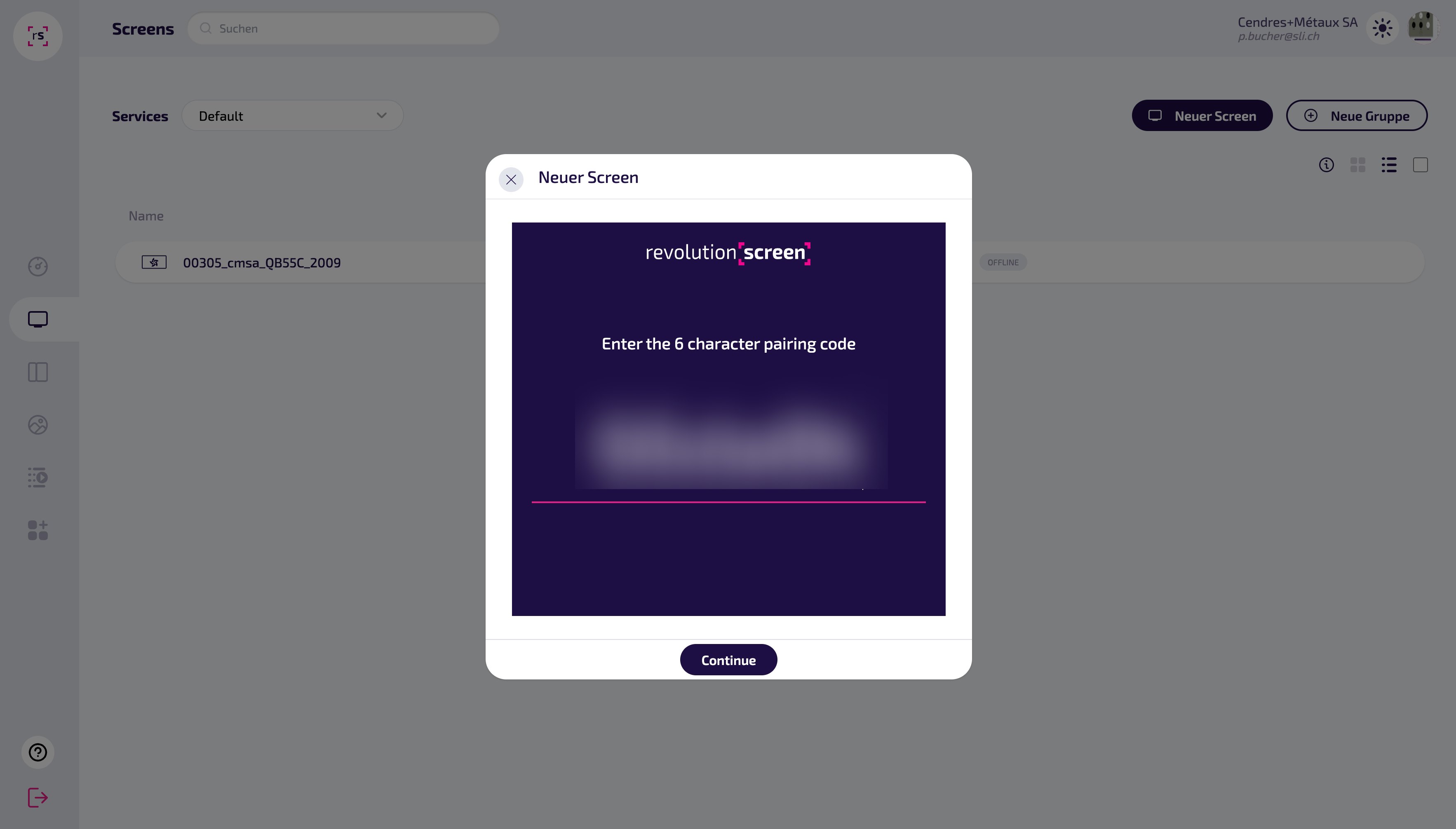
- then click the [Neuer Screen] (New Screen) button

Screen Code & pair
- The unique 6-digit code appears on the Screen.
- Enter the 6-digit code from the Screen into the pop-up window.
Ready to go
- After successful entry, the display appears in your Dashboard.
- Give your display a unique name and link your content.
