Gallery for Instagram Business
With the «Gallery for Instagram Business» app, you automatically play the posts from your Instagram Business account on your screens.
Purpose
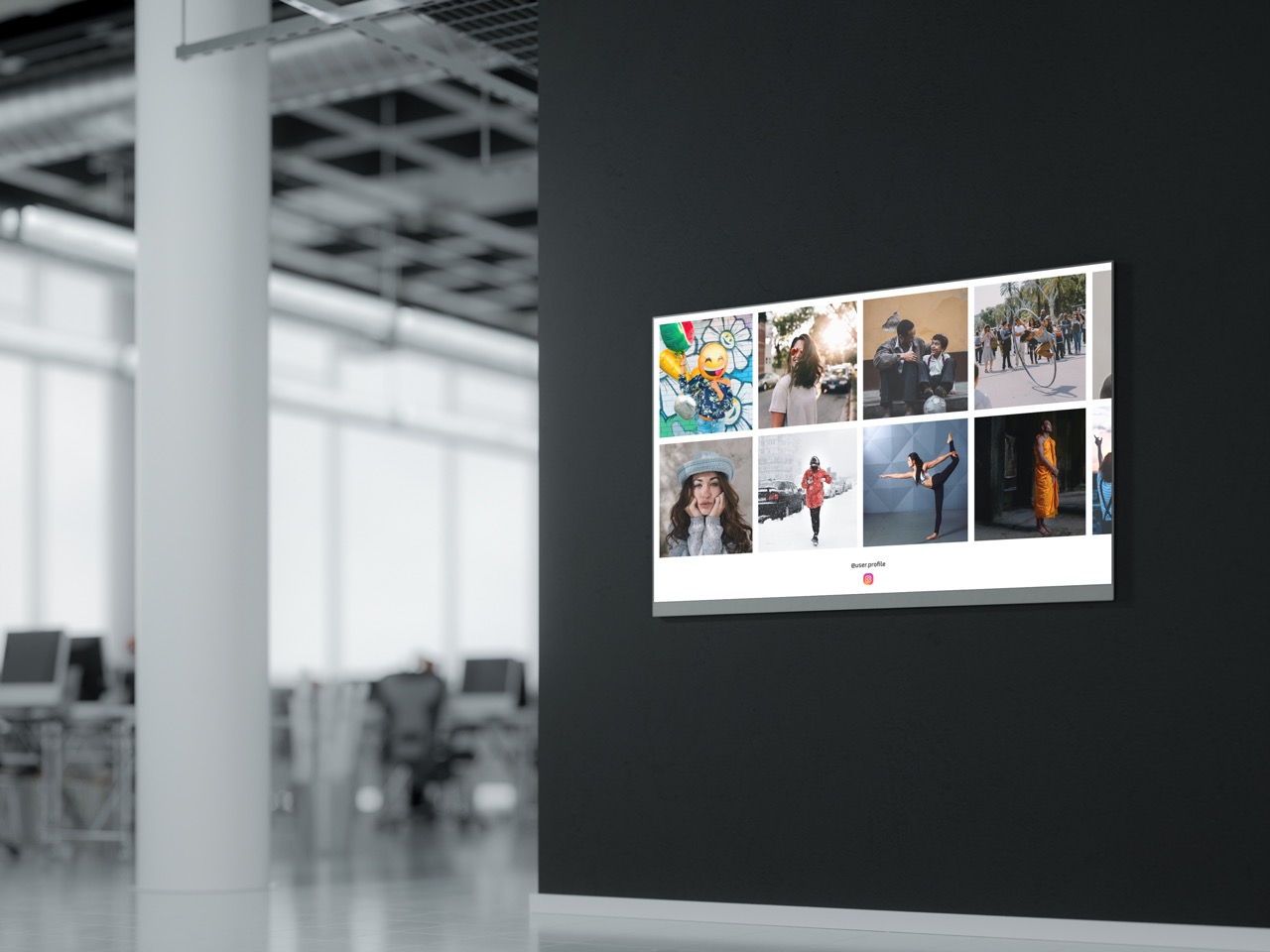
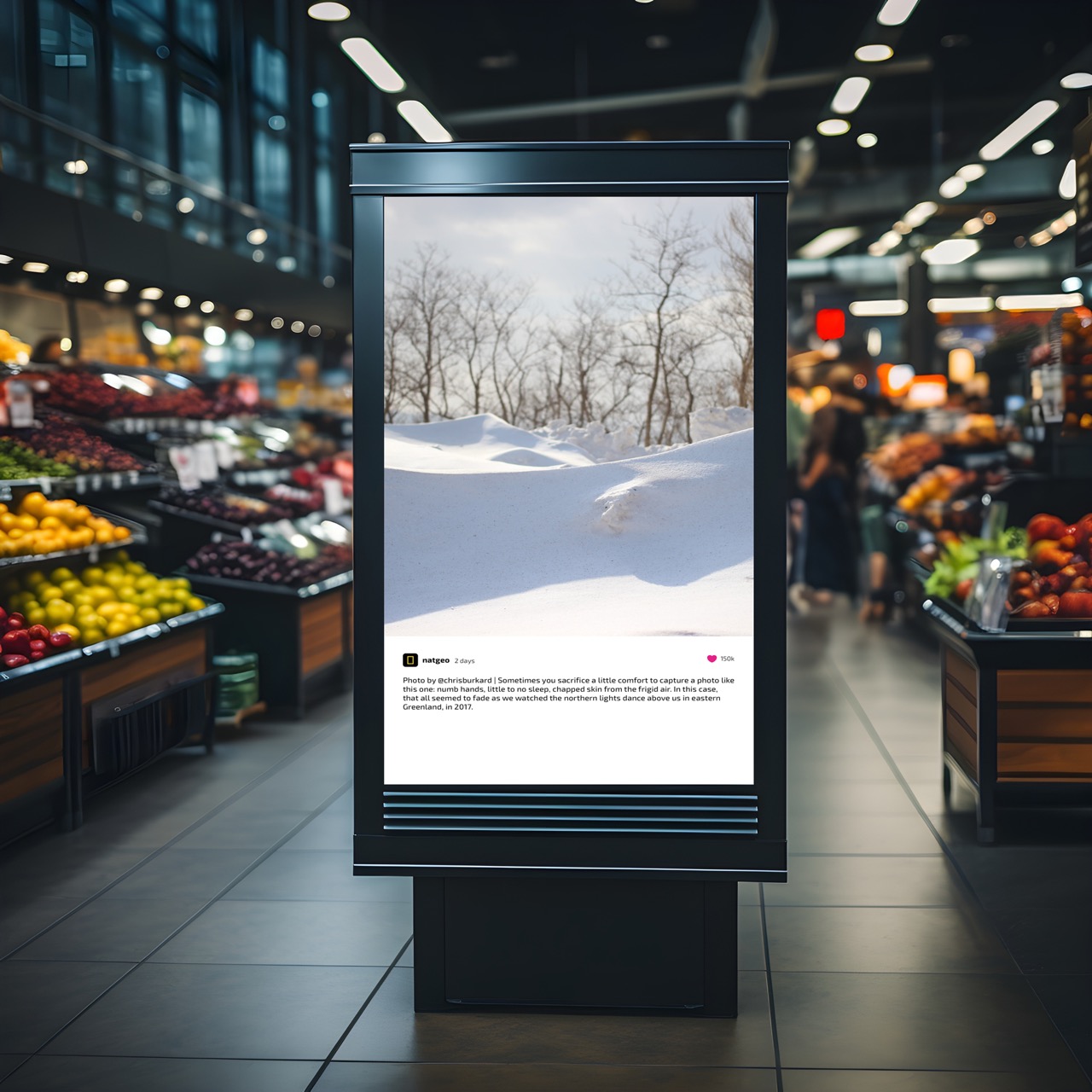
Make your social media presence visible in the room: new Instagram posts appear on the display without you having to capture them a second time. You show them individually or as a gallery.
Use cases
This is what Gallery for Instagram Business looks like on the screen, examples from real use:
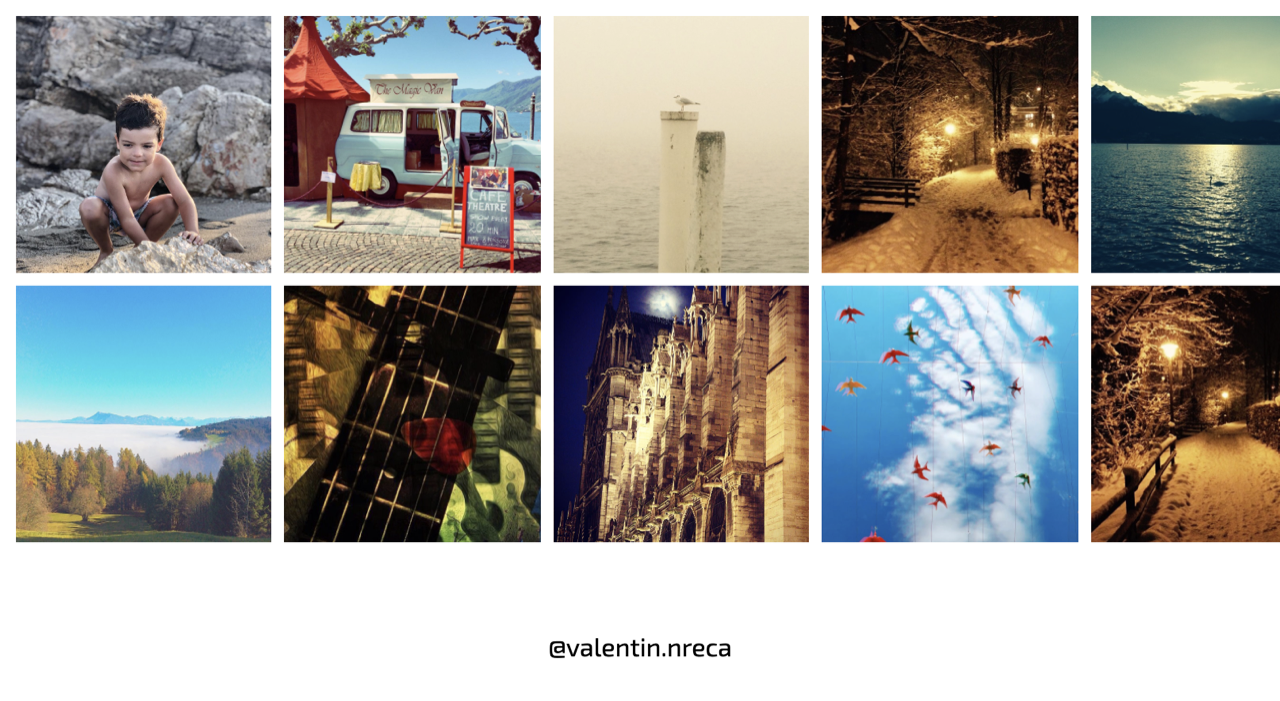
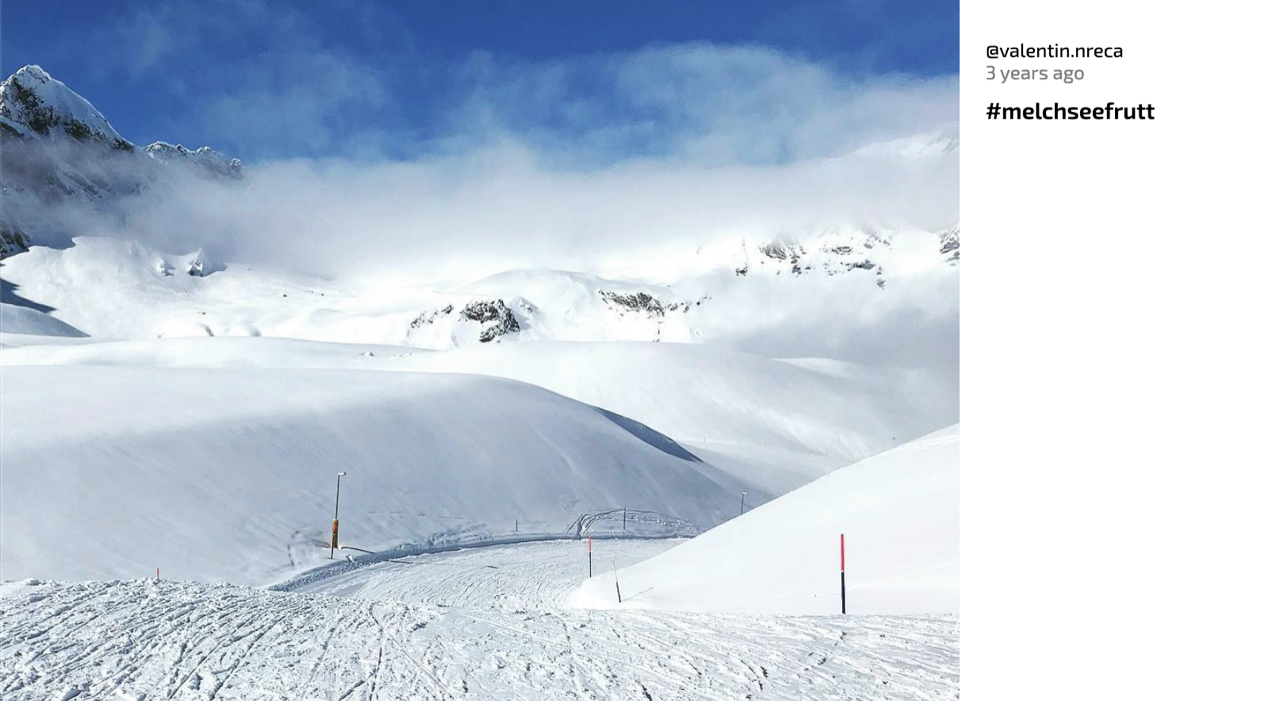
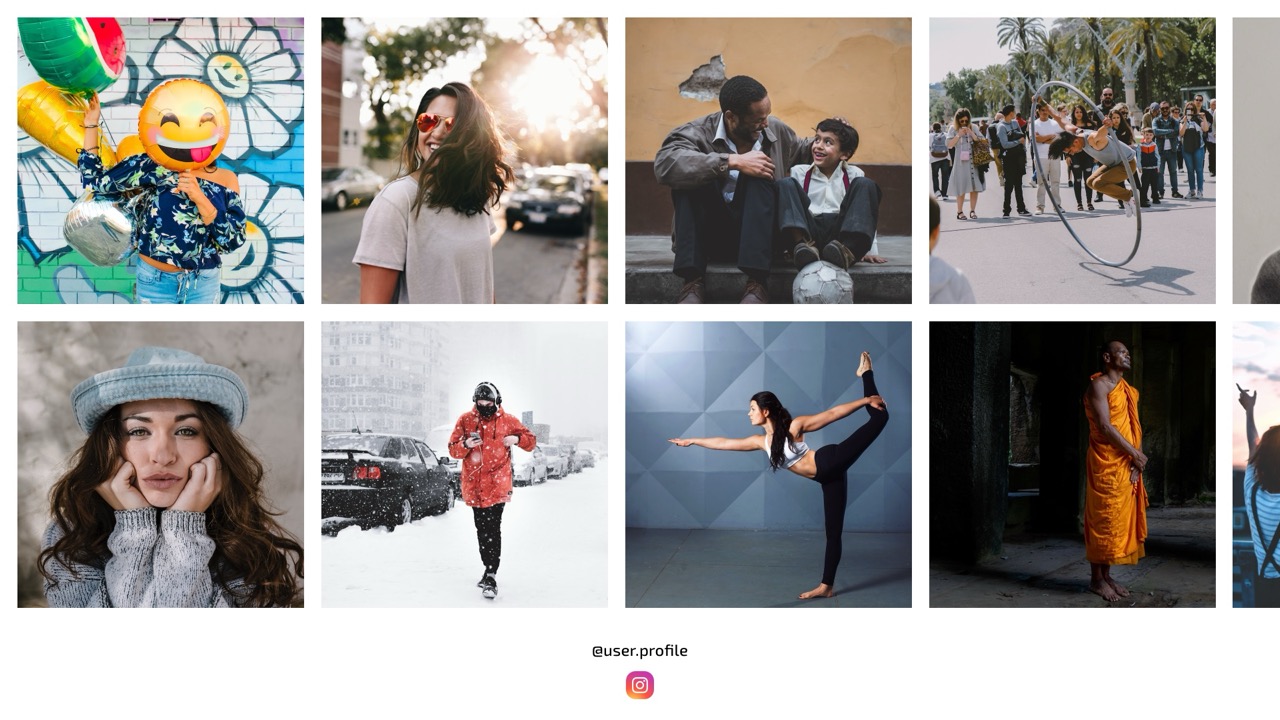
Requirements
- An active revolutionSCREEN account with access to my.rstv.app.
- An Instagram Business account. For a creator account there is the «Gallery for Instagram Creators» app.
- At least one screen set up.
Install the app
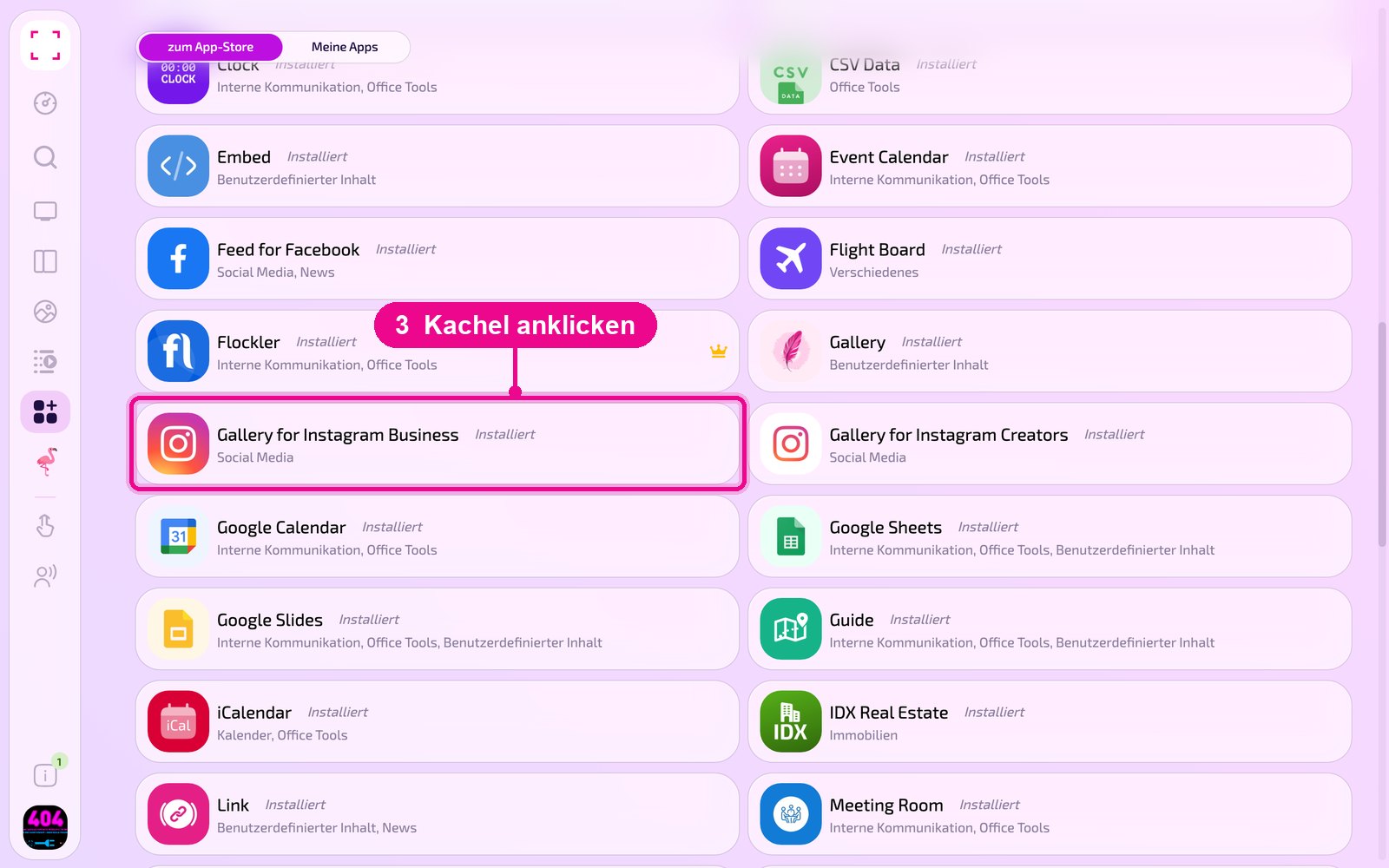
In the sidebar on the left, click «Apps» and at the top click «zum App-Store» (to the app store).
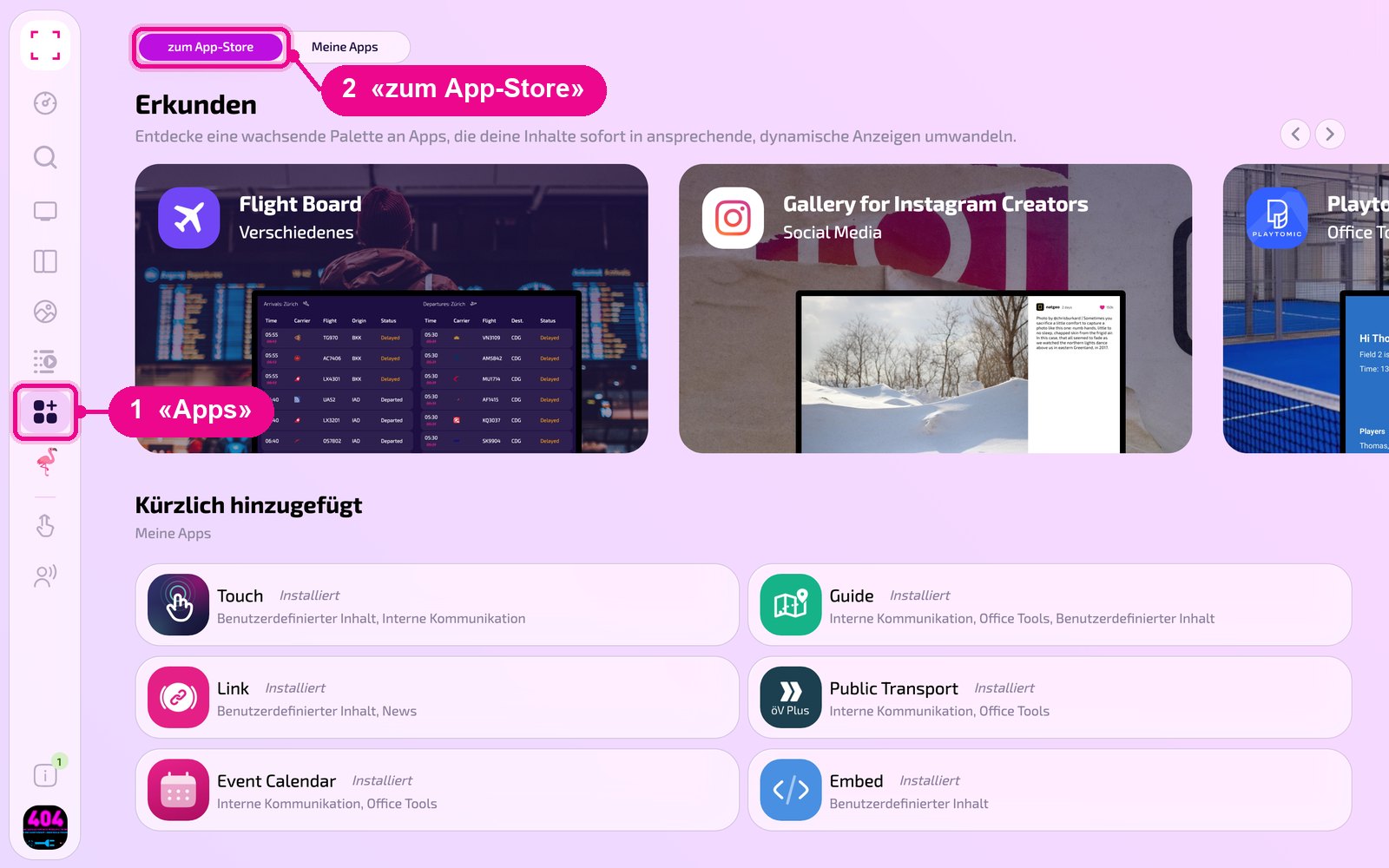
Scroll to the «Alle» (All) list and click the «Gallery for Instagram Business» tile. Use the category buttons to narrow down the list.
The detail view of the app opens. If it is not yet installed, first click «Installiere» (Install). Then click «Neue Instanz» (New instance). «App Guide» opens a quick guide.
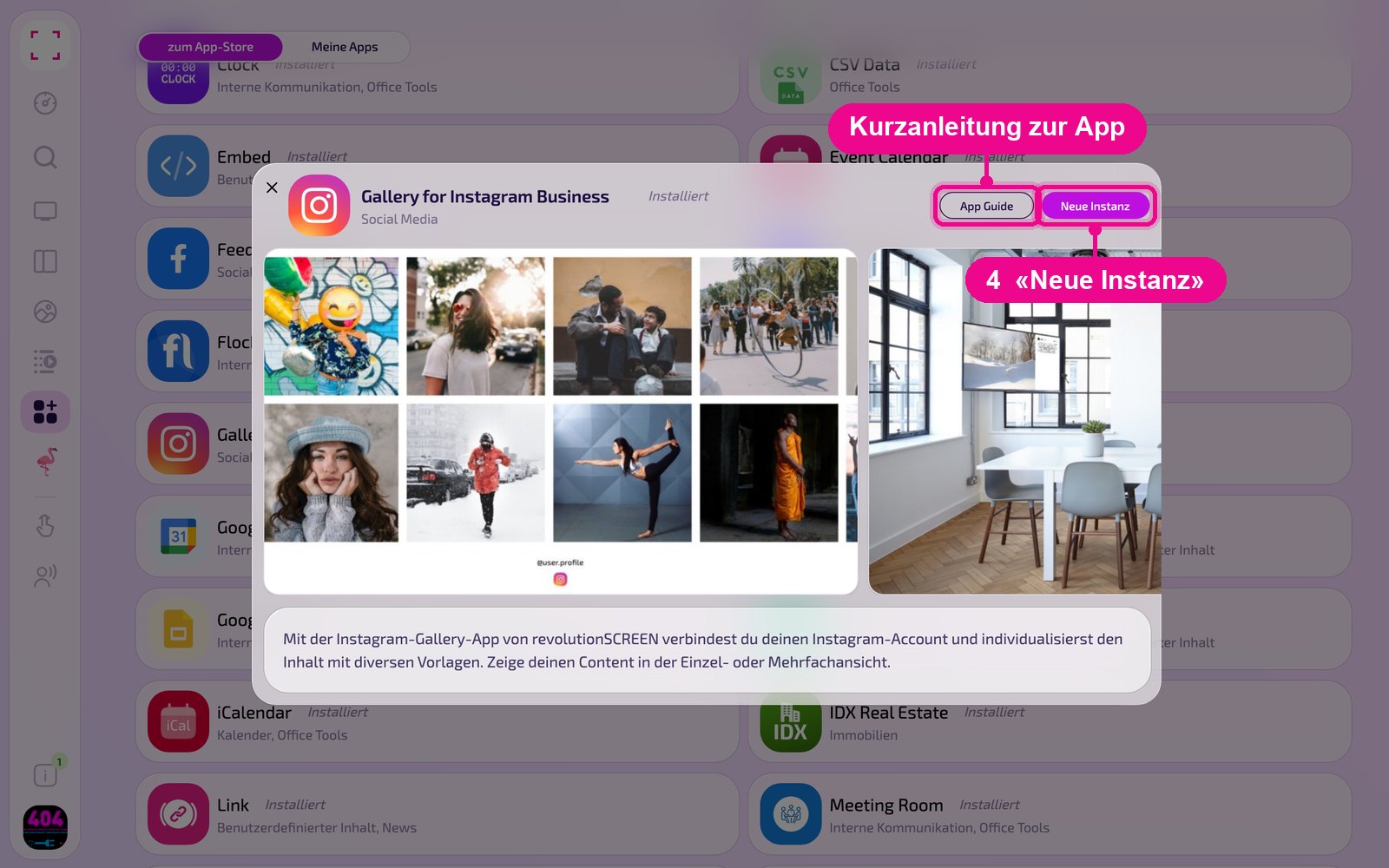
An instance is a separate configuration of the app, e.g. one gallery for reception and another for the canteen. You can create as many instances as you like and use each one individually on screens, in Playlists or Layouts.
Create a new instance
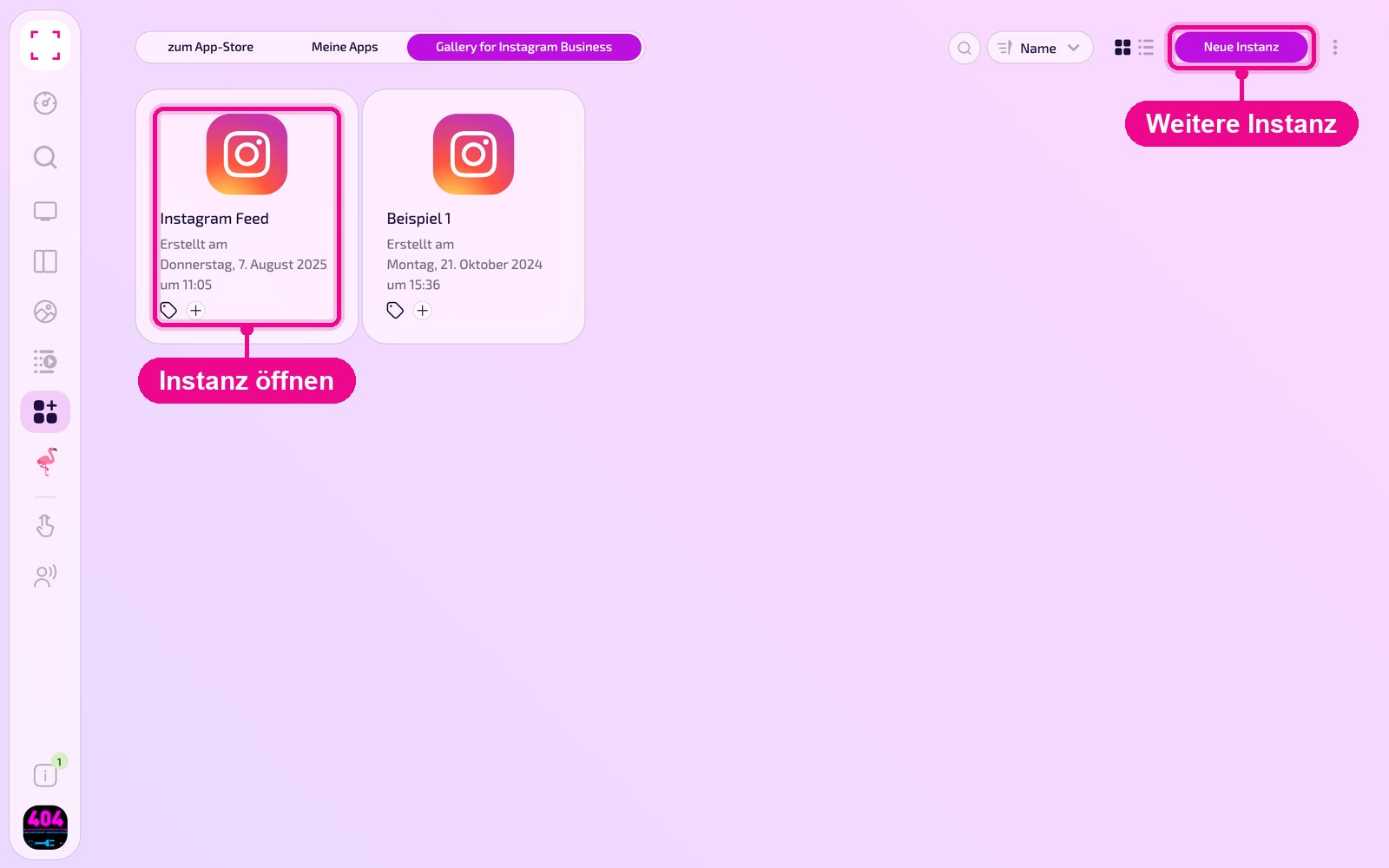
Under «Apps › Meine Apps» (My apps) you see all instances of the app as tiles. Use «Neue Instanz» (New instance) at the top right to create another one, and click a tile to open an existing one.
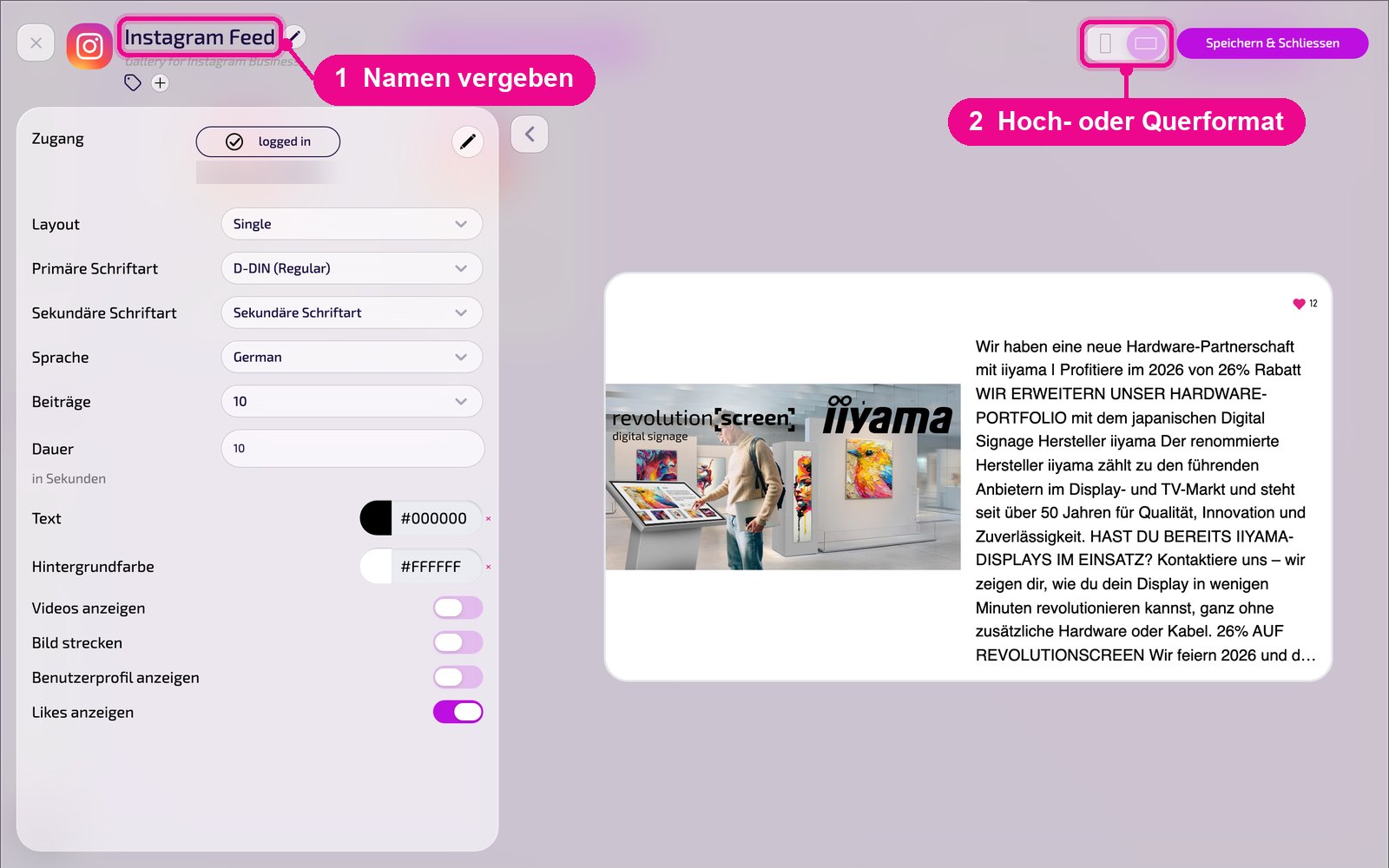
In the editor, hover over the title and click the pencil to give the instance a name. A new instance shows «Kein Name angegeben» (No name specified) in red until then. At the top right, you choose whether the preview appears in portrait or landscape format.
Connect account
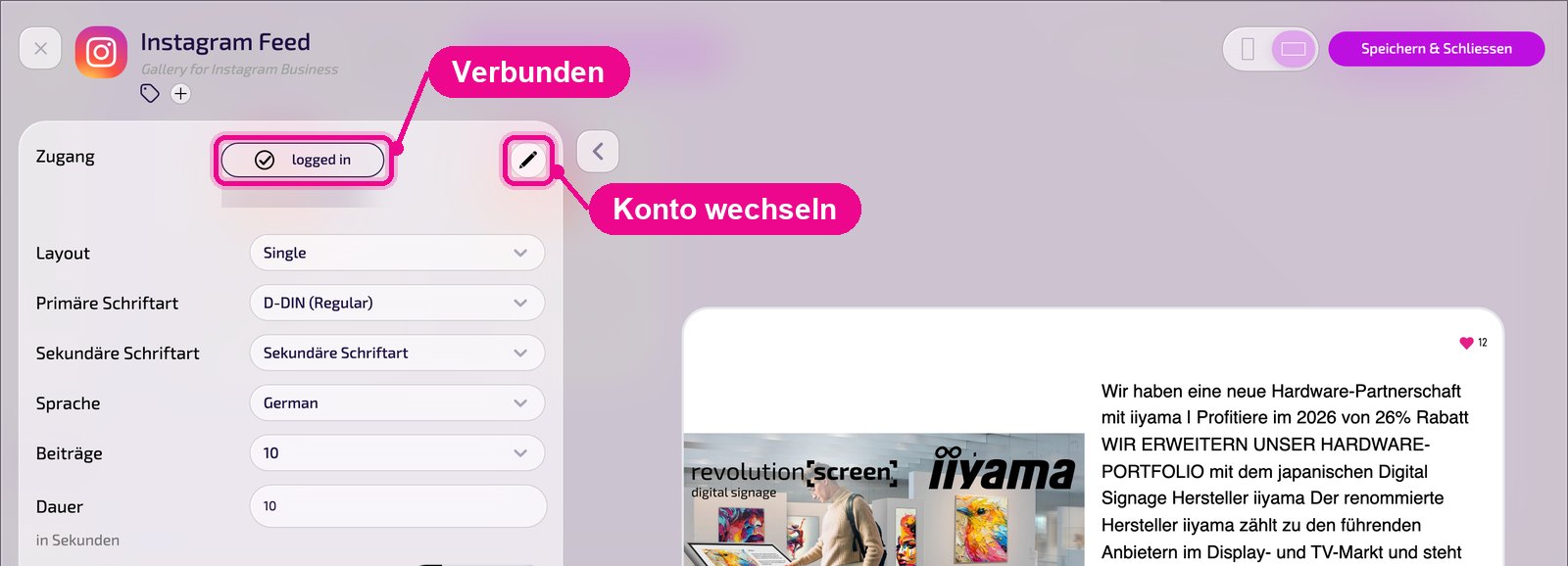
At the very top of the settings is «Zugang» (Access). For a new instance, you sign in there with your Instagram Business account. When the connection is active, it shows «logged in» with the name of the account. Use the pencil on the right to switch the account.
Configuration in detail
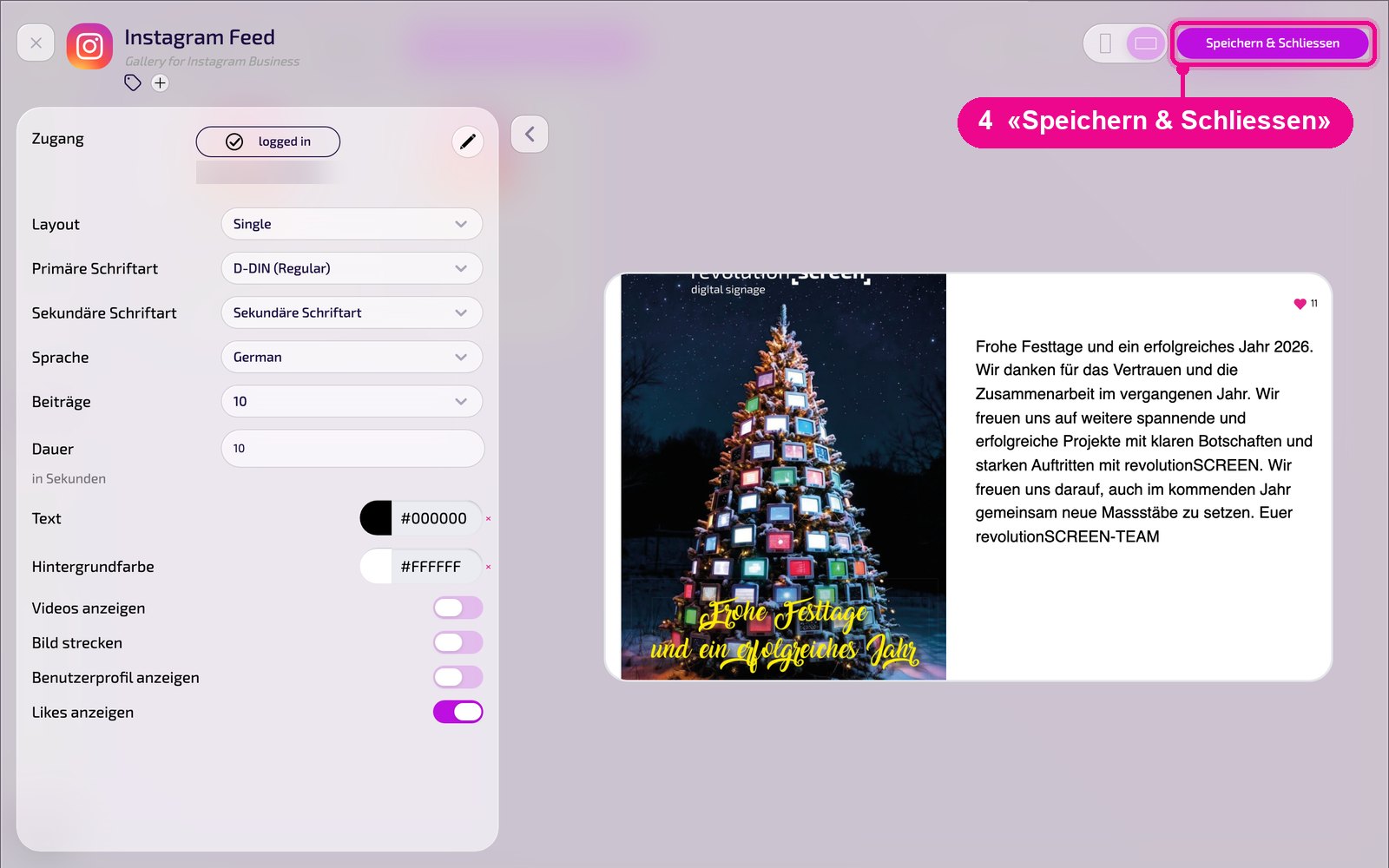
On the left are all the settings; on the right you immediately see in the live preview how the instance looks on the screen. Use the arrow next to the card to collapse the settings.
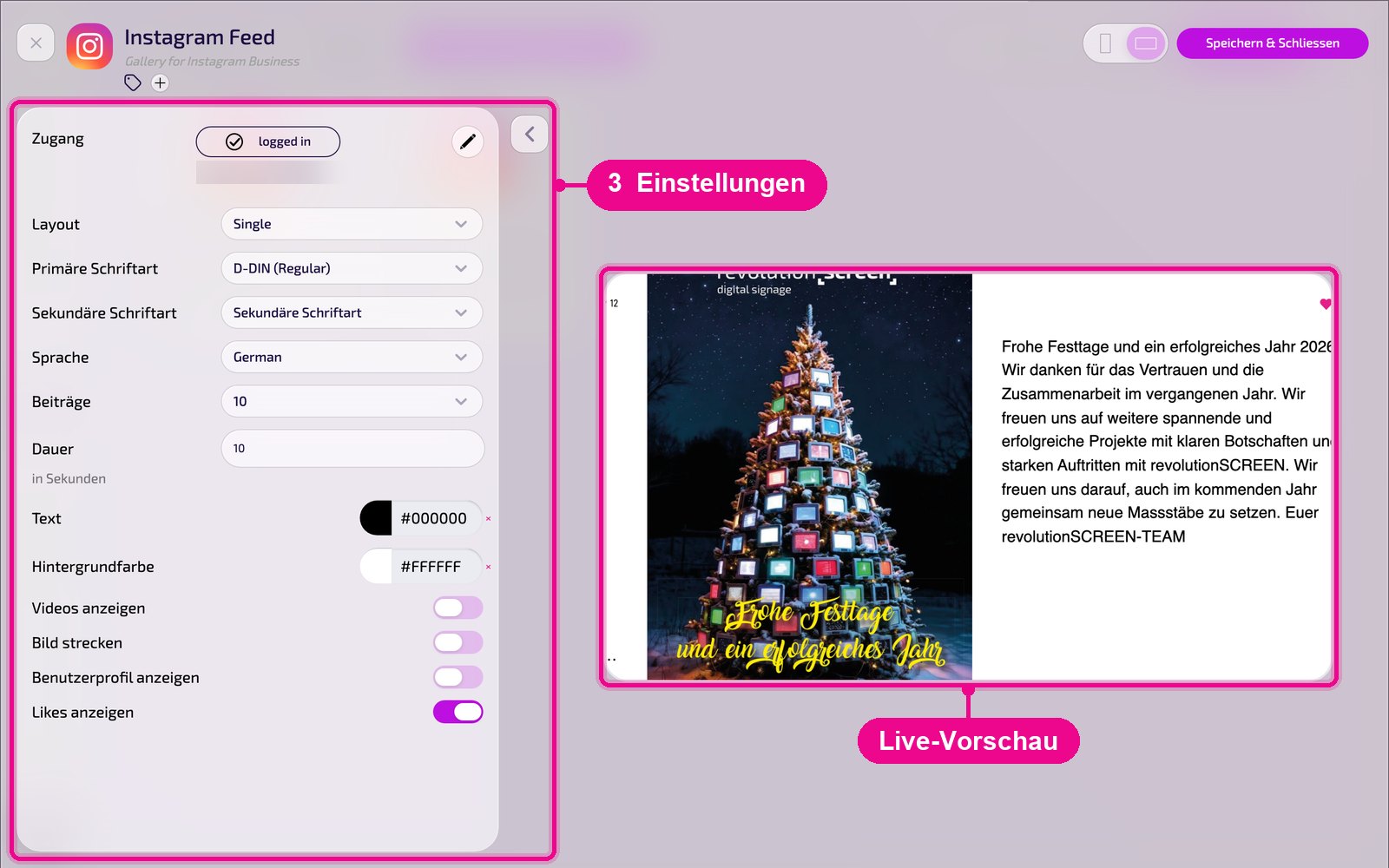
- Zugang (Access): connected Instagram account (status «logged in»).
- Layout: display of the posts, e.g. «Single» (one post per view).
- Primäre / Sekundäre Schriftart (Primary / Secondary font): fonts for title and text.
- Sprache (Language): display language, e.g. for date information.
- Beiträge (Posts): number of posts shown.
- Dauer (Duration): display time per post in seconds.
- Text / Hintergrundfarbe (Text / Background color): colors for text and background. Use × to reset a color.
- Videos anzeigen (Show videos): also shows video posts.
- Bild strecken (Stretch image): fills the image area completely; images may be cropped in the process.
- Benutzerprofil anzeigen (Show user profile): displays the name and image of the account.
- Likes anzeigen (Show likes): displays the number of likes.
Display duration in Playlist & Layout
Gallery for Instagram Business shows several posts one after another per instance. When you place the instance in a Playlist or a Layout, you use the element duration to set how long it runs. To do so, click the duration of the element. This logic applies to all apps with multiple posts per instance.
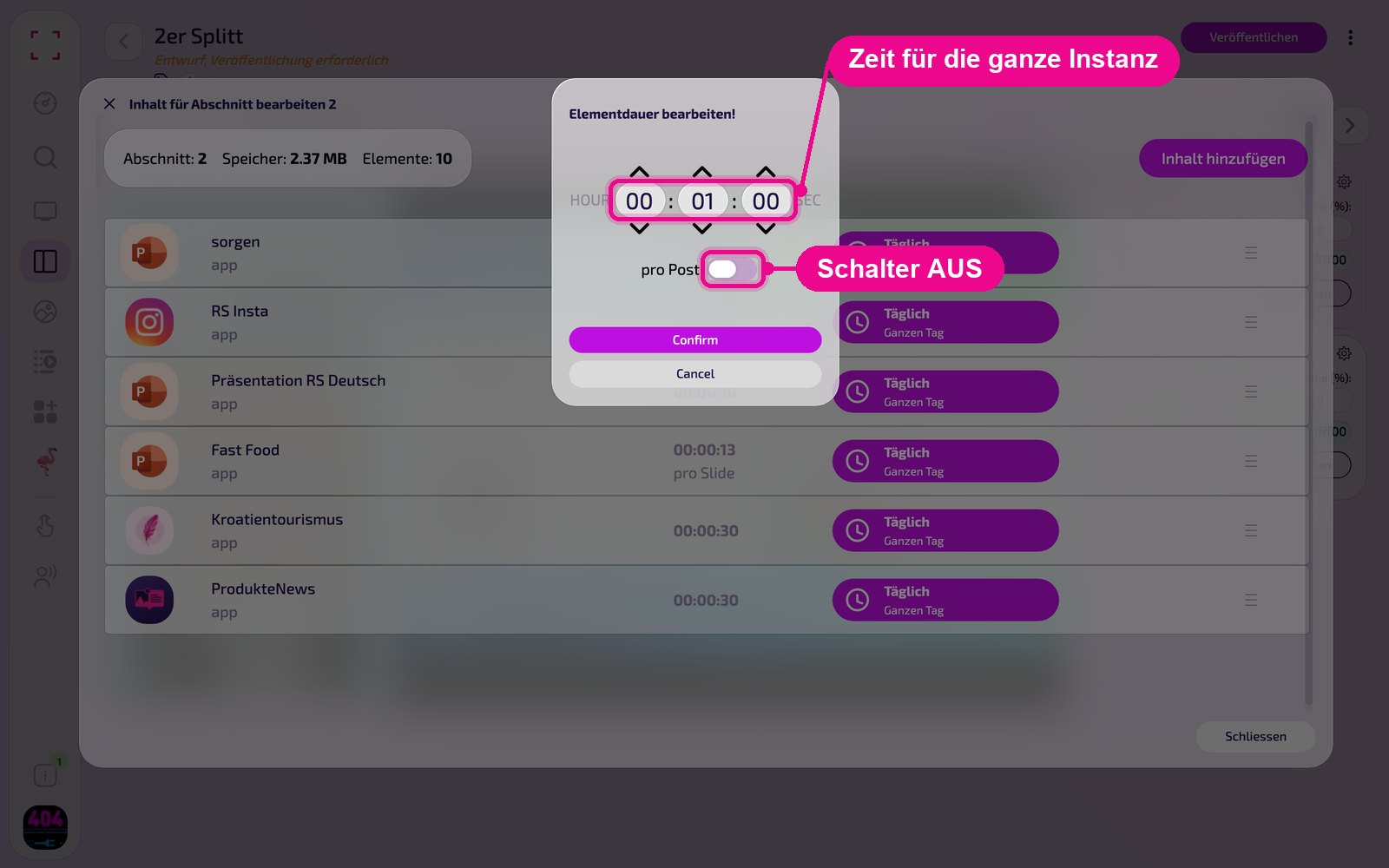
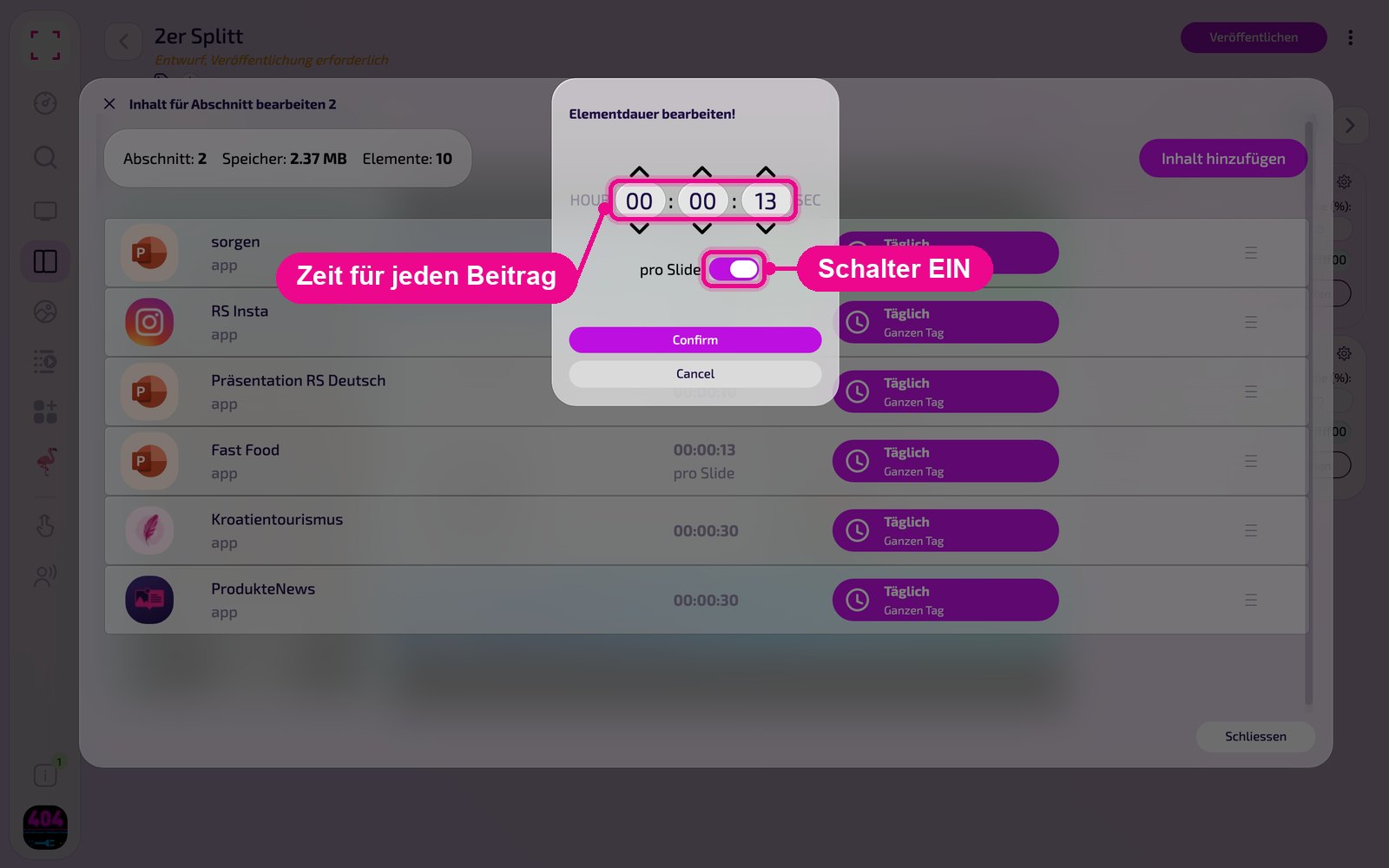
In the «Elementdauer bearbeiten!» (Edit element duration) window, the switch decides between two variants. It is usually called «pro Post» (per post), and «pro Slide» (per slide) for presentations. Use «Confirm» to apply the setting.
Variant 1: Switch OFF (total duration)
The set time applies to the entire instance. Example 00:01:00: the instance runs for one minute. The posts cycle through in order during this time and start over if needed. So not all posts necessarily appear.
Variant 2: Switch ON (duration per post)
The set time applies to each post. Example 00:00:10 with 12 posts: each post appears for exactly 10 seconds, and the instance runs for 2 minutes in total. The list then shows «pro Post» or «pro Slide» below the duration.
If all posts should definitely appear, turn on «pro Post» (per post). If the instance should occupy exactly a fixed time, leave the switch off.
Save & play on the screen
Save the instance at the top right with «Speichern & Schliessen» (Save & close).
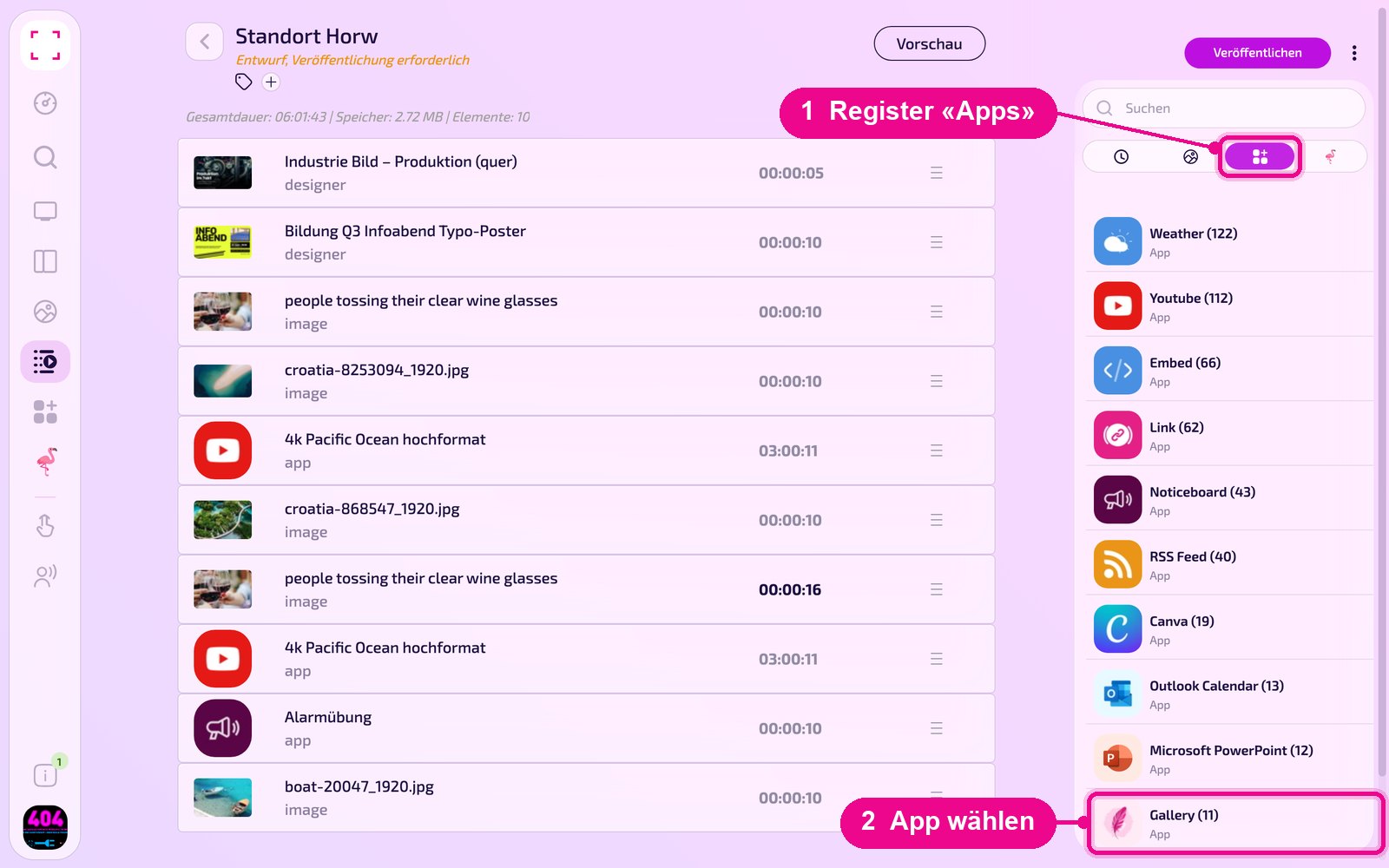
Add to a Playlist: Open the Playlist, select the «Apps» tab on the right, click the app and then the instance. The instance is added immediately.
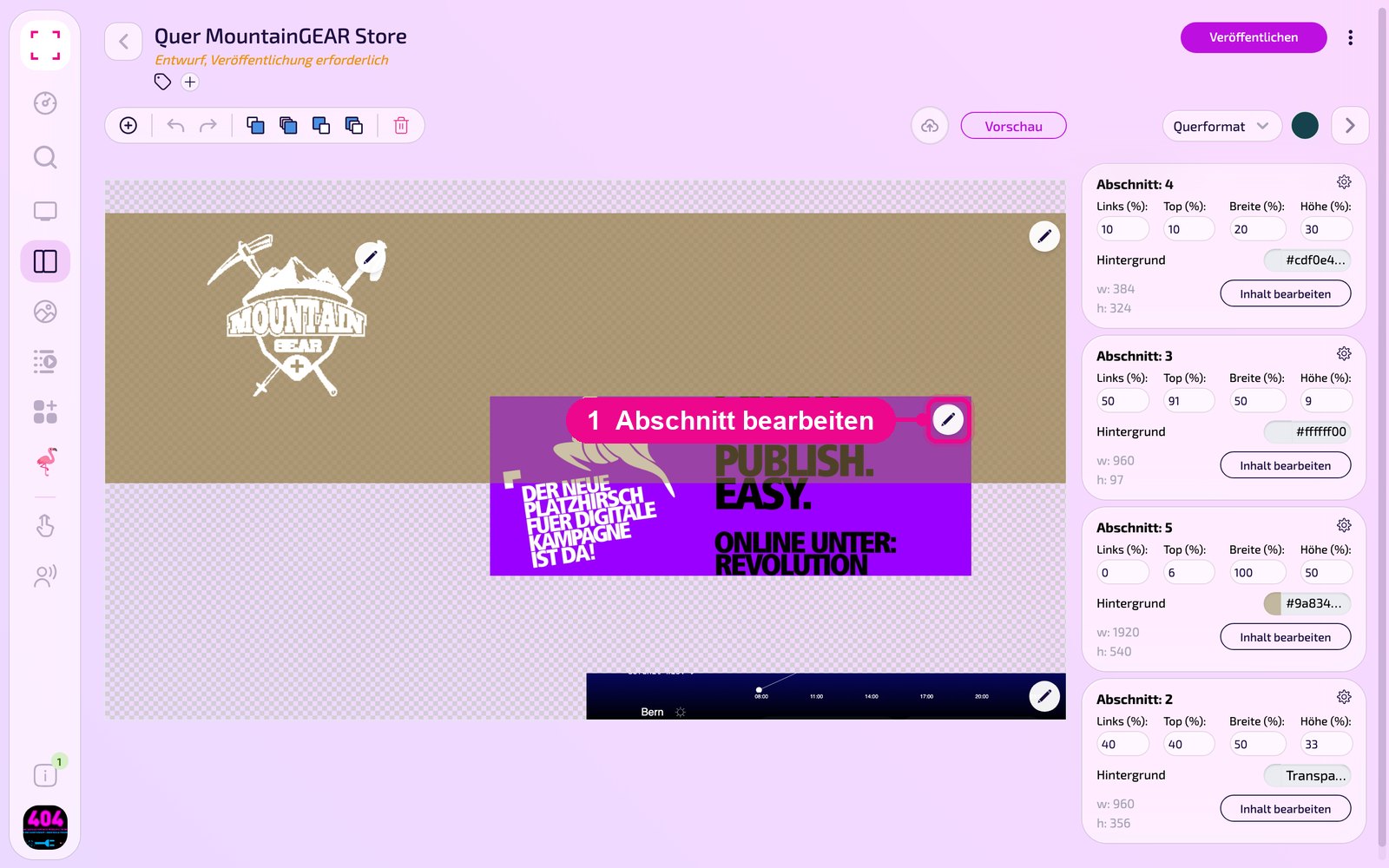
Add to a Layout: Open the Layout and click the pencil on the desired section.
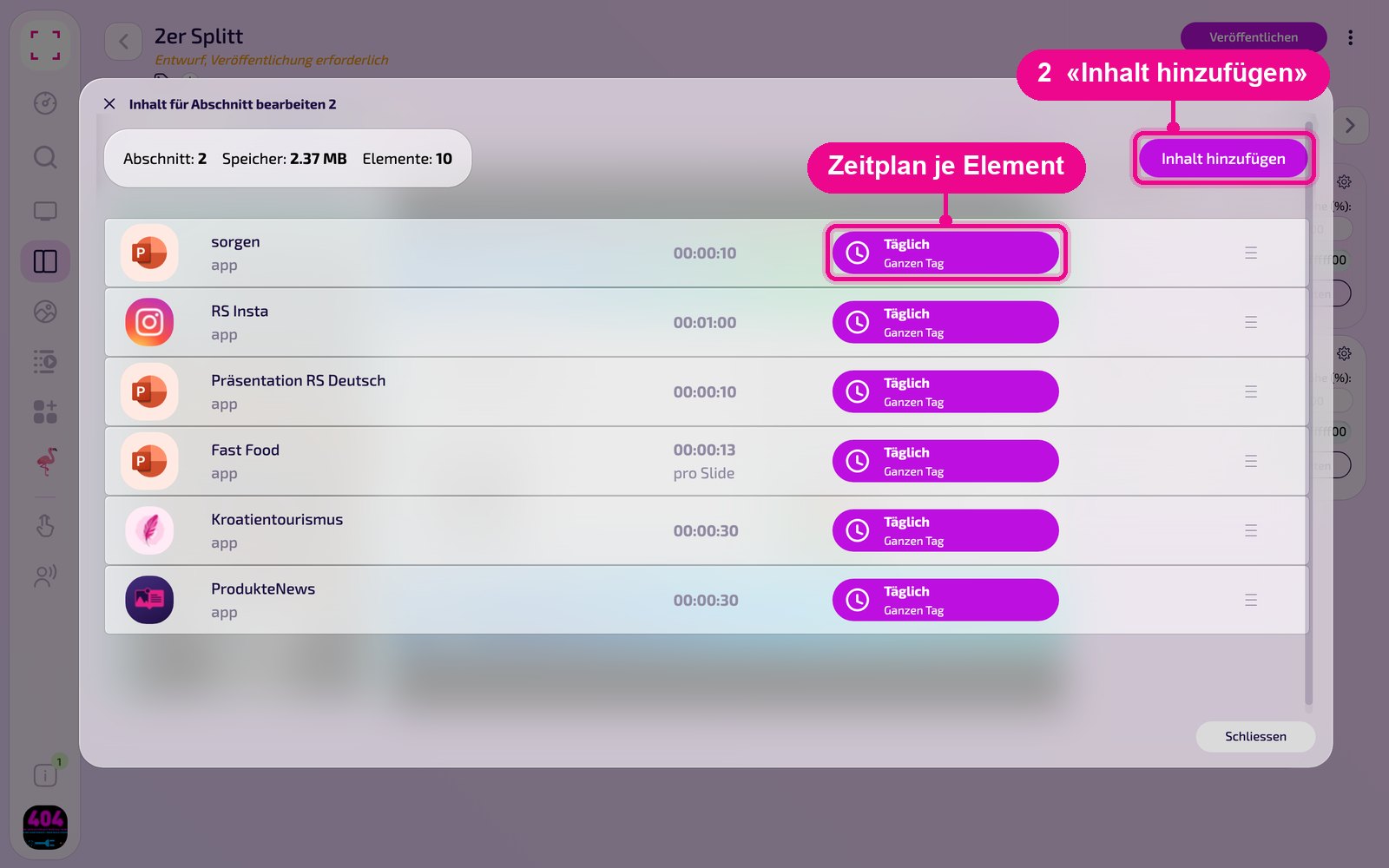
In the «Inhalt für Abschnitt bearbeiten» (Edit content for section) window, use «Inhalt hinzufügen» (Add content) to add the instance. On the right of each element, use «Täglich» (Daily) to set the schedule.
Then click «Veröffentlichen» (Publish) in the Playlist or Layout. As long as it shows «Entwurf, Veröffentlichung erforderlich» (Draft, publishing required), the screen still shows the old state.
Tips & troubleshooting
No posts
Connect the Instagram Business account under «Zugang» (Access).
Connection expired
If the instance reports «Authentifizierung fehlgeschlagen» (Authentication failed), sign in again via «Neu authentifizieren» (Re-authenticate).
Hard to read
Make sure there is enough contrast between the text and background color.
Not all posts appear
In the Playlist or Layout, set the element duration to «pro Post» (per post), see «Display duration in Playlist & Layout».