Installation Tizen 6.5
Quick start guide for setting up a Samsung Digital Signage display
The most important data at a glance
URL startup program address
http://rstv.app or
https://rstv.app
RM server server address:
rm.rstv.app
TLS:
Do not use
Port:
7001
Set the language
Select the language that suits you from the available languages.

Set up the network
Select your wireless network from the list of found networks. If the network you intend to use does not appear in the list, check the following:
- Is the router switched on?
- Is the device close enough to the router/transmitter?
- Is the network really available? (Test with other devices)
Enter the password of your wireless network
to establish a connection.
Wait until the check is complete and the connection is established.
Wired connection
If you connect your device to the internet via an Ethernet cable, this step is not necessary. However, make sure that all cables are properly connected and that the router is connected to the internet.

Privacy notice
Read the terms of use and privacy notices and confirm them.

Display orientation
Select the correct display orientation for your screen.
The display orientation selected here must match the actual orientation of the device. The ventilation and thus the cooling of the device is based on this setting. If the display orientation selected here does not match that of the device, damage to the device will occur.

Play with …
- Select the option [Benutzerdefinierte App] as the player type.
- In the text field that appears, enter the following URL: http://rstv.app or https://rstv.app The spelling must match exactly. This also applies to upper and lower case as well as all other characters such as the colon and the two slashes
- Press the right arrow key on the remote control to continue to the next menu item. Using the left or right arrow key on the remote control, you can switch between the individual menu items at any time, for example to correct entries you have made.


Click "Öffnen" (Open) and then "Weiter" (Next). Note that the selection is set to "Benutzerdefinierter APP" (Custom app).
Connect to the RM server
- Select [Serveradresse] (Server address).
- In the text field that appears, enter the following address: rm.rstv.app Note all characters, including dots. The spelling must match exactly. This also applies to upper and lower case as well as all other characters
- For the TLS option, select [nicht verwenden] (do not use).
- Set the port value to [7001]
Note that port 7001 must be open "Outgoing" in your firewall. Depending on the configuration, a device-specific release may also be required


Devices on the server
- Confirm your entries here. Your device will have a different temporary ID than shown here. This ID is generated automatically and is only used to identify the device. Nothing needs to be changed in these settings for the app to work.
- Report the temporary ID. Please send us your temporary ID to booking@revolutionscreen.net. This allows us to clearly assign your display to your customer account.

Automatic shutdown
Select [Aus] (Off) and click Next.
Since switching the display on and off is controlled by a schedule,
this function is not needed in these settings.

Set the time
Set the current date and time for the device.
You can usually skip this step, as the device synchronizes itself with the world time after the first connection to the internet.

Set a PIN
Create a PIN.
We recommend filling in the PIN with ZERO (number)

Home button
Select the button [HOME] on the remote control.

Start revolutionSCREEN
Press the [ENTER] button on your remote control on the left RS logo (or on the Custom APP icon) and the application starts.

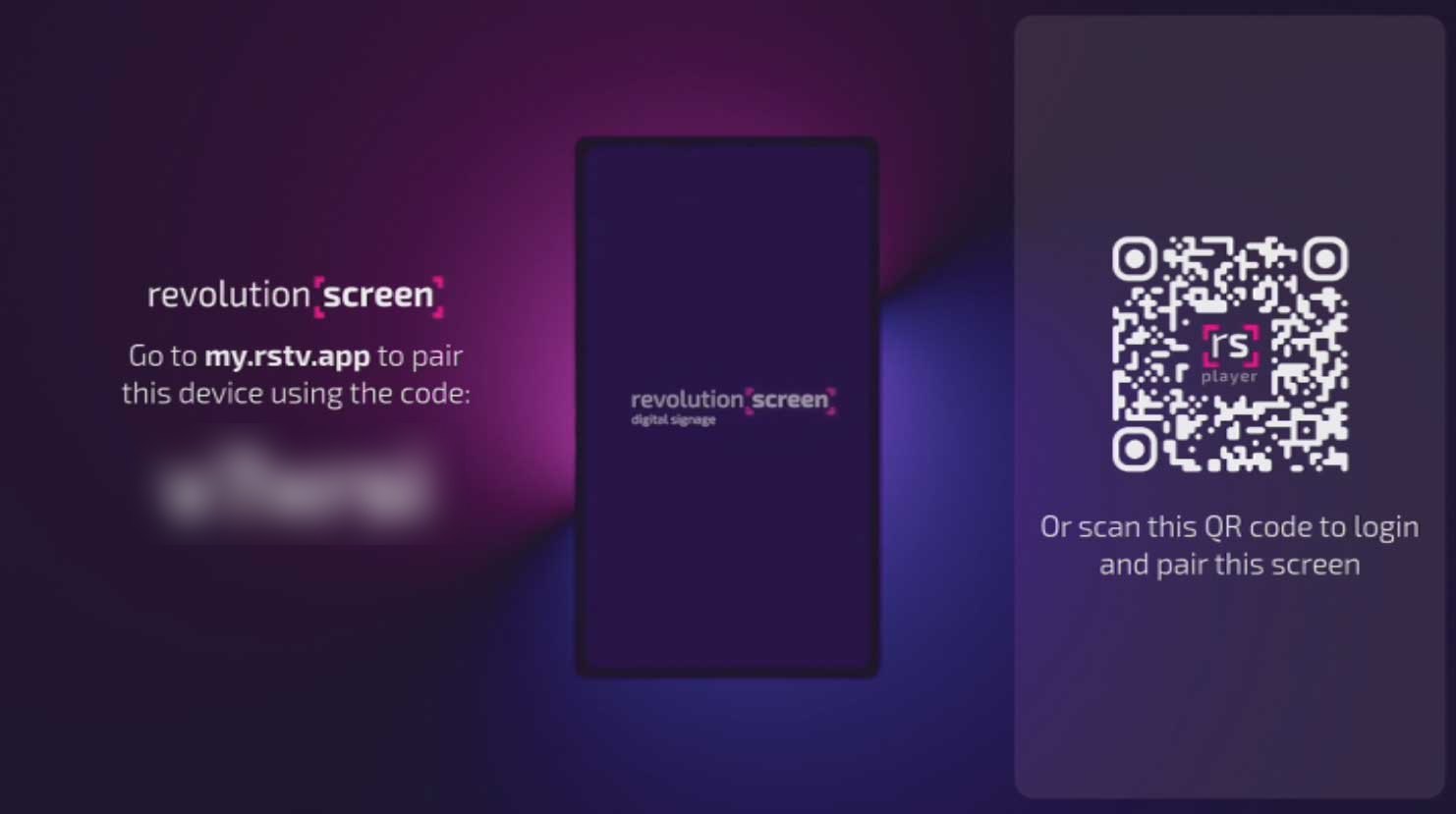
Screen Code
The unique 6-digit code appears on the screen.
You have two options to pair your display.
Scan QR-Code
Scan the QR-Code with your mobile phone camera. The display
is then automatically paired to your account.
If you do not yet have a revolutionSCREEN account or are not registered,
you will be directed to the corresponding page.
PAIRING code
Alternatively, you can use the six-digit code. Register if you do not yet have an account on revolutionSCREEN. Log in
to your Dashboard and follow step 16 in this guide.
Log in
- Enter the link «my.rstv.app» in your browser.
- Log in with your email address and password.

Register (if you do not have an account)
- Enter the link «my.rstv.app/register» in your browser.
- Fill in all fields with your details.
- Confirm your registration with the confirmation email sent to the email address you provided.

Dashboard
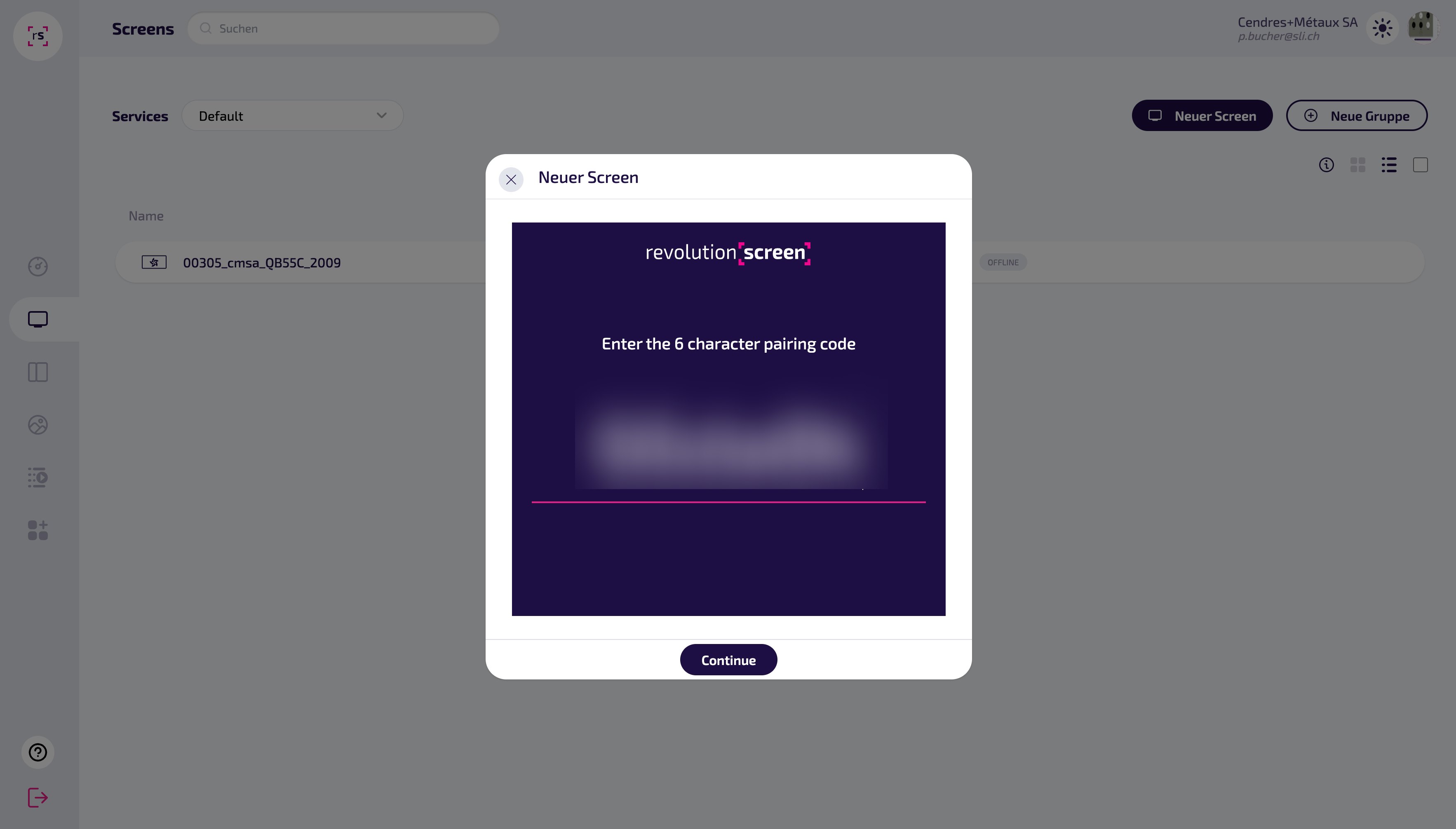
- Click the [SCREEN] icon on the right,
- then the [Neuer Screen] (New Screen) button

Screen Code & pairing
- The unique 6-digit code appears on the screen.
- Enter the 6-digit code from the screen into the pop-up window.
Ready to go
- After successful entry, the display appears in your Dashboard.
- Give your display a unique name and link your content.
