Audit logs
The audit log records who changed what in your account, seamlessly and in chronological order. This keeps changes to screens, layouts, media and other areas traceable at any time, for example when several people work on the same account.
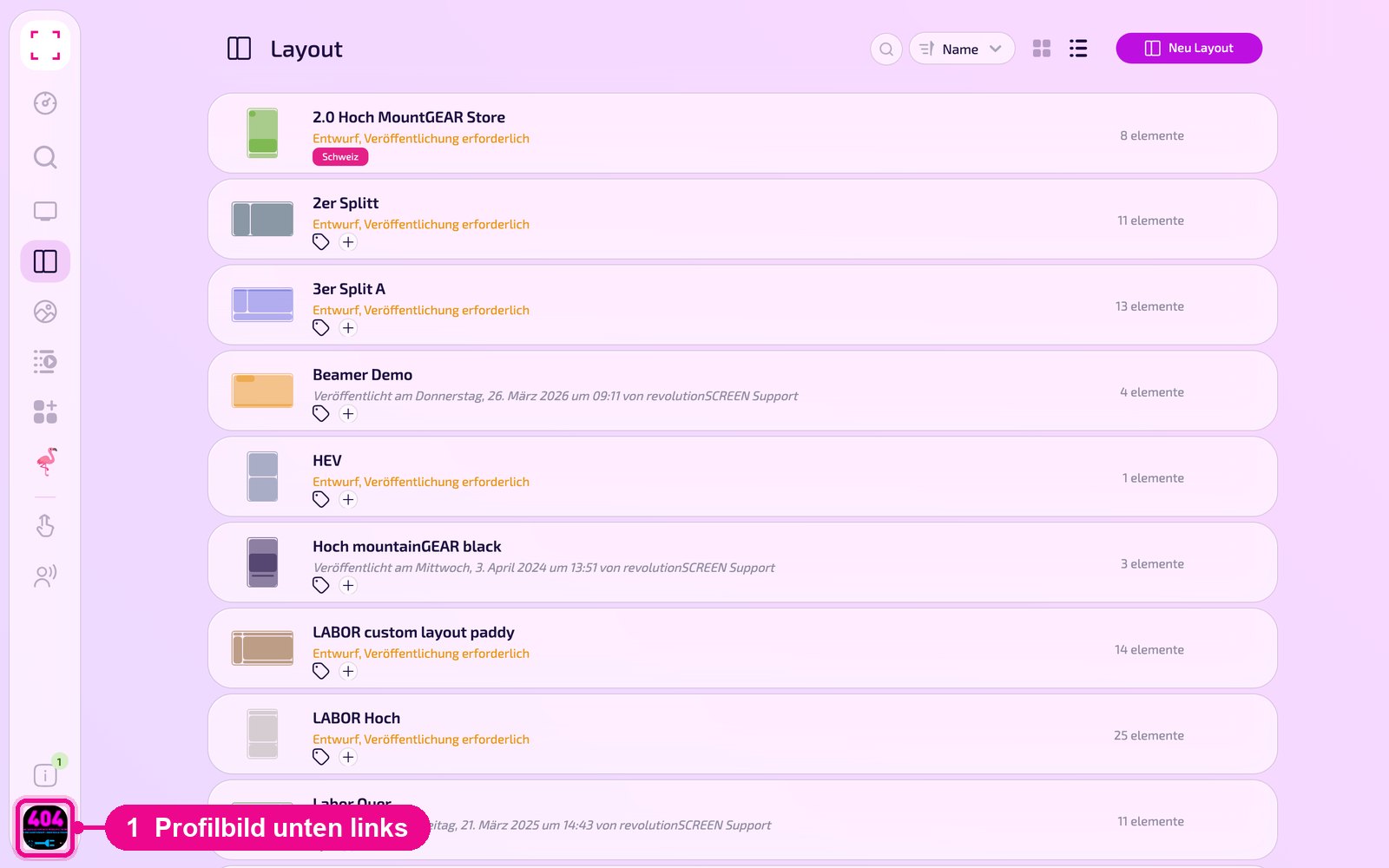
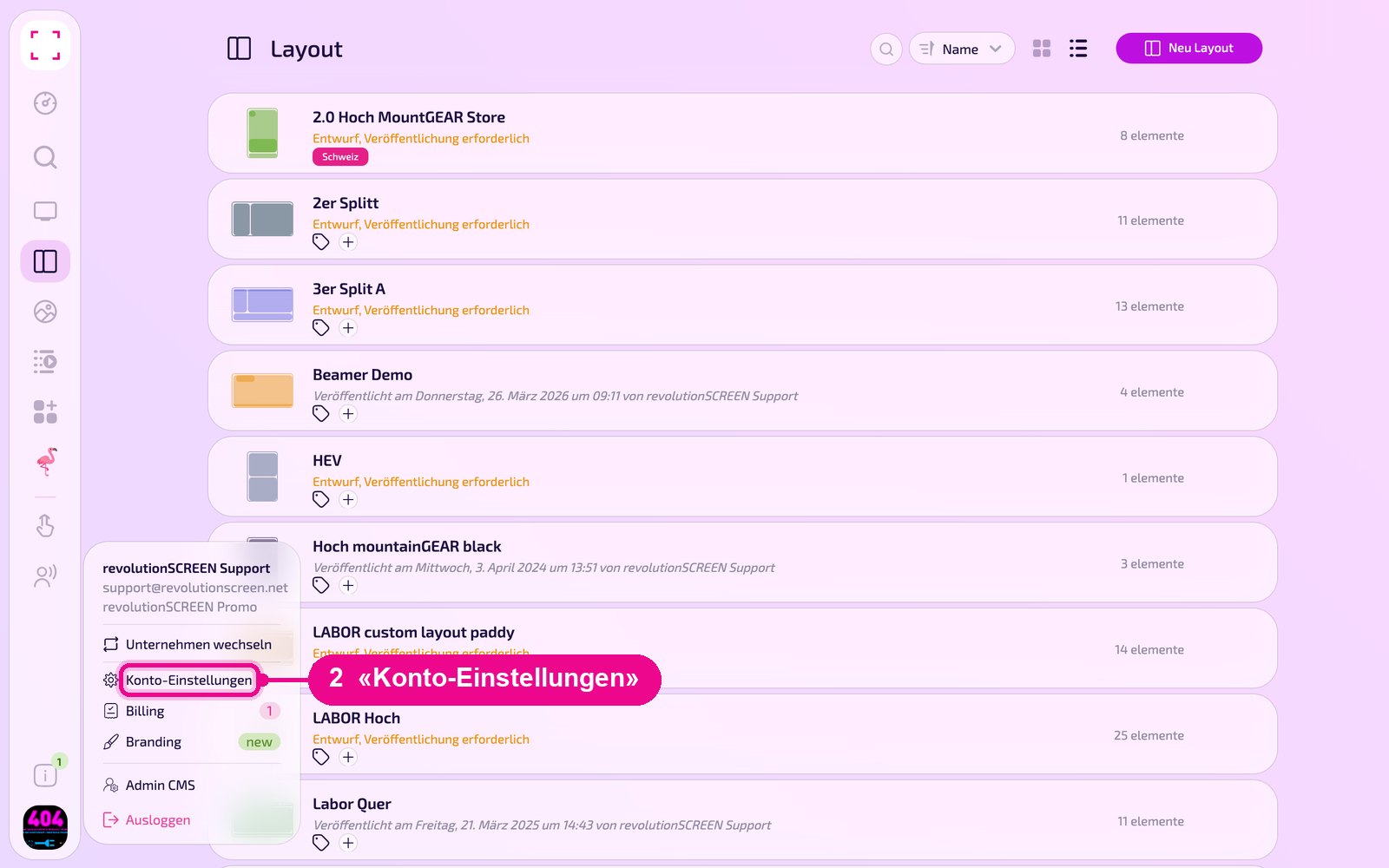
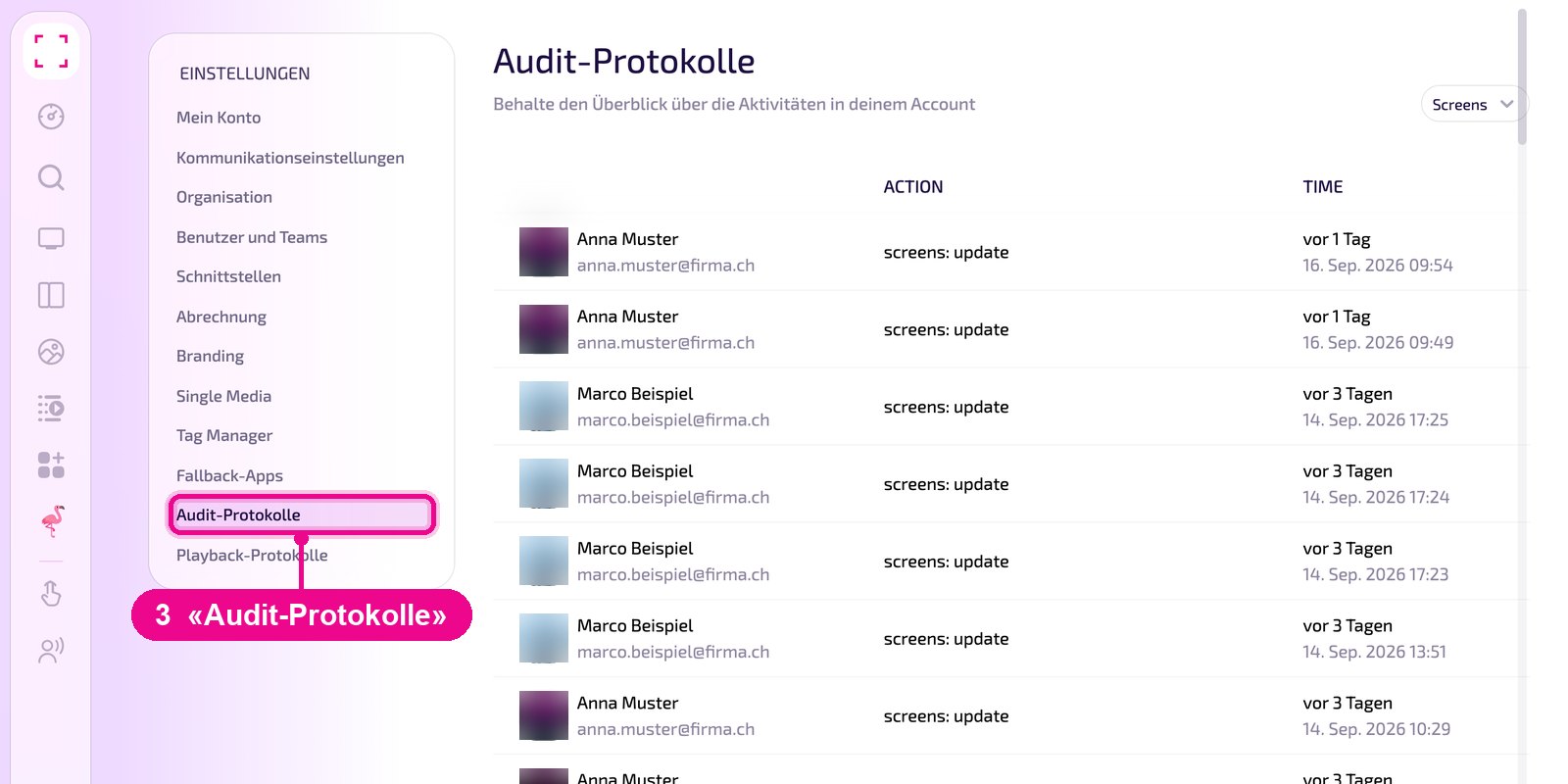
Profile picture at the bottom left → «Konto-Einstellungen» → «Audit-Protokolle» on the left
Reading entries
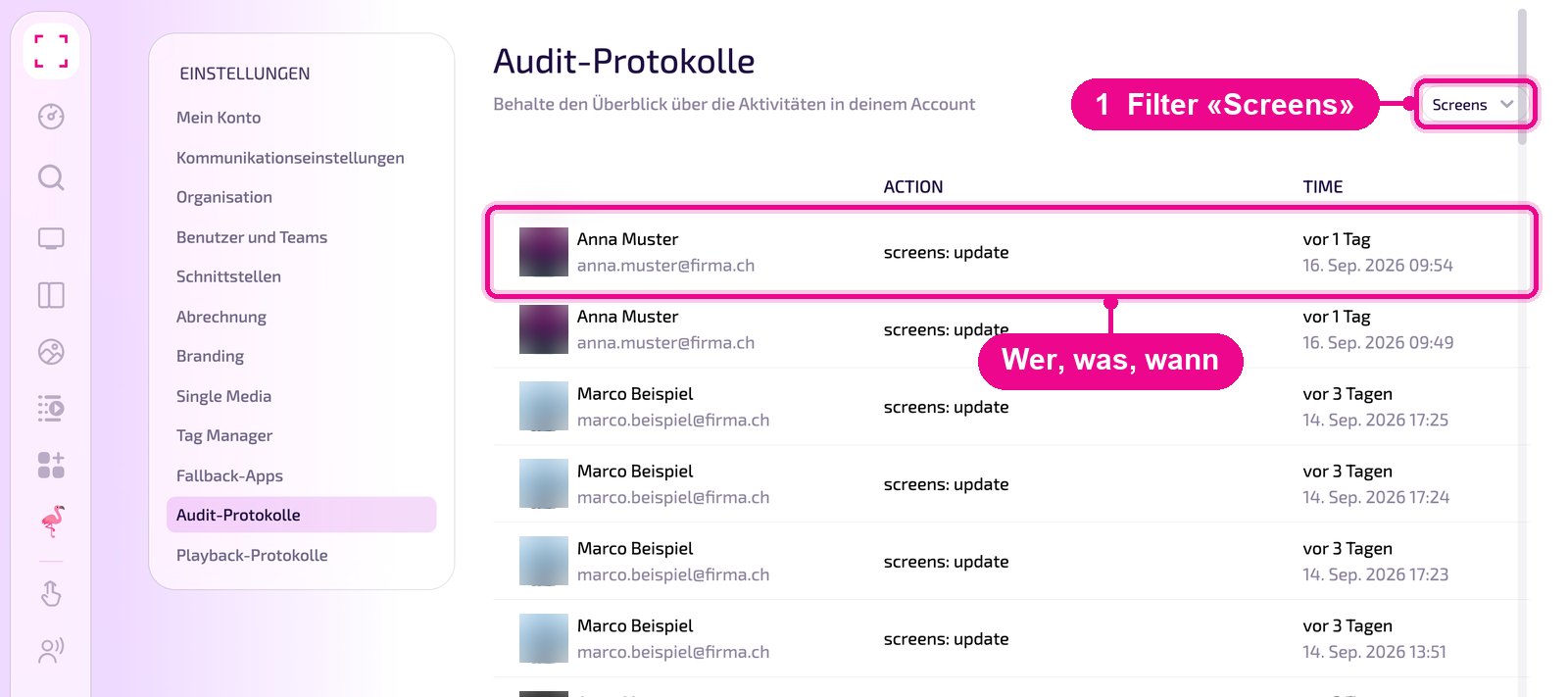
Each row is one change. On the left you see the person's name and email address, in the middle under «ACTION» the action, and on the right under «TIME» the timestamp. The action first names the area and then what happened, for example «screens: update» for a changed screen setting. The timestamp appears as «3 days ago» and below it with the exact date and time.
Filtering by area
Click the selection field at the top right (default «Screens») and choose the area whose changes you want to see. The list can be scrolled. With «All» you see all actions.
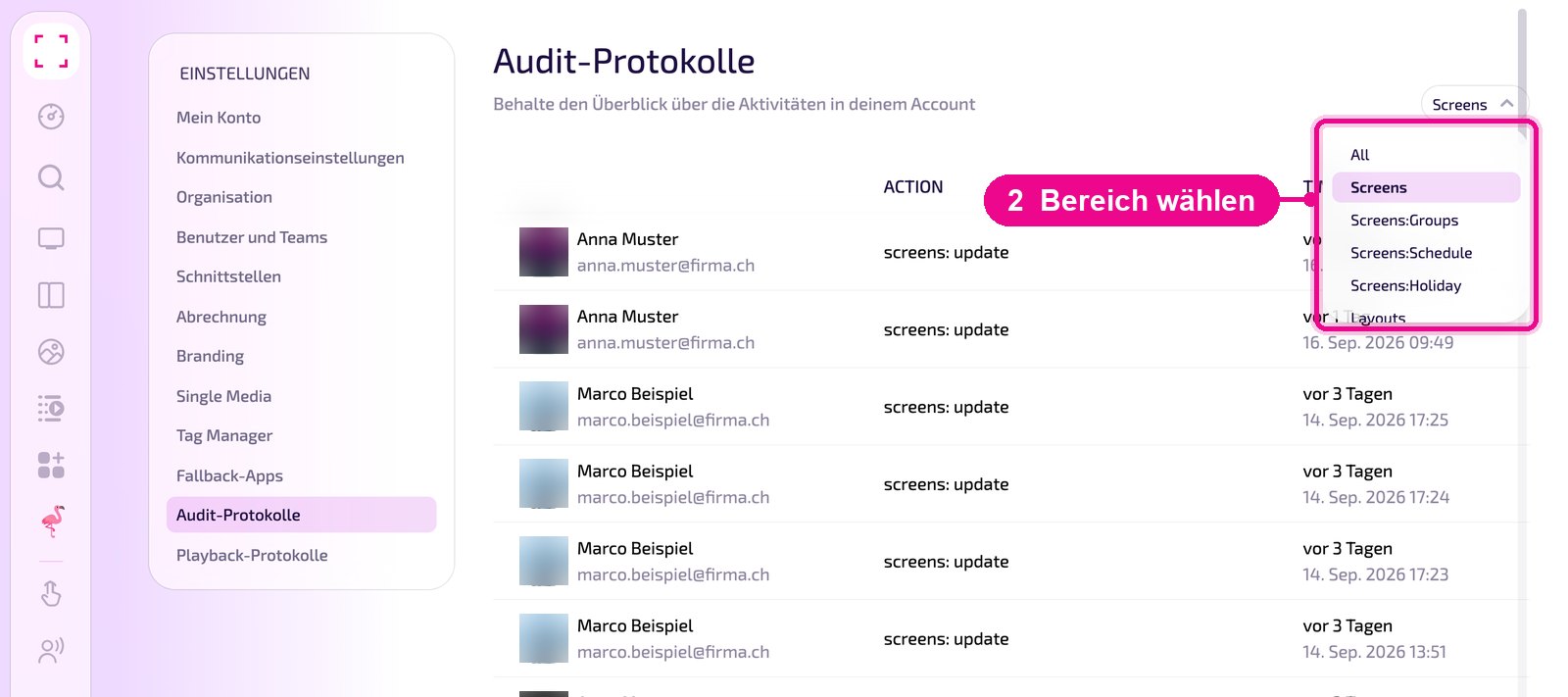
The available options are:
- Screens: «Screens», «Screens:Groups» (screen groups), «Screens:Schedule» (schedules), «Screens:Holiday» (holiday plans)
- Layouts: «Layouts», «Layouts:Elements»
- Media: «Folders», «Media», «Media:Tags», «Media:Schedule»
- Users: «Members»
- Playlists: «Playlists», «Playlist:Elements», «Playlist:Tags»
- Apps: «Apps», «Apps:Schedule», «Apps:Authentications»
- Designs: «Designer», «Designer_template»
The area names in the interface are in English. After the colon there is a subarea, for example «Screens:Schedule» for the screens' schedules.