AutoScroll
With the «AutoScroll» app, you display a publicly accessible website on the screen and have it scroll automatically from top to bottom.
Purpose
Long pages such as menu plans, news pages or your own website don't fit on a single screen. AutoScroll slowly scrolls through them; you decide the size of the visible section and the speed.
Requirements
- An active revolutionSCREEN account with access to my.rstv.app.
- The address (URL) of the website. The page must be accessible without a login.
- At least one configured screen.
Install the app
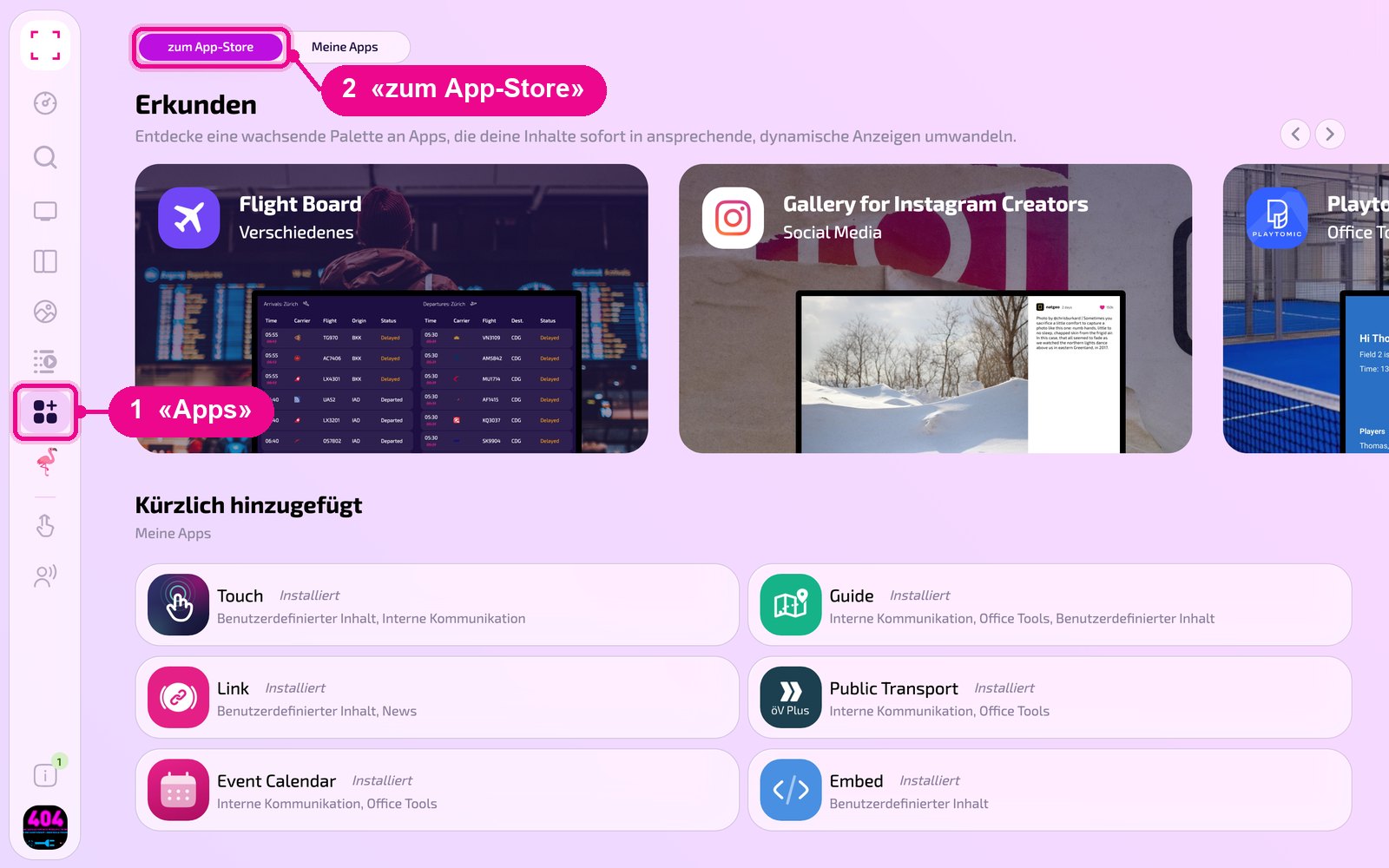
In the sidebar on the left, click «Apps» and then «zum App-Store» (to the app store) at the top.
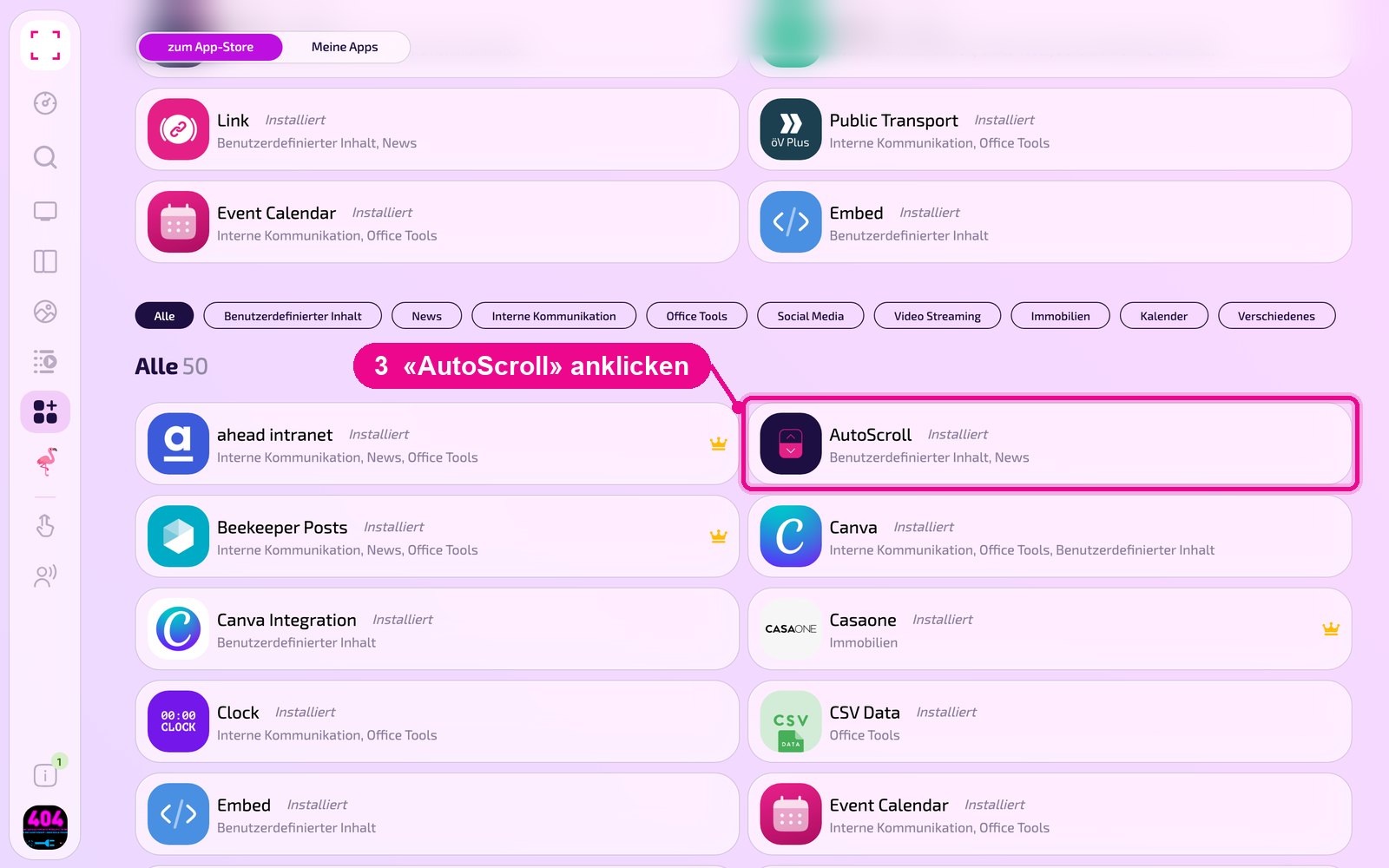
Scroll to the «Alle» (All) list and click the «AutoScroll» tile. Use the category buttons to narrow down the list.
The app's detail view opens. If it is not yet installed, first click «Installiere» (Install). Then click «Neue Instanz» (New instance). «App Guide» opens a quick guide.
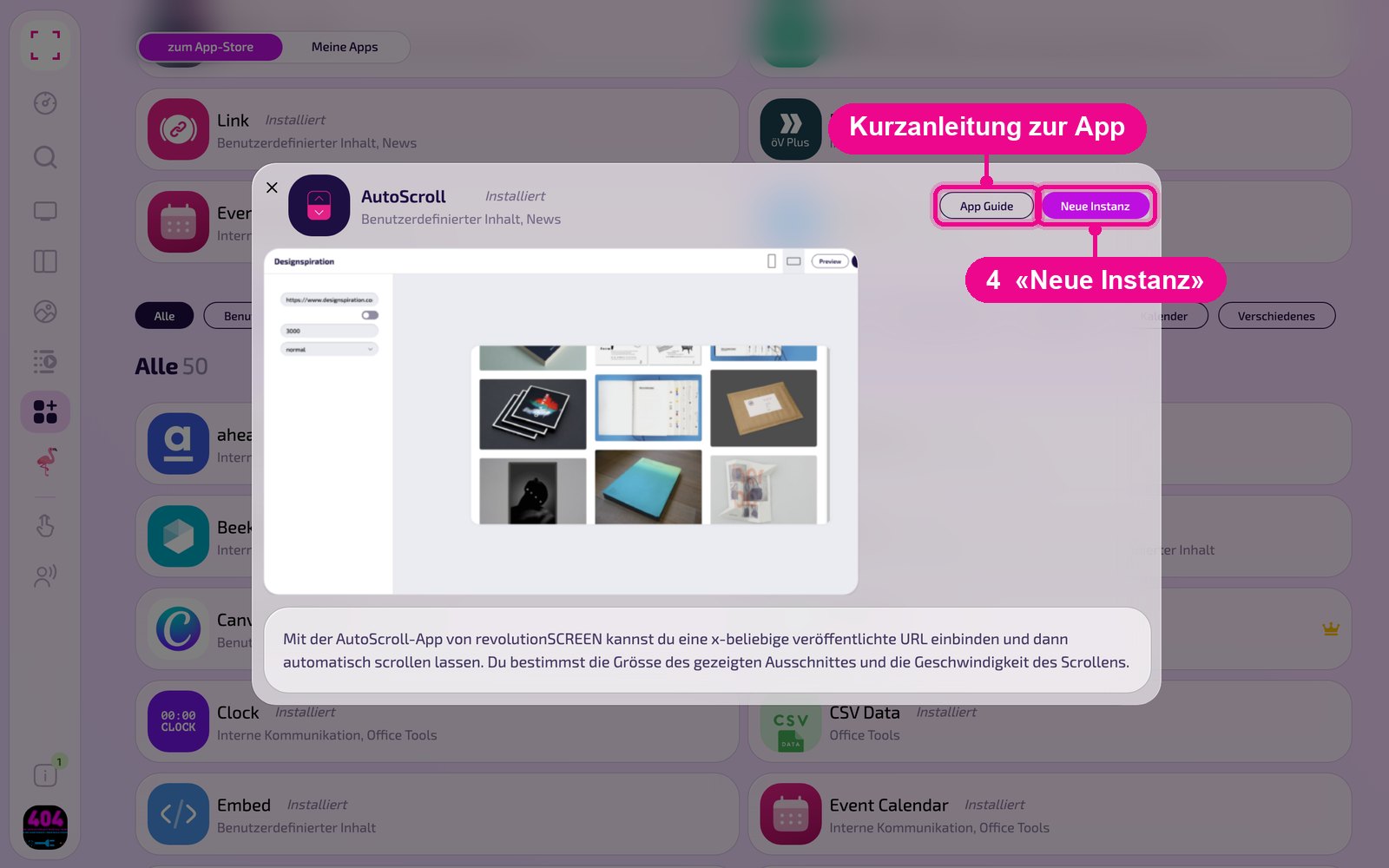
An instance is a separate configuration of the app, e.g. one gallery for the reception and another for the canteen. You can create as many instances as you like and use each one individually on screens, in playlists or layouts.
Create a new instance
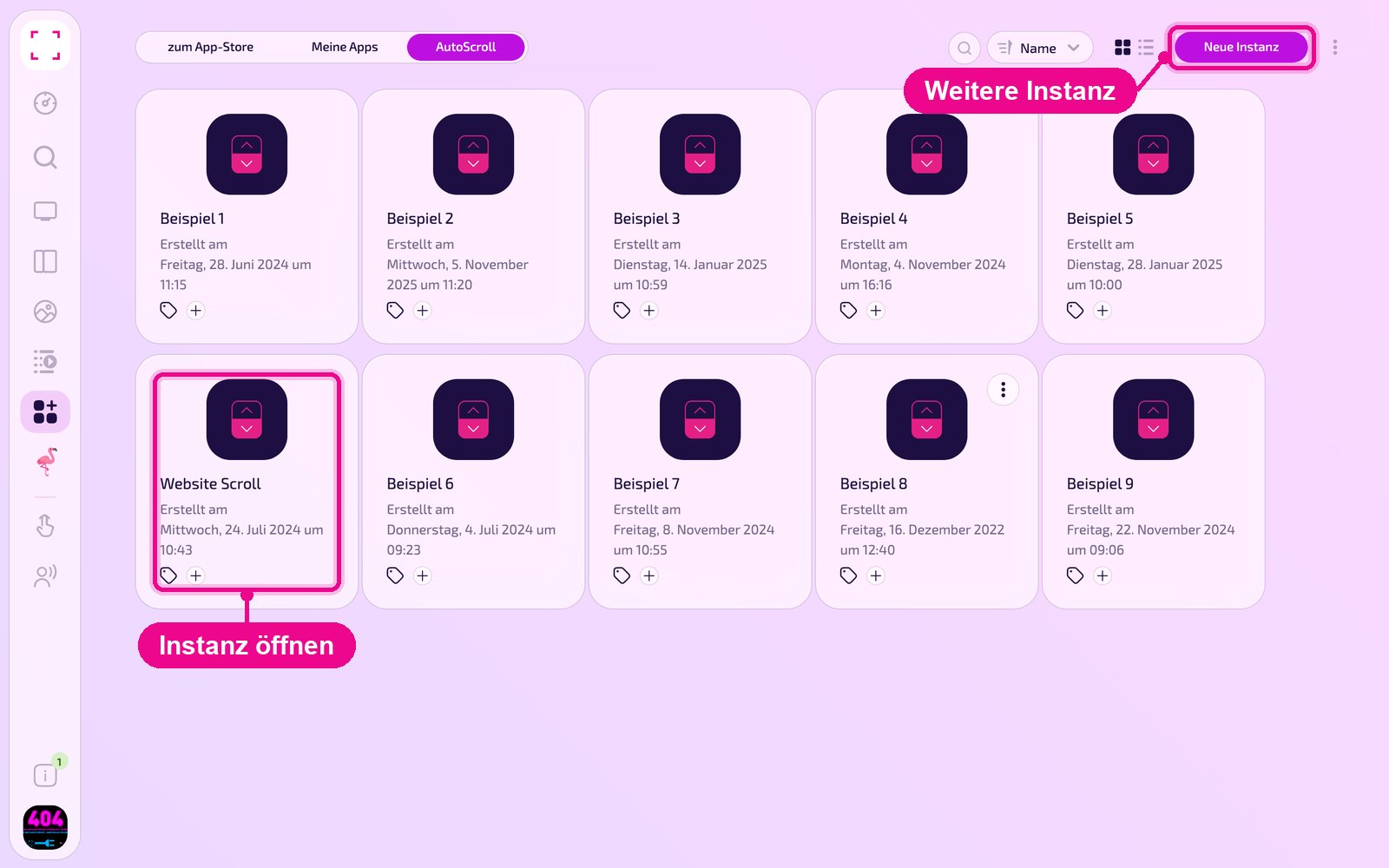
Under «Apps › Meine Apps» (My apps) you see all instances of the app as tiles. Use «Neue Instanz» (New instance) at the top right to add another one, or click a tile to open an existing one.
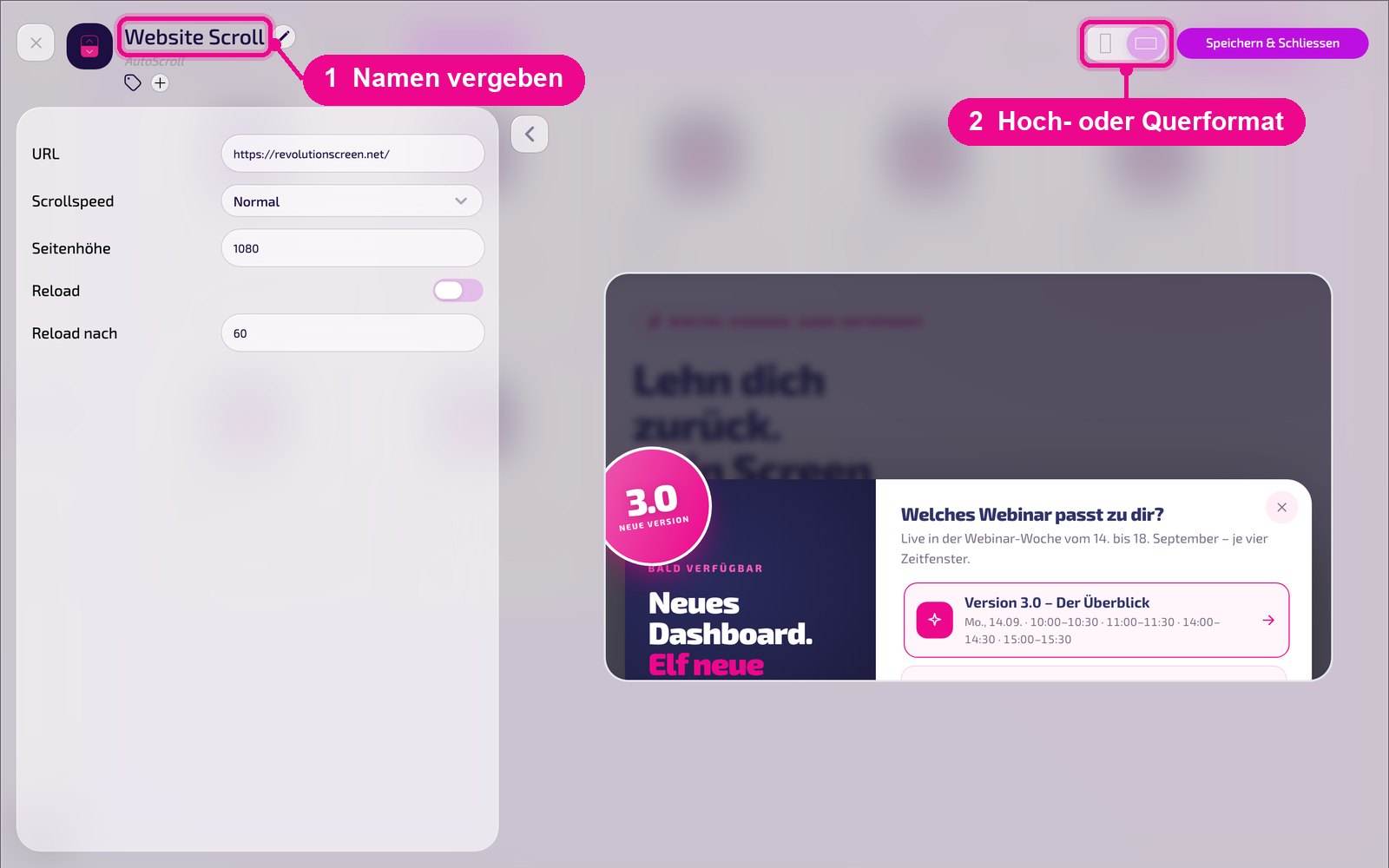
In the editor, hover over the title and click the pencil to give the instance a name. A new instance shows «Kein Name angegeben» (No name entered) in red until then. At the top right, you choose whether the preview appears in portrait or landscape format.
Configuration in detail
All settings are on the left, and on the right you immediately see in the live preview how the instance looks on the screen. Use the arrow next to the card to collapse the settings.
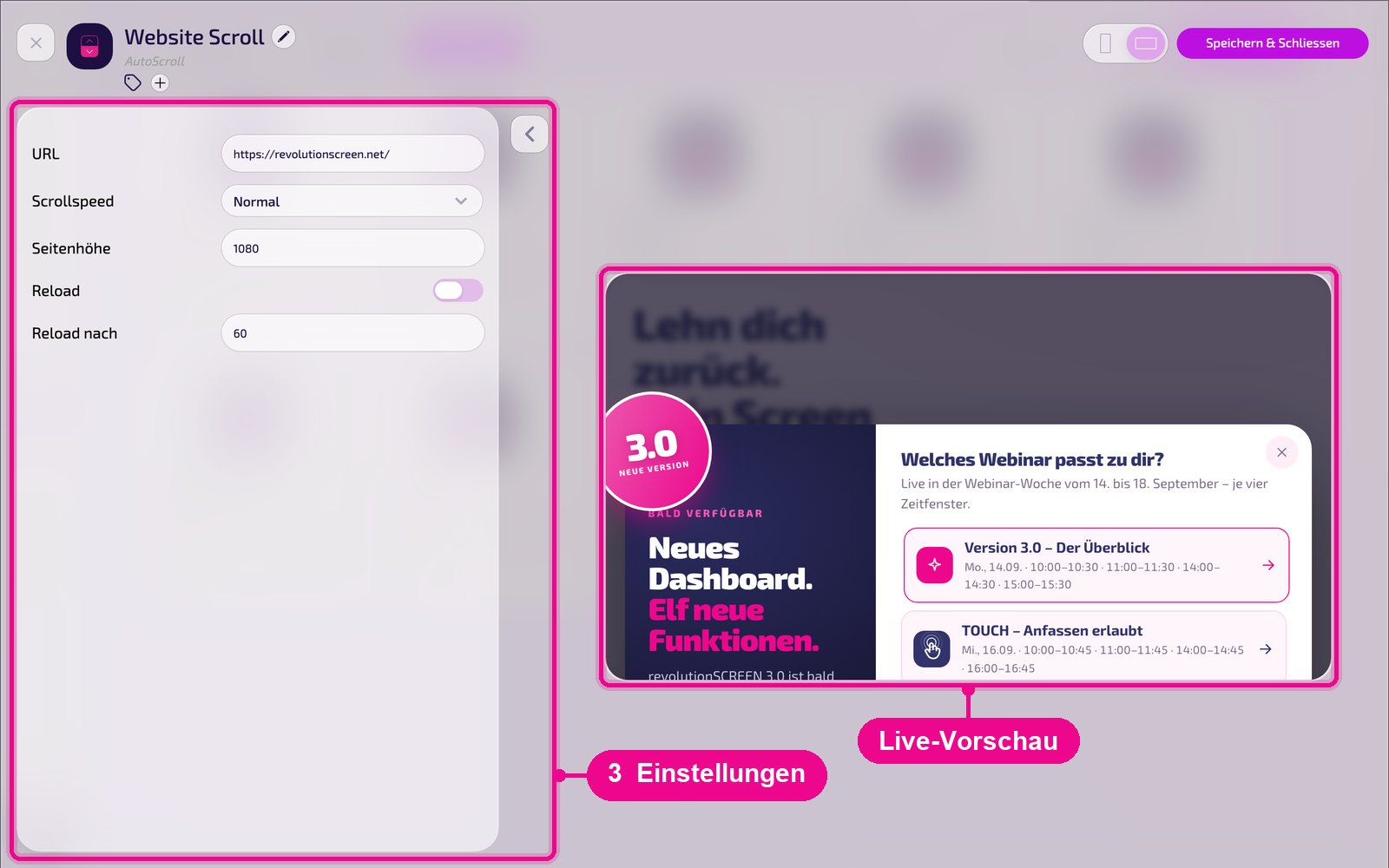
- URL: the address of the website, e.g.
https://…. - Scrollspeed: the speed at which the page scrolls, e.g. «Normal».
- Seitenhöhe: (page height) the height of the page in pixels that is scrolled through, e.g. 1080.
- Reload: reloads the page regularly so that new content appears.
- Reload nach: (reload after) time interval in seconds until the next reload, e.g. 60.
Save & display on the screen
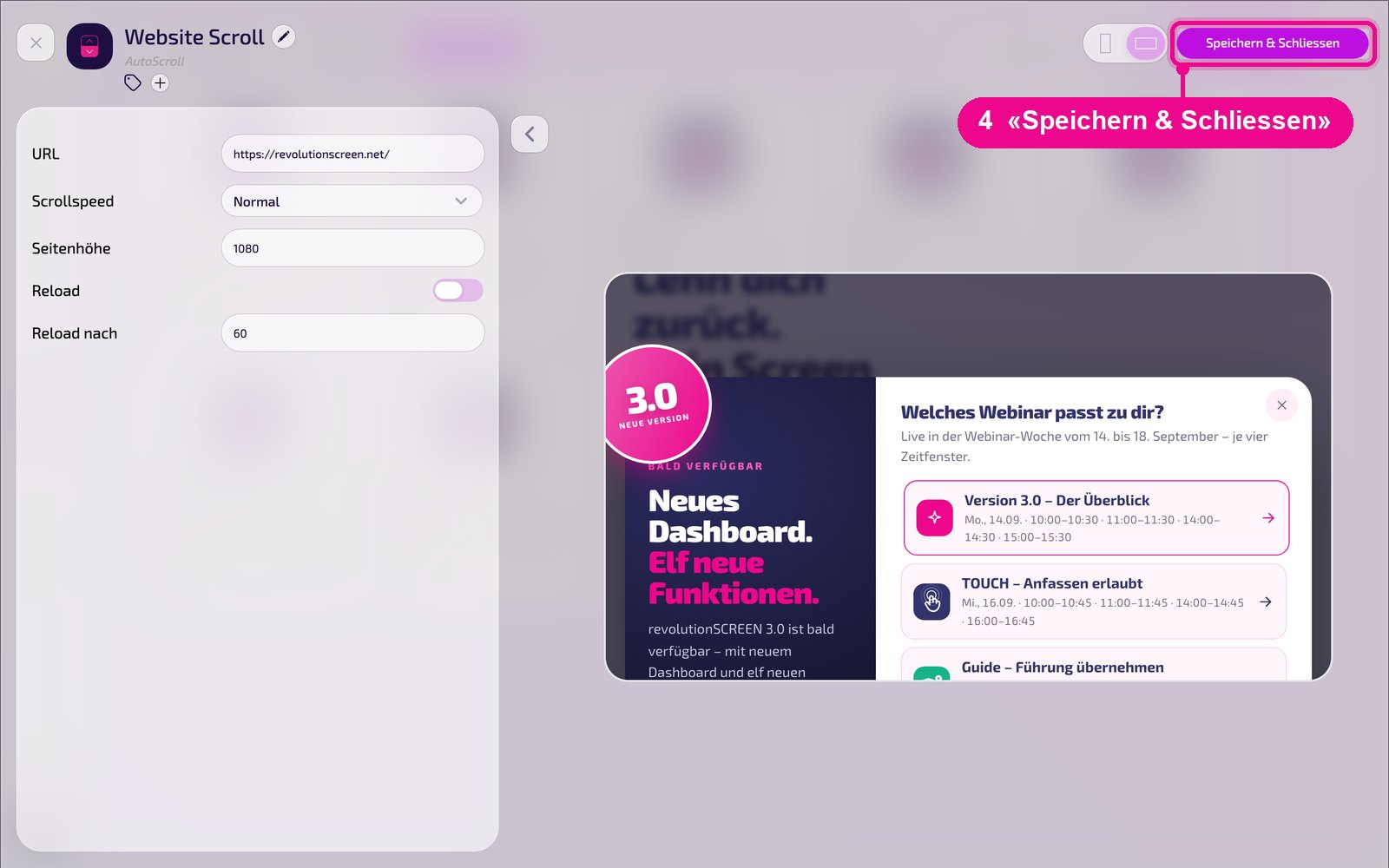
Save the instance at the top right with «Speichern & Schliessen» (Save & close).
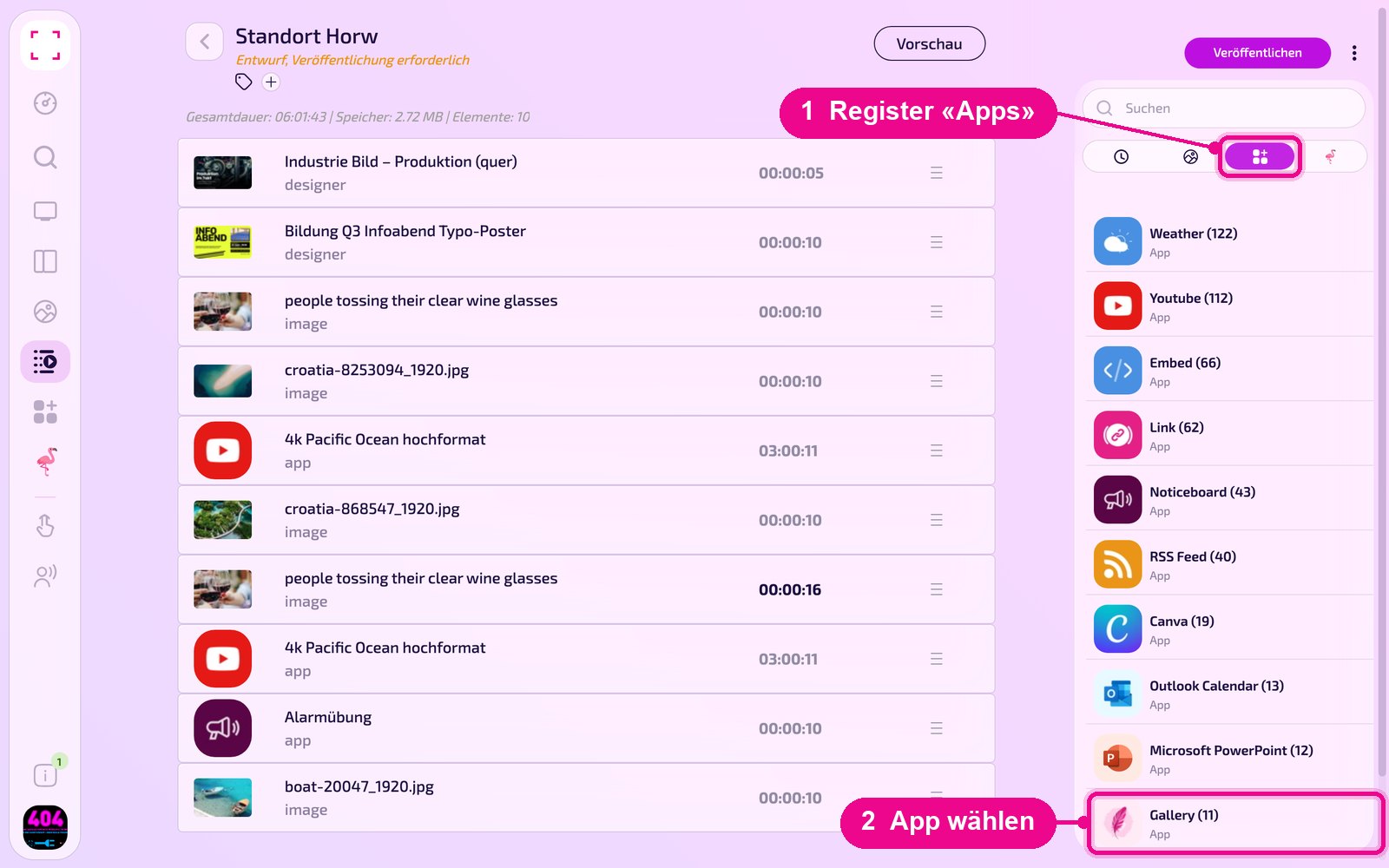
Add to a playlist: Open the playlist, select the «Apps» tab on the right, click the app and then the instance. The instance is added immediately.
Add to a layout: Open the layout and click the pencil on the desired section.
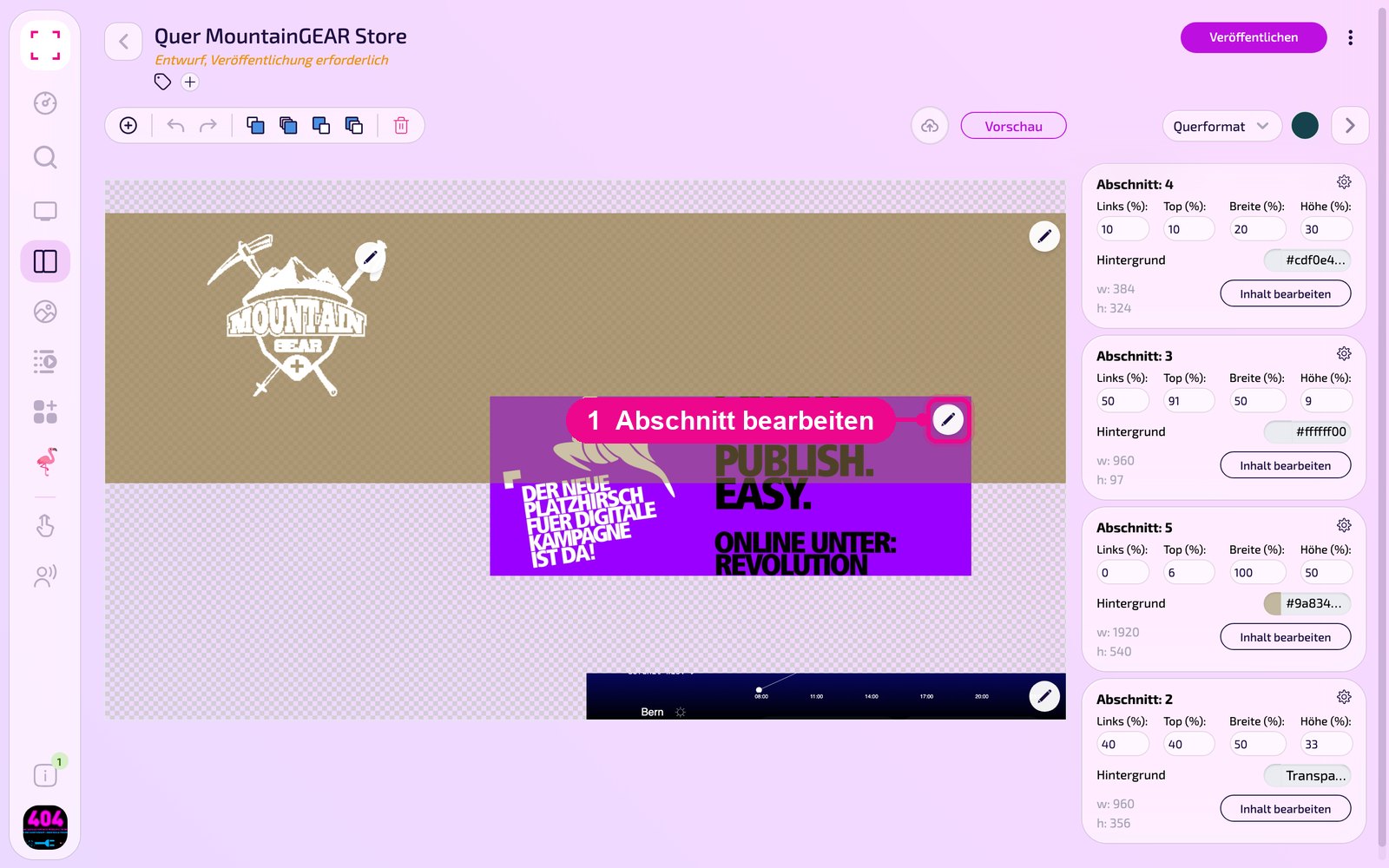
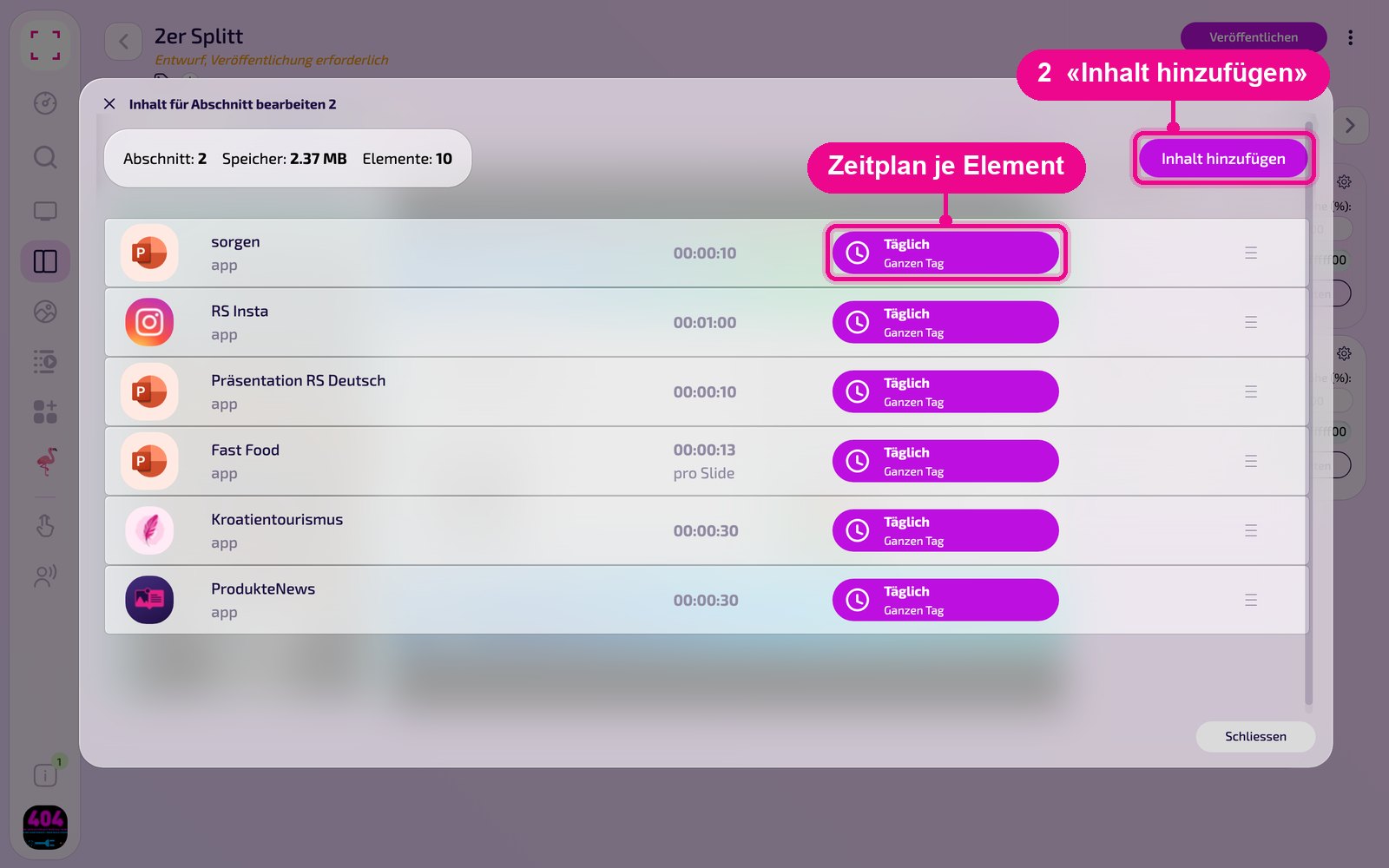
In the «Inhalt für Abschnitt bearbeiten» (Edit content for section) window, use «Inhalt hinzufügen» (Add content) to add the instance. On the right of each element, use «Täglich» (Daily) to set the schedule.
Then click «Veröffentlichen» (Publish) in the playlist or layout. As long as it shows «Entwurf, Veröffentlichung erforderlich» (Draft, publishing required), the screen still displays the old version.
Tips & troubleshooting
Page doesn't scroll all the way down
Increase «Seitenhöhe» (page height) until all the content scrolls through.
Too fast or too slow
Select a different speed under «Scrollspeed».
Page stays blank
Check the URL. Some pages prohibit embedding in other pages (X-Frame-Options).
Content doesn't appear
Check whether the playlist or layout is published and assigned to the correct screen, and that the Player is online.